User Remote Ssh
A BLXCode workspace can run against a remote machine over SSH. The terminals, agent CLIs, file explorer, file preview, and the Git sidebar all operate on the remote host — the local app is just the client. You manage reusable connection presets once, then pick one when creating a workspace.
-
Locally: the OpenSSH
sshclient on yourPATH(ships by default on Windows 11, macOS, and most Linux distros). -
On the remote: a POSIX shell. For the Git features you also need
git; for persistent (tmux) session resume you needtmux(otherwise that mode falls back to a plain login shell).
Open Settings → Remote to create and edit connection presets. The pane is a master/detail view: saved presets render as a grid of compact connection cards inside a framed section card, and clicking a card (or the Add connection button) opens a dedicated editor view.
Each card shows:
- The preset Name.
-
user@host:port. - The Authentication method (Password / Key file / SSH agent).
- The Session resume mode (Persistent tmux / Keepalive only).
- A masked Stored / Not set secret badge — no secret values ever leave the backend.
- The default Remote directory.
The card's footer is a localized Edit hint; click the card (or any of its controls) to open the editor.
The editor opens with a Back to connections header, a New connection / Edit connection title, and the full form:
| Field | Notes |
|---|---|
| Name | Label shown in the workspace wizard. |
| Host | Hostname or IP. |
| Port | Defaults to 22. |
| Username | Remote login user. |
| Authentication | Password, Key file (+ optional passphrase), or SSH agent. |
| Password / Passphrase | Write-only — once saved it shows Stored; leave blank to keep the existing value. |
| Private key file | Absolute path to the key (Key-file auth). |
| Session resume | Persistent (tmux) or Keepalive only — see below. |
| Remote directory | Optional start directory; defaults to the remote home. |
- Save persists the preset and returns to the refreshed list.
- Test connection validates host + auth end-to-end and reports success or a specific failure (auth failed, host unreachable, host-key changed, …).
- Delete removes the preset and its stored secrets, then returns to the list.
- Back to connections discards unsaved edits and returns to the list.
Where secrets live: passwords and key passphrases are stored in your OS keychain (Windows
Credential Manager / macOS Keychain / Linux secret service, with an encrypted file fallback on Linux).
They are resolved inside the app's Rust backend at connect time and are never written to the preset
file, shown in the UI again, or passed on the ssh command line. The masked Stored / Not set badge
on each card is the only hint the UI shows.
In the Create workspace wizard, the Connection dropdown chooses where the workspace runs:
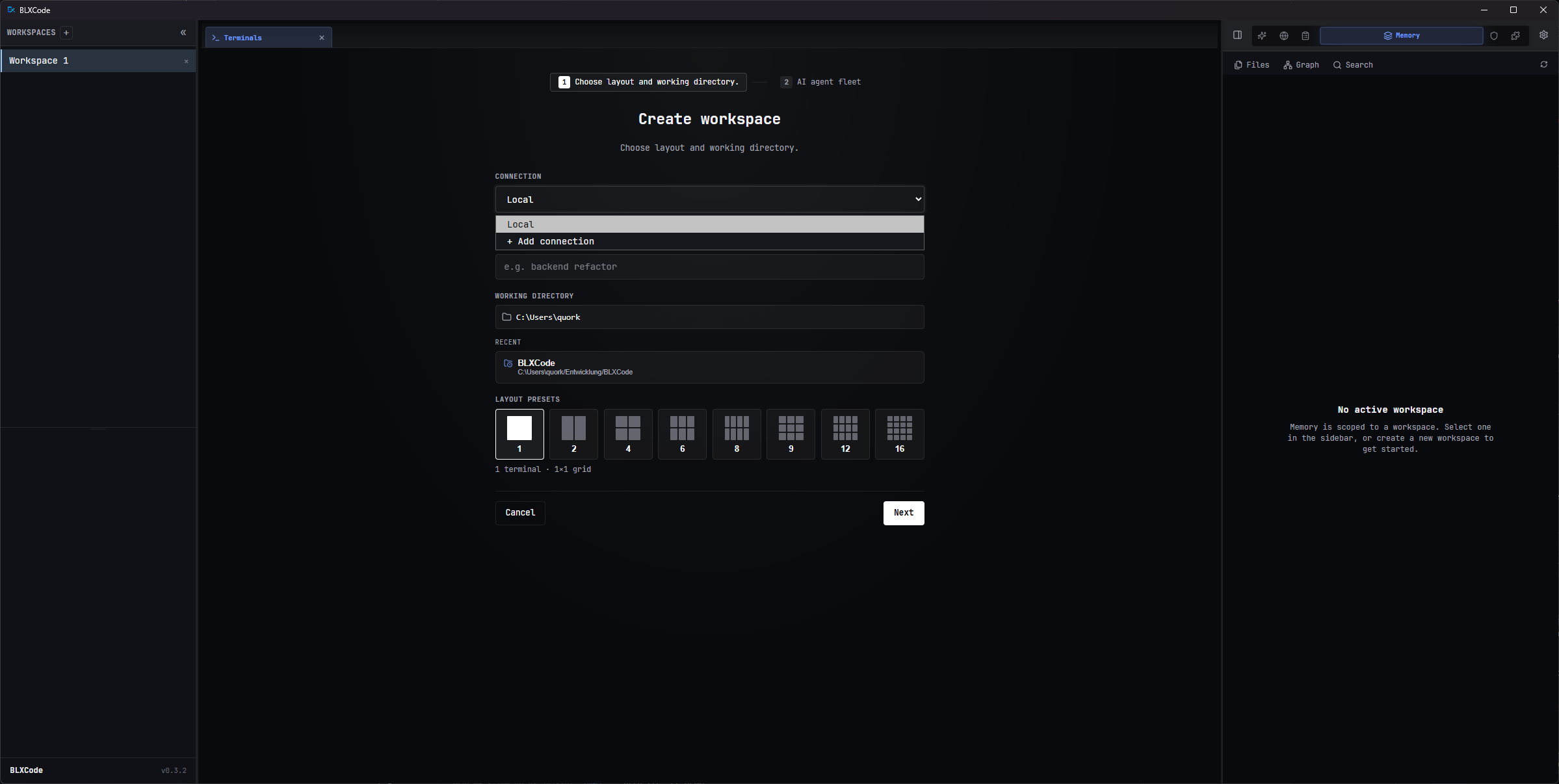
- Local — a normal local workspace (default).
- A saved preset (e.g. my-server · SSH) — runs the workspace on that host.
- + Add connection — jumps straight to Settings → Remote to create a preset, then come back to the wizard (your draft is preserved and the connection list reloads).
For a remote workspace the Working directory field is the remote start directory (optional). The rest of the wizard — layout preset and agent fleet — works exactly as for local workspaces.
Once open, a remote workspace behaves like a local one:
- Terminals — each pane is an SSH session; agent CLIs (Claude, Codex, …) run on the remote host.
- File explorer & preview — browse the remote tree and preview text, source, images, video, Markdown, and Mermaid; create files/folders.
- Git — full read + write: status, per-file diff, stage/unstage, commit, the commit graph, branch label, fetch/pull/push, and AI commit-message generation, all against the remote repo. The Git sidebar refreshes on a short interval (there is no remote filesystem watcher).
- Session resume — see below.
Remote workspaces show a small SSH badge in the sidebar so they're easy to tell apart from local ones.
Each connection picks how its work survives disconnects:
-
Persistent (tmux) — reattaches a server-side
tmuxsession keyed to the terminal. Running agents and shells survive idle, closing the workspace, and restarting the app; reopening reattaches the exact session. Requirestmuxon the remote (falls back to a login shell if it's missing). - Keepalive only — the connection stays alive while idle, but reconnecting starts a fresh shell. No remote dependency.
For agent CLIs in keepalive mode (or after the remote process actually died), BLXCode also tries to resume the newest agent session for the remote directory automatically.
Important: today each terminal opens its own SSH connection (plus one shared connection for file/git operations). A workspace with N terminals makes roughly N + 1 SSH connections to the host.
This matters for large terminal grids (e.g. 12 or 16 panes), because the remote sshd enforces two
defaults that can reject the extra connections:
-
MaxSessions(default 10) — max concurrent sessions per connection/host. -
MaxStartups(default10:30:100) — limits the rate/burst of unauthenticated connections, so many panes opening at once can be throttled or dropped.
If some panes in a big grid fail to connect, either use a smaller grid, stagger opening, or raise those
limits in the server's sshd_config. Each connection also re-authenticates, so password auth prompts
once per terminal (injected automatically) and large grids cost more handshake latency.
A planned change will multiplex all terminals over a single authenticated connection per preset, which removes the per-terminal connection cost (tracked in the developer notes).
- Secrets stay in the OS keychain / app memory — never in the preset file, the UI, or
ssharguments. - Host keys use trust-on-first-use (
accept-new): a new host is trusted and recorded in yourknown_hosts; a changed key is refused with a clear error (protects against MITM). - Remote file operations are confined to the workspace directory (path traversal is rejected).
-
"ssh not found" / connection never starts — install/repair the OpenSSH client and ensure
sshis on yourPATH. -
Some terminals in a large grid won't connect — the remote
sshdis capping connections; see Connection limits & large grids. -
Persistent resume didn't reattach — the remote is missing
tmux; install it or use Keepalive. -
"host key verification failed" / changed key — the remote's key changed since first use. Verify
it's legitimate, then remove the stale
known_hostsline on your machine. - SSH agent on Windows — agent auth depends on a running OpenSSH/Pageant agent; if it isn't picked up, use key-file or password auth.
- Workspaces — creation, terminal grids, sidebar, Git diff/sync.
- Settings — the settings categories incl. Remote.
- Developer internals: SSH remote transport.