Locomotives and Mobile Control
The locomotive editor stores each locomotive's stable ID, DCC address, name, maximum speed, image, functions, direction inversion, and optional actions.
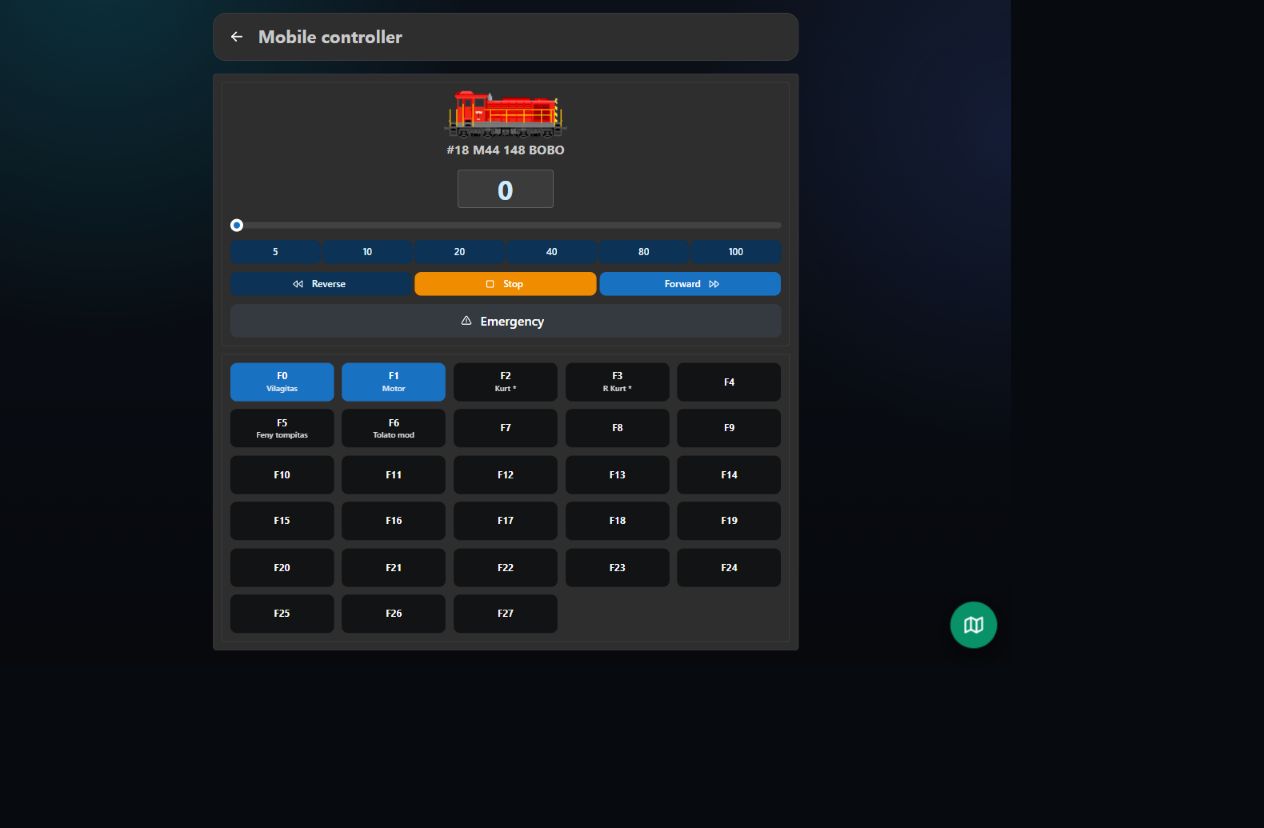
- Select a locomotive.
- Use the slider or preset speed buttons.
- Select Forward or Reverse.
- Use Stop for the selected locomotive.
- Use Emergency Stop for the complete command station.
- Function buttons F0–F27 support normal and momentary operation.
Direction inversion is applied server-side before DCC throttle commands are generated. Image mirroring is client-side and stored per browser, allowing phones on opposite sides of the layout to show the locomotive nose correctly for their viewpoint.
A Bluetooth or USB game controller can operate the locomotive selected in an open throttle panel. Button assignments, controller selection, defaults, and troubleshooting are described on the dedicated Gamepad control page.
If both locomotive panels are visible in the Layout Editor, gamepad actions are received by both panels. Close the panel that must not receive gamepad commands, or use the single-panel Mobile Controller.
The floating layout button opens a runtime-only track panel without editor or property panels.
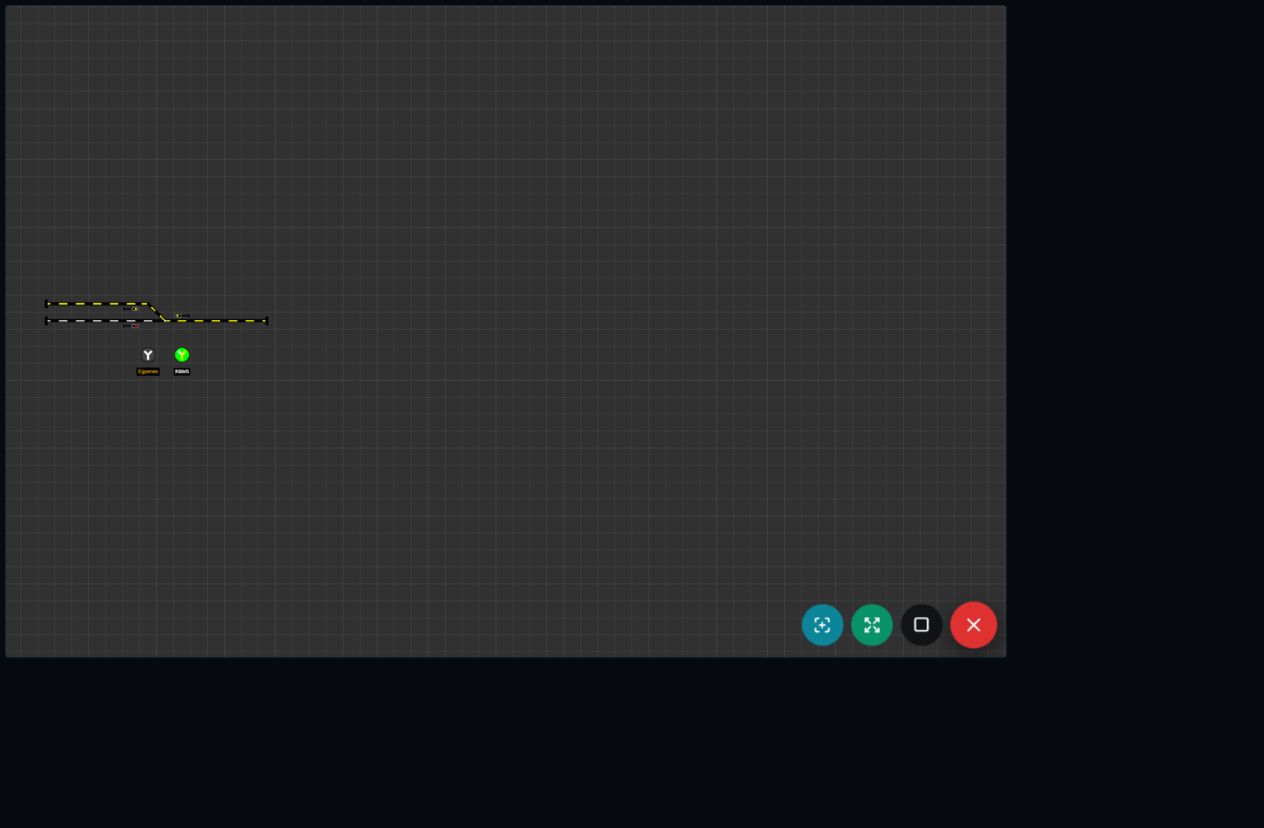
The floating controls provide:
- Center view
- Fit view
- Emergency stop
- Close layout panel
Route buttons use the same progress overlay and emergency-stop behaviour as the desktop layout.
Multiple browsers can be connected simultaneously. Locomotive, turnout, accessory, sensor, signal, power, and emergency states are broadcast through WebSocket updates. A lost WebSocket connection is shown in red and reconnects automatically.