User manual
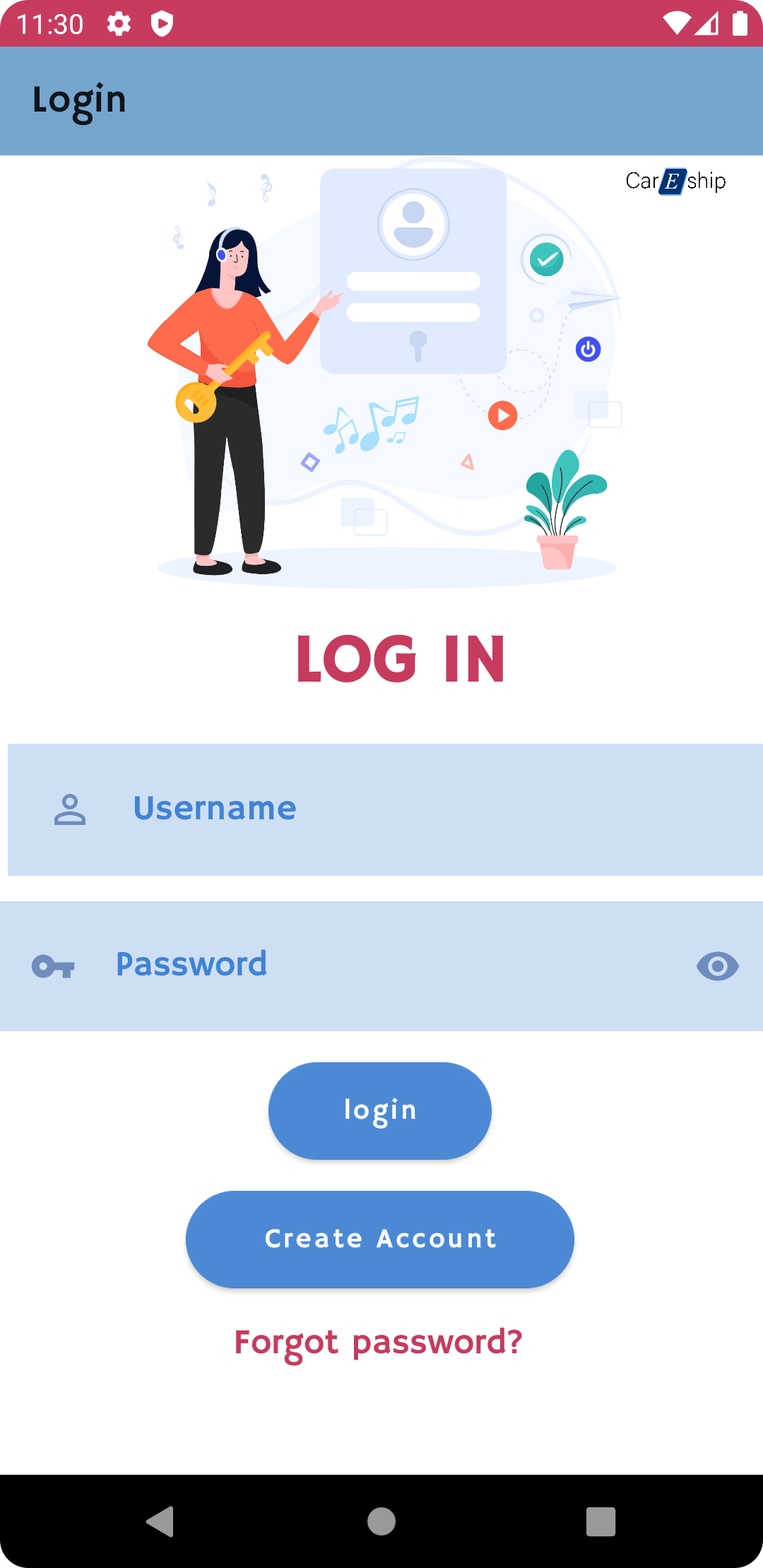
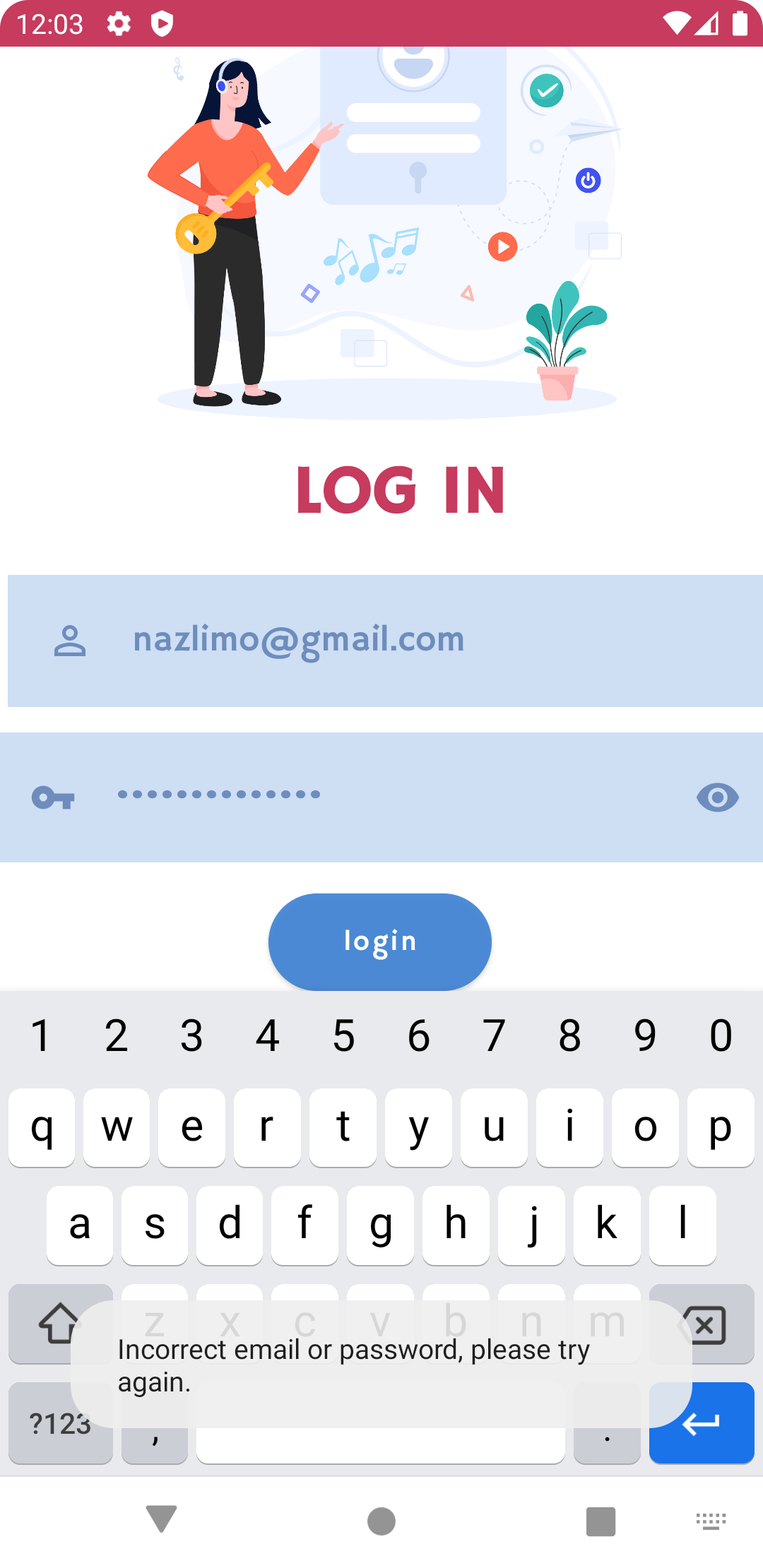
- Customer login: If you want to login as a customer, you should fill in your username and password in the text field that is provided, and click the login button.If your login credentials are correct you will be directed to the products page.If you fill in incorrect information,the message “Incorrect email or password, please try again” will be displayed on the screen.
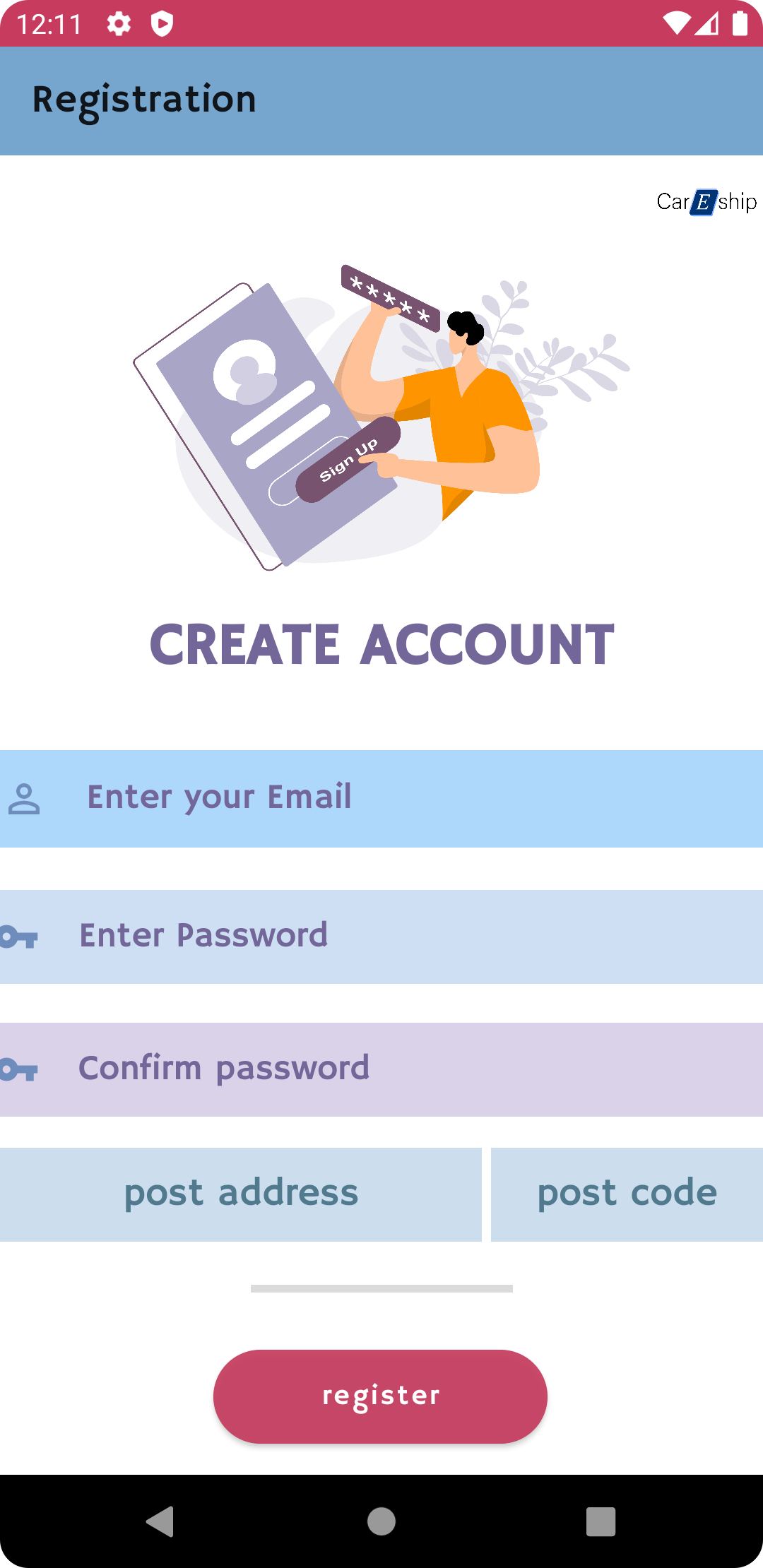
- Create account: If you don’t have an account in the careship application, you can create one by clicking the Create Account button in customer login page.You will be directed to Create Account page and you can fill in the information. You should click register button in order to be registered in the system.After being registered to the system the message "Account has been created successfully" will be displayed in the screen.
Notes: If one of the fields has been missed, a notifying label will be shown on the screen and asking you to enter non-empty values. Your password has to be at least 8 characters. You should follow the correct format of email (e.g :careship1@gmail.com)

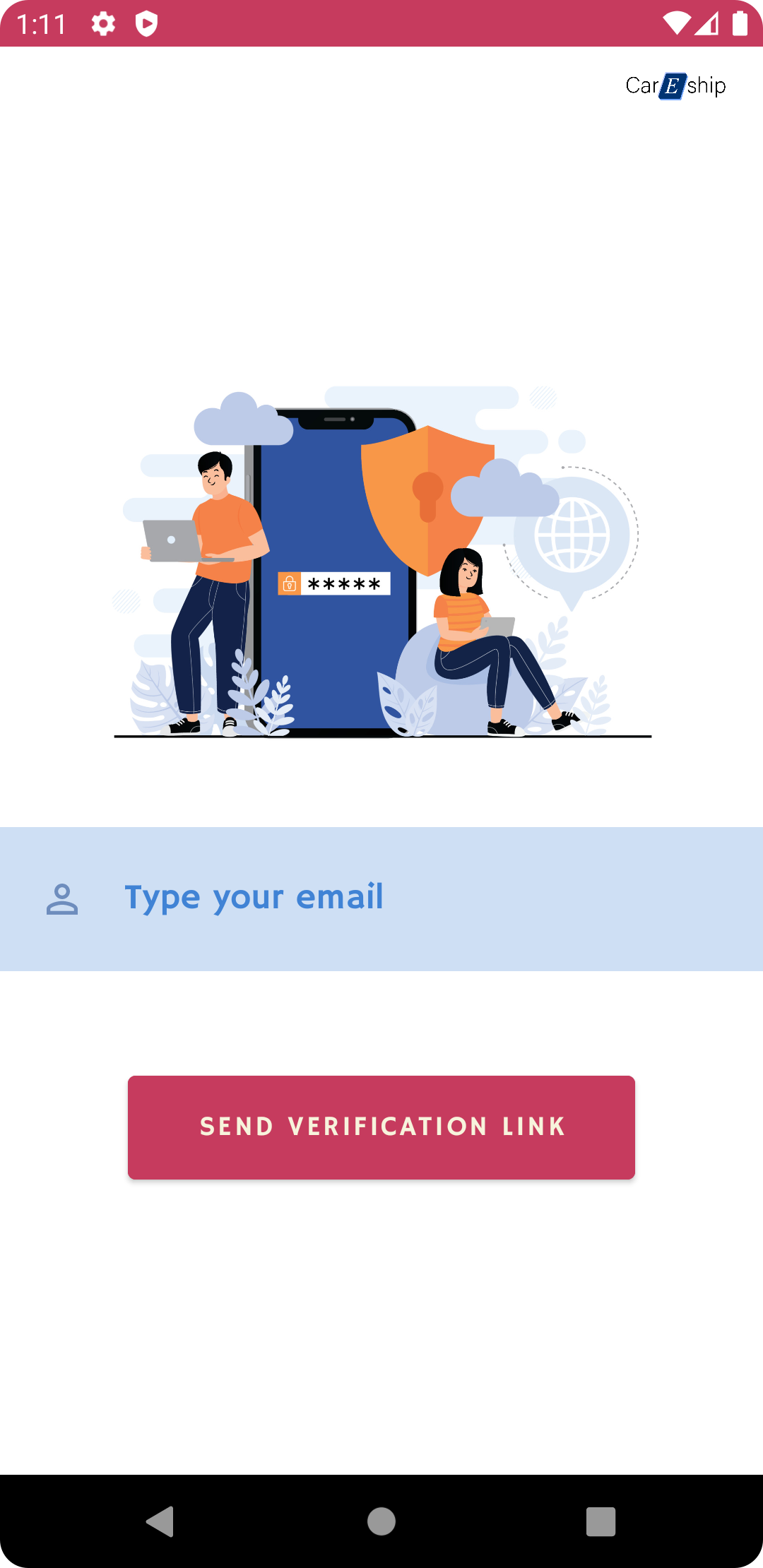
- Forgot password: In case you forgot your password you can click on the “Forgot password” button on the customer login page, Then you will be directed to the page that you should provide your email.There would be a message "Email has been sent successfully! please check your email".Then a verification link would be sent to your email.After receiving the link you can use it to provide your new password.


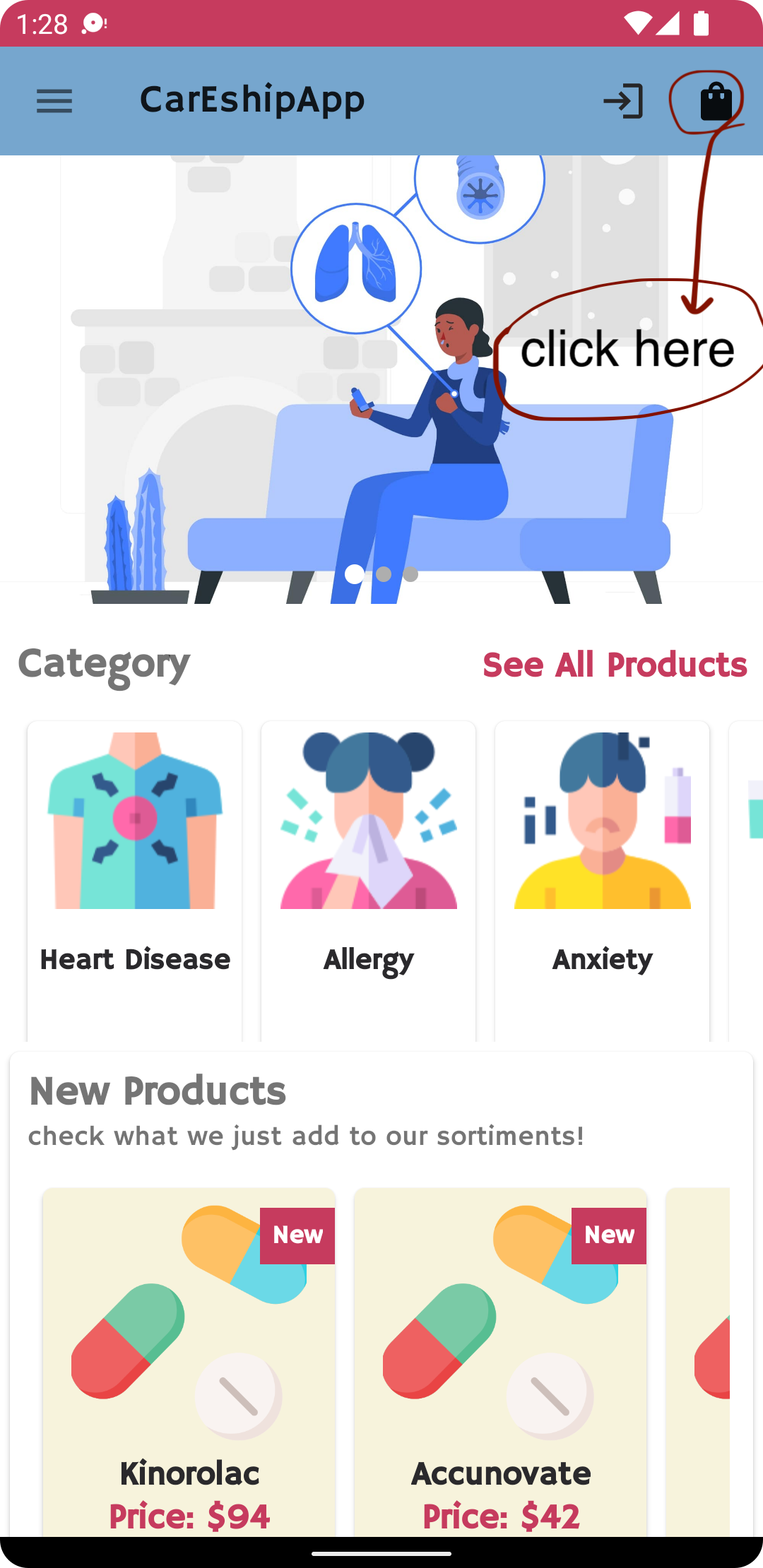
- Products home screen: After logging in, you will be directed to the page where you can see the list of all available products categorized based on the symptoms, and you can click the specific symptom and buy the medicine you are looking for. For example, you will be directed to the page below after clicking anxiety.


Note:You can search for the medicine by clicking on the space above the line at the top of the page and enter the first alphabets of the medicine you are looking for to optimise your search.

- Buy a product: After clicking on the medicine you want to purchase, you will be directed to the page where you can see the description of the medicine, its rating number, and its price. There are two icons in the shape of positive and negative below the price, and they are for adding or removing the number of medicine you want. You can have as many as the specified products by clicking on these icons. Then you can finalize your purchase by clicking the "Add order" button.

-
Card information : To finalize your payment, you have to enter your credit card information. Fill out the blank spaces for account number, expiration date, CVV, and cardholder. Then press the complete payment button to finish the purchase process.
-
Delivery information: After buying the medicine, you will be directed to the page where you can enter the delivery information. Fill out the blank spaces regarding the postal address, postcode, and contact number. Then press the “Done” button. You will be directed to the confirmation page, which would say your payment was successful. You can see the estimated delivery time and order date on the page.

- Order history You can see the new order that you made on the product's home screen. You can see a small bag icon at the top of the page. You can click on that, and you will see the information about your order.