Repository navigation
Precise Seam Placement Feature for OrcaSlicer
Pre-release
New modifier type Precise Seam that allows users to control exact seam placement on 3D prints using volume-based intersection geometry.
Includes:
- 6 seam modifier subtypes: Center, Left, Right, Enforced, Blocked, Neutral
- Core algorithm: perimeter segment detection via mesh-layer intersection
- SeamPlacer integration: modifiers override seam zone painting on affected perimeters
- GUI: context menus, icons, volume sorting, Change Type support
Description
Precise Seam is a modifier system that gives you precise control over where exactly the seam will be placed on a model during 3D printing. You place a modifier volume on the model, and the seam runs exactly where that volume intersects the model's walls.
The system allows you to either define the exact seam position on the perimeter, or set up allowed and forbidden zones.
For quick results, you can use built-in primitives as modifiers. For complex geometries, you can create a custom auxiliary body once in any 3D modeling software and reuse it permanently. Even for the most complex geometries, placing the seam takes just a couple of clicks. This is especially valuable during iterative design — since the modifier is a persistent object, it survives model changes automatically. There is no need to repaint seam zones after each revision. This completely eliminates manual work and provides an unprecedented level of convenience for seam control.
Wow.Effect-Precise.Seam.mp4
Note
This modifier body was created by sweeping a triangular cross-section along a curved path on the surface of the mesh. A circle is the easiest base profile to use since it doesn't require aligning its orientation. You can also try a regular polygon with enough sides — it has a predictable edge count and works faster, while a circle tends to be unnecessarily over-detailed.
Note
If you export a model together with auxiliary geometry, change the type of the auxiliary bodies to Modifier before performing any build-plate placement operations on it. Otherwise, automatic placement features (such as "Place on Face") may not work correctly, because conflicts will arise with the faces of the auxiliary bodies.
Modifier Types
Precise Seam includes 6 modifier types, divided into two groups:
Strong Modifiers (Exact Positioning)
Define a specific point on the perimeter where the seam will be placed. They work strictly: if a Strong modifier intersects a wall — the seam goes exactly there, no alignment strategy can move it.
| Type | Behavior | When to Use |
|---|---|---|
| Center | Seam is placed at the geometric center of the intersection segment between the modifier and the wall | Universal option. The seam will be in the middle of the intersection area — the most predictable behavior |
| Left | Seam is placed at the beginning (first point) of the intersection segment | When you need to pin the seam to a specific edge of the intersection |
| Right | Seam is placed at the end (last point) of the intersection segment | When you need to pin the seam to the opposite edge of the intersection |
Weak Modifiers (Zone-Based Control)
Do not define a specific point, but mark zones on the perimeter, influencing the priority during seam selection by the standard algorithm.
| Type | Behavior | When to Use |
|---|---|---|
| Enforced | The intersection zone is marked as preferred (green) for the seam | Equivalent to manually painting green seam zones. Use when you want to softly attract the seam to an area without pinning it to a specific point |
| Blocked | The intersection zone is marked as forbidden (red) for the seam | Equivalent to manually painting red seam zones. Use when you need to remove the seam from a visible surface or critical area |
| Neutral | The intersection zone is marked as neutral (gray) | Use when you want to reset a zone to the initial neutral state |
Known Limitations
Warning
The modifier must penetrate the object deep enough to account for the seam width, since the algorithm intersects the printed perimeter, which is offset inward from the wall by half the seam width.
Warning
Strong modifiers (Center/Left/Right): only one intersection per perimeter is supported, since there can be only one seam. Additional intersections are ignored.
Weak modifiers (Enforced/Blocked/Neutral): multiple intersections are supported, but none of them should pass through the model entirely. A through-body intersection (more precisely, through-printing-perimeter) produces multiple segments, of which only one will be processed.
In both cases, a pop-up warning is shown when unsupported intersections are detected.
If any modifier has a multiply-connected cross-section (e.g. a hollow or torus-like shape), it is skipped and a corresponding notification is shown. This case can still be covered with small workarounds — for example, splitting the modifier into two parts.
Full containment of the perimeter within modifier is not handled.
Modifier Behavior and Technical Notes
Precise Seam modifiers integrate smoothly into the existing seam placement pipeline. In areas not covered by any modifier, the built-in seam algorithms work unchanged.
The modifiers simply augment (with higher priority) the existing zone-painting mechanism:
- Strong modifiers: mark all perimeter points as BLOCKED except for one, which is marked ENFORCED. The built-in algorithms then take over from there.
- Weak modifiers: apply automatic zone painting on top of any manual painting, marking points according to their type (Enforced/Blocked/Neutral).
Hierarchy and Priorities
When multiple modifiers are present, their priority is determined by position in the object tree — modifiers higher in the tree have higher priority. Strong modifiers are always positioned above Weak ones in the tree — this is built-in behavior, because Strong always takes precedence over Weak. When a Strong modifier fires, all modifiers below it in the list are ignored for that perimeter.
If multiple Weak modifiers overlap in the same zone, the ones higher in the list take precedence, and the zone is painted in the corresponding "colors" according to this order.
Modifier order can be rearranged via drag & drop in the object tree.
Working in the Interface
Adding a Precise Seam Modifier
Adding a Precise Seam modifier follows the standard modifier workflow: right-click on an object — either in the object tree or on a selected object in the scene — and select "Add precise seam" from the context menu, then choose a specific 3D shape for the modifier.
You can also convert any existing 3D object (including other modifiers) in the scene into a Precise Seam modifier. The only requirement is that only objects within a group containing at least one other body can be converted into modifiers — a standalone object outside of any group cannot be converted. Groups and hierarchy are visible in the object tree.
To convert, find the object you want to convert in the object tree and make sure it is within a group. Select it and verify visually in the scene that it is the correct object. Then right-click it (in the scene or in the tree), select "Change type" from the context menu, and choose "Precise Seam" from the dropdown list.
Primitives-Precise.Seam.mp4
Changing the Modifier Type
Once you have a Precise Seam modifier, you can change its type to any of the six available variants. Select the modifier in the tree or in the scene, right-click, and choose "Precise Seam Type" from the context menu — it will show a list of all Precise Seam modifier types. Select the one you need.

Visual Distinction of Types
Each Precise Seam type has its own color in the 3D view (all at 60% transparency):
| Type | Color | Description |
|---|---|---|
| Center | 🟠 Orange | Warm orange — primary Strong type |
| Left | 🟡 Gold | Bright golden |
| Right | 🟠 Dark Orange | Deep orange |
| Enforced | 🟢 Green | Green — "allowed" zone |
| Blocked | 🔴 Red | Red — "forbidden" zone |
| Neutral | ⚪ Gray | Gray — neutral zone |
Strong modifiers are visually unified with warm orange tones. Weak modifiers use intuitive colors: green = allowed, red = forbidden, gray = neutral.
YouTube Full Demo Video
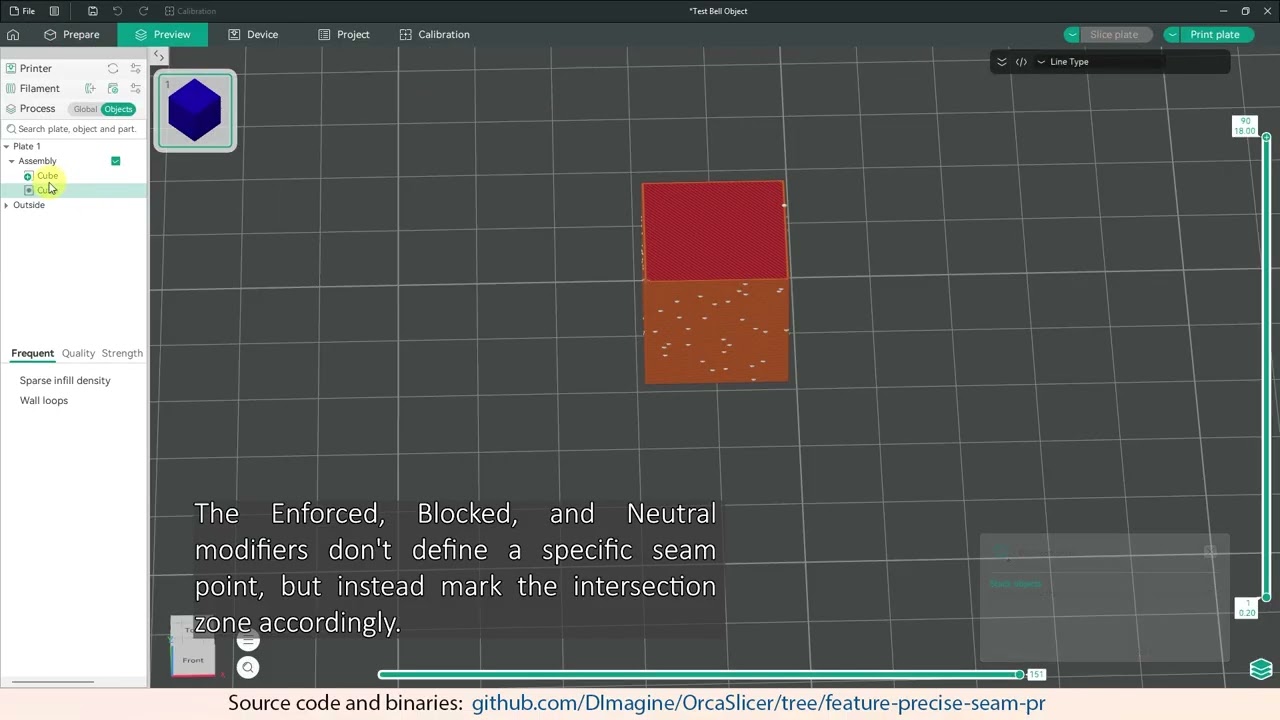
Demonstrates the behavior of all six modifier subtypes and their application hierarchy based on their position in the object tree.
Test Files
Test Bell Object.zip This test file was created by drawing a spline curve on the surface of the printed object, then sweeping a triangular profile along it (Swept Boss/Base in SolidWorks). This way the seam follows the desired trajectory precisely. A circular profile can also be used as the sweep cross-section — this avoids orientation issues.
Big Test.zip Another file demonstrating all modifier types.
Note
These test files have only been verified on Windows. Testing on Linux (AppImage/Flatpak) and macOS would be greatly appreciated — please share your results in the comments.
Debug Instruments
A debug branch that dumps geometry data to files:
https://github.com/DImagine/OrcaSlicer/tree/feature-precise-seam-debug
Python scripts for data visualization:
Precise Seam Python Visual Debug.zip
Feature Development Progress Log
Progress data was logged at each stage of feature development. This information is included for reference, as it may be helpful for understanding the algorithm's internals.
Precise Seam Progress Log.zip
Related Issue
Closes OrcaSlicer#11162
Closes OrcaSlicer#5118
May also help
These issues describe different approaches to the same underlying problem — explicit seam placement control. This PR provides a different mechanism (modifier objects), which may be useful for the reporters:
Changelog
- 2026-03-27: Added handling for multiple intersection edge case
- 2026-03-28: Added pop-up warning message if multiple intersections are detected
- 2026-03-28: Improved detection and handling of multiple intersections, refined user notifications for problematic modifiers
- 2026-03-29: Some minor updates and improvements
- 2026-03-31: Refactor PreciseSeam based on AI code review findings
- 2026-04-10: Fix raft offset in Precise Seam cache indexing, add legacy modifier flag in 3MF export. Based on Codex code review.
- 2026-04-12: Fix 3MF round-trip, refine_at_vertex direction, PrintApply cross-family asserts, multi-select type dialog, GUI config paths and SLA clipboard for Precise Seam. Based on Codex code review.
- 2026-04-17: Fixes from Claude Opus 4.7 code review; false positives in accompanying file; rebased onto latest
main.
Code Review - Known False Positives.md - 2026-04-18: Restored Precise Seam in the Change Type context-menu flow after upstream
d7dbe6a0edreplaced the modal dialog with a submenu. Added "Precise Seam" entry to the new Change Type submenu (with subtype preservation on already-PS volumes) and reworked the "Precise Seam Type" subtype submenu to support multi-select with correct PS group-reorder. - 2026-04-20: Isolated dead-code cleanup into OrcaSlicer#13281; restored ObjectList::change_part_type() and its refs, narrowed the SVG/text guard in set_volume_type() to PS-only via is_precise_seam().
- 2026-04-25: Rebased onto upstream/main (incl. merged OrcaSlicer#13281); kept upstream's
#if 0change_part_type() verbatim and extended the SUPPORT_* guard in set_volume_type() with|| is_precise_seam(new_type). Squashed 28 commits into one. - 2026-04-27: Rebased on top of OrcaSlicer#13120. Extended its SVG/text UI-guard to also cover
Precise Seam types. Minor wording tweak in one slicing warning.