Repository navigation
Apps
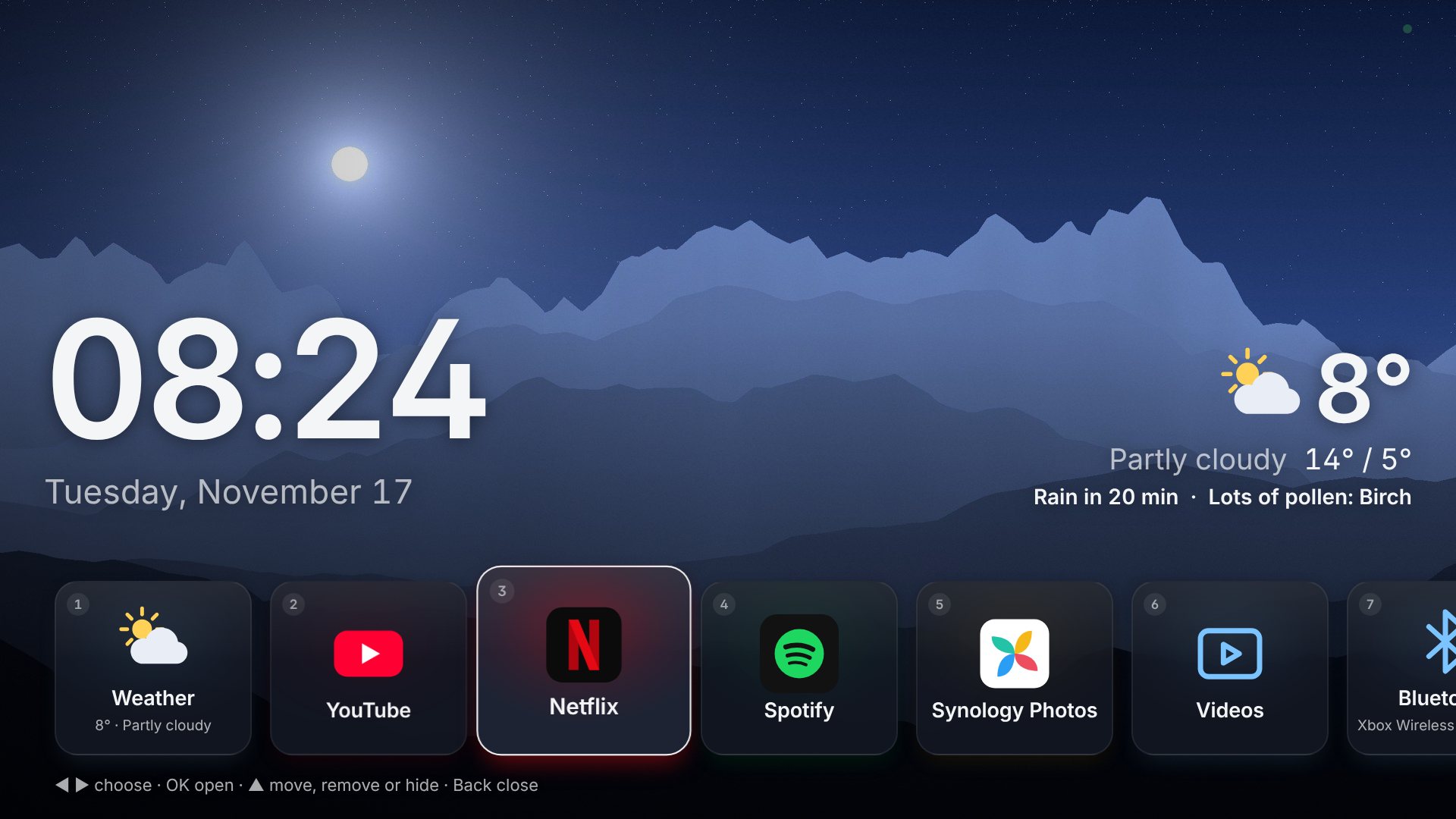
Press OK on the dashboard to open the app row. Left alone for 30 seconds,
the row closes again and the TV returns to the clock; app_row_timeout under
[display] changes that, and 0 keeps it open.
To change the order, select an app in the row and press ▲: the tile lifts. ◀ ▶ carry it, OK puts it down and saves the order, Back returns it to where it was. With a lock set, apps are moved on the settings page instead.
The easiest way to add apps is the settings page: under Apps and radio, the apps PiDash knows are laid out as cards with their pictures. Pressing a card adds it; one that needs something first (the address of your own server, say) asks for it. What is in the list already is marked.
| Ready-made | |
|---|---|
| Films, series and TV | YouTube, Netflix, Disney+, Prime Video, Apple TV+, HBO Max, Paramount+, DAZN, Crunchyroll, Twitch, Zattoo, ARTE, ARD Mediathek, ZDF, Play SRF, Play Suisse, BBC iPlayer |
| Music | Spotify, YouTube Music, Apple Music, TIDAL, Deezer, SoundCloud |
| Games | Moonlight, Steam Link, GeForce NOW, Xbox Cloud Gaming, and the emulators |
| From your own server | Plex, Jellyfin, Kodi, Synology Photos, Immich |
| Something else | any other website, or any program installed on the Pi |
Apart from YouTube, whose TV pages are made for a remote, these are the services' ordinary websites, opened fullscreen in Chromium with the remote's arrows moving around the page. How well each of them takes to that differs, and a service may change its pages at any time; the phone's touchpad is there for what the arrows do not reach. The paid ones need the copy protection module that Raspberry Pi OS and Google Chrome bring, and some of them send a Linux browser less than their best picture. The pictures on the cards are simple drawings in each service's colours, not the services' own artwork.
Apps can also be defined in ~/.config/pidash/config.toml, one [[apps]]
block each. After editing, run systemctl --user restart pidash. An app is
either a website or a program.
Spotify in the list of ready-made apps opens the Spotify web player in Chromium, and keeps playing when you return to the dashboard (see Now playing). The player is made for a mouse, so PiDash has the browser move with the arrows: the remote's arrows go from one cover, button or list entry to the nearest in their direction, OK presses it, and the remote's play button starts and pauses. Typing into the search field needs the phone's keyboard. Setting its size to 150% or more helps on a 4K screen.
A website app opens fullscreen in its own browser profile, so its login is remembered and kept apart from your normal browser. The default config ships with these two:
[[apps]]
id = "youtube"
name = "YouTube"
url = "https://www.youtube.com/tv"
browser = "chromium"
user_agent = "Mozilla/5.0 (PS4; Leanback Shell) Gecko/20100101 Firefox/65.0 LeanbackShell/01.00.01.75 Sony PS4/ (PS4, , no, CH)"

[[apps]]
id = "netflix"
name = "Netflix"
url = "https://www.netflix.com/browse"-
YouTube opens YouTube's TV interface, which is built for remote
controls: the arrow keys and OK on your TV remote work. The
user_agentline is what makes YouTube serve that interface. -
A website in Firefox with an ad blocker. With
browser = "firefox"andadblock = truethe browser add-on uBlock Origin is put into the app's profile: it is downloaded from Mozilla's add-on site the first time the app starts, and Firefox keeps it updated. It is made for ordinary websites, which expect a mouse. -
Netflix runs in Chromium, because Raspberry Pi OS provides the DRM module
Netflix requires (
libwidevinecdm0) for Chromium. The installer adds it if it is missing.
Add a block with the address you normally open Synology Photos with in a browser:
[[apps]]
id = "synology-photos"
name = "Photos"
url = "http://192.168.1.20:5000/?launchApp=SYNO.Foto.AppInstance"
If your NAS uses HTTPS with a self-signed certificate, the browser will show a
warning page first. Use the plain http:// address on your home network, or a
real certificate.
YouTube's and Netflix's TV pages are made for a remote. Most other websites
are made for a mouse, and the arrows of a remote only scroll them. For such
a site, tick Made for a mouse: let the remote's arrows move around the
page when adding it under Apps (in config.toml: arrows = true).
Chromium then moves a highlight from one link or button to the nearest one
in the direction of the arrow, scrolling as needed, and OK presses it.
Spotify's tile has this by itself.
It suits pages of links, covers and buttons. Sliders, maps and things that are dragged still need a pointer: the phone's touchpad (Phone as mouse and keyboard) or a mouse. A page that uses the arrows itself keeps them. It is not available for a site opened in Firefox.
-
Signing in needs typing once. Use the phone as keyboard (see Phone as mouse and keyboard) or plug in a keyboard for the first login to Netflix or your NAS. The login is remembered.
-
Netflix and Synology Photos expect a mouse. Their websites are not built for arrow-key navigation. The phone's touchpad covers this. YouTube's TV interface works with the TV remote alone.
-
Getting back. Hold Back on the TV remote for two seconds, tap Back to dashboard on the phone remote, or press Alt+F4 on a keyboard.
-
If uBlock Origin is not active in an app that uses Firefox, Firefox on your system did not accept the automatic install. The reliable alternative applies to every Firefox profile on the Pi. Create
/etc/firefox/policies/policies.json:{"policies": {"ExtensionSettings": {"uBlock0@raymondhill.net": { "installation_mode": "force_installed", "install_url": "https://addons.mozilla.org/firefox/downloads/latest/ublock-origin/latest.xpi"}}}}
A website app can load browser extensions of your choosing. Put each one,
unpacked (a folder with a manifest.json in it, as Chromium's "Load
unpacked" takes them), into a folder named after the app's id:
~/.local/share/pidash/extensions/<app id>/<any name>/manifest.json
They are loaded the next time the app starts, and only into that app, which
has a browser profile of its own. Extensions are Chromium's kind, so an app
with a folder there runs in Chromium, whatever browser its settings name.
The app's id is the id in config.toml; for the apps offered on the
settings page it is their name in lower case (youtube, netflix).
PiDash brings no extensions itself and does not look at what yours do. An extension can read and change everything on the pages it is made for, with the account signed in there: load only what you trust.
[[apps]]
id = "moonlight"
name = "Moonlight"
command = "moonlight-qt"
mode = "console"

[[apps]]
id = "steamlink"
name = "Steam Link"
command = "steamlink"
Each program has a mode:
-
desktop(the default) runs the program on the desktop, as if you had started it from the menu. No extra setup. -
consoleruns it on its own screen outside the desktop, the one you would reach with Ctrl+Alt+F8. The app then drives the display directly, which is what Moonlight and Kodi want: lower latency, HDR, and switching the refresh rate to match the content. When the app ends you are returned to where you were, and the desktop is untouched underneath.
Console mode needs a one-time setup, because starting something on another screen requires system permissions:
make install PI_HOST=pi@raspberrypi.local INSTALL_FLAGS=--console-apps
# or, on the Pi:  bash deploy/install.sh --console-apps
This is the only system-wide part of PiDash. It adds three files: a systemd unit, a small script that switches screens, and a rule that lets your user start and stop that unit without a password. Apps still run as you, not as root. The uninstaller removes all three.
To leave a console app, hold Back on the TV remote for two seconds, use the app's own quit shortcut, or tap Back to dashboard on the phone remote.
The settings page offers these emulators by name under Add an app. All of them run well on a Pi 5, except that Dolphin only manages the lighter games at full speed:
| Emulator | Plays | Install on the Pi |
|---|---|---|
| RetroArch | Many classic consoles, from the NES and Mega Drive to the first PlayStation | sudo apt install retroarch |
| PPSSPP | PlayStation Portable | flatpak install flathub org.ppsspp.PPSSPP |
| Mupen64Plus | Nintendo 64 | sudo apt install mupen64plus-qt |
| Dolphin | GameCube and Wii | flatpak install flathub org.DolphinEmu.dolphin-emu |
| ScummVM | Point-and-click adventures | sudo apt install scummvm |
| DOSBox | DOS games | sudo apt install dosbox |
| MAME | Arcade machines | sudo apt install mame |
One that is not installed yet is listed with its install command; after
installing it, open the settings page again and add it. PiDash finds an
emulator through its entry in the Pi's application menu, whether it came from
apt or from Flatpak, and starts RetroArch, PPSSPP, ScummVM and DOSBox
filling the screen. Any other emulator in the menu can be added with A
program installed on the Pi….
PiDash starts the emulator; the games are yours to supply, and each emulator
has its own way of being told where they are. RetroArch also needs a "core"
per console: apt search libretro lists the ones Raspberry Pi OS has.
Inside an emulator the game controller belongs to the game. Holding its logo button for two seconds returns to PiDash, as does holding Back on the TV remote.
You do not need to configure icons. PiDash picks one for each app in this order:
-
iconin the app's block, if you set one: a path to an SVG or PNG. - A built-in icon for YouTube, Netflix and Synology Photos. These are simple drawings in each service's colours, not the official artwork.
- For programs, the icon the installed program ships with, found through its desktop menu entry. This covers Moonlight, Kodi, Steam Link and anything else that appears in the desktop menu, including Flatpak apps.
- A globe for other websites, or the first letter of the name.
A TV remote's OK and Back buttons are not keyboard keys, so apps such as YouTube and Netflix would ignore them. PiDash reads the remote itself and fills the gap:
- OK is passed on to the app as Enter, and Back as Escape. The number buttons are passed on as numbers. Arrows already work by themselves.
- Holding Back for two seconds closes the app and returns to the dashboard. Holding Esc on a keyboard does the same.
- Pressing Back three times quickly does so too. Some TVs, Samsung's among them, never tell the Pi that a button is being held: however long the finger stays, one press arrives. The first two presses still go to the app as Back.
Buttons go to whichever window has the keyboard. An app's window gets it when
it opens, but can lose it, for example when the TV is switched off and on
again; the app then looks as if the remote had stopped working. PiDash checks
on every button press that the open app's window has the keyboard and gives
it back if not. PiDash asks the desktop for this itself; nothing extra needs
installing on Raspberry Pi OS (on a desktop with X11 it uses xdotool). It
works for websites and for programs added from the list of installed
programs. The status page says whether it is available.
This works in every app, including ones that run outside the desktop. It needs
your user to be in the input group, which is the case for the first user on
Raspberry Pi OS, and the one system rule the installer adds. The installer and
doctor.sh tell you if either is missing.
Some TVs report a held button as a quick series of presses, which PiDash
takes for holding. For those that report nothing, the three presses are
there; how many it takes is app_exit_presses under [input] (0 switches it
off). A button you do not otherwise need, such as a colour key, can also be
made to leave an app at once:
[input]
app_exit_keys = ["KEY_RED"]
app_exit_hold = "0s"
sudo apt install evtest && sudo evtest shows the name of any button you press.