Repository navigation
Settings
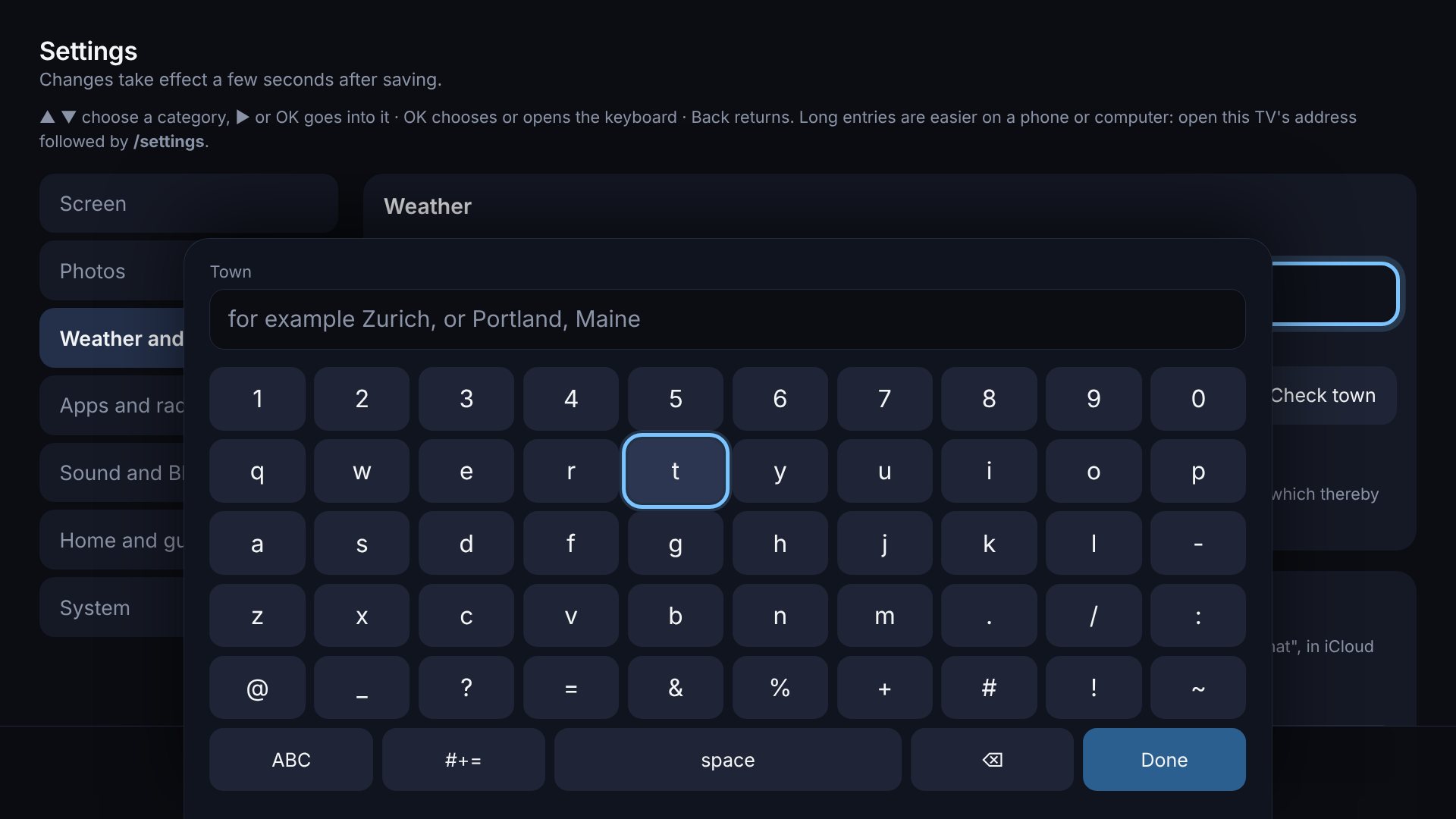
Weather, background photos, the calendar, night hours and apps are set up on the settings page.
- On the TV: choose Settings in the app row, or press S. The page opens on the TV and works with the remote alone: arrows move, OK presses a button, opens a list, or opens an on-screen keyboard for text.
-
On a phone or computer: open
http://<pi-ip>:8080/settings. Long entries such as an address are quicker to type there.
The settings are sorted into categories: Screen, Photos, Weather and calendar, Apps and radio, Sound and Bluetooth, Home and guests, System. On the TV they are a bar at the left. ▲ ▼ move along it and show each category at once; ▶ or OK goes into the one that is shown, and Back comes out to the bar again. Back on the bar leaves the settings, offering to save first. On a phone the bar runs along the top. One Save saves everything, whichever category it was changed in.
What it covers:
- Weather: your town and the units. Check town shows which place the weather service found before you save.
- Background photos: where photos come from, the connection to Synology Photos with a Test connection button, the picture quality, how long each photo stays, whether photos move, and whether two upright photos share the screen (see below). After saving, Choose folders and albums takes you to the picker.
- Calendar: links of the calendars whose next events the TV shows, with a Check link button.
- Smart home: the connection to Home Assistant and which of its devices appear as tiles in the app row.
- Radio: internet radio stations for the app row, found by name.
- Screen: the language, where the clock sits and how large it is, and what the dashboard shows when it starts.
- Night: hours in which the TV shows only a dim clock on black. Any button brings the dashboard back for a minute.
- Apps: the app row. Websites have a size next to them: 150% or 200% makes Netflix, Plex or Synology Photos readable on a 4K screen.
- Apps, adding: Add from a list of ready-made apps (YouTube, Netflix, Synology Photos, Plex, Moonlight, Kodi, Steam Link), any program installed on the Pi, or any website by address. Reorder them, and remove them.
Programs installed on the Pi are the ones in the Pi's application menu. Choose A program installed on the Pi… under Add, pick it, and save; a program installed later appears in that list the next time you open the page. It gets its own icon and starts the way it does from the menu, as a window on top of the dashboard. A few things to know:
- Most desktop programs are made for a mouse and keyboard. The TV remote sends them arrows, Enter and Esc; for the rest use a mouse or the phone's touchpad.
- Holding Back closes the program and returns to the dashboard, as for every app.
- A program that only hands over to a copy that is already open (some file managers and browsers do) is reported as "closed right after starting", although its window opens. PiDash then cannot close it for you.
- Text programs that need a terminal window are not offered.
- If you uninstall a program, its tile disappears; the other settings stay.
The settings page can be opened by anyone on your home network, so it only
lets them pick a program by name. The command always comes from the menu entry
on the Pi itself. A program that needs its own command or options still goes
into config.toml.
- Lock: a PIN without which settings can be looked at but not changed.
- Backup: one file with everything set up here, to save or load from a computer.
- Updates: which version runs, whether a newer one exists, a button to install it, and a switch to have that done automatically at night.
Press Save. PiDash restarts itself to apply the changes, which takes a few seconds, and the TV reloads.
How it fits with config.toml:
- What you save is stored in
~/.config/pidash/settings.json, next toconfig.toml, and takes precedence over the same sections there. The page never rewritesconfig.toml. Deletesettings.jsonto return to exactly whatconfig.tomlsays. - The page can add programs only from its ready-made list. A program with your
own command still has to be written into
config.toml; it then appears on the page to reorder or remove. This is deliberate: the page is reachable from your home network and must not be a way to run commands on the Pi. - The NAS password is never sent back to the page, and
settings.jsonis readable by your user only. - If a PIN is set under
[remote], saving and the connection test ask for it. - Everything else, such as the TV schedule, keys and the phone's mouse mode,
stays in
config.toml.
The sections below describe the same settings as they appear in config.toml.
With a PIN set under Lock, the settings can still be opened and looked
at, but saving, installing an update and backups ask for the PIN. On the TV
it is typed on a number pad with the remote, and the TV does not remember it.
If you forget it, remove the lock entry from
~/.config/pidash/settings.json on the Pi and restart PiDash.
Save a backup file on the settings page, opened on a computer or phone, downloads one file with everything set up there, the chosen photo folders and the hidden photos. Load a backup file puts it back, on this Pi or another one. The file contains the passwords and links stored on the Pi, so keep it to yourself.
Under Wi-Fi for visitors in the settings, enter the name and password of the network guests may use. The app row then has a Guest Wi-Fi tile: it fills the screen with a code that a phone's camera reads to join the network, and shows name and password in letters for anyone who prefers to type. Any button closes it.
The password is stored on the Pi like the others and shown to whoever opens that tile, which is its purpose. Use a guest network rather than your own.