Repository navigation
Using the dashboard
| To… | Do this |
|---|---|
| Show the dashboard on the TV | Open PiDash from the desktop menu, tap Show on TV on the phone remote, or run systemctl --user start pidash-kiosk
|
| See every control | Press H or F1, or click Help on the control bar |
| See the full forecast | Press OK, then OK again on the Weather tile. Back closes it |
| Choose the background photos | Open http://<pi-ip>:8080/photos, or tap Background photos on the phone remote |
| Flip through photos | ◀ ▶ on the dashboard. Play/pause holds the current photo; a small "Photo held" mark shows while it is held |
| Change the volume of headphones or a speaker | Channel up and down on the remote, while the sound goes to them. See Sound |
| Get help with a problem | Status in the app row, then OK: saves a file to send along. See Status page |
| Do something with the photo on screen | ▲ opens a small bar: favourite, where it was taken, more from its album, hide it. See The photo's bar |
| Show more, or only the photo | ▼ steps through: as set, everything, only the photo. See Language and layout |
| Change settings | Choose Settings in the app row, press S, or open http://<pi-ip>:8080/settings on your phone. See Settings
|
| Launch an app | Press OK on the dashboard to open the app row, choose with ◀ ▶ and press OK. The row opens on the app you used last. Or tap the app on the phone remote |
| Move an app in the app row, remove it, or hide a tile | Select it and press ▲. See What ▲ does on a tile |
| Watch a film or a home video | Videos in the app row. See Videos |
| See where your photos were taken | Places in the app row. See Places |
| Look at a journey again | Trips in the app row. See Trips |
| Play a quiz with your photos | Photo quiz in the app row. See Photo quiz |
| See paintings instead of photos for a while | ▲, then Art instead of photos. See Art mode |
| See where it is raining | The forecast, then ▶. See Rain radar |
| Switch the TV to the games console or another device | Its tile in the app row. See Other devices on the TV |
| Let a visitor onto the Wi-Fi | Guest Wi-Fi in the app row. See Wi-Fi for visitors |
| Start a game on your PC, or one of RetroArch's | Games in the app row, then its cover. See Games |
| Mark a photo as a favourite | ▲, then OK on the star. See Favourites |
| See where and when a photo was taken | ▲, then About this photo. See About this photo |
| Restart or shut down the Pi | Power in the app row. See Restart and shut down |
| Change the TV's volume from a controller | Hold its logo button and press up or down |
| See how PiDash is doing | Choose Status in the app row. See Status page |
| Choose where the sound comes out, and how loud | Settings in the app row, then Sound. See Sound |
| Connect or disconnect headphones or a controller | ▲, then Bluetooth at the end of the bar; or the Bluetooth tile in the app row |
| Pair a Bluetooth controller, headphones or a speaker | Settings in the app row, then Bluetooth. See Bluetooth |
| Use a game controller | Plug it in or pair it. Switching it on also switches the TV on. See Game controller |
| Get back from an app | Hold Back for 2 seconds on the TV remote, hold Esc on a keyboard, or tap Back to dashboard on the phone remote |
| Use the phone as mouse and keyboard | Switch it on once (see Phone as mouse and keyboard), then use the touchpad on the phone remote |
| Switch the TV on or off | TV on / TV off on the phone remote, or a daily schedule (see TV power schedule) |
| Go back to the desktop | Hold Back for 2 seconds on the TV remote, press Alt+F4 or F10 on a keyboard, or tap Exit to desktop on the phone remote |
| Use the phone remote | Open http://<pi-ip>:8080/remote on any device on your network |
| Change settings | Edit ~/.config/pidash/config.toml, then systemctl --user restart pidash
|
| Find out why something does not work |
bash ~/.local/share/pidash/doctor.sh, see Troubleshooting
|
| Uninstall |
bash ~/.local/share/pidash/uninstall.sh (add --purge to delete settings too) |
The screen stays awake while the dashboard is showing; your normal screen blanking applies again once you exit. The layout scales to whatever resolution the desktop uses. For the smoothest result on a 4K TV, set the desktop to 1920x1080 in Preferences → Screen Configuration.
The dashboard works with a TV remote, a keyboard, a mouse, an air mouse, a touch screen, or the phone. Press H or F1 at any time for an overview on the TV; it lists the keys as they are currently set.
Keyboard
| Key | Does |
|---|---|
| Enter, Space | Open the app row, choose a tile |
| Esc, Backspace | Close, go back. Hold 2 seconds to exit to the desktop |
| ← → | Previous / next photo, or move along the app row |
| Tab, Shift+Tab | Move along the app row |
| ↑ | What can be done with the photo on screen |
| ↓ | Show more, or only the photo |
| A | App row |
| W | Weather details |
| P | Hold or resume the slideshow |
| 1 – 9 | Choose a tile in the app row |
| H, F1, / | Show all controls |
| F10 | Return to the desktop |
Shortcuts of the desktop itself, such as Alt+F4 and anything with Ctrl, are
left alone. To add or change keys, see [input.keys] in the settings: your
entries are added to the built-in ones, and "none" switches one off.
Mouse
The pointer is hidden until the mouse moves. Then a control bar appears at the top with previous, pause and next for the photos, and Apps, Weather, Help and Desktop. Both fade away again after a few seconds.
- Click anywhere to open or close the app row; click a tile to start it.
- Right-click goes back.
- The wheel steps through photos, or along the app row while it is open.
- Click the weather in the corner for the details; click again to close.
With the phone as mouse, the same works from the sofa.
▲ on a tile in the app row opens a short list of what can be done with it:
- An app: Move (carry it with ◀ ▶, put it down with OK; Back leaves it where it was), Remove from the app row (nothing is uninstalled; it can be added again under Settings, Apps), and Rename or change it, which opens the settings.
-
A tile of PiDash's own (Weather, Bluetooth, Sound, Sleep timer, Videos,
Places, Trips, Photo quiz, Guest Wi-Fi, Status, Desktop, Power): Hide
this tile. It comes
back under Settings, Apps and radio, Other tiles in the app row, where
every tile has a box to tick (
hidden_tilesunder[display]).
Settings cannot be hidden. With a settings PIN set, removing and hiding need the PIN, and so are done on the settings page.
Under Screen on the settings page:
- Language: English, German, French or Italian, for the dashboard, the settings and the dates. Messages that come from the Pi itself, such as "the NAS cannot be reached", stay in English.
- Clock position and size: any of the four corners, in three sizes. The calendar takes the bottom corner the clock leaves free.
- Clock style: bold numbers, slim numbers, or a clock with hands. The hands move once a minute, like the numbers.
- Under a photo: nothing, or its caption: album, place and date.
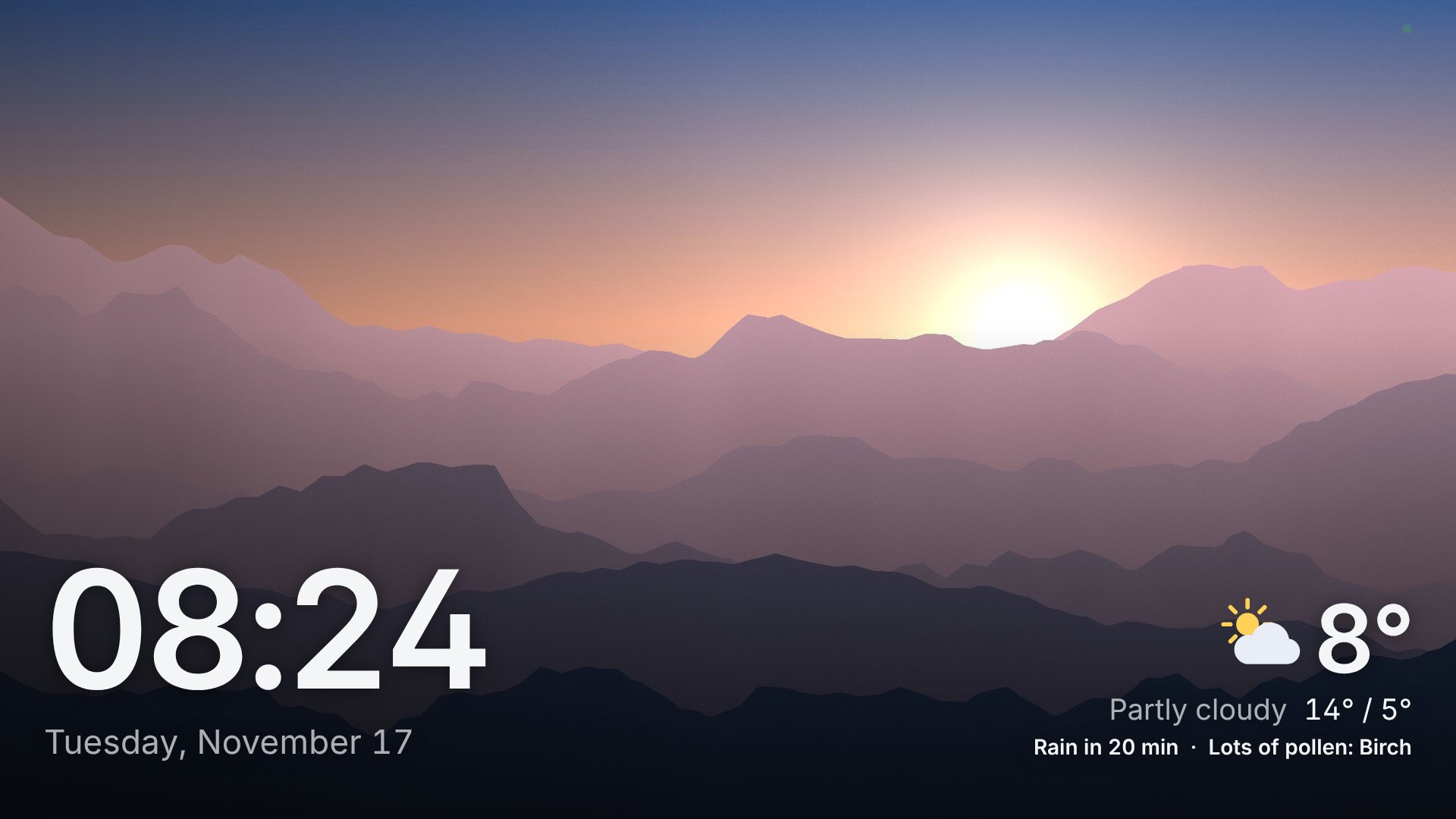
- Weather on the dashboard: none, the temperature and conditions, or also the place, what it feels like and the chance of rain. (Rain about to start and bad air are said in every setting but "none".)
-
Keep it like this: normally ▼ on the remote steps on from what is set
to everything, to only the photo, and back. With this ticked, ▼ does
nothing and the dashboard always looks as set. In
config.tomlthese arecaption = "on",weather_detail = "short"andlock_view = true. -
Small sounds when using the remote: a tick when the highlight moves, two
rising notes when something is chosen, a low note where there is nowhere
further to go. They are quiet, made by the page itself, and come out of
whatever sound output is chosen.
sounds = falseunder[display]does the same as the switch.
Holding a direction on the remote or a controller keeps the highlight moving, along the app row and through the settings pages. It starts after two thirds of a second: some TVs never say that a button was let go, and anything quicker would turn each press on those into two. On the dashboard itself a held direction does nothing, so photos are not raced through.
The translations live in one table, scripts/translations.py; running it
writes the language files.
Between two times of day, set on the settings page under Night, the TV shows only a dim clock on black: no photos, no weather, no calendar. Any button brings the dashboard back for a minute; the press that wakes it does nothing else. This is separate from the TV power schedule, which switches the TV itself off.
Either time can follow the sun instead of the clock: night mode can begin at
sunset, or one to three hours after it, and end at sunrise or an hour either
side. The times are those of the town set under Weather, in its
own time zone, and move with the seasons; without the weather set up, a night
that follows the sun does not begin. In config.toml any distance in minutes
works:
[display]
night_start = "sunset+90"   # or a time of day, such as "22:30"
night_end = "sunrise-30"
Dimming in the evening. Under Screen, Dim the picture in the evening
lays a dark sheet over the whole dashboard, a little or a lot. It comes
gradually over the hour after sunset and is gone again at sunrise, so the TV
is less of a lamp in a dark room. Without the weather set up it runs from
eight in the evening to seven in the morning. (evening_dim = "off",
"light" or "strong".)
While no photo is on screen (no photo source, nothing chosen yet, or the NAS is away), the background shows broad ribbons of colour that wind slowly across the screen.
- They react to you. Left and right send them flowing that way, up and down make them sway, OK sends a swell through them, and opening the app row lifts them along with the clock. With a mouse they lean towards the pointer. A few seconds later they are back to their slow drift.
- They take the colours of the selected app. With the app row open, the ribbons turn to the colours of the selected icon: red for YouTube, the icon's own mix for anything else.
- They can stand still. Under Screen on the settings page, Background without photos can be set to a still picture. It keeps its look and still takes the colours of the selected app, but is painted once instead of continuously, which keeps the Pi cooler.
- They are sharp without costing much. The ribbons are drawn at half the screen's resolution: 1080p on a 4K screen, which keeps their edges crisp at a quarter of the work. If the Pi cannot keep up, the picture steps down to a coarser size by itself and looks softer. Drawing stops while a photo or an app covers it. If the system is set to reduce motion, the ribbons stand still and only change colour.
After an update the TV says once, in a few lines, what the new version brought. Any button closes it.