Repository navigation
PBAR
PBAR is a batch script that can display formatted progress bars fast and easily. Currently supporting different styles, themes, and sizes.

In this preview, we can see the parameters that are being used with PBAR on every call. Note that we are also using the /R parameter (will be explained later) to specify how completed the bar is. We are incrementing the first value on every loop, so you can see it animated. (Progress bars shouldn't be used like this)
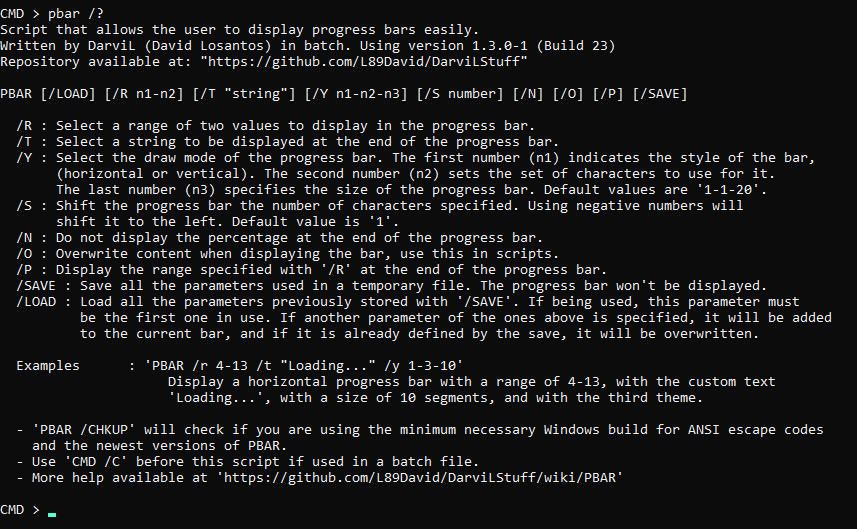
Displays all the help related to the script.
Example:
Select a range of two values separated by - to display in the progress bar.
Example:
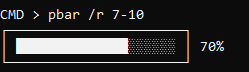
Here we are specifying the current value that the bar has, and the maximum value, so the bar can be draw correctly. The default value is 0-1.
Select a string to be displayed at the end of the progress bar.
Example:
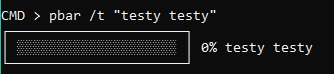
Quotes will be needed if our string uses spaces.
Select the draw mode of the progress bar specified by three numbers separated by -. The first number indicates the style of the bar, (horizontal or vertical). The second number sets the set of characters to use for it. The last number specifies the size of the progress bar. Default values are 1-1-20.
Available styles:
- Horizontal
- Vertical
Available character sets:
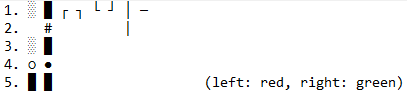
Note that you can add as many themes as you want by editing this part of the script:
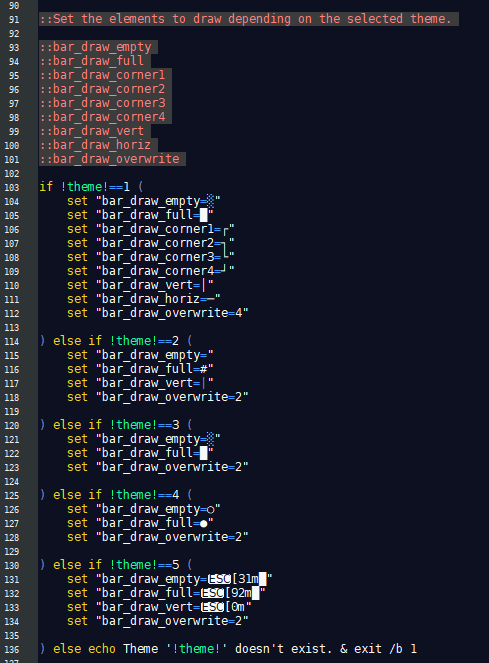
Example:
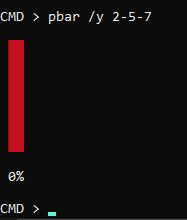
Here we are drawing a vertical bar (2), with the set of characters that supports this colors (5), and with a size of 7 segments. (7)
Shift the progress bar the number of characters specified. Using negative numbers will shift it to the left. Default value is 1.
Example:

Do not display the percentage at the end of the progress bar.
Example:
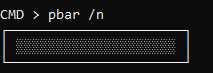
Overwrite content when displaying the bar, use this in scripts. This will make PBAR draw the bar overwriting all the content in screen that is within it's size. This is what is used to display an incrementing progress bar that is staying in the same place (without creating new lines on every call).
Example:
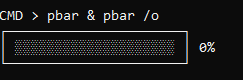
Here, as you can see, we are calling PBAR two times. On the first call, the bar gets drawn on screen, but in the second call, instead of writing a new bar, it overwrites the old one (because we added /o).
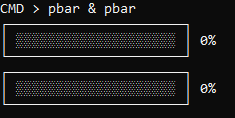
This is what happens when we remove /o on the second call.
Display the range specified with /R at the end of the progress bar.
Example:
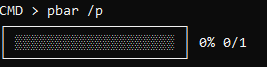
Save all the parameters used in a temporary file (%temp%\pbar_save.tmp). The progress bar won't be displayed.
Example:
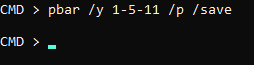
Load all the parameters previously stored with /SAVE. If being used, this parameter must be the first one in use. If another parameter of the ones above is specified, it will be added to the current bar, and if it is already defined by the save, it will be overwritten.
Example:

Here we are loading the parameters that we saved in the /SAVE example.

As you can see, if we add new parameters after /LOAD, we can apply them to our saved bar.
Check if you are using the minimum necessary Windows build for ANSI escape codes and the newest versions of PBAR. If a newer version is found, you will be prompted if you want to open the PBAR file in this repository.
Example:
