Repository navigation
Using the scripts
Downloading a script is fairly easy, head over to it in the repo, and hold ALT while clicking on 'Raw'. You can find this button when opening a file through the branch file manager at the main repo page, or using the links in the README.
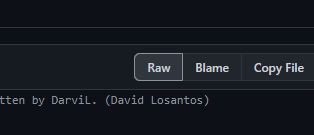
The download should start automatically. If you get a warning telling that the file is dangerous, make sure that you select 'Keep'. (I swear, my scripts aren't dangerous lol).
This scripts need to be called from an already open instance, so in order to do so, we need to open our CLI (CMD or PowerShell), and CD to the directory where the script is located, then, just running the name of it will execute it.
If you want to be able to execute this scripts anywhere (which is common), you will need to move them to a folder specified in the PATH environment variable (For example, C:\Windows). Note that you can add any folder in your system to PATH, here is a webpage explaining how to do so.
Open the terminal and execute the script. Remember to allow executing the file by modifying it's permissions.
For running it from anywhere, add them to your $PATH variable.
The usage of this scripts isn't anything really special, it basically works like a built-in command (kind-of) with parameters.
To display the help, type in the name of the script followed with /?. You can of course call it from other batch files, but you will need to use CMD /C after running it, so it runs in a subshell.
To display the help, run the script with the parameter --help.