Repository navigation
Investigate and acknowledge alerts
Use Alerts to work out what needs attention and leave a note for the next person. Acknowledging an alert records that you are handling it. It does not repair the device or change the rule's condition.
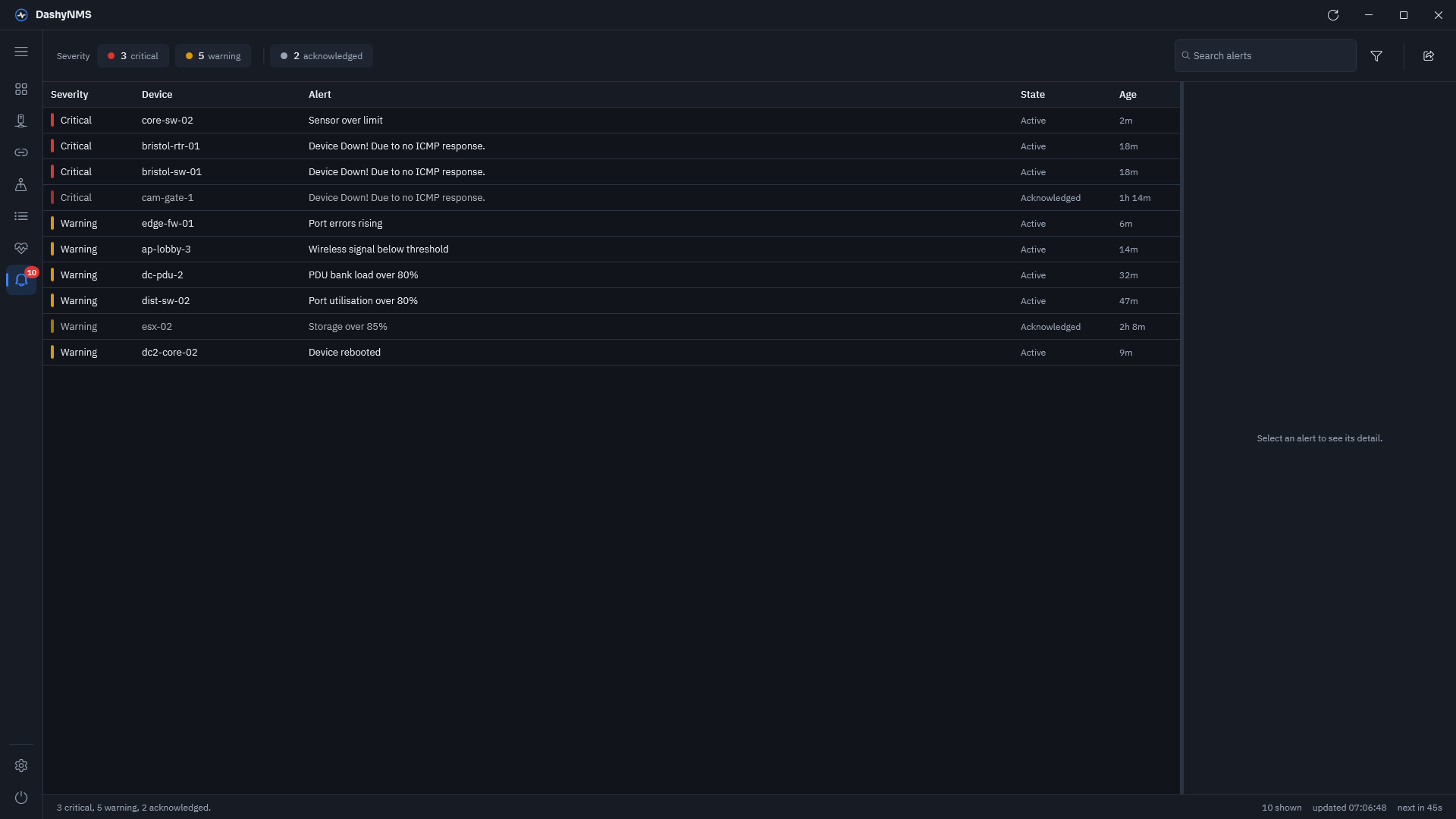
- Open Alerts.
- Search by host, rule, note or alert ID.
- Use the critical and warning badges to change which severities appear. Shift-click a severity to show only that one.
- Include acknowledged alerts if you are following up work already claimed.
- Select an alert to read its details.
The filter button also lets you narrow the list by device group. Clear search and filters if an expected alert is missing.
- Select the alert and read the rule and matched values in its details.
- If matched values are missing, enable Settings → Alert display → Show what triggered the selected alert and apply the change.
- Use All values if you need columns beyond those tested by the rule.
- Choose Open device to compare ports, sensors, graphs and logs.
- Choose Open procedure if the rule supplies a procedure link.
An alert can contain several faults. Expand it to inspect those faults before taking action. If LibreNMS cannot act on one fault without changing the whole group, DashyNMS refuses that individual action and explains why.
- Select the alert.
- Enter a note, such as
Investigating uplink errors; next check at 14:30. - Choose Acknowledge.
- Check the resulting state or action message before moving on.
Use Return to active if the alert needs attention again. An Undo action appears for supported acknowledgement changes. If the controls are unavailable, check your LibreNMS account's permissions.
For several alerts, select the intended rows before acknowledging them. Review any bulk-action confirmation so you do not claim unrelated work.
- Apply the search and filters for the alerts you want to share.
- Open Export the alerts shown.
- Choose Copy as CSV or Save as CSV….
Check the exported file before sending it; device names and notes may identify your network. To change desktop popups without changing shared alerting, use notification settings.