Repository navigation
Use maps and health readings
Maps help you follow connections and locations. Health helps you compare sensor readings across the network.
- Open Maps and choose the network map.
- Find the device involved in the alert.
- Follow its links to identify neighbouring devices worth checking.
- Open those devices and compare their ports and alerts.
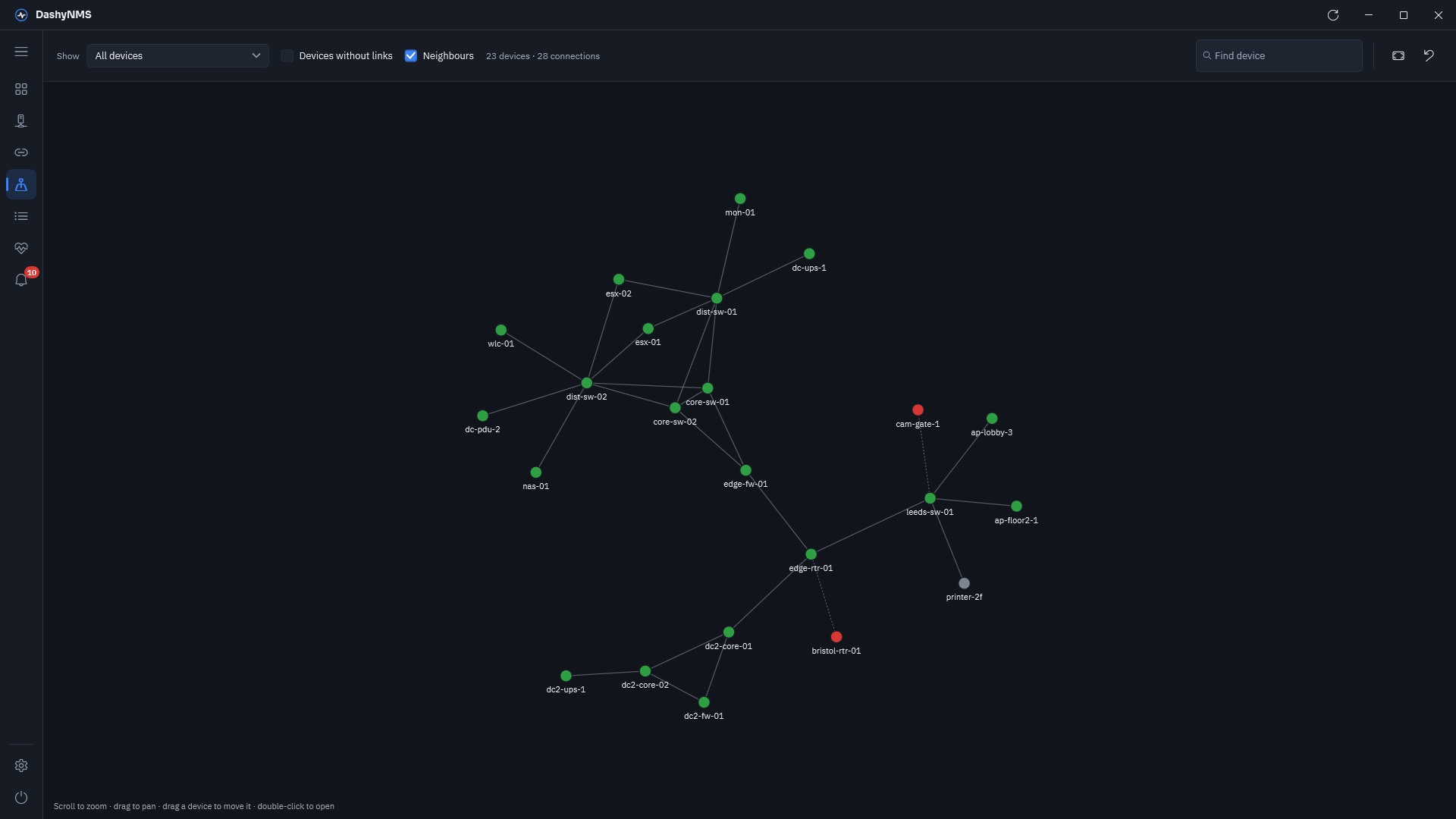
The map depends on the neighbours LibreNMS has discovered. An absent link does not prove that two devices are disconnected. Check their neighbour data and discovery status.
Choose the geographical map from Maps to see devices by location. If a device is missing or misplaced, check the location and coordinates recorded in LibreNMS.
In Settings → Maps, you can change the map tile server. Leave it blank to use the default OpenStreetMap tiles. A custom tile address needs the {z}/{x}/{y} placeholders. Your computer needs access to that tile service as well as to LibreNMS.
Use Settings → Window and start-up → Default map to choose which map opens when you click Maps. Custom maps, where present, are also available in that choice.
- Open Health.
- Choose the sensor category you need, such as temperature, fan speed or optical power.
- Search or filter to the relevant devices.
- Open a device to compare a concerning reading with its history.
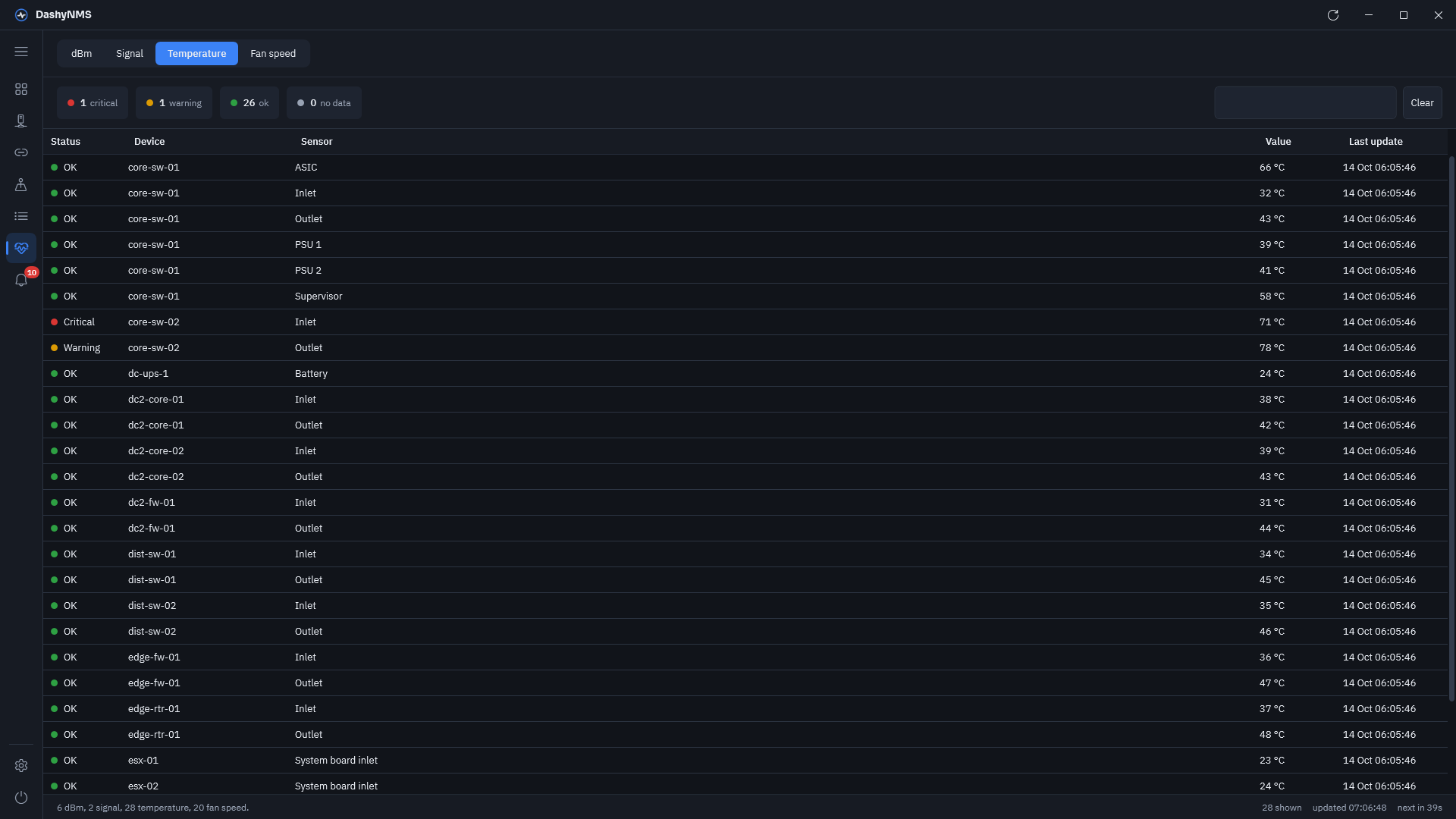
Open Settings → Health thresholds to review the bands for each sensor type. By default, a sensor's own limits from LibreNMS take precedence for the bounds it defines. App thresholds fill in bounds the sensor leaves unset.
Enable Always use these app thresholds, ignoring each sensor's own configured limits only if you want the app's bands to decide every reading's colour. Apply your changes and check a known sensor to confirm the result.
Intelligence judges sensors with the same thresholds and the same choice. A saved change applies from the next question. Anything still being looked up with the old thresholds is discarded rather than mixed into the answer. If a band can't be used because its values are out of order, Intelligence names the section to correct rather than guessing.
These colours help you scan Health. Changing them does not edit LibreNMS alert rules. Use limits suited to the equipment; a fan's normal speed or an optical receiver's acceptable power depends on the hardware.
To keep a reading visible, add it to your dashboard.