2. Displaying the Form
You have 3 options to display the webform on your website.
- iframe
- QR Code
- Shortcode (Wordpress)
You will find these on the right side when editing a webform.
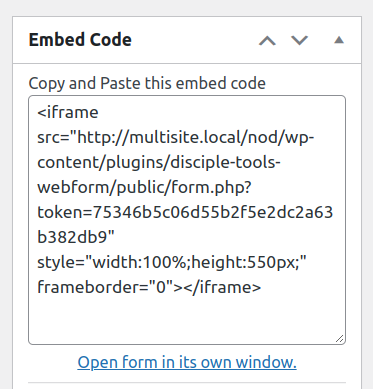
Copy the iframe code and paste it on your public facing website anywhere you can display an iframe. Most websites support this.

Right click and copy the QR code image to be used anywhere you want.
If you have a public facing wordpress website and have the webform plugin installed and set up (see Instructions)
You can then use the provided shortcode on any of your pages instead of the iframe.


Displays:

Attributes
- id: required
- button_only: A boolean (true/false) attribute. If "true", only a button will be displayed and it will link to the webform on its own page
- campaigns: Tags that will be passed on to the "Campaigns" field on the new D.T contact
Example shortcode syntax to display webform; setting awesome_tag as a hidden value, to be assigned to newly created contact's campaign DT field.
[dt-webform id="405" button_only="false" campaigns="awesome_tag"]