Home
Welcome to the documentation for the Landscape Displacement Collision plugin! This guide will walk you through the setup process to get pixel-perfect, dynamic physical collisions for your Nanite-tessellated Displacement Maps.
- Plugin Installation
- RVT & Material Setup (Crucial)
- Level Setup (Manager, Precompute Zones & Masking)
- Project Settings
- Actor Setup (The Tracker Component)
- Blueprint API Reference
- Debugging & Profiling Commands
- Troubleshooting & FAQ
- Under the Hood (Pipeline Basics)
- Install the plugin via the Epic Games Launcher (Fab) into your Unreal Engine version.
- Launch your Unreal Engine project.
- Go to Edit > Plugins, search for Landscape Displacement Collision, and check the box to enable it.
- Restart the editor.
To extract height data from your landscape, the plugin relies on Unreal Engine's Runtime Virtual Textures (RVT). Your Landscape Material must be configured to write to these textures. (For a complete overview of RVTs, refer to the Official Unreal Engine RVT Documentation).
Create Virtual Texture assets in your Content Browser (Right Click > Textures > Runtime Virtual Texture). In addition to your standard visual landscape RVT, create the dedicated collision RVTs required by our plugin. Double-click each RVT asset to open its Details Panel, and set its Virtual Texture Content mode as follows:
-
RVT_Landscape(Your standard visual texture) -> Set Content to Base Color, Normal, Roughness, and Specular -
RVT_Height(Used by the plugin for base landscape height) -> Set Content to World Height -
RVT_Displacement(Used for tessellation displacement data) -> Set Content to Displacement -
RVT_Mask(Optional, used if you want to mask out collision in certain areas) -> Set Content to Mask 4 Channel (Note: Requires Unreal Engine 5.5 or newer)
Warning
Unreal Engine 5.4 Compatibility Note — RVT Masking: The Mask 4 Channel Virtual Texture Content mode was officially introduced by Epic Games in Unreal Engine 5.5. Consequently, the RVT Masking system is not available in Unreal Engine 5.4. If you are using UE 5.4, simply leave the RVT_Mask field empty in your Landscape Collision Manager; all other displacement collision features will function normally.
Tip
Streaming Virtual Textures: We strongly recommend enabling Streaming Virtual Texture on your RVT setup (or configuring Streaming Virtual Texturing in your project/level setup). This ensures optimal streaming performance and prevents texture fallbacks or temporary flat collision areas when moving at high speeds across massive worlds.
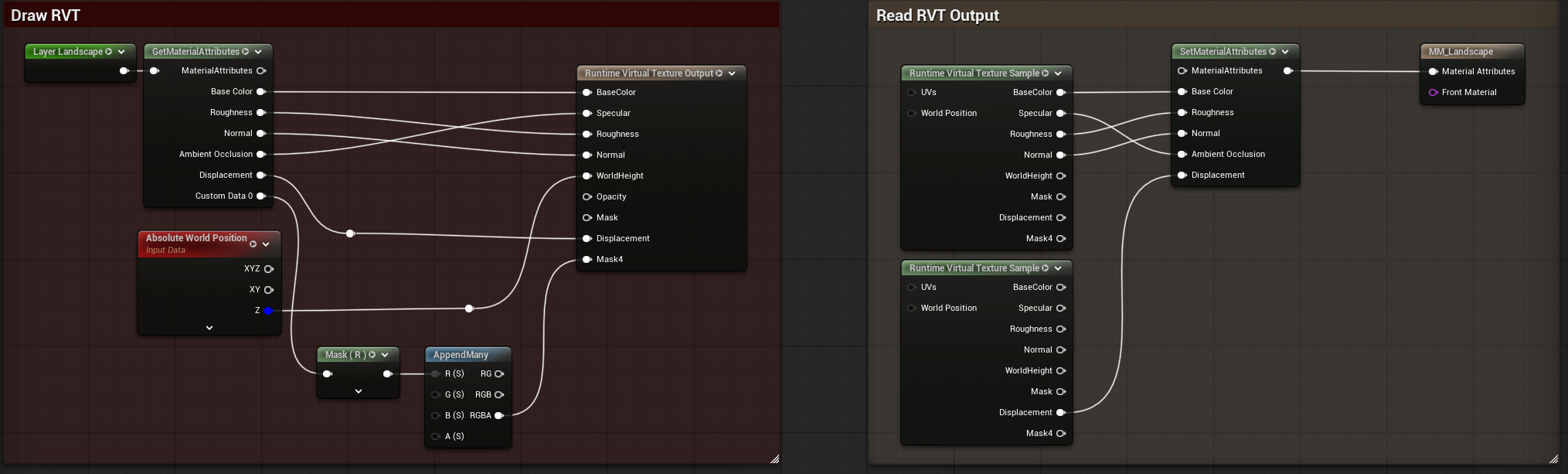
Open your Landscape Material (the one generating the Nanite Tessellation) and add a Runtime Virtual Texture Output node.
- Plug the World Position Z (or Absolute World Position -> Mask B) into the
WorldHeightinput. - Plug your final Displacement Map/Logic into the
Displacementinput. -
(Optional) Plug your Mask logic into the
Maskinput. (Ensure your standardRVT_Landscapevisual output is also properly plugged in for your terrain shading).
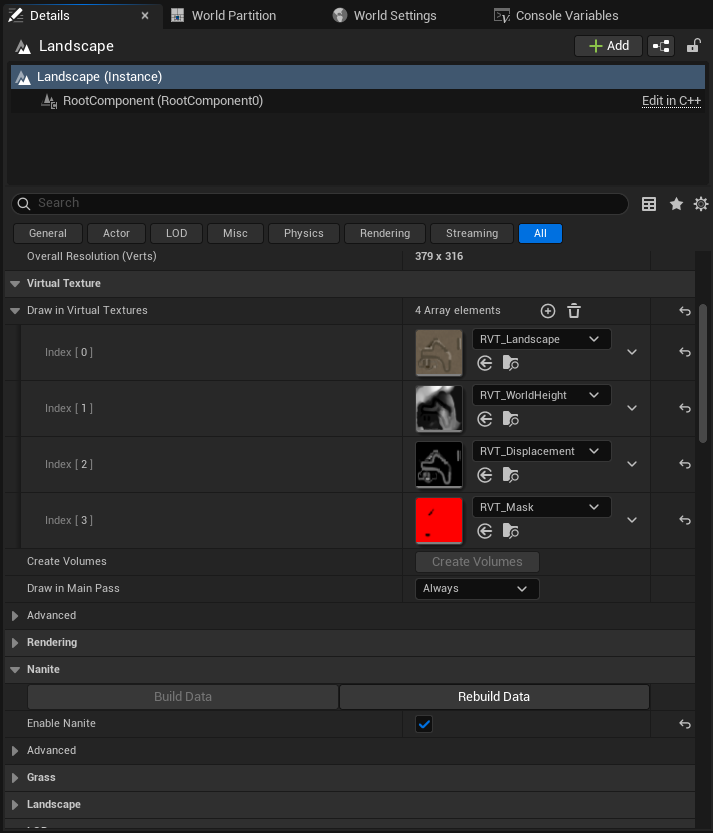
- Select your Landscape in the outliner.
- In the Details Panel, find the Virtual Textures array under the Virtual Texture category.
- Add all of your created RVTs (
RVT_Landscape,RVT_Height,RVT_Displacement, andRVT_Maskif used) to this array so the landscape renders to both visual and collision textures.
- Drag and drop Runtime Virtual Texture Volume actors into your level for each of the RVTs created in Step 2.1 (one for your visual
RVT_Landscape, and one for each collision RVT:RVT_Height,RVT_Displacement, etc.). - Assign the respective RVT asset to each volume.
- Select each volume and your Landscape, then click Set Bounds (or Copy Bounds) on the volumes so they perfectly cover the entire terrain extent.
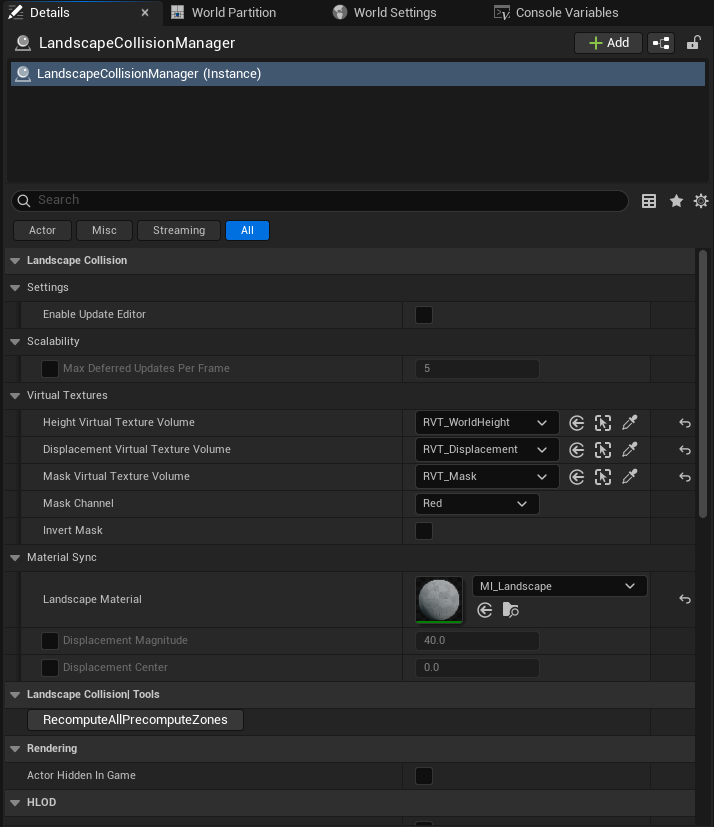
- In the
Place Actorspanel, search for Landscape Collision Manager and drag it into your level. - In its Details Panel, assign the RVT Volumes you placed in Step 2.4.
-
Important: Assign your Landscape Material to the Manager so it can automatically read the
Max DisplacementandDisplacement Centermagnitudes. Alternatively, you can checkOverride Material Settingsand type these values manually. - If you assigned a
RVT_Maskin Step 2, you can configure the Mask Channel (R, G, B, or A) and toggle Invert Mask depending on your logic (0 = full collision, 1 = no collision). - (Optional) Check Enable Update in Editor if you want to preview the collision generation in the viewport without pressing Play.
- (Optional) You can check Override Max Deferred Updates to set a specific Max Deferred Updates Per Frame for this level instead of using the global Project Settings.
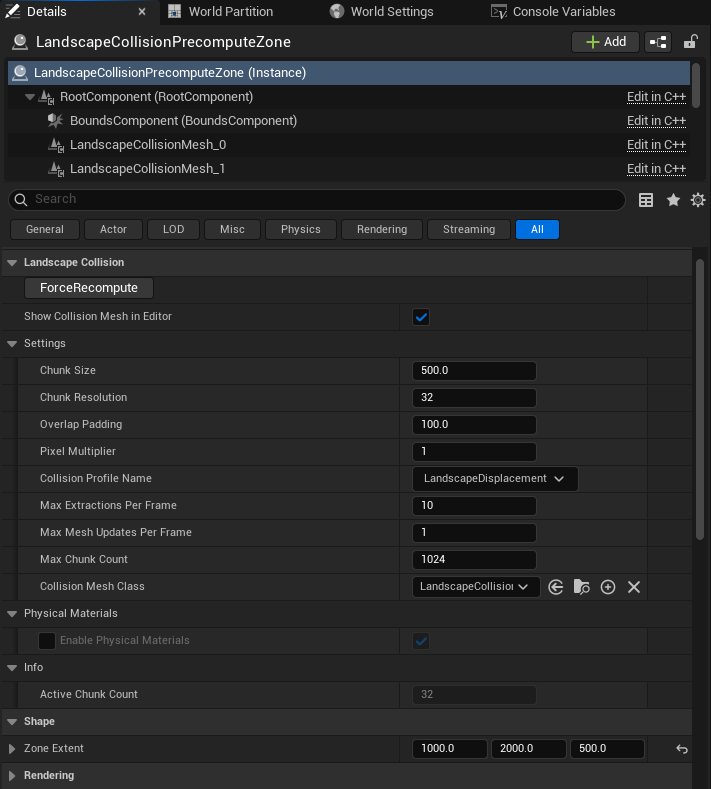
If your game requires a static physical ground (for example, a racing track or a small arena) rather than dynamic actor tracking (e.g., characters, props, or vehicles), you can use the Landscape Collision Precompute Zone actor.
- Drag a
Landscape Collision Precompute Zoneinto the level. - Scale its Zone Extent to cover your desired area.
- In its Details Panel, configure the chunk settings:
| Property | Description |
|---|---|
| Chunk Size & Resolution | The system will automatically chunk the area and compute the exact vertex density required! |
| Overlap Padding | Shrinks the culling extent slightly so dynamic collision meshes overlap the precomputed zone border, preventing seams. |
| Pixel Multiplier | Adjusts the RVT sampling texture resolution per chunk. |
| Collision Profile Name | The preset applied to the static ground (default is LandscapeDisplacement). |
| Collision Mesh Class | Override this if you have a custom ULandscapeCollisionMesh child class. |
| Override Physical Materials | If checked, overrides the global Physical Material extraction setting for this zone. |
| Enable Physical Materials | If override is checked, determines if this zone extracts physical materials from the landscape. |
| Show Collision Mesh In Editor | Toggle the visibility of the generated meshes in the editor viewport. |
| Max Chunk Count | Safety limit for the total number of collision chunks allowed in this zone (default: 1024). Prevents accidental memory spikes or editor freezes if the zone is scaled excessively. If exceeded, the system automatically clamps grid counts and scales up individual chunk dimensions to maintain 100% gapless coverage without crashing. |
| Max Extractions Per Frame | Limit the number of GPU extraction requests sent per frame to prevent stalling the RVT. |
| Max Mesh Updates Per Frame | Limit the number of CPU physics meshes built per frame to prevent editor freezes (keep low, e.g., 1-2). |
- Editor-Only Precomputation: A Precompute Zone is designed to generate static collision geometry inside the Unreal Editor prior to playing or packaging. Once generated and saved with your level, the collision chunks become static landscape geometry. During runtime or in your final packaged game, the zone remains completely static with zero runtime CPU or GPU generation cost.
-
Asynchronous Editor Generation: When generating large zones in the editor, the plugin uses smart time-slicing to spread chunk creation across multiple frames. This prevents editor freezing or VRAM exhaustion, automatically scaling chunks via safety limits (
Max Chunk Count) if the zone extent is massive. -
(Optional) You can type
p.LandscapeCollision.Debug 1in the console while in-game to visualize the precomputed meshes.
Warning
Engine Version Requirement: This advanced masking feature requires Unreal Engine 5.5 or newer. Unreal Engine 5.4 does not support the required Mask 4 Channel RVT format.
In many games, visual displacement should not always behave like solid rock. For soft surfaces like deep snow, sand, or mud, wheels and feet should sink into the ground rather than colliding against the displaced bumps. The Masking system lets you dynamically enable or disable displacement collision pixel-by-pixel.
-
Landscape Material:
- Combine any soft layer masks where you want collision disabled (e.g.,
Snow + Mudvia anAddnode). - Plug the result into one specific channel (e.g.,
R) of theMaskpin on your Runtime Virtual Texture Output node. (Note: While RVT_Mask is a 4-channel texture, our plugin reads ONE channel of your choice to control collision masking across the terrain).
- Combine any soft layer masks where you want collision disabled (e.g.,
-
Level Setup:
- Ensure an
RVT_Maskasset (Mask 4 Channel) is assigned to its ownRuntime Virtual Texture Volumecovering your terrain.
- Ensure an
-
Landscape Collision Manager:
- In your Manager's Details Panel under Mask Settings, assign your Mask RVT Volume.
- Set Mask Channel to match the shader channel used in Step 1 (e.g.,
R). - Configure Invert Mask:
-
OFF (Default):
1.0(White) = Full Collision |0.0(Black) = No Displacement Collision (sinks to base ground). -
ON:
1.0(White) = No Displacement Collision (recommended when directly plugging in Snow/Mud masks) |0.0(Black) = Full Collision.
-
OFF (Default):
You can configure global fallback rules and performance budgets for your entire game. Go to Edit > Project Settings, scroll down to the Game section, and select Landscape Collision.
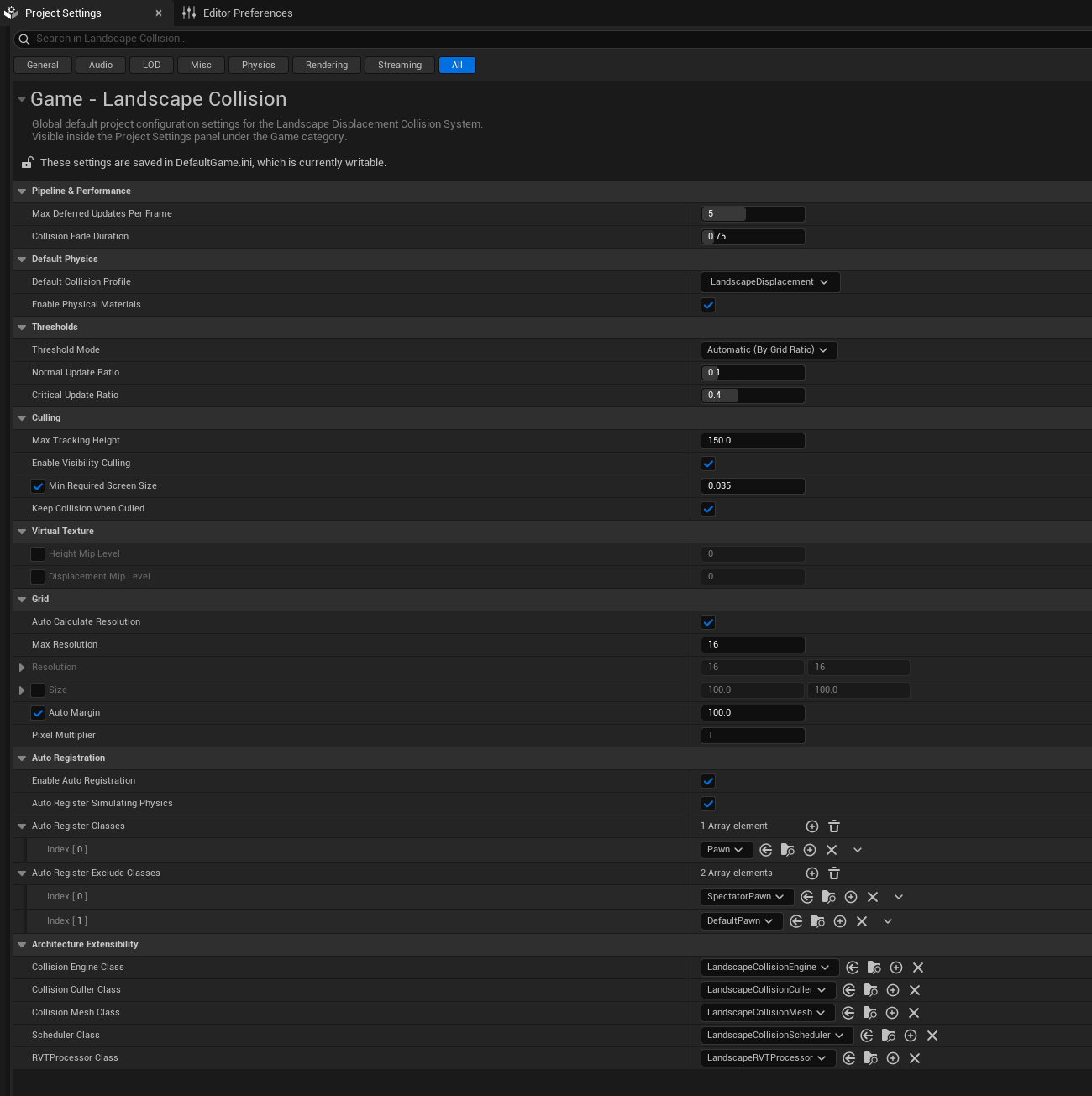
| Category | Property | Description |
|---|---|---|
| Performance | Max Deferred Updates Per Frame | The maximum number of tracked actors allowed to rebuild their physics mesh in a single frame. Lower values protect your FPS, higher values make collision more instantly responsive. |
| Collision Fade Duration | Time in seconds for the physics mesh to smoothly blend up/down to match the ground. Prevents tracked actors (characters, props, or vehicles) from violently launching into the air. | |
| Default Physics | Default Collision Profile | The collision preset (e.g., BlockAll, Vehicle) applied to the generated ground mesh. |
| Enable Physical Materials | By default, the system reads Physical Materials from the Landscape and applies them to the collision mesh (allowing tire sounds/dust to work). | |
| Optimization | Default Optimization Rules | Fallback settings for Culling (Screen Size, Max Tracking Height), Update Thresholds, Virtual Texture Settings, and Grid Settings. |
| Auto Registration | Auto Registration | If enabled (default: true), the system automatically detects and registers actors without needing a Tracker component. Perfect for instant Plug & Play! |
| Auto Register Classes | Explicit list of classes to always register (default includes APawn, ensuring characters and vehicles work instantly without components). |
|
| Auto Register Simulating Physics | If true (default: true), catches any actor simulating physics on its root component. |
|
| Auto Register Exclude Classes | Use this to filter out noise or debug cameras from the physics sweep (default excludes ASpectatorPawn and ADefaultPawn). |
|
| Extensibility | Collision Engine Class | The main pipeline orchestrator class. |
| Collision Culler Class | Custom visibility and frustum culling behavior. | |
| Collision Mesh Class | Custom dynamic collision mesh generated under actors. | |
| Scheduler Class | The CPU update scheduler logic. | |
| RVT Processor Class | The GPU extraction processor. |
By default, characters (APawn) and physics-simulating bodies are automatically registered via the plugin's Plug & Play Auto-Registration settings without needing any additional components!
However, if you want to explicitly register an actor, or override the default fallback settings for an actor that is already auto-registered (such as assigning a custom collision profile, enabling velocity prediction for fast sports cars, or overriding optimization/culling rules), add the Landscape Collision Tracker component (ULandscapeCollisionTracker) to its Blueprint.
When a Tracker component is attached to an actor, the Subsystem automatically prioritizes its custom Collision Params and override rules instead of the global Project Settings defaults.
In the Tracker's Details Panel, you will find the Collision Params structure. This gives you granular control over how the collision is generated for this specific actor:
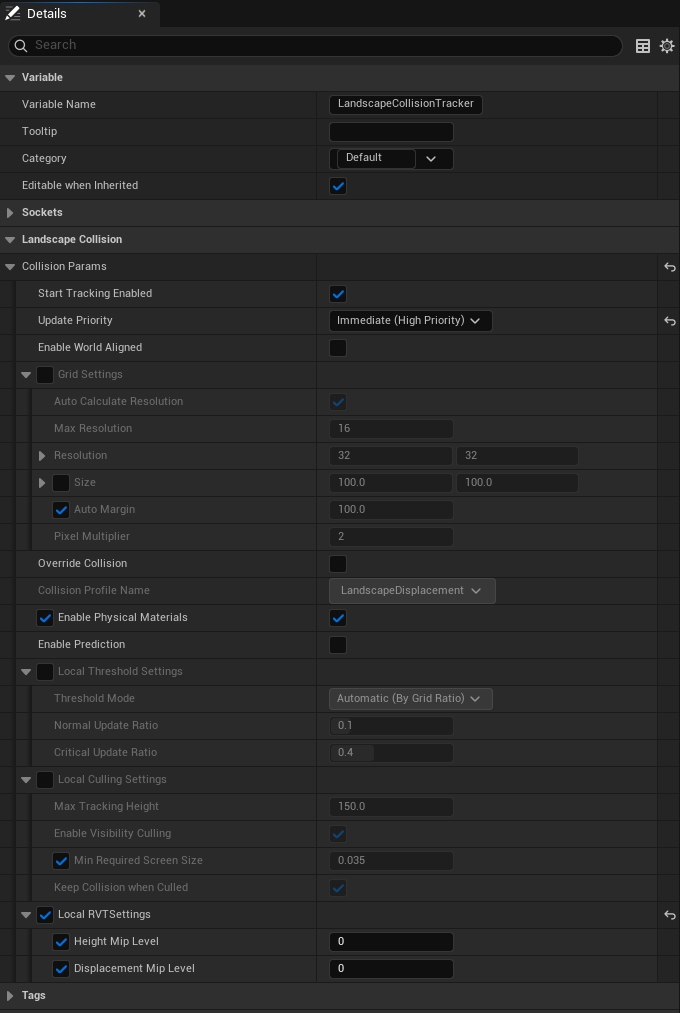
| Property | Description |
|---|---|
| Start Tracking Enabled | Should the collision start generating immediately upon spawning? |
| Update Priority |
Deferred respects the Project Settings frame budget (best for AI NPCs, traffic, or secondary props). Immediate forces generation immediately (best for the player's controlled character or main actor). |
| Enable World Aligned | If true, the generated grid stays locked to North/South instead of rotating with the actor. |
| Property | Description |
|---|---|
| Resolution | Number of subdivisions (e.g., 16x16, 32x32). Higher is more precise but costs more CPU to cook the physics. |
| Override Size | If false, it operates in Auto Mode. The system continuously and dynamically calculates the grid size during gameplay based on the Actor's Axis-Aligned Bounding Box (AABB) + Auto Margin. |
| Auto Calculate Resolution | If enabled, you specify a single Max Resolution (e.g., 16). The system calculates the object's physical dimensions and automatically reduces the resolution on the shorter axis to maintain perfectly square RVT sampling pixels. |
| Pixel Multiplier | How many RVT pixels are sampled per grid square. Higher values capture sharper details before smoothing them into the physical grid. |
| Property | Description |
|---|---|
| Enable Prediction | Uses the actor's velocity to spawn the grid ahead of the actor, ensuring fast-moving objects (like vehicles or projectiles) never "outrun" their collision floor. |
| Override Collision | Allows you to set a custom Collision Profile just for this actor's ground mesh. |
If checked, you can override the global Project Settings locally:
| Property | Description |
|---|---|
| bOverrideGlobalGrid | Override the global default grid dimensions and resolutions for this specific actor. |
| bOverrideGlobalCulling | Change Min Required Screen Size (to cull small distant actors or props) or Max Tracking Height (to stop tracking when objects fly high into the air). |
| bOverrideGlobalThresholds | Dictates how far the actor must move before the grid snaps to the new location. |
| bOverrideGlobalRVT | Override the virtual texture preloading behaviors for this actor. |
| bOverridePhysicalMaterials | Allows you to individually enable or disable Physical Material mapping for this specific actor to save performance. |
Access these nodes by searching for the Landscape Collision Subsystem (available from any Blueprint via Get Landscape Collision Subsystem):
-
Set Global System Enabled: Completely pauses or resumes the collision engine. PassClear Existing Collisions = Trueto instantly destroy all active meshes (useful during cutscenes or fast-travel). -
Is Global System Enabled: Returns whether the collision subsystem is currently active. -
Update Virtual Texture Volumes: Dynamically swap the targeted RVT volumes at runtime. Essential for World Partition games when streaming different biomes. -
Update Global Culling Settings: Change the culling aggression dynamically from your game's Graphics Settings menu. -
Set Max Deferred Updates Per Frame: Dynamically adjust the CPU physics budget (e.g. increase it during a pause menu or reduce it during heavy combat). -
Purge Physical Material Cache: Clears the CPU memory cache of physical materials. -
Get Registered Actors Count/Get Active Calculating Actors Count: Excellent for profiling! See exactly how many actors are registered vs how many are currently actively consuming CPU/GPU calculations. -
Get Registered Actors/Get Active Calculating Actors: Returns arrays of actors. Useful if you want to loop through active tracked actors and draw a debug HUD over them.
-
Register Actor/Unregister Actor: Manually register or unregister an actor for dynamic ground collision tracking without needing a Tracker component attached. -
Set Tracking Enabled: Pause or resume collision tracking for a specific actor at runtime without unregistering it. -
Set Physical Materials Enabled: Dynamically enable or disable the extraction and mapping of Physical Materials for a specific actor at runtime (great for optimizing distant traffic). -
Force Refresh Collision: Instantly force a recalculation of an actor's collision grid (useful immediately after teleporting an actor across the map). -
Request Collision Settings Update: Update runtime collision parameters (such as grid resolution or culling thresholds) of an already registered actor on the fly.
-
Get Cached Physical Material At Location: Fast query to retrieve the landscape'sPhysical Materialat a specific world location using cached CPU data. Essential for triggering correct footstep audio, impact VFX, or tire friction without performing heavy surface raycasts!
Drag a wire directly from your Actor or right-click anywhere in a Blueprint graph to access these static helper nodes:
-
Get Landscape Collision Host Actor: Returns the globalALandscapeCollisionHostactor in the level that owns all dynamic ground collision meshes. Crucial: Pass this actor directly into your LineTrace'sIgnoreActororIgnoreActorsarray to instantly ignore all procedural ground collision across your entire game in one single node! -
Get Actor Collision Mesh Component: Returns the dynamically generatedULandscapeCollisionMeshfor a specific actor. You can plug this into theIgnore Componentarray of your customLineTracesif you only want to ignore a specific actor's ground mesh. -
Is Actor Collision Tracked/Is Actor Collision Active: Check if the system is currently managing this actor, and whether it is actively consuming CPU/GPU cycles. -
Is Actor Fading Collision: Checks if the collision mesh for this actor is currently lerping (fading in or out during spawn, despawn, or culling transitions) and outputs its current blend alpha. -
Get Actor Collision Telemetry: Retrieves internal telemetry for the actor, including distance traveled since the last mesh update, elapsed time since update, and true vertical distance to the displaced surface. -
Get Actor Grid Resolution: Returns the exact calculated grid dimensions (resolution and physical size in units) generated for this actor. -
Get Processed Updates Last Frame: Returns the exact number of physics meshes that were successfully built and cooked on the CPU during the previous frame (ideal for custom performance monitoring HUDs).
You can type these commands directly into the Unreal Engine console during gameplay to visualize collision meshes or monitor performance:
| Command | Values | Description |
|---|---|---|
p.LandscapeCollision.Debug |
0 or 1
|
Renders a 3D wireframe over all dynamically generated collision meshes in real-time. |
stat LandscapeCollision |
N/A | Displays real-time CPU/GPU cycle counters ([GT] Game Thread & [RT] Render Thread) for extraction shaders, scheduling, and mesh rebuilding. |
Q: My character, prop, or vehicle is still falling through the displacement rocks!
A: Verify your Landscape Material has the Runtime Virtual Texture Output node correctly plugged in. Ensure the Landscape Actor has the RVTs added to its "Virtual Textures" array, and that the RVT Volumes cover the map.
Q: The generated collision meshes are not accurate or form a flat wall in certain areas of the map.
A: This usually happens when the Virtual Texture has not been fully streamed into memory for that specific area, causing the system to read the fallback value. To resolve this, simply add a Streaming Virtual Texture to your Runtime Virtual Texture Volume in the level. This ensures the engine streams the texture data correctly even when moving fast across the map.
Q: The collision meshes are blocking my weapons/LineTraces.
A: The generated meshes are standard physics bodies. To prevent self-interference or unwanted weapon/wheel raycast impacts against procedural ground, you have two simple options:
1. Ignore all ground collision globally (Recommended): Call the Get Landscape Collision Host Actor node (from any Blueprint) and pass it into your LineTrace's IgnoreActor or IgnoreActors array. Since this host actor owns every procedural ground mesh in the scene, your trace will ignore all displacement ground at once!
2. Ignore a specific actor's ground mesh: Call Get Actor Collision Mesh Component on a specific tracked actor (character, prop, or vehicle) and pass it into your LineTrace's IgnoreComponent list.
Q: My Chaos Vehicle is acting crazy / flying when it hits a displacement rock!
A: Chaos Vehicles have their own complex suspension simulation. The plugin automatically generates a LandscapeDisplacement collision profile that ignores vehicles. You should ensure your vehicle's collision profile ignores the displacement mesh, allowing the vehicle's suspension raycasts to handle the bumps smoothly while the chassis remains unaffected.
Q: The collision is lagging behind my fast-moving actor or vehicle.
A: Open the actor's Tracker component and enable Enable Prediction. You may also want to set its Update Priority to Immediate instead of Deferred.
For developers interested in performance and optimization, here is how the plugin's pipeline operates under the hood to ensure zero hitches:
-
Registration: The
Landscape Collision Tracker(or Plug & Play Auto-Registration) silently registers the Actor with theSubsystem. If a Tracker component is present, its custom parameters override the default fallback settings. -
Filtering (CPU): Every frame, the
Engineloops through registered actors. If an actor is moving fast enough (Threshold) and is close enough to the camera (Culling), it flags it for an update. -
Extraction (GPU): The
Enginerequests theRVT Processorto capture RVT pixels precisely under the actor's bounding box using a lightweight Compute Shader. - Readback (VRAM -> RAM): The texture data is copied asynchronously. The Game Thread never stalls waiting for the GPU.
-
Scheduling (CPU): Received data is placed into the
Schedulerqueue. The Scheduler acts as a governor, ensuring that only a set amount of physics updates occur per frame (controlled by yourMax Deferred Updates Per Framesetting). -
Generation: The
Dynamic Mesh Componentis built and its physics body is "cooked" asynchronously.