Repository navigation
Troubbleshooting
This page is targeted at resource-pack makers rather than end-users.
- Use
moduletree crawlto check which module applies to an item - Use
module walkthroughto check why a given module did or did not change the item's model. - Use
module variant-idormodule model-idto check why a specific variant was or was not included in the module.
- Models are left unchanged, or are changed to the wrong model.
- Missing models or texture
- Items aren't held correctly, or model animations are missing
The general syntax for commands is:
/variants-cit module <hook> <module id> ...
/variants-cit moduletree <hook> ...
-
<hook>can be "item_model", "equippable" or "trim_pattern" depending on what has been defined in your module. the defualt is "item_model". -
<module id>depends on the file path to your module's JSON file. It is relative tovariants-cit/modules/
Tip
You can use F3 + D to clear the in-game chat. Some commands give a lot of feedback, and this makes it easier to find where they start.
/variants-cit module <hook> <module id> summary
On most module, summary will simply give you the amout of variants that this module manages, and the components it relies on.
On enchant_vector modules, this will also give the list of unique enchantments that are present on your models. This can be a quick way to check if any of those models has a mispelled name.
/variants-cit module <hook> <module id> dump
This gives the complete list of models that was collected by this module, and their associated variant ID.
/variants-cit module <hook> <module id> variant-id <identifier>
/variants-cit module <hook> <module id> model-id <identifier>
Gives information about what the given id represents for this module, such as what variant or model is it associated with, or why it was or was not collected by the module.
The module enchantment_vector will also give the exact list of enchantments it parsed from the tested variant ID.
The autocomplete will suggest IDs that are relevant to the module, but any ID can be tested here.
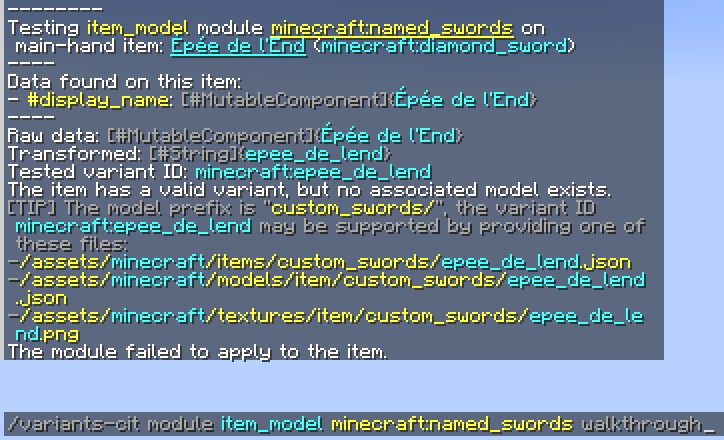
/variants-cit module <hook> <module id> walkthrough [[self|nearest_item|nearest_player]]
This command will forcibly run the given module on the item in your main hand, and give you information on what the module is trying to do and why it may have failed. The details vary from one module type to another, but at minimum, this will tell you what was the raw value of the item's relevant components, what variant ID was found if any, does this variant have a model, and what that model might be.
/variants-cit moduletree <hook> crawl [[self|nearest_item|nearest_player]]
This command tests all modules that can potentially apply to the item in your main-hand. It reports whether the modules failed or succeeded, and which one actually took control of the item's model.
Use the following commands to debug your item. The commands will target the item in your main-hand by default. You can target an item on the ground by adding nearest_item at the end of the command.
If you have multiple modules affecting that item, run moduletree crawl to check which module is taking control of the item right now.
/variants-cit moduletree <hook> crawl [[nearest_item]]
If you have identified a module that incorrectly failed or succeeded, use module walkthrough to test this module in particular:
/variants-cit module <hook> <module id> walkthrough [[nearest_item]]
Depending on what the result tells you:
Your module is probably stored in the wrong folder, or its name contains inalid characters.
Your JSON contains errors. The command will also print the error message that happened when loading the module.
Your item's type was not listed in the module's target items.
Your module's precondition did not match the item.
You can try inserting log transforms into your preconditions, and run walkthrough again to try and find the specific transform that failed.
The command will also give you the variant ID of your item, and what your model/texture should be named. Make sure that the file name matches exactly what is given.
You can use module variant-id and module model-id to get more informations on why your model failed to be recognized.
If you provide only textures but no JSON model, you must add an assetGen option to your module.
The item does not provide the data this module expected to find, or a transform failed to process that data.
If you are using a purpose-made module, double-check that the item provides the required component, and that you are using the correct module for the job.
If you are using predicates, you can insert log transforms into your preconditions, and run walkthrough again to try and find the specific transform that failed.
If you are using component_data or component_format, look for additional messages below.
The item does not provide the data this module expected to find.
Check that the nbtPath matches the location of the data. You can check the item's nbt structure by running this command with the item still in your main hand :
/data get entity @s SelectedItem.components
The transform chain failed to process the data.
In particular, if you are using a regex, it may mean that the regex did not match the input. Use Regex 101 to test your regex against the input, and check that the substitution result is what you expect it to be.
More gerally, you can insert log at various points into your transform to try and figure out where it has failed exactly.
(A.k.a. the pink and black checkerboard.)
If you are changing trim pattern textures, make sure you added those textures to the armor trim sprite atlas.
If you use ModernFix, either disable Dynamic Resources, or bake Variants-CIT's assets.
If you are using modelParent instead of asssetGen, make sure the parent model exists and is valid.
If you are using assetGen with a custom asset-generator, make sure it generates all the required assets
If you are directly providing your own json models, it means those models contains errors.
Even if those models originate from a working Optifine pack, they may still be invalid. Optifine allows for pack structures and asset formats that are illegal in vanilla minecraft. You may need to make modifications to its models, and move some files to different directories where Minecraft will actually load them.
Check the game's log for relevant errors. Possible issues caused by Optifine-formatted assets are:
- The resource location of models or textures uses a bad formatting
- The assets are stored in an invalid directory
If possible, try testing your models and item states in pure-vanilla minecraft, by using the item_model component instead of a VCIT module.
Check that you are using the correct assetGen option:
- Use
item_model/generatedfor regular items. - Use
item_model/handheldfor basic tools and weapons. - For any other item, check the list of builtin assetGen presets to find the one matching your item.