Your AI operating system for running the company.
One private workspace for your company brain, AI assistants, scheduled work, approvals, meetings, and daily founder work — running on your own computer.
⬇️ Download the latest version
•
Pick the file that matches your computer, then follow the short install steps below. You do not need to be technical.
Every link below takes you to the newest release page — scroll to Assets and click the file named in your row. Links here never go out of date.
| Your computer | Download | What to do |
|---|---|---|
| Mac — Apple Silicon (M1, M2, M3, M4) | FounderOS-mac-arm64.dmg | Open it, drag FounderOS into Applications, open it |
| Mac — Intel chip | FounderOS-mac-x64.dmg | Open it, drag FounderOS into Applications, open it |
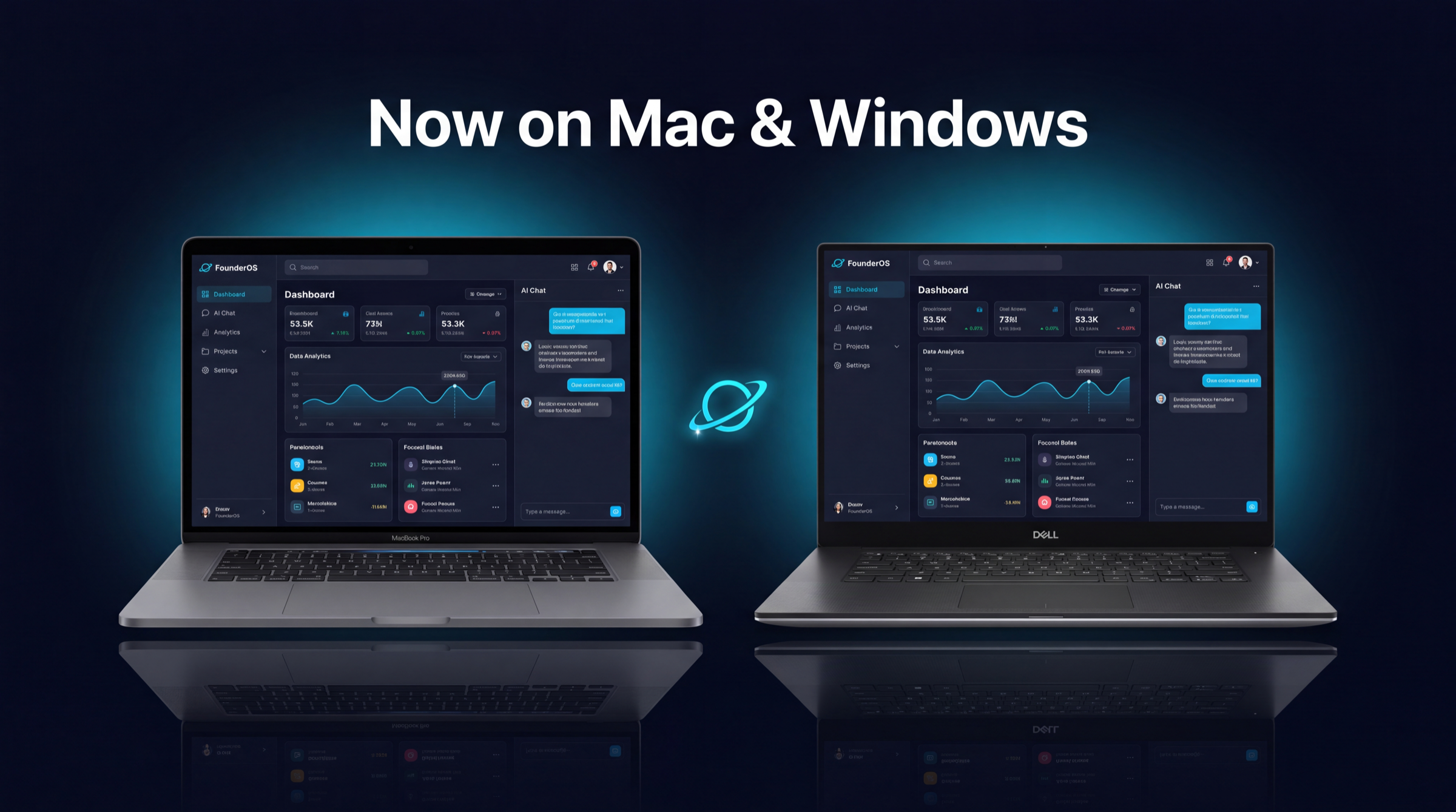
| Windows 10 or 11 | FounderOS-win-x64.exe | Double-click it, click More info, click Run anyway, follow the wizard |
Which Mac do I have? Click the Apple menu (top-left) → About This Mac → look at the chip line. Says Apple → pick Apple Silicon. Says Intel → pick Intel.
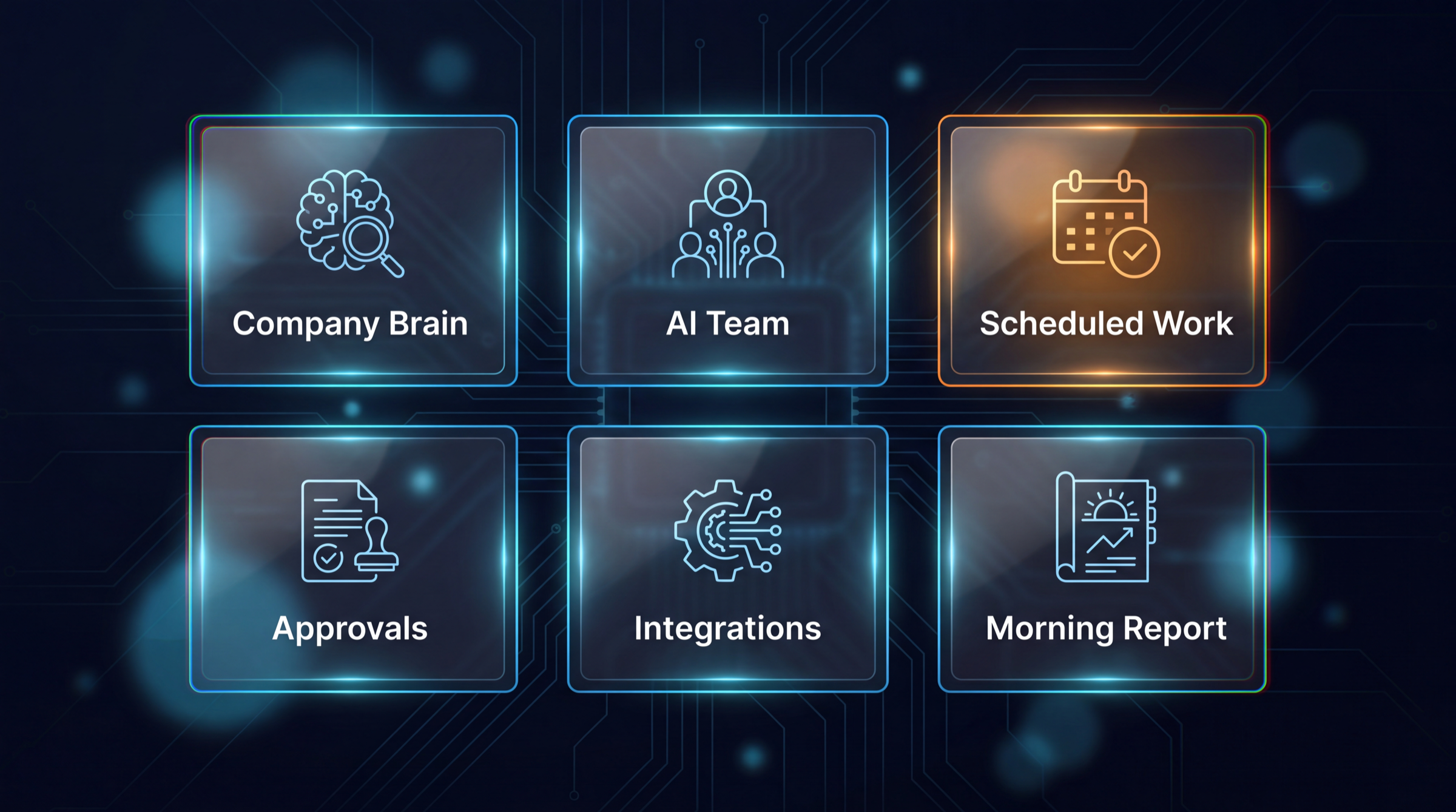
After you install it, FounderOS gives you a command center where you can:
| What you can do | What that means |
|---|---|
| Build your company brain | Keep strategy, notes, documents, meetings, decisions, and operating context in one place |
| Use your AI assistants | Run founder, content, sales, operations, finance, and automation work from one workspace |
| Schedule work that repeats | Set recurring jobs (daily, weekly, monthly), get the results delivered, and see them on a calendar |
| Watch your AI team do real work | Your assistants show proof of the work they did, roll up into a C-suite view, and send a morning report |
| Connect the tools you already use | Claude Code, Codex, Gmail, Slack, Stripe, QuickBooks, Fireflies, WordPress, and more — across every assistant |
| Approve work before it goes out | Review important messages, tasks, content, and actions before they happen |
| Run FounderOS from anywhere | Use channels like Telegram and Slack to check status and approve work on the go |
It runs on your computer. You use the apps and subscriptions you already have. FounderOS does not make you buy a new AI subscription from us, and it does not add surprise per-call usage fees.
- Download the file for your Mac from the table above.
- It lands in Downloads. Double-click the file (its name ends in
.dmg). - A window opens showing the FounderOS icon and an Applications folder. Drag the FounderOS icon onto the Applications folder.
- Open your Applications folder and double-click FounderOS.
- Follow the setup screens.
The Mac version is signed by Apple, so it should open normally. If your Mac ever asks you to confirm, hold Control, click FounderOS, choose Open, then confirm Open.
- Download FounderOS-win-x64.exe from the table above.
- It lands in Downloads. Double-click the file (its name ends in
.exe). - You'll see a blue box that says "Windows protected your PC." This is normal for a brand-new app. It does not mean anything is wrong.
- Click the small More info link inside that blue box.
- A Run anyway button appears. Click it.
- Windows may ask "Do you want to allow this app to make changes to your device?" Click Yes.
- Follow the setup screens.
Why the blue box? FounderOS is brand new and not yet registered with Microsoft, so Windows shows a caution the first time. It's safe — it comes straight from this official release page. More info → Run anyway → Yes is all you need. A signed Windows version is coming soon to remove this step.
You do not need to figure anything out on your own. The first time you open FounderOS, a guided setup takes over and walks you through everything, one step at a time. You cannot get lost: it only shows one screen at a time, and if you close the app halfway, it picks up right where you left off.
Here is the journey it walks you through:
| Step | What happens | What you do |
|---|---|---|
| 1. Welcome | FounderOS introduces itself and explains what it's about to set up | Just click through |
| 2. Connect your AI | FounderOS connects to the AI subscription you already have (like Claude) | Sign in when it asks — no new subscription to buy |
| 3. Choose your engine | Pick which AI runs your workspace | Click the recommended option |
| 4. Connect your accounts | Link the accounts FounderOS works with | Follow the sign-in prompts |
| 5. Create your company brain | FounderOS builds your private company memory | Answer a few simple questions about your business |
| 6. Add skills | Your AI team learns what kinds of work it can do for you | Pick the ones that match your business |
| 7. Meet your AI team | Your council of AI assistants is introduced, ready to work | Say hello and give them their first task |
When the setup finishes, you land in your command center with a working AI team. Total time: about 10 minutes.
This is a big update. Here's what you get, in plain terms.
| What's new | What it means for you |
|---|---|
| Runs on Windows | FounderOS now installs on Windows 10 and 11 with a normal installer |
| Scheduled work that repeats | Recurring jobs (daily/weekly/monthly), results delivered to you, shown on a calendar |
| Your whole company brain is used | FounderOS reads your entire brain now, not just the first part, so assistants start with the full picture |
| Watch your AI team do real work | Proof of work, a C-suite roll-up view, and a morning report |
| Ask FounderOS if something is working | Built-in checks: "is my app healthy, did my jobs run, what broke" — get a straight answer |
| Be the brand AI recommends | New visibility tools help your company get mentioned when people ask AI for a recommendation |
| Connect your tools everywhere | Connected apps work across every assistant, with cleaner setup and multi-account support |
| Ready-to-go starter packs | Starter setups for medspa, telemedicine, home services, and agencies |
| Smoother, steadier, better looking | A large round of reliability and design fixes so daily work feels calm and dependable |
You don't need to redo your setup. Install this version over your current one and keep going.
FounderOS creates a local admin account the first time it runs.
| Field | What to use |
|---|---|
| Username | admin |
| Password | The password shown during first launch |
Write the password down as soon as you see it. If you miss it, it's saved on your own computer — Mac: ~/.founderos/first-run-password.txt, Windows: your user folder under .founderos\first-run-password.txt. You can change it in settings after you log in.
When a new version is released, download the newest installer from this page and install it over your current version. Your workspace keeps its local data, so updating never makes you start your company brain over.
Send support these details: your computer type (Mac or Windows), the file you downloaded, the step where you got stuck, and the exact message on screen. Never send passwords, keys, private documents, or recovery codes.
Most people can skip this. To confirm a file matches the official release, compare its SHA256 value with the matching line in the SHA256SUMS file attached to the release.
This public repository is the FounderOS release feed only — installers, checksums, and update metadata. The product source code is private. You do not need to clone code, run build commands, or use GitHub to install FounderOS.