Mode_Grid
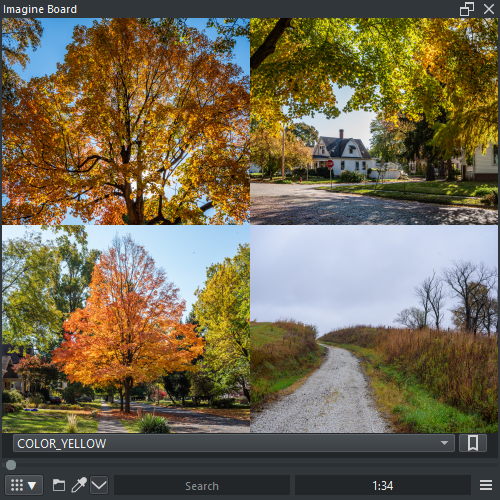
This mode displays multiple images in the most efficient way possible for the available space. Preview and Grid mode are connected.
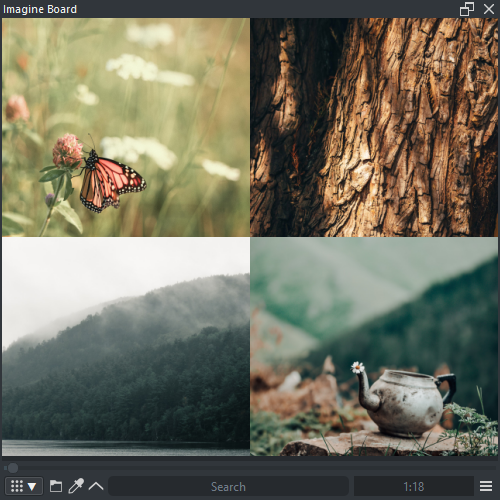
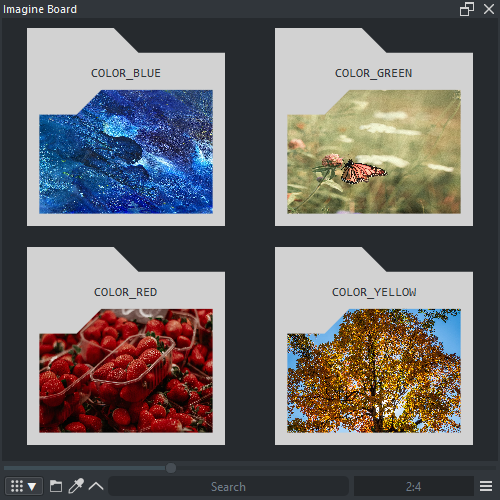
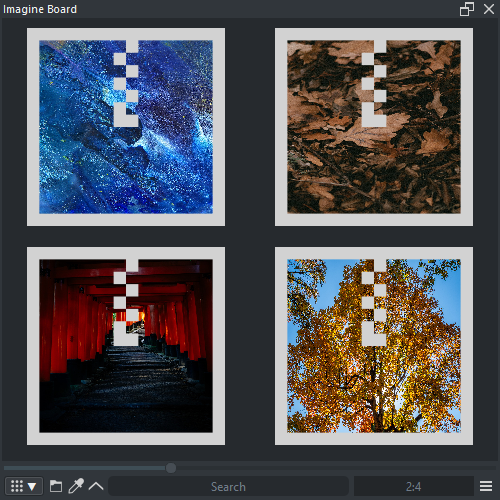
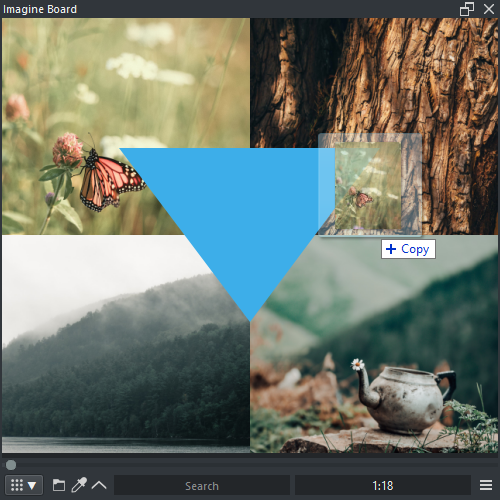
- LMB : Select Index
- [PICKER] LMB : Read pixel color when Color picker is active
- LMB x2 : Change to Preview mode
-
Camera : Camera options
- Wheel : Grid line increment
- MMB + ( Drag Vertical ) : Grid line increment
- SHIFT + LMB ( Drag Vertical ) : Grid line increment
-
Selection : Selection options
- CTRL + LMB : Select image
- CTRL + RMB : Deselect image
- CTRL + LMB x2 : Select all images
- CTRL + RMB x2 : Deselect all images
-
Drag and Drop : Drag and Drop options
- ALT + LMB ( Drag ) : Drag and Drop a selected images out of the Panel into ( Krita, Keyenter, Reorder, Drive )
- Drop Image In : Open and display image files ( Local, Web( changes to Preview ) )
-
Directory : Directory options
- Shift + LMB x2 : Open child folder
- Shift + RMB x2 : Open parent folder
-
RMB : Context menu
- Pin Reference : Send image to Reference mode
-
Grid : Grid options
- Display Fit : Display thumbnail fully inside the grid cell
- Precache List : Precache thumbnails to the allowed memory amount
-
Search : Search options
- [NULL] : Search folder for images that are nulls
- [ORIGINAL] [COPY] : Search folder for images that are duplicated
- Clear [TAGS] : Clear tags from all images
-
Modify : Modify options ( FILES WILL BE MODIFIED )
- Fix (to SRGB) : Fix images in the folder to display faster
- Pre-Multiply : Premultiply images in the folder
-
File : File options
- Open Location : Open the folder and highlights the url ( if possible )
- Copy Path : Copy to the clipboard the url
- Copy Image : Copy to the clipboard the image
-
Color : Color options
- Color Analyse : Send the image to Pigment.O Picker to be analysed
- LUT to Image : Send the image to Pigment.O Sampler to color transform with a LUT
-
Insert : Insert options
- Document : Insert image as a new document
- Layer : Insert image as a new layer
- Reference : Insert image as a new reference
- Full Screen : Toggle full-screen ( maximized )
- Browse Minus / Plus : Grid line pagination increment
- Bookmark List : Select the bookmark from the list
-
Bookmark Button : Bookmark options
- LMB ( Click ) : Go to the current bookmark in the list
-
LMB ( Press ) : Bookmark menu
- Save : Save current directory as a bookmark
- Delete : Delete bookmark from the list


-
Folder : Folder options or stop cycle
- LMB ( Click ) : Open file explorer dialog to select folder
- LMB ( Press ) : Open menu to change into a nearby folder
- Color Picker : Toggle color picker
- Context Menu : Toggle grid control interface
Check Tab Display in the Settings.