Mode_Preview
Preview is the default display method. This mode aims to display images with the best possible resolution for the available space. Preview and Grid mode are connected.
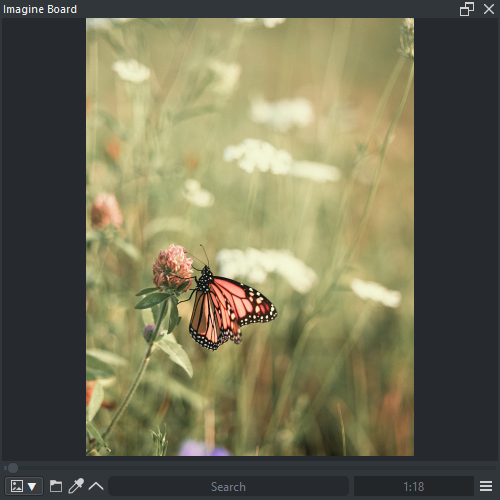
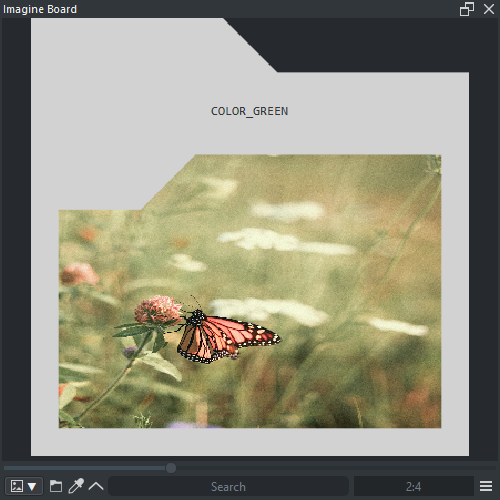

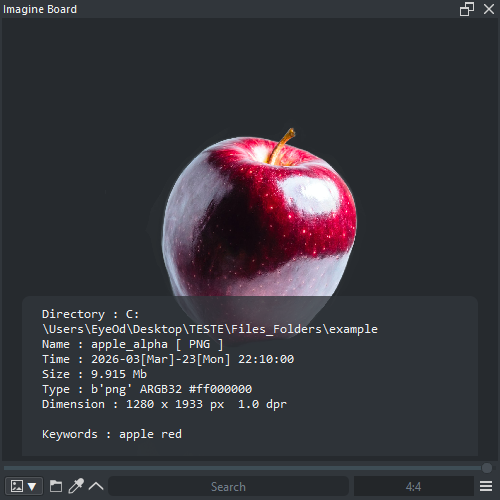
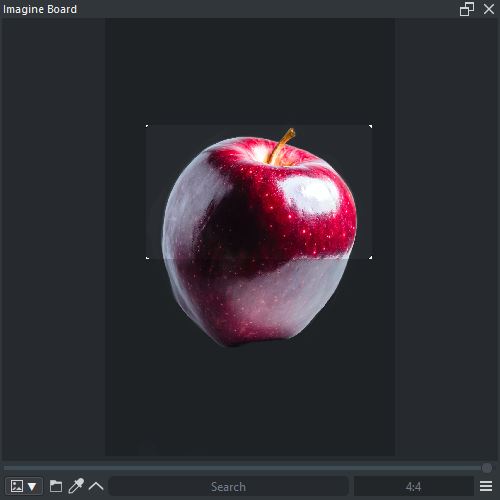
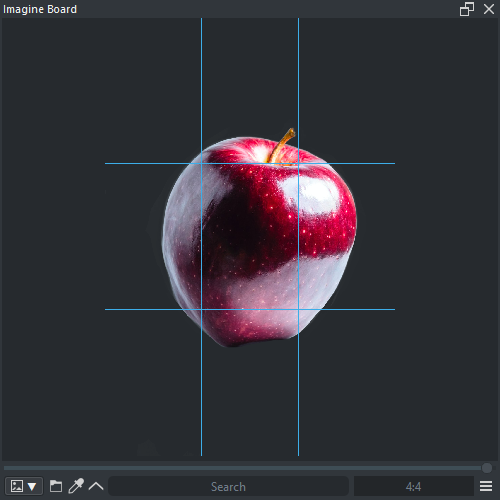
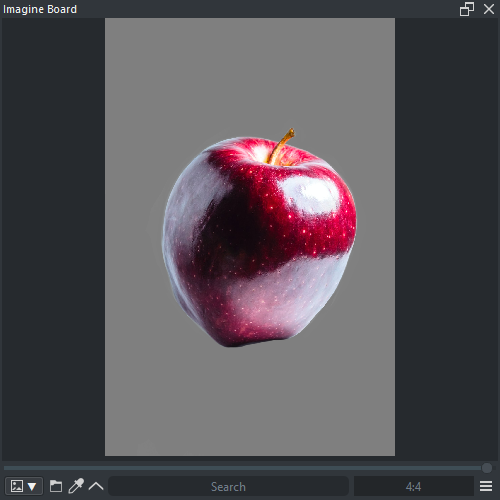
- LMB : Neutral click
- [PICKER] LMB : Read pixel color when Color Picker is active
- LMB ( Swipe Up or Swipe Down ) : Click on the infomation box area, and swipe up or down to open and close.
- LMB x2 : Change to Grid mode
-
Camera : Camera options
- CTRL + LMB ( Click ) : Camera Reset
- MMB ( Drag ) : Camera Pan
- SHIFT + LMB ( Drag ) : Camera Pan
- SHIFT + RMB ( Drag Vertical ) : Camera Zoom
- SHIFT + RMB ( Drag Horizontal ) : Camera Rotate
-
Pagination : Pagination options
- Wheel : File index increment
- CTRL + LMB ( Drag ) : File index increment
-
Drag and Drop : Drag and Drop options
- ALT + LMB ( Drag ) : Drag and Drop a image out of the Panel into ( Krita, Keyenter, Reorder, Drive )
- Drop Image In : Open and display image files ( Local, Web )
-
Directory : Directory options
- Shift + LMB x2 : Open child folder
- Shift + RMB x2 : Open parent folder
-
RMB : Context menu
- Pin Reference [CLIP] : Send image to Reference mode
- Clip Image : Toggle Clip rectangle mode to crop images quickly ( resets with pagination )
-
Preview : Preview options
- Original Size : Toggle display in the original resolution
- Random Index : Selects a random index
-
File : File options
- Open Location : Open the folder and highlights the url ( if possible )
- Copy Path : Copy to the clipboard the url
- Copy Image : Copy to the clipboard the image
-
Animation : Animation options
- Export One : Export the active frame
- Export All : Export all frames
-
Compressed : Compressed options
- Export One : Export the active frame
- Export All : Export all frames
-
Color : Color options
- Color Analyse [CLIP] : Send the image to Pigment.O Picker to be analysed
- LUT to Image : Send the image to Pigment.O Sampler to be analysed
-
Edit : Edit options
- View Grayscale : Toggle display Grayscale
- Flip Horizontal : Toggle display fliped horizontal
- Flip Vertical : Toggle display fliped vertical
- Edit Reset : Reset all edit options
-
Insert : Insert options
- Document [CLIP] : Insert image as a new document
- Layer [CLIP] : Insert image as a new layer
- Reference [CLIP] : Insert image as a new reference
- Full Screen : Toggle Imagine Board full-screen ( maximized )
- Browse Minus / Plus : File pagination increment
- Frame Minus / Plus : File frame pagination increment ( ANIM / COMP )

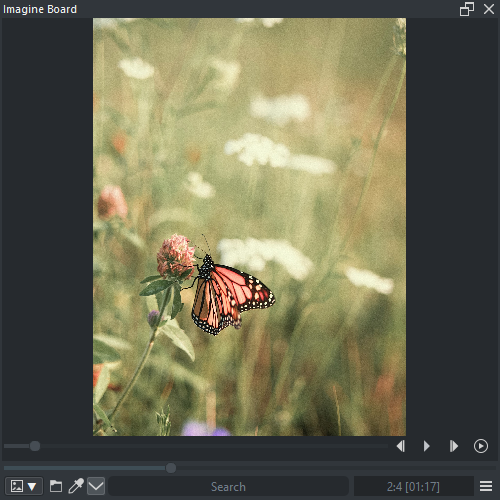
- Frame Slider : Select frame with a slider ( Animation )
- Frame Back : Increment one frame backwards ( Animation, Compressed )
- Play / Pause : Play and Pause animation cycles ( Animation )
- Frame Forward : Increment one frame forwards ( Animation, Compressed )
- Slideshow : Toggle file slideshow


-
Folder : Folder options or stop cycle
- LMB ( Click ) : Open file explorer dialog to select folder
- LMB ( Press ) : Open menu to change into a nearby folder
- Color Picker : Toggle color picker
- Context Menu : Toggle preview control interface
Check Tab Display in the Settings.