Mode_Reference
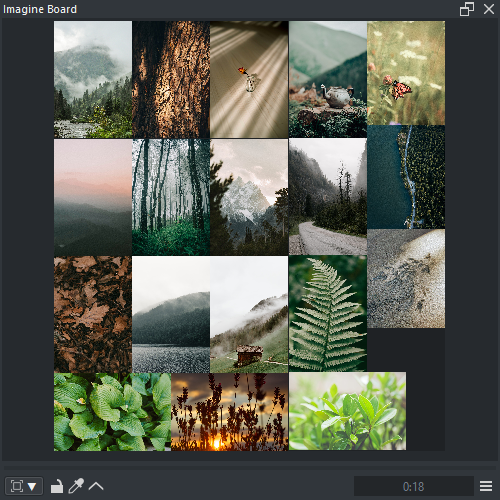
Reference creates from boards from various sources unlike Preview and Grid that read from a single source. For this reason the boards can act as an independant list of favorites from various folders and even from the internet to compose a mood board. Due to its nature these boards can help organize ideas and can also be archived for future reference even without the original sources being acessible anymore.
- [PICKER] LMB : Read pixel color when Color picker is active
-
Pin : Pin options
- [PIN] LMB : Activate Pin
-
[PIN] LMB ( Drag ) : Pin Move
- SHIFT or CTRL or ALT or SHIFT + CTRL : Move Pin amd then press modifier key to snap
- [PIN] LMB x2 : Pin full preview toggle
- [PIN] SHIFT + CTRL + ALT + LMB : Pin full preview toggle
-
Pin Transform : Transform options ( Image and Text Pins behave different )
- [PIN] SHIFT + CTRL + LMB ( Drag ) : Pin Move ( snaps always )
- [PIN][NODE] SHIFT + CTRL + LMB ( Drag Perpendicular ) : Pin Scale ( snaps with cursor over node )
- [PIN][CENTER] SHIFT + CTRL + LMB ( Drag Horizontal ) : Pin Rotate ( snaps to 5 angles always )
-
Camera : Camera options
- MMB ( Drag ) : Camera Pan
- Wheel : Camera Zoom
- SHIFT + LMB ( Drag ) : Camera Pan
- SHIFT + RMB ( Drag Vertical ) : Camera Zoom
-
Selection : Selection options
- [BOARD] LMB ( Drag ) : Box Select
- [PIN] CTRL + LMB : Pin Select/Deselect
- [PIN] CTRL + RMB : Pin Select/Deselect
- CTRL + LMB ( Drag ) : Box Select
- CTRL + RMB ( Drag ) : Box Deselect
- CTRL + LMB x2 : Select all Pins
- CTRL + RMB x2 : Deselect all Pins
-
Drag and Drop : Drag and Drop options
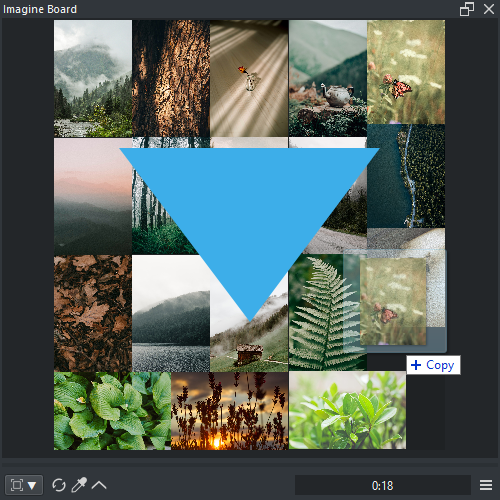
- ALT + LMB ( Drag ) : Drag and Drop a selected images out of the Panel into ( Krita, Keyenter, Reorder, Drive )
- Drop Image In : Drop image into the board
-
RMB : Context Menu
- Fit : Fits all Pins to the available space
-
Reference : Reference options
- Refresh : Refresh the display of all Pins
- Label : Create a text label Pin
- Link : Input image URL to insert Pin
-
Board : Board options
-
[EO]file_name : EO file options
- New : Create new EO file
- Open : Open from EO file
- Save : Save to EO file
- Save As : Export into a new EO file
- Archive : Archive into EO file ( bigger EO file size )
-
[KRA]file_name : KRA file options
- Read : Read from KRA file
- Write : Write into KRA file
- Archive : Archive into KRA file ( bigger KRA file size )
- Unarchive : Unarchive into KRA file ( smaller KRA file size )
-
[EO]file_name : EO file options
-
Pin : Pin options
-
Pack[NUM] : Pack selected Pins
- Linear Grid : Grid of images ( faster solution )
- Linear Row : Row of images
- Linear Column : Column of images
- Linear Pile : Pile images
- Optimal Area : Optimal packing with Area sort
- Optimal Perimeter : Optimal packing with Perimeter sort
- Optimal Ratio : Optimal packing with Ratio sort
- Optimal Class : Optimal packing with Class sort
-
Reset : Reset options
- Rotation : Reset Pins rotation
- Scale : Reset Pins scale
-
File : File options
- Open Location : Open the folder and highlights the url ( if possible )
- Copy Path : Copy to the clipboard the url
- Copy Image : Copy to the clipboard the image
-
Color : Color options
- Color Analyse : Send the image to Pigment.O Picker to be analysed
- LUT to Image : Send the image to Pigment.O Sampler to color transform with a LUT
-
Edit : Edit options
- View Grayscale : Toggle display Grayscale
- Flip Horizontal : Toggle display fliped horizontal
- Flip Vertical : Toggle display fliped vertical
- Edit Reset : Reset all edit options
-
Insert : Insert options
- Document : Insert image as a new document
- Layer : Insert image as a new layer
- Reference : Insert image as a new reference
- Download : Download Pins to destination
- Rebase : Relocate selected Pins
- Delete : Delete selected Pins
-
Pack[NUM] : Pack selected Pins
- Full Screen : Toggle full-screen ( maximized )

- Text : Text to display
- Font : Text font
- Size : Text size
- Color Text : Picker for the text color
- Color Background : Picker for the background color


- Lock : Lock board from edits
- Color Picker : Toggle color picker
- Context Menu : Toggle reference control interface
Check Tab Display in the Settings.