Auto fix Guide
Some violations can be fixed automatically with a single click. Others require manual work — usually because the fix would be destructive or ambiguous.
Warning: Auto-fix operations are irreversible without source control. Always check out files in Perforce or commit in Git before running fixes on a large batch.
Apply a fix from the panel Fix button, or right-click the asset in the Content Browser and choose Fix.
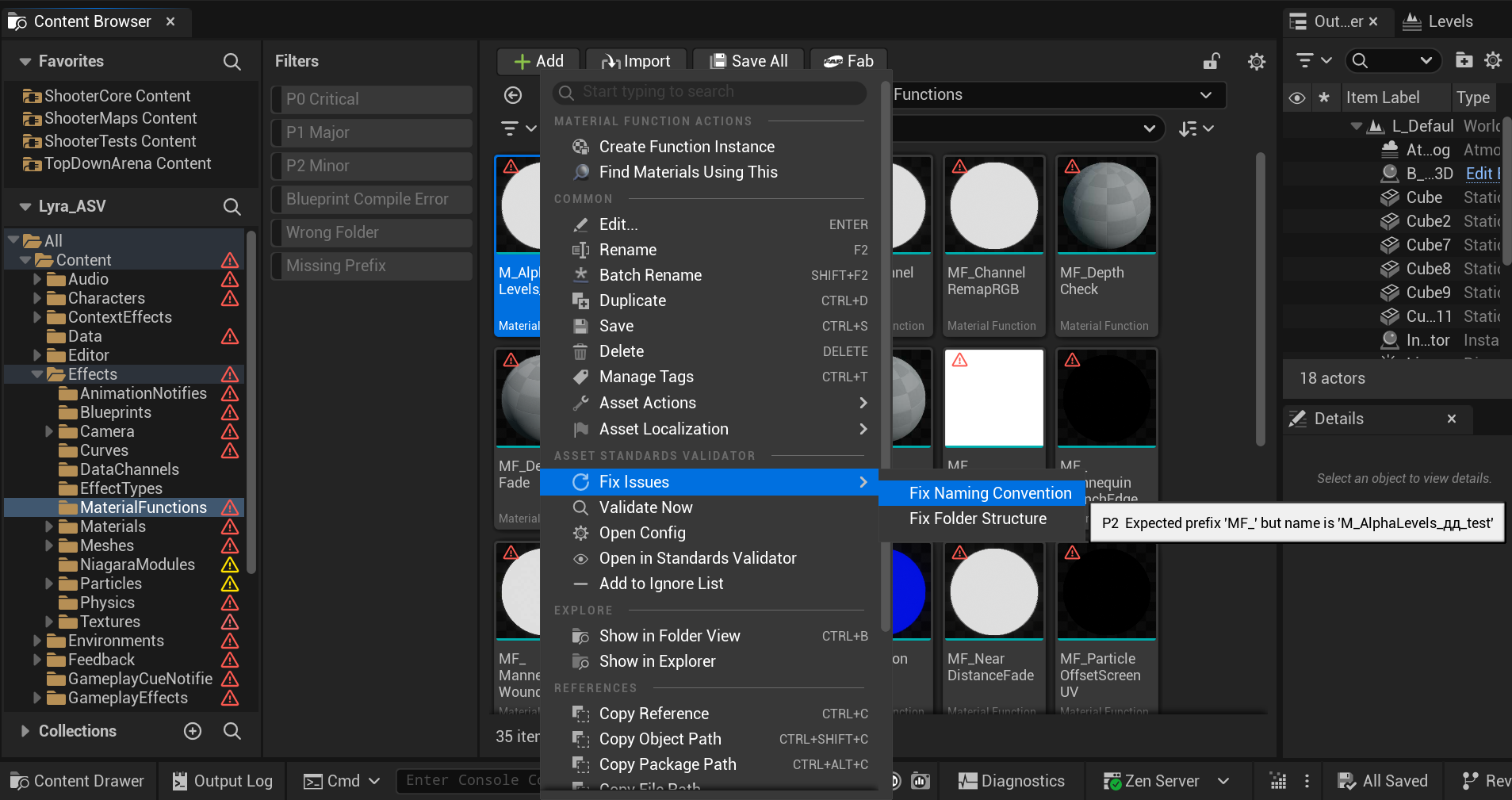
These fixes rename the asset in place. A redirector is created at the old path automatically by the engine.
| Rule | What the fix does |
|---|---|
missing_prefix |
Adds the correct prefix. Example: MyTexture → T_MyTexture. If the name would collide with an existing asset, a numeric suffix is appended. |
duplicate_prefix |
Removes the extra prefix. Example: BP_BP_MyActor → BP_MyActor. |
missing_suffix |
Appends the required suffix. Example: SC_Ambient (SoundConcurrency) → SC_Ambient_SC. |
missing_allowed_suffix |
Appends the first allowed suffix for the class. Example for World assets: L_Town → L_Town_P. |
wrong_case |
Capitalizes the first letter of each name segment after the prefix. Example: T_cross_fire → T_Cross_Fire. |
junk_name |
Strips the junk word and applies the correct prefix to what remains. Only fixes when a meaningful name part exists after the junk word. Example: New_BossEnemy → BP_BossEnemy. |
| Rule | What the fix does |
|---|---|
wrong_folder |
Moves the asset to the best matching allowed folder under the current scan root. Example: a Material in /Game/Characters/ moves to /Game/Materials/. Creates redirectors at the old path. |
These fixes modify texture import settings directly. The asset is saved after the change.
| Rule | What the fix does |
|---|---|
texture_wrong_srgb |
Sets the sRGB flag to the correct value for the detected texture type (on for color, off for data). |
texture_wrong_compression |
Sets CompressionSettings to the expected value for the texture type (e.g. TC_NormalMap for _N textures). |
texture_wrong_group |
Sets LODGroup to the expected LOD group for the texture type (e.g. TEXTUREGROUP_UI for _UI textures). |
| Rule | What the fix does |
|---|---|
mesh_nanite_policy |
Enables or disables Nanite on the mesh according to the configured NanitePolicy. Saves the asset. |
| Rule | What the fix does |
|---|---|
stale_redirector |
Runs UE's Fix Up Redirectors on the redirector asset — same as right-clicking it in the Content Browser and choosing Fix Up Redirectors. Deletes the redirector and updates all references to point to the new path. |
Three Blueprint rules support auto-fix via variable rename:
| Rule | What the fix does |
|---|---|
bp_bool_no_prefix |
Adds b prefix to the boolean variable name. Example: IsAlive → bIsAlive. |
bp_bool_is_pattern |
Removes the redundant verb prefix. Example: bIsDead → bDead. |
bp_var_not_pascal_case |
Capitalizes the first letter of the variable name. Example: health → Health. |
Warning: Blueprint variable renames update all references within the same Blueprint. References from other Blueprints or C++ are not automatically updated — check and fix those manually.
Instead of fixing assets one by one, Batch Fix lets you apply an auto-fix to all visible results of a single rule at once.
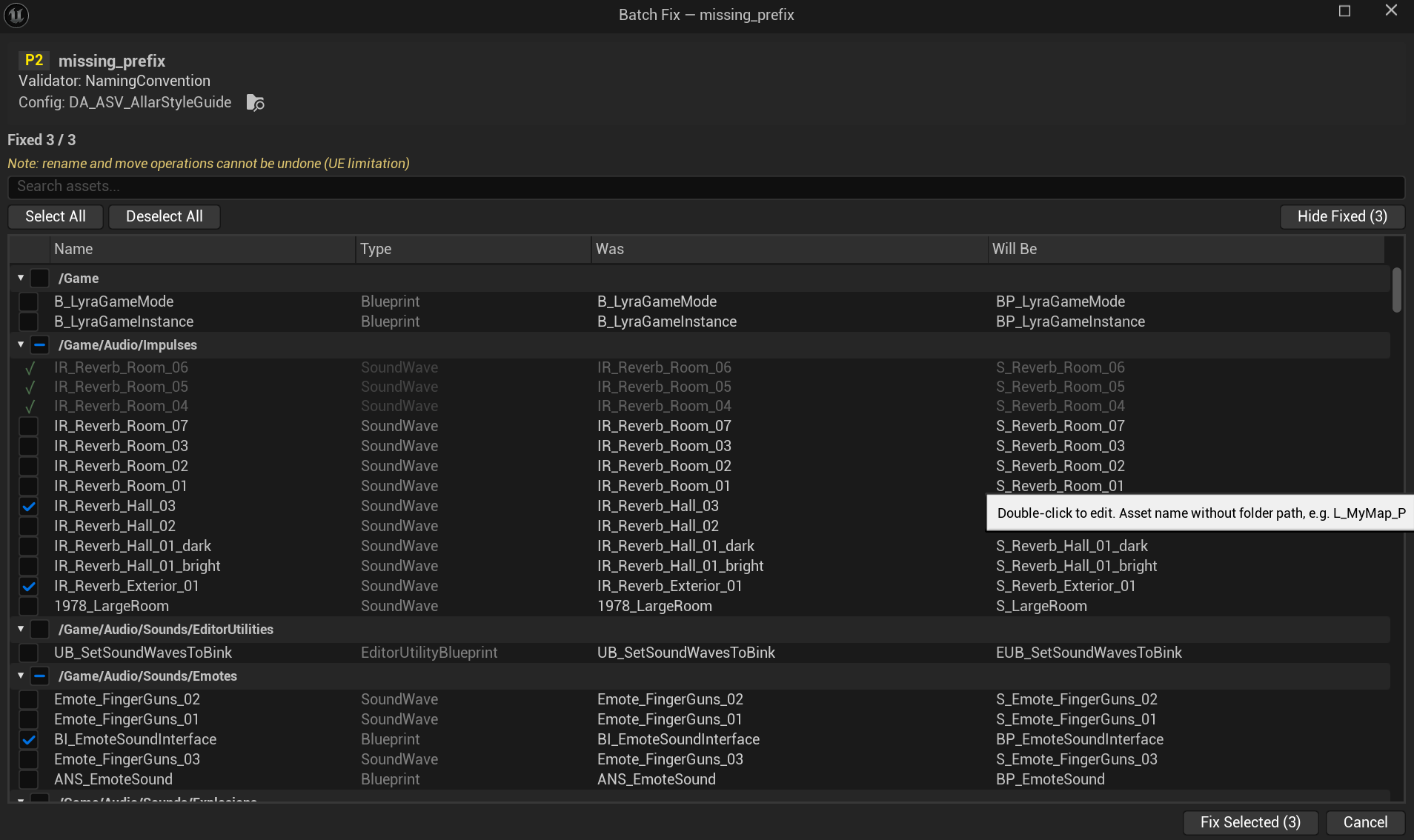
Note: Batch Fix is available in both versions. In the demo it is limited to 5 uses per session.
The Fix All button in the panel toolbar becomes active when:
- All visible (filtered) results share exactly one Rule ID
- At least 2 of those results are auto-fixable
Use the rule filter dropdown to narrow results to a single rule, then click Fix All.
Before the dialog opens, ASV scans for potential conflicts and marks affected rows:
- Name collision — an asset with the target name already exists at the destination path
- Path collision — for move operations, an asset already exists at the destination folder
- Unsaved changes — the asset package has unsaved edits (save first)
Conflict rows are highlighted in orange, their checkbox is disabled, and hovering shows the reason. The check repeats immediately before execution — so conflicts that appear while the dialog is open are caught.
The Batch Fix dialog shows all selected assets in a scrollable list:
- Results grouped by folder — each folder header is collapsible
- Per-row: checkbox · status icon · asset name (hover for full path) · current value · proposed value
- Search field to filter rows by asset name
- Select All / Deselect All buttons above the list
- Fix Selected is disabled when no rows are checked
Fixes apply one per frame. Each row updates its icon in real time (✓ = fixed, ✗ = failed). The button label tracks progress: Fixing… 12 / 47.
When complete, a summary appears inline (Fixed 44 / 47 — 3 skipped) and a toast notification is shown. The panel refreshes automatically after the dialog closes.
Undo behavior depends on the type of fix:
-
Property fixes (texture sRGB, compression, LOD group, Blueprint variable renames) — wrapped in a single UE transaction. Press
Ctrl+Zonce to undo the entire batch. - Rename and move fixes — disk operations. Not undoable via Ctrl+Z. The engine creates a redirector at the old path, but the rename itself cannot be rolled back. Check out files in source control before running these.
In the demo version, Batch Fix is limited to 200 assets per operation. If more than 200 fixable results are visible, Fix All will apply to the first 200 and show the remaining count in the tooltip. The full version has no per-operation cap.
| Rule | Why no auto-fix | How to fix |
|---|---|---|
name_pattern_mismatch |
The correct name is ambiguous — tool can't know what you intended | Rename in Content Browser |
non_ascii_name |
Transliteration is locale-dependent | Rename to an ASCII name |
folder_contains_unicode |
Same — folder rename affects many assets | Rename folder |
folder_not_pascal_case |
Same | Rename folder |
folder_disallowed_name |
Correct target folder depends on project structure | Rename/reorganize folder |
folder_in_developers |
Decision where to move it requires human judgement | Move asset to production folder |
texture_not_power_of_two |
Requires reimport from source at correct size | Reimport texture at power-of-two dimensions |
texture_exceeds_max_size |
Requires reimport or texture editor change | Reduce texture dimensions in the source and reimport |
bp_editable_missing_tooltip |
A meaningful tooltip can't be generated | Add tooltip in Blueprint variable details |
bp_editable_missing_range |
Valid range depends on game logic | Set ClampMin/ClampMax in variable metadata |
bp_var_config_flag |
Removing Config may break runtime behavior | Remove Config flag from variable properties |
bp_vars_uncategorized |
Categories are project-specific | Add categories to editable variables in Blueprint |
bp_var_atomic_type_name |
New name depends on variable meaning | Rename variable (e.g. ScoreFloat → Score) |
bp_var_redundant_context |
Which part of the name to remove depends on intent | Rename variable to remove class context |
var_array_not_plural |
Pluralization rules are language-specific | Rename array variable to plural form |
var_missing_type_name |
Correct type suffix depends on variable purpose | Rename variable to include type (e.g. HitResult) |
blueprint_compile_error |
Error must be understood and fixed in Blueprint editor | Open Blueprint, fix compilation errors, save |
blueprint_compile_warning |
Warning must be reviewed in Blueprint editor — often a deprecated node | Open Blueprint, review compile warnings, save |
mesh_no_collision |
Collision type and shape depend on gameplay use | Add collision in Static Mesh Editor |
mesh_no_lods |
LOD settings depend on performance budget | Set up LODs in Static Mesh Editor or via auto-LOD |