User Guide
PRKS organizes research around Works and the entities connected to them. The interface is deliberately closer to a research workspace than to a file manager: a PDF or video can carry bibliographic metadata, research notes, people/roles, tags, progress, annotations, and links into the research network.
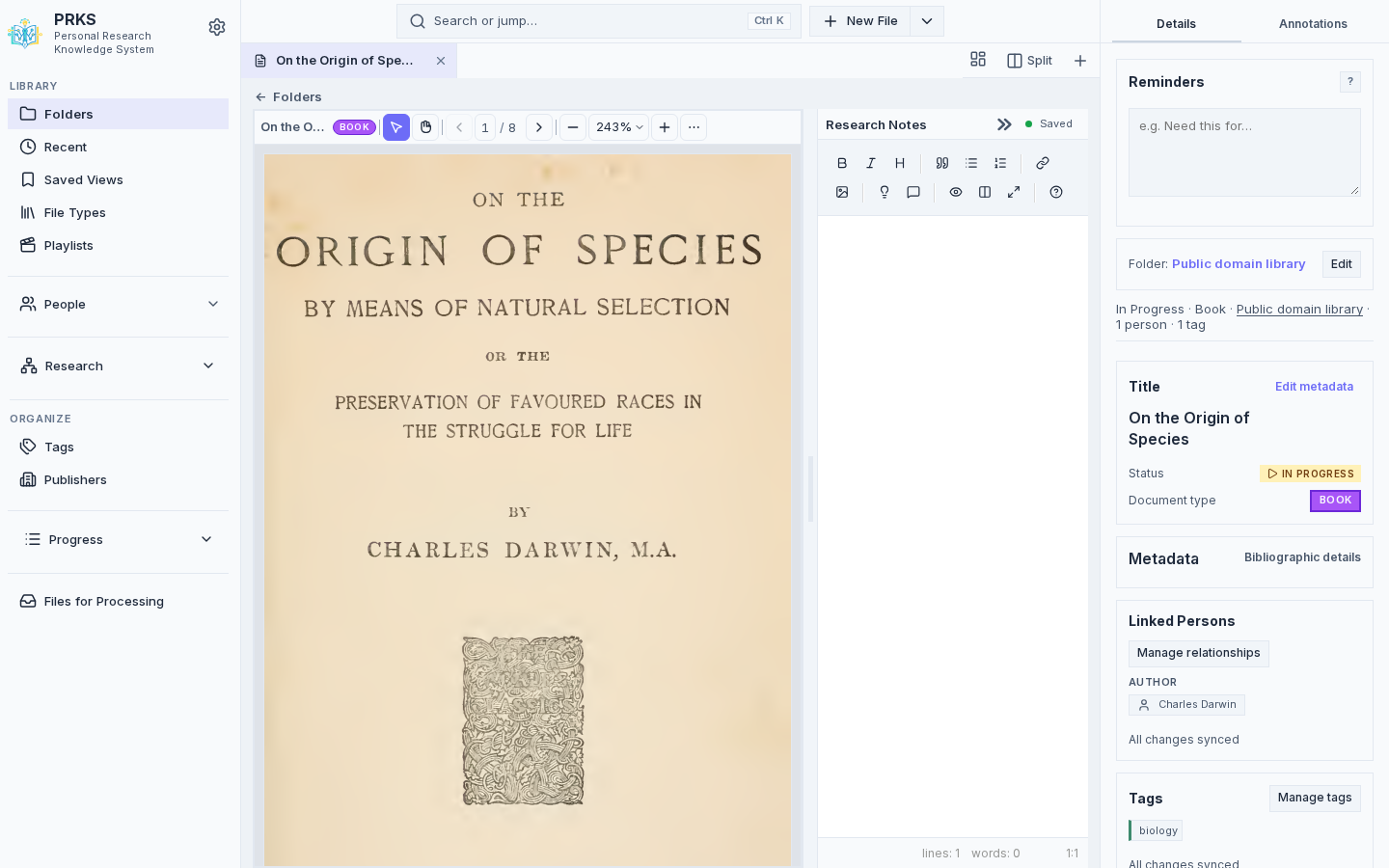
The screenshots in this guide use the public-domain demo library maintained by the repository.
A Work is the central research item. A Work may represent a managed PDF, an online/video source, or another supported research item.
Common Work tasks include:
- editing title and bibliographic metadata;
- tracking reading/viewing progress;
- assigning a Folder and Tags;
- linking People with explicit Roles/credits;
- adding Research Notes and private/reminder-style notes;
- viewing or annotating a managed PDF;
- opening related Concepts, Positions, Arguments/Stances, and graph context.
PRKS keeps source identity separate from descriptive metadata. Video identity in particular is handled as an aggregate rather than as unrelated editable columns; see the Work source identity design report.
Folders provide the main hierarchical organization for the library. Browse surfaces also include Progress, File types, Recently opened, Recently added, search results, and Saved Views.
On a Folder detail page at a normal desktop width, a persistent hierarchy tree sits beside the current Folder’s contents so you can jump elsewhere in the library without leaving the page. On a narrow pane, tile, or small viewport, that tree yields to a compact folder navigation band (Library path crumbs, nearby Folders, and Browse hierarchy). Choosing a Folder uses the same Folder routes as the Folder library (including the current workspace tab or split pane).
Supported work-list pages provide bulk selection for operations such as progress changes, folder moves, and tag changes. Bulk mutations are transactional: an invalid target should not leave only part of the selection changed.
Tags are reusable vocabulary. They can be attached to Works and Folders. Tag creation/deletion/merge and several tag-assignment paths are part of the local-first system; use the rollout-status document for the exact current coverage.
People are first-class records rather than free-text author strings. A Work can link to People through Roles/credits. Person Groups organize related people separately from Work Folders.
Remote profile images are optional and deliberately constrained: PRKS accepts direct public image URLs only, refuses private/local targets and redirects, bounds the download, decodes the result, and stores a transcoded cache rather than the original remote bytes.
Playlists organize Works in an explicit order and can be useful for video/research sequences. Playlist changes participate in the durable local-first model where documented by the current rollout status.
Open the command palette with Ctrl+K (Cmd+K on macOS), or use Search or jump.
It can navigate to major entities and sections, search the library, create common records, and open Settings/actions. Alt+Enter can route supported destinations into split view.
Open in split view (from the workspace Split control or pane menu) opens the same palette in a restricted mode: only tile-capable detail pages appear (Works, People, Playlists, Concepts, Positions, Arguments, Folders). Library index destinations such as the Folder library, Recent, Saved Views, and Progress stay main-only; the empty state explains that when a query matches one of them.
Research Notes live with a Work and use durable local-first operations. PRKS also supports structured research entities—Concepts, Positions, Arguments and Stances—described in Research Network.
The Processing Files surface is for files that still need to be imported/organized. It is operational UI rather than a normal research document surface, so not every workspace behavior necessarily applies to it.
Do not infer offline support from the presence of a page or control. PRKS separates disposable read caches from durable user intent. The exact supported mutation families are tracked in docs/local-first-rollout-status.md.
See Offline and Sync for the model.
On supported work-list pages (folder, recent, search, file type, progress, and Saved View results), choose Select, pick files, and use the bulk toolbar to change progress, move or clear folders, or add and remove tags.
A bulk action is one request and one database transaction. If any selected file or target is invalid, none of the selected files are changed.
Run a search and choose Save View. Saved Views remember the search definition, not the current result list. Opening a Saved View always shows the files that match now.
Saved Views are stored in the main PRKS database and included in backups. They are also searchable/openable from Ctrl/Cmd+K.
A Saved View is not a snapshot of matching work IDs. If files, tags, authors, publishers, or PDF text change, the next time you open the view it re-runs the current search engine.
Press Ctrl+K (Cmd+K on macOS), or choose Search or jump.
Use it to:
- open files, folders, people, groups, playlists, Saved Views, Concepts, Positions, and Arguments/Stances
- search the library
- navigate to sections/progress views
- create files/folders/people/groups
- open Settings and common actions
People, Progress, and Research sidebar shortcuts are collapsible. Active child routes stay visible without overwriting the collapsed preference.