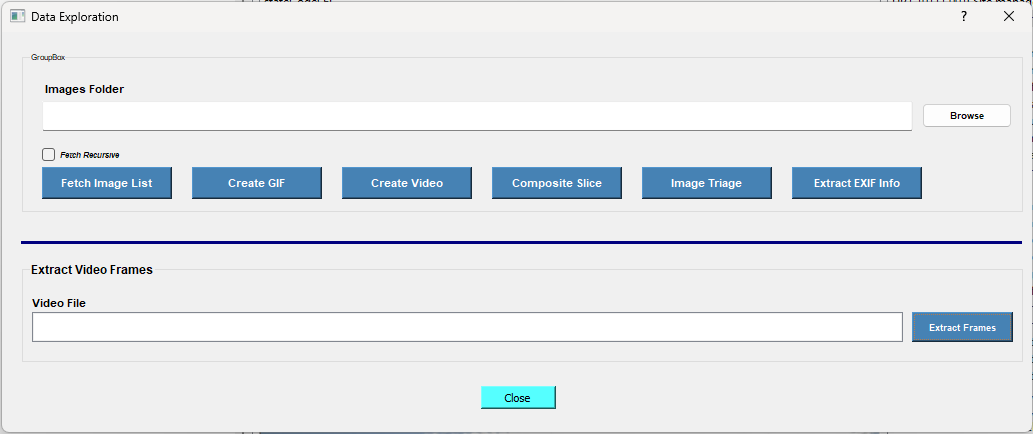
2 Data Retrieval
Below are the tools associated with data retrieval in GRIME AI:
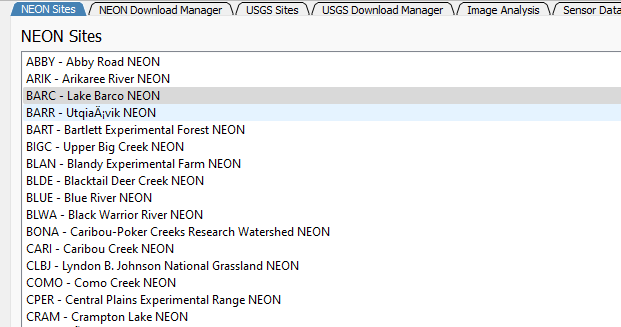
The NEON Sites tab allows a user to select a site for image/ data retrieval from one of dozens of NEON sites.
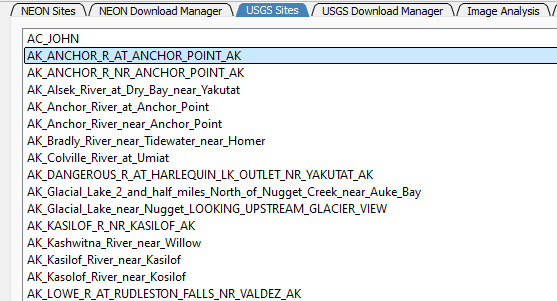
The USGS Sites tab allows a user to select a site for image retrieval from hundreds of sites on the USGS HIVIS network.
After selecting a site to extract images from using either the NEON or USGS sites list, go to to the corresponding Download Manager tab.
The Download Manager tabs allow a user to specify start and end dates and times for image retrieval and other site products (for NEON sites). For USGS sites, corresponding discharge and gage height are automatically downloaded to a Data folder.
Below is an example of the NEON Download Manager.
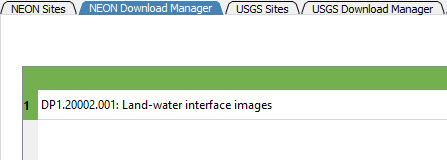
When using the NEON Download Manager, data from the NEON Site Products column on the NEON tab can be selected. See the below image for the steps involved in NEON site downloading.
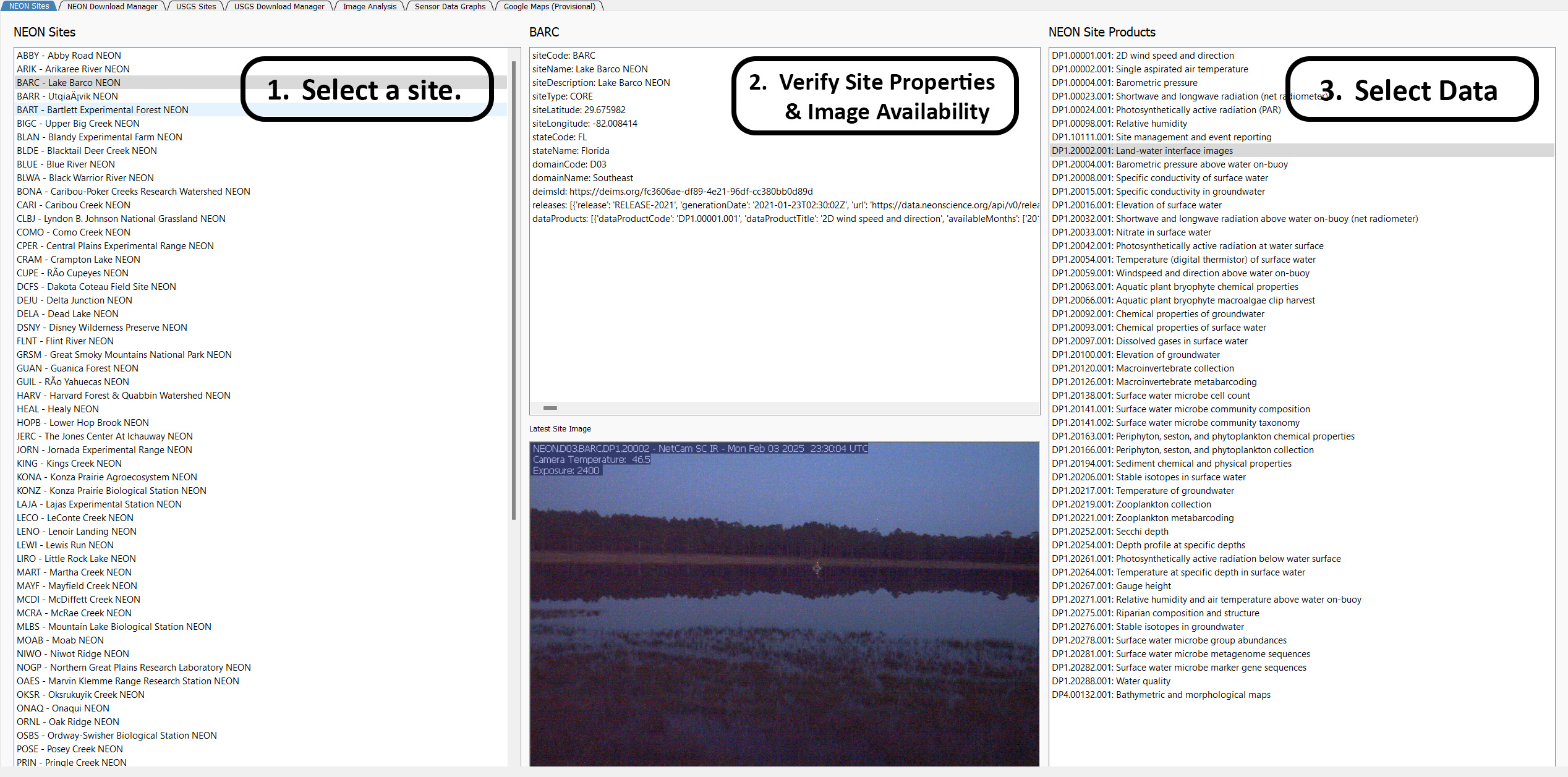
Next, proceed to the NEON Download Manager tab, where a date and time range must be selected.
A start and end date must be selected from the corresponding dropdown menus, as seen in the image below. Leaving the start and end time at 0 pulls all available images and data from each day in the selected time range.
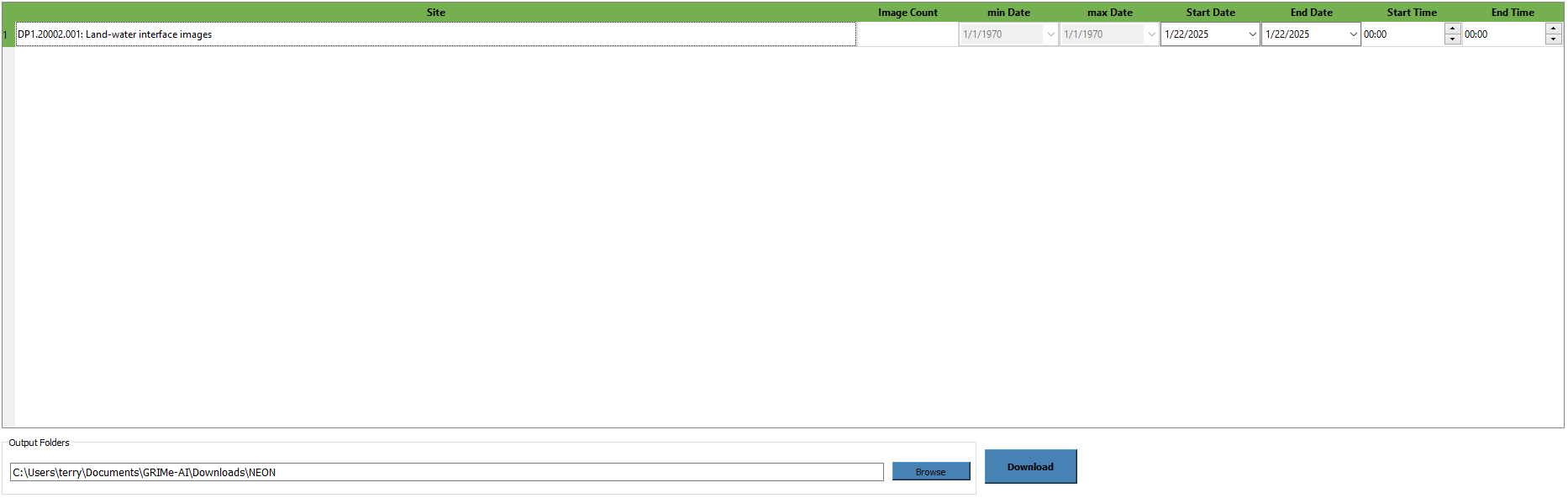
To download the images, choose a file path using the Browse button, and then click Download.
Note: USGS image files may be named with Coordinated Universal Time (UTC), rather than the current time when an image was taken. Therefore, a user may need to adjust times specified for image retrieval or manually remove images that are downloaded from outside of the target time range.
Certain features of GRIME AI allow the user to upload their own images for data analysis, such as the Data Exploration tool, which is explained in the next page of the document. Click here to go there.