Repository navigation
Getting Started
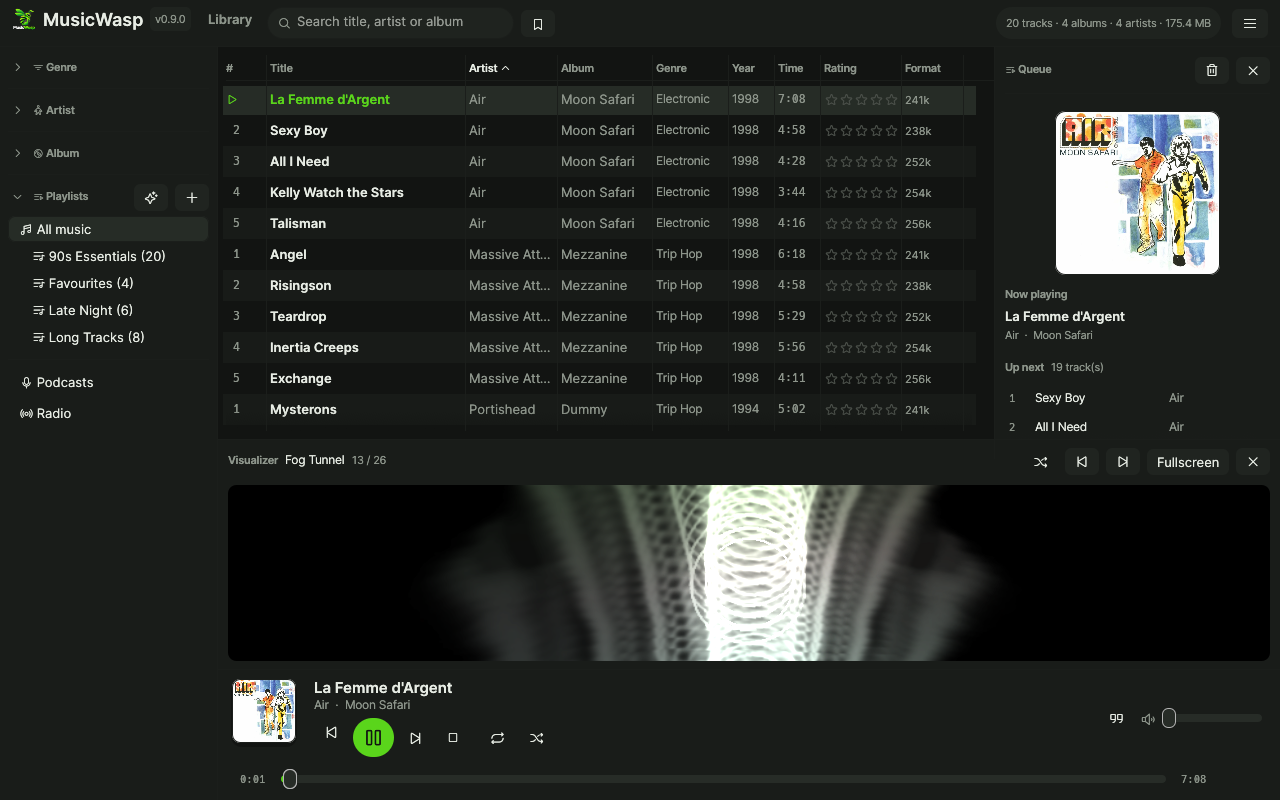
- Start the GUI.
- Open Settings → General.
- Choose a folder under LIBRARY or type its path.
- Press Scan.
Indexing runs in a background thread. The spinner and progress bar show found/total files, indexed and unchanged counts. Press the X next to the spinner to stop after the current file. Repeat scans skip files whose size and mtime are unchanged.
A successful scan also registers the folder for watching. New files are imported automatically and tag edits made in another editor refresh existing rows. Renames and deletions are reported by Library hygiene, not pruned automatically.
The left browser has three foldable sections: genre, artist and album. Clicking an entry filters the track table; clicking it again clears it. The folded state is remembered.
The track table can be sorted by clicking a column header. Column widths are resizable. Use the main menu (☰) → Track columns to reorder, hide or reset columns and choose a layout:
- Standard
- Compact
- Album art
- Double-click a row or press
Enterto play. -
Spacepauses and resumes. -
Ctrl+Left/Ctrl+Rightchange tracks. - The Up Next panel shows and reorders the queue.
- The Lyrics panel follows the current track; add a sidecar
.lrcfile for synchronized lines. -
Ctrl+Up/Ctrl+Downchange volume.
Playing a track updates its play count and last-played time. Manually changing track increments the skip count.
Type in Search to filter the library. Plain text searches title, artist, album and genre. Advanced field filters are described in Library and Search.
The ☰ menu contains Settings, Library hygiene, Organize files from tags, Undo last tag write, Undo file moves, plain now-playing view, play queue and lyrics visibility, track columns, album grid, equalizer, sorting and listening-history filters.
Open Settings with Ctrl+,:
- General: language and accessibility.
- Look and feel: skin selection, skin editor, background images, mini player and tray.
- Track options: library folder, scan, backups, folder watching, ReplayGain, output device, crossfade and ListenBrainz.
-
Keybindings: click a binding and press the new key combination.
Deleteclears it. - About: project link and license information.
See Configuration for file locations and persistence.