Repository navigation
Open and test a mod
Start with a working mod or mission. This guide opens its folder, checks it, and copies it into the game's addon folder for testing.
- Copy the mod into a working folder outside the game installation, for example
C:\BZMods\StarterMod. - Keep the mod's files directly inside that folder. Select the content folder, not a parent folder containing several mods.
- In the Toolbox, click Open mod folder… and choose it.
- Open Project → Overview. Check the folder path and file/mission counts.
Opening a folder creates a local Toolbox profile. It does not create a playable mission or change the mod's files.
If you are starting from scratch, the world guide creates terrain files. You still need a valid BZN and mission setup before you can launch that new mission.
- Open Project → Validation.
- Click Run validation and wait for the results.
- Select a finding to read its file, location and explanation. Open file opens the referenced file; Show file in folder reveals it.
- Correct errors in your working copy, then run validation again.
Some findings have Apply fix. Read the proposed fix before applying it. A missing asset usually needs the correct file or reference; see Fix a missing asset.
- Open Project → Test in Game.
- Select the correct Game installation. If it is missing, click Other… and select the folder containing
battlezone98redux.exe. - Under Mission, choose a BZN from your project. You can also enter a stock mission such as
misn01.bznto test an asset replacement. Leaving this field empty starts the game at its menu. - Leave Windowed and Skip intro movie selected for a quick test. Leave Extra arguments empty initially.
- Keep *Copy the project into addon* selected. Use a distinct folder name such as
StarterTest. - Check Command. It shows the destination folder and launch command.
- Click Launch.
- Test the change, close the game, and read RUN. Click Read logs now if needed. When launching through Steam, use Read logs now after finishing the test.
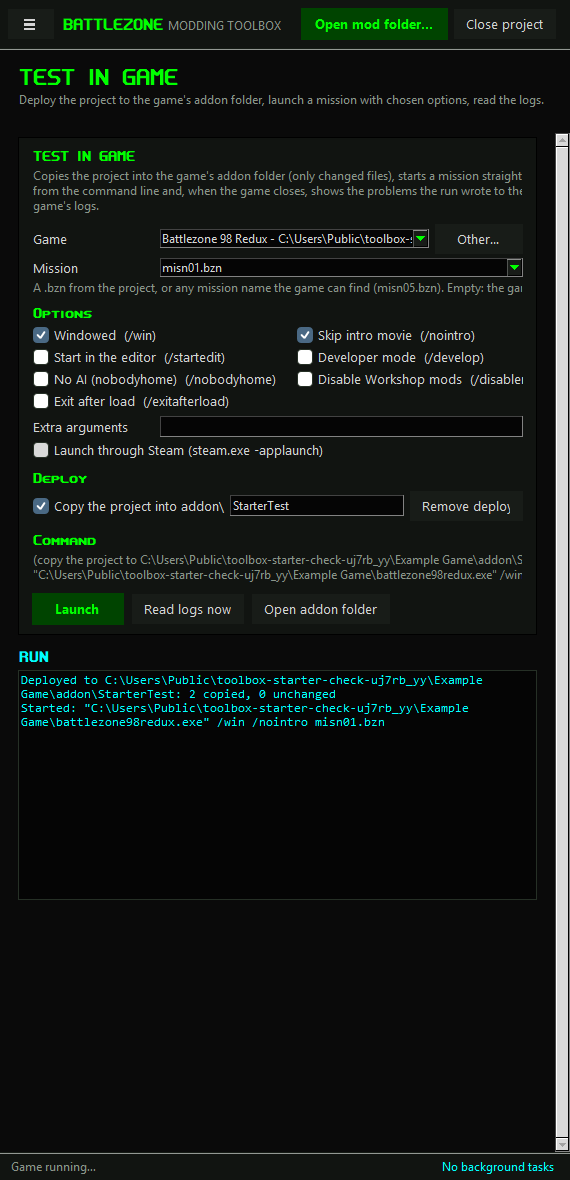
The screenshot uses example project and game paths. The verification used a temporary game folder and checked the launch command without starting Battlezone.
The deployed copy lives at <game>\addon\StarterTest. Continue editing your working folder and launch again to copy changed files.
Deployment does not remove old files from the destination. If you rename or delete an asset in the source, remove its stale deployed copy too. Remove deployed copy removes that deployment folder; check the name before using it. If your working folder is already the destination addon folder, turn off copying.
Errors in a log are clues, not a complete test result. Check the actual mission, models, textures and sounds in game.