Extra Installations
If you don't understand, just go ask a LLM or something...
Github Desktopprovides a simple Graphical User Interface to easily clone / update / downgrade / switch branch forgitrepositories
- Download and Install from the Official Site

- The UI will show the modified files and their differences; non-developers can just ignore them
- If you already cloned a repository, go to
File/Add local repository..., and give it the path to the folder - You can click on
Current repositoryto change the repository to manage
- To clone (i.e. download) a new repository, go to
File/Clone repository..., select the URL option, and give it the URL to the repository - You can click on
Current repositoryto change the repository to manage
- To update the current repository, click on
Fetch originfirst. If a new commit is available, the button will becomePull origin. Click again to update to the latest commit.
- If an update breaks a feature, click on
History, find the last working commit, right click, thenCheckout commit - To receive updates again, click on
Current branch, and select the original branch again
- When there is a development branch, click on
Fetch originfirst, then click on theCurrent branchto see the list of all Branches. Simply click on the branch of choice to participate in the testing.
Tip
If you modified the webui-user.bat, remember to select the Bring my changes option
Warning
Do not switch between classic and neo branch
-
Windows:
-
Linux:
cd sd-webui-forge-neo
source venv/bin/activate
cd ..
git clone https://github.com/thu-ml/sageattention
cd SageAttention
python setup.py install- Windows:
pip install triton-windows- Linux:
pip install triton-
Windows:
-
Linux:
- Navigate to the WebUI directory
- Edit the
webui-user.batfile - Add the following command (in one line ; above the
call webui.batline) to specify the older version:
set TORCH_COMMAND=pip install torch==2.10.0+cu126 torchvision==0.25.0+cu126 --extra-index-url https://download.pytorch.org/whl/cu126- Go to git 's Install Page
- Click on
Git for Windows/x64 Setupto download the.exe - Install (you can leave every option at default)
- Verify by running
gitin a console- Search
cmd - Type in
git; Enter
- Search

- Prepare a System Path
- Go to uv 's Releases page
- Download the
.zipfile for x64 Windows - Extract the
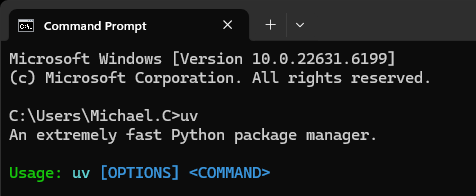
uv.exeto yourSystem Pathfolder - Verify by running
uvin a console- Search
cmd - Type in
uv; Enter
- Search
- Prepare a System Path
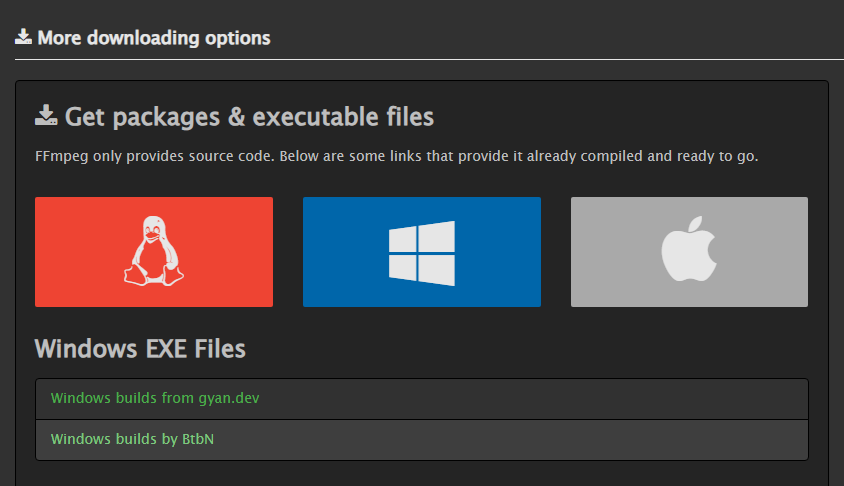
- Go to FFmpeg 's Download Page
- Click on
Windows builds from gyan.dev
- Download the essentials version of
.7zfile

- Extract the 3
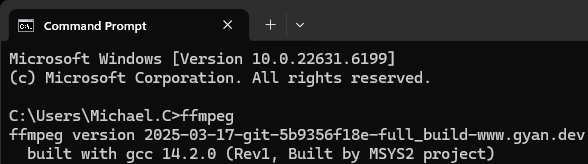
.exefiles inside thebinfolder to yourSystem Pathfolder - Verify by running
ffmpegin a console- Search
cmd - Type in
ffmpeg; Enter
- Search
PATHrefers to folders that the system searches for executables, meaning software in those folders can be launched using just the filename instead of the full absolute path
- Create a new folder
-
e.g.
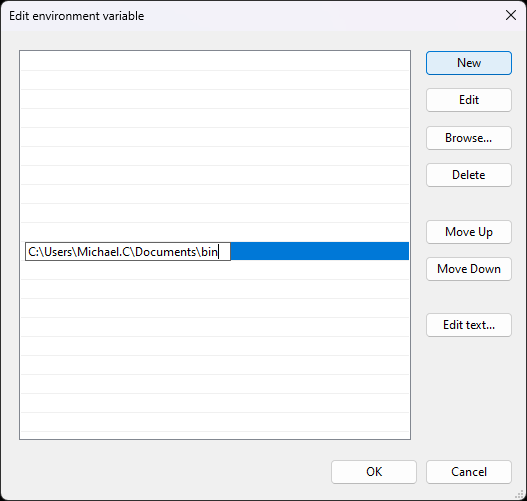
~\Documents\bin
-
e.g.
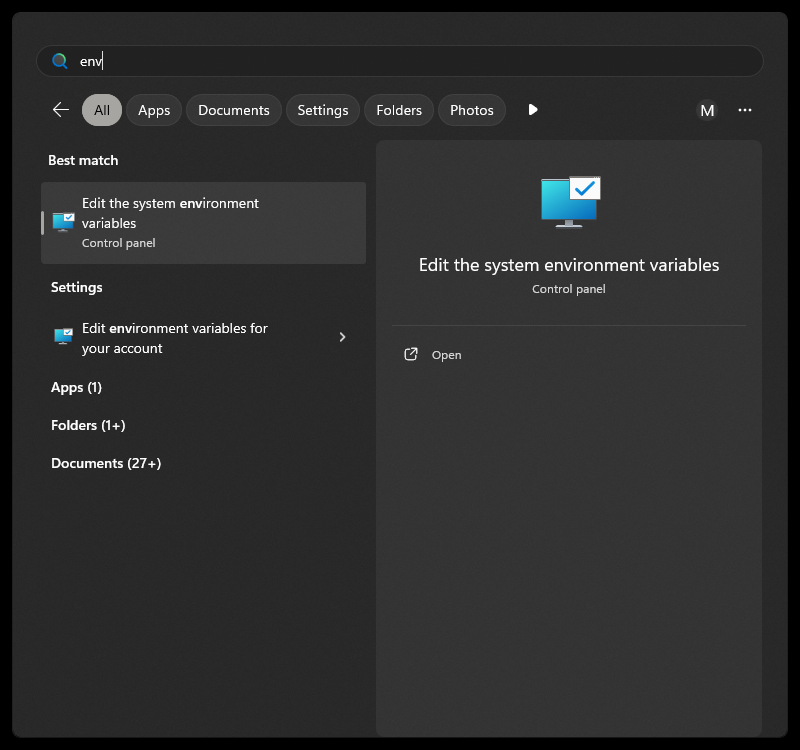
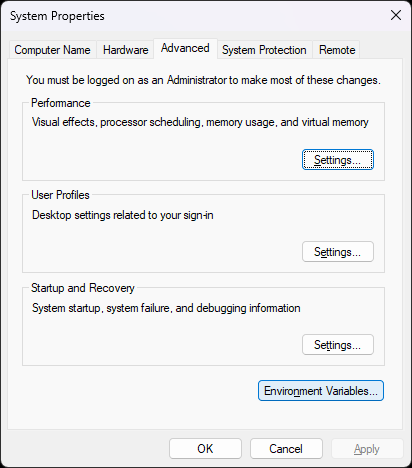
- Open System Properties
- Search
env
- Search
- Open Environment Variables
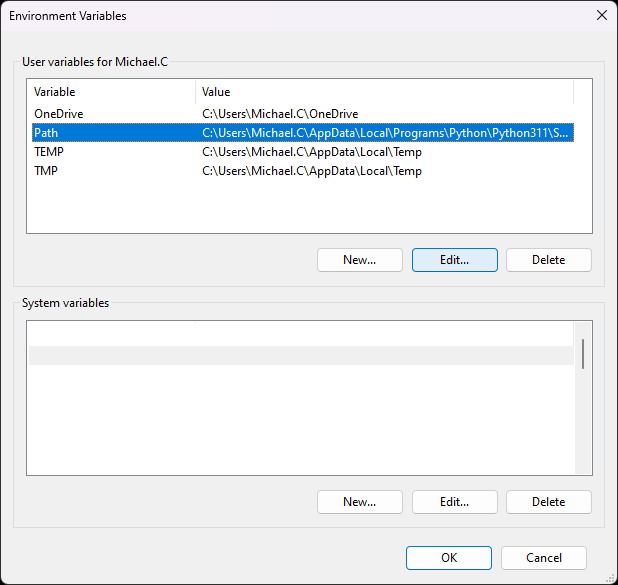
- Click on the Path entry ; Click Edit...
- Click New ; Paste in the path to the folder
- Done!