Getting Started
- Delphi 2009 or newer.
-
VCL.Ribbon, installed from Delphi's GetIt Package Manager, for the desktop GUI. - PowerShell for the build scripts.
- .NET SDK only when building the C# round-trip test project.
The checked-in build scripts are configured for a local RAD Studio 37/Delphi 13 installation. That compiler path is a development-machine configuration, not the project's minimum supported Delphi version. Adjust the path when building with another supported Delphi release.
Open JsonToDelphi.groupproj to work with the Delphi projects together. The main desktop project is Generator GUI/JsonToDelphiClass.dproj.
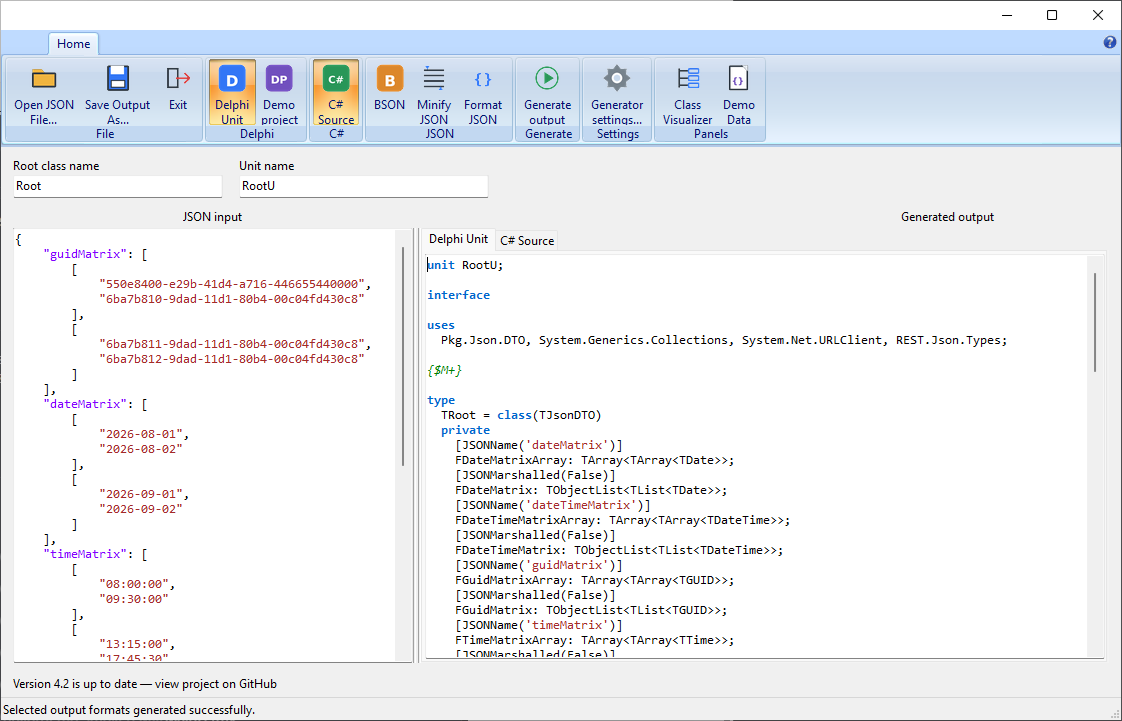
The main window is organized around a left-to-right workflow:
-
Choose the input
Paste JSON into JSON input, use Open JSON File, or open the Demo Data panel and select one of the bundled examples. -
Name the generated types
Root class name controls the root type name. Unit name controls the name of the generated Delphi unit. -
Select the outputs
Use the ribbon buttons to enable one or more outputs: Delphi Unit, C# Source, BSON, Minify JSON, or Demo project. Enabled source outputs appear as tabs in Generated output. -
Inspect or format the input
Format JSON makes the source easier to read. Class Visualizer opens a structural view of the classes inferred from the current JSON. -
Configure generation
Generator settings opens the Delphi and C# output options described on the Generator Settings page. -
Generate and review
Click Generate output. The generated source is shown on the right with language-specific syntax highlighting. If generation fails, the status and error message identify the problem; when a source range is available, the corresponding JSON is selected. -
Save or create a demo
Use Save Output As for the active output tab. If Demo project is selected, choose a destination and the application creates a runnable VCL or FMX example containing the generated DTO, sample JSON, and runtime support.
The status bar reports the result of the latest operation. The GitHub area above it displays update information and links to the project repository.
- Build and run
JsonToDelphiClass. - Paste JSON or load a file/demo sample.
- Set the root class name and Delphi unit name.
- Select one or more outputs: Delphi, C#, BSON, minified JSON, or demo project.
- Run Convert and save the desired output.
- Add the generated unit and required files from
Runtimeto a Delphi application.
For a generated demo, select the demo-project output and choose a destination. The application extracts a VCL or FMX template, the generated unit, sample JSON, and runtime support.
uses
  JsonToDelphi.Generator.Delphi,
  JsonToDelphi.Generator.Delphi.Settings;

var
  Generator: TJsonToDelphiGenerator;
  Settings: TDelphiSettings;
  Source: string;
begin
  Settings := TDelphiSettings.Create;
  try
    Settings.PostFixClassNames := True;
    Settings.PostFix := 'DTO';

    Generator := TJsonToDelphiGenerator.Create(Settings);
    try
      Generator.RootClassName := 'Customer';
      Generator.DestinationUnitName := 'Customer.DTO';
      Source := Generator.Parse(JsonText).GenerateUnit;
    finally
      Generator.Free;
    end;
  finally
    Settings.Free;
  end;
end;
The generator does not own settings supplied to its settings constructor. The caller must keep them alive for the generator's lifetime and free them afterwards.
uses
  JsonToDelphi.Generator.CSharp,
  JsonToDelphi.Generator.CSharp.Settings;

var
  Generator: TJsonToCSharpGenerator;
  Settings: TCSharpSettings;
begin
  Settings := TCSharpSettings.Create;
  try
    Settings.NamespaceName := 'Example.Contracts';
    Settings.UseNullableTypes := True;
    Settings.AddJsonPropertyNameAttributes := True;

    Generator := TJsonToCSharpGenerator.Create(Settings);
    try
      Generator.RootClassName := 'Customer';
      CSharpSource := Generator.Parse(JsonText).GenerateSource;
    finally
      Generator.Free;
    end;
  finally
    Settings.Free;
  end;
end;
Both facades can be created without settings; in that case they create and own a default settings object.
Catch EJsonGenerator for generation failures. When available, its JsonPath, Position, and SelectionLength identify the failing value in the original JSON source. This is preferable to treating every failure as a generic parse error.