Repository navigation
Feature Tour
A guided tour of VLC Redesign 0.4.0, platform by platform, in short clips. Each clip is the real app, recorded frame by frame from its window with a drawn pointer: the clicks, wheel turns and keys shown in the corner are the input the app got. Click a clip to open its MP4, the same clip in better quality. Under each clip, a link leads to the page that explains the feature in full.
Design by Juxtopposed. Every screen in these clips comes from the "VLC Redesign (Community)" Figma file by Juxtopposed, licensed under CC BY 4.0. Juxtopposed does not endorse this project.
| Platform | In this tour | Status |
|---|---|---|
| Windows | 17 clips: every main feature of 0.4.0 | Released, 0.5.1 (2026-11-01) |
| Linux | The AppImage on Arch Linux | Released, 0.5.1 (2026-11-01) |
| macOS | A screenshot of the app | Released, 0.5.1 (2026-11-01) |
| Windows on ARM64 | No clips: the same app as Windows | Released, 0.5.1 (2026-11-01); the first was 0.4.1 |
| Android | 8 phone clips and 1 tablet clip | Released in 0.5.0; recorded before it, on the emulator |
Where each platform stands, with its requirements and files: Platforms.
The whole tour as one film per platform (silent, 1920 × 1080, the clips at 1.5× speed with a caption each):
 |
 |
 |
|---|---|---|
| Windows, 0.4.0: the 17 clips, 2 min 55 s (14.0 MB) | Linux and macOS, 0.4.0: 21 s (0.9 MB) | Android, before 0.5.0: 9 clips, 2 min 2 s (3.9 MB) |
Media in the clips: the Blender open movies Sintel, Big Buck Bunny, Elephants Dream, Tears of Steel and Caminandes (CC BY), music by Kevin MacLeod (incompetech.com, CC BY 4.0), a made-up TV provider for the Live TV clips (invented channels, logos and programmes, showing these same open movies), and a test Chromecast that runs on the recording PC (no real device). The subtitles of Sintel in Hebrew, Arabic and Japanese were written for these clips.
Windows 10 (version 1809 or later) and Windows 11, 64-bit. Version 0.4.0, the installer or the portable zip: Install and update.
On this platform: First run · Library · Player · Subtitles · Customize · Themes · Settings · Live TV · Casting · Effects · About · Right to left
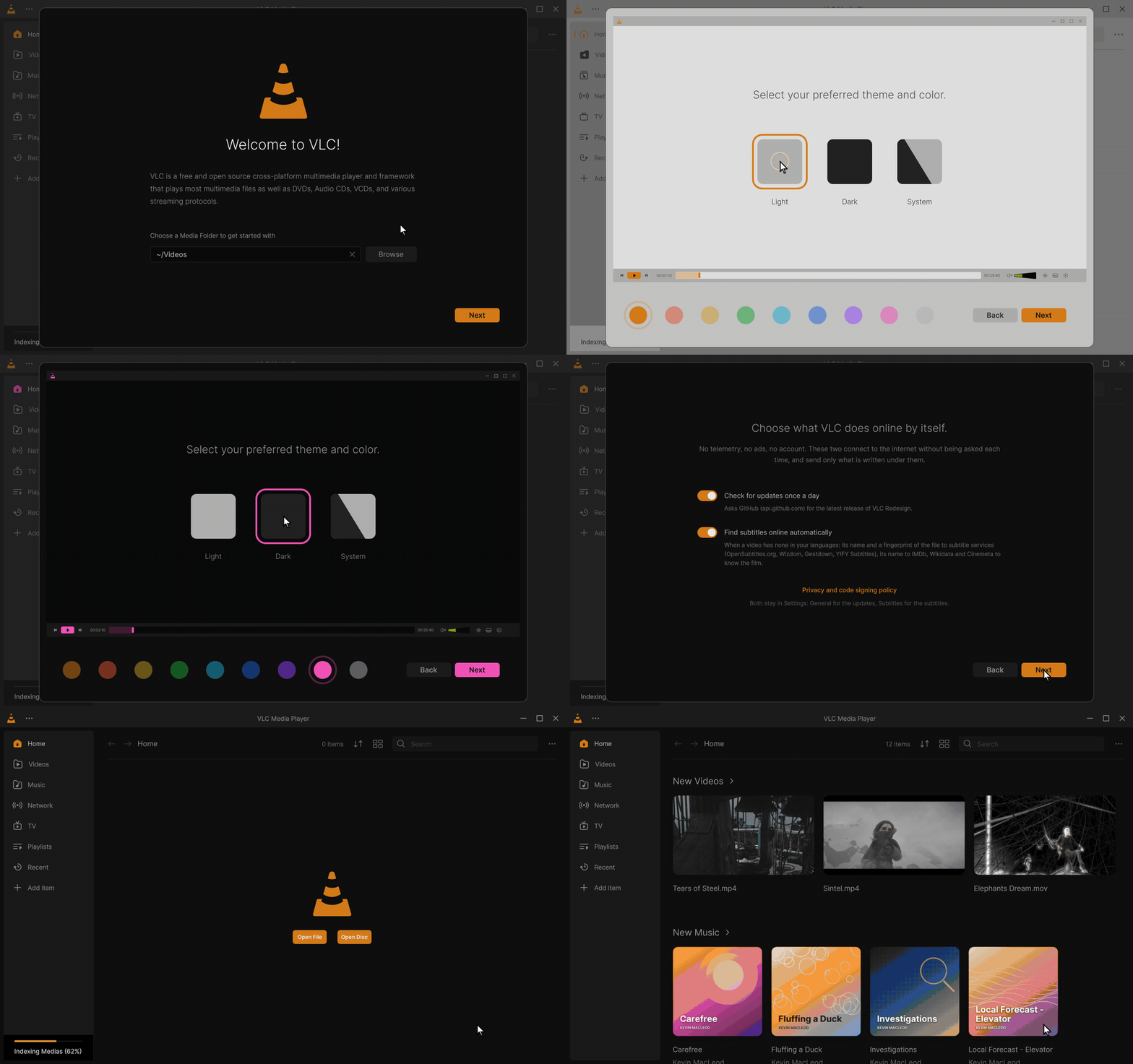
The welcome steps. The first start of a new copy goes through the welcome: a media folder for the library, the theme (Light, Dark or System) and the accent colour, the subtitle languages, what VLC does online (the update check and online subtitles, each with its own switch), and the basic shortcuts. Finish opens Home. The setup can be run again from Settings, General, Advanced Options, Welcome setup.
In depth: In one minute · Colours and themes · What goes online · The keys of the first-run setup
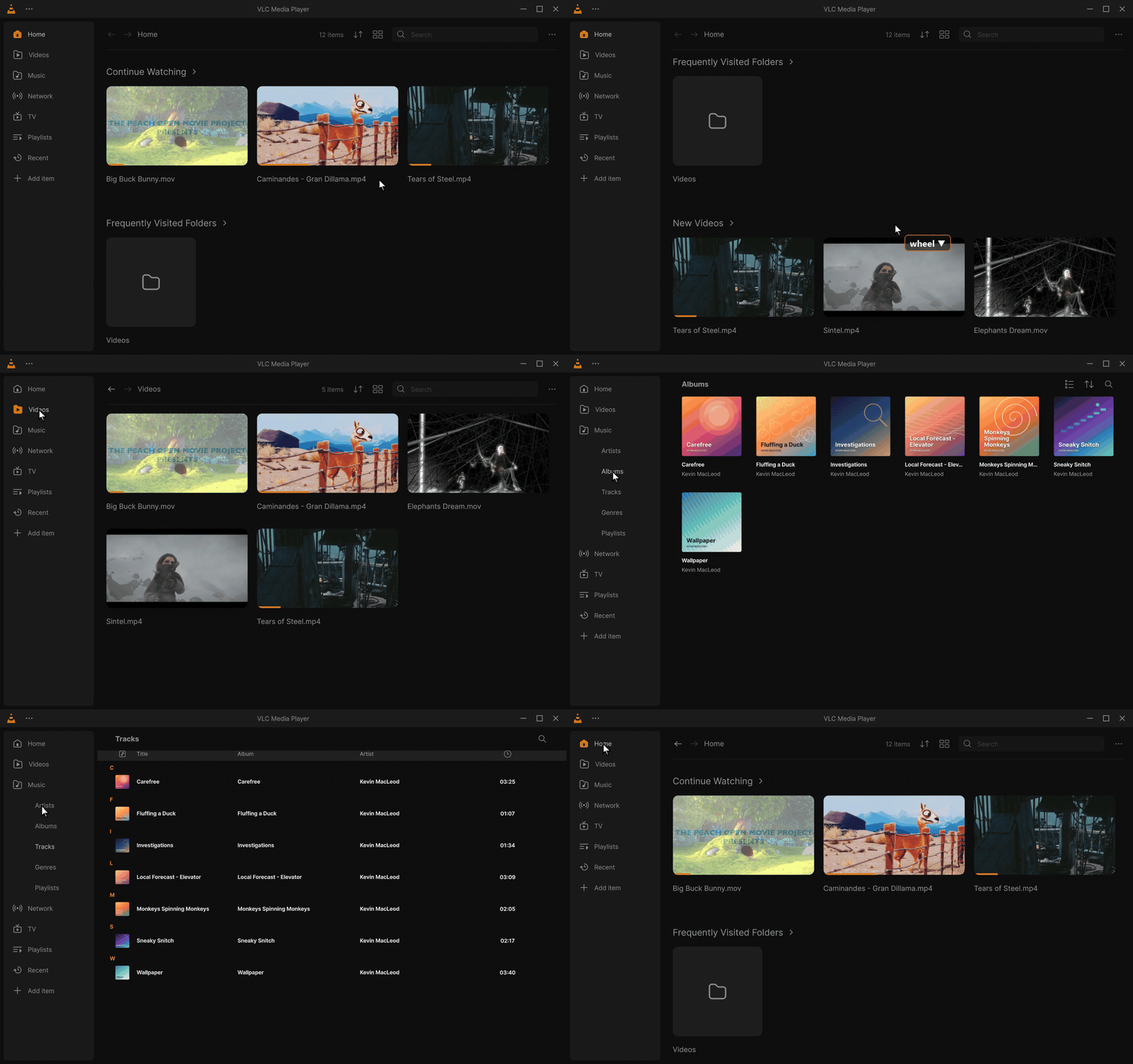
Home and the library. Home opens on Continue Watching (the videos you started, with how far you got) and your folders. The clip then goes through Videos, Music, and the music pages Albums and Tracks.
In depth: Library · Home · Music
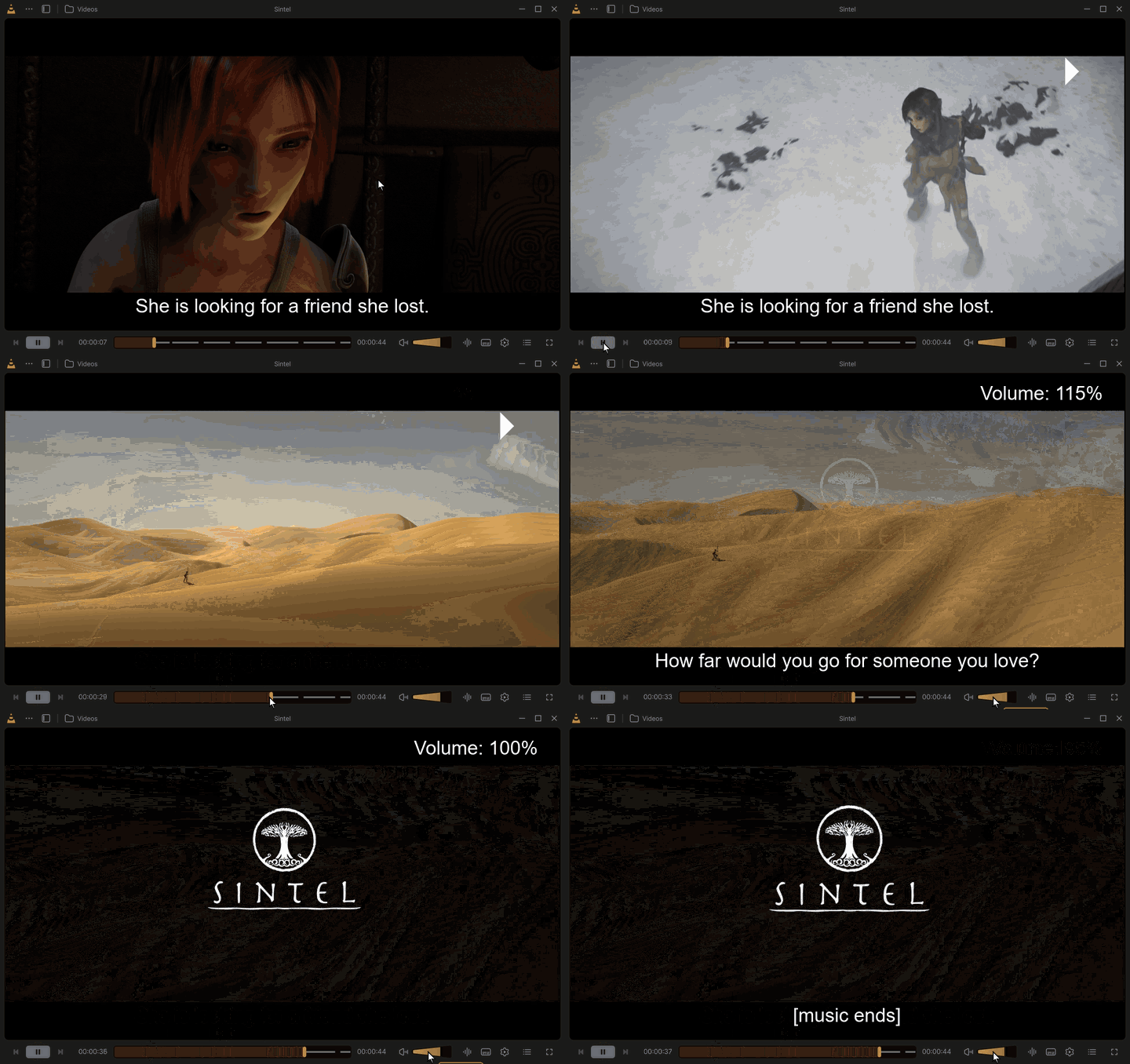
The player bar. Play and pause, then a drag along the seek bar: its thin marks are the lines of the subtitle file shown (new in 0.4.0), so you see where people talk. Last, the mouse wheel over the volume changes it.
In depth: The seek bar · Volume · The control bar
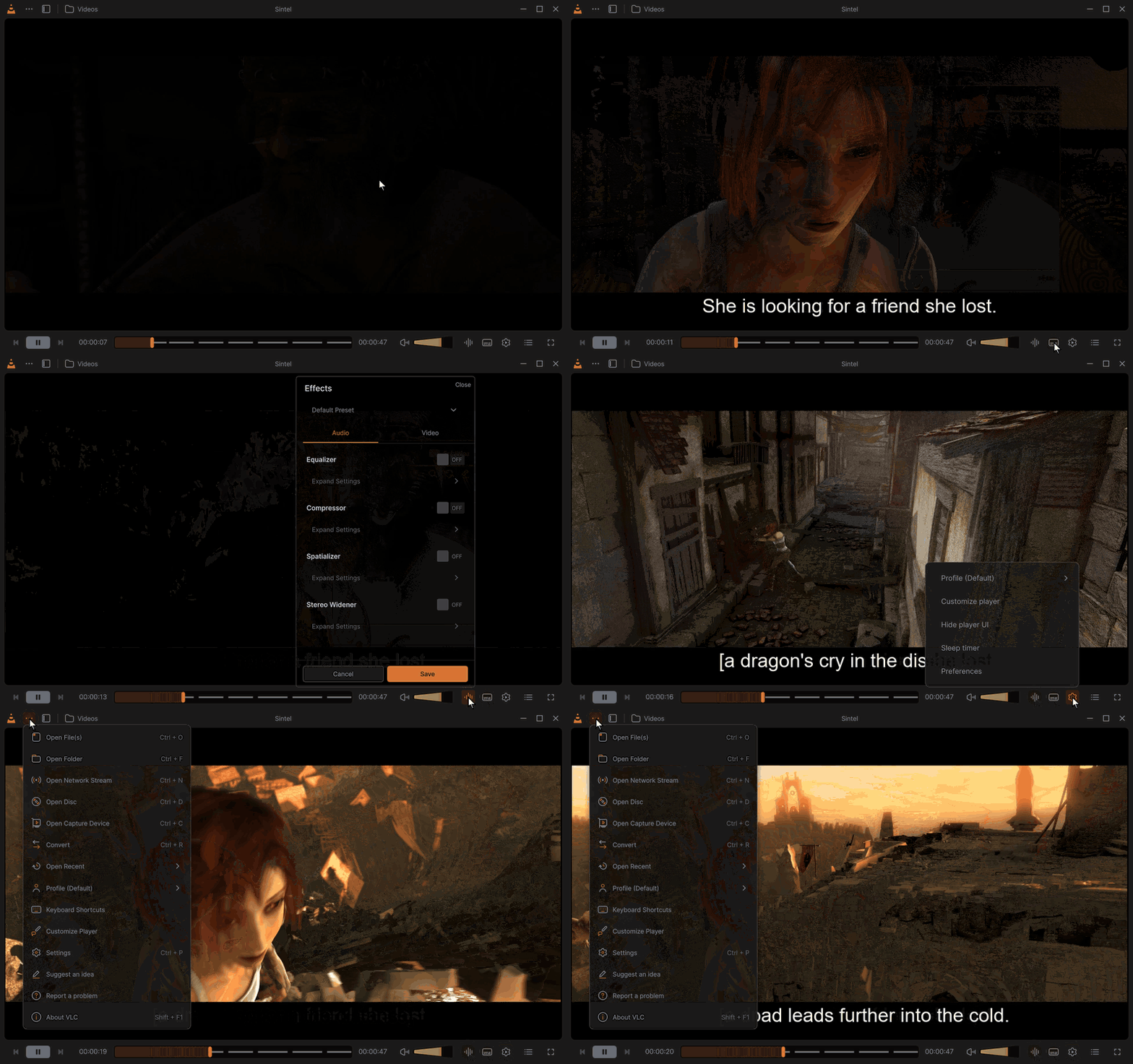
A button shows what it opened (new in 0.4.0, suggested in #10). While its panel, popup or menu shows, a button lights up: the accent icon on a tint of the accent, the same look as a toggle that is on. The clip opens the tracks and subtitles panel, the effects, the player menu and the ⋯ menu.
In depth: Panels that open above the bar
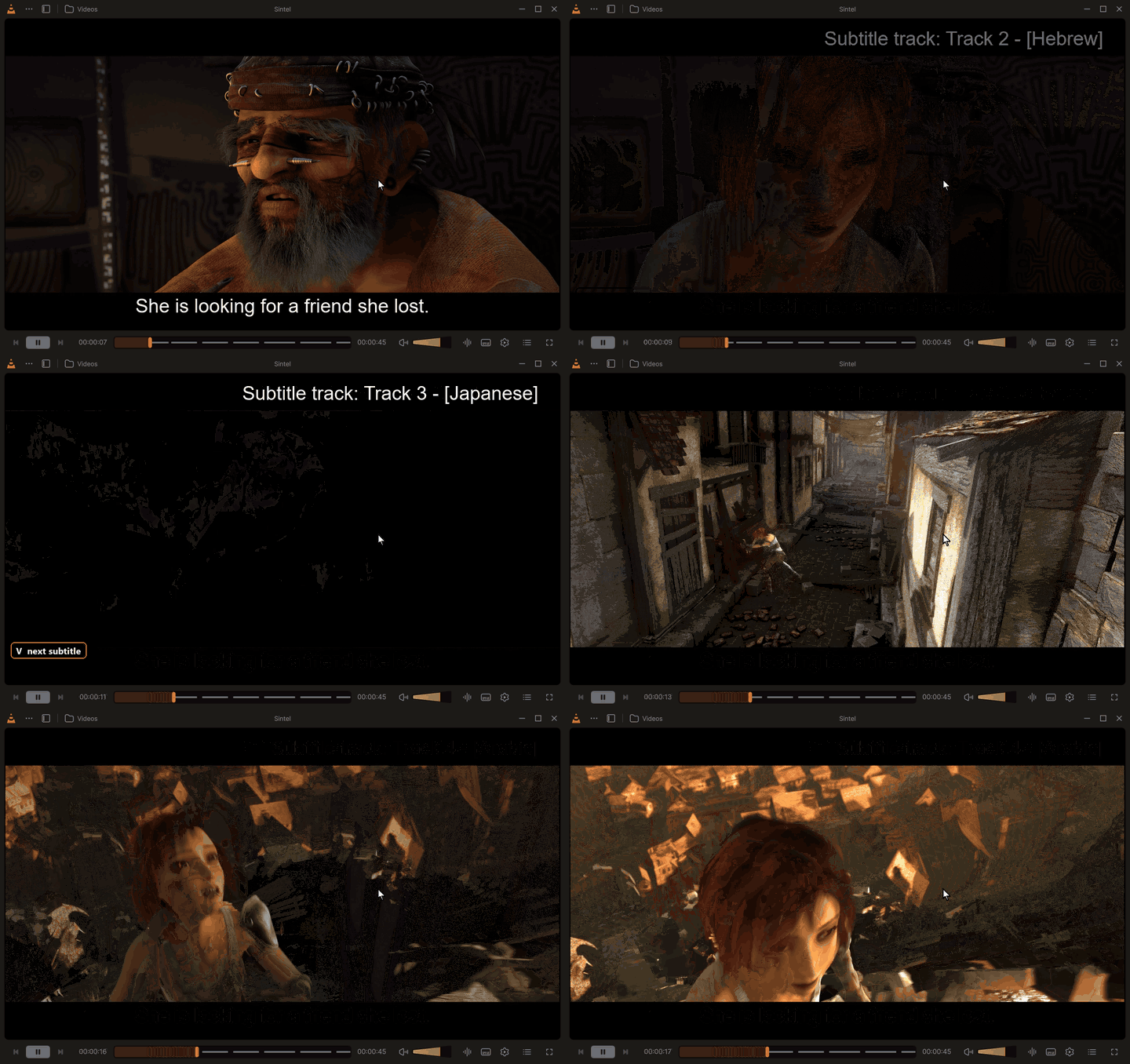
Subtitles in every language. The V key goes through the English, Hebrew, Japanese and Arabic subtitles of the film in turn. Each one is sharp, and Hebrew and Arabic read in the right order, with their brackets and punctuation in their place.
In depth: Subtitles · Subtitle keys
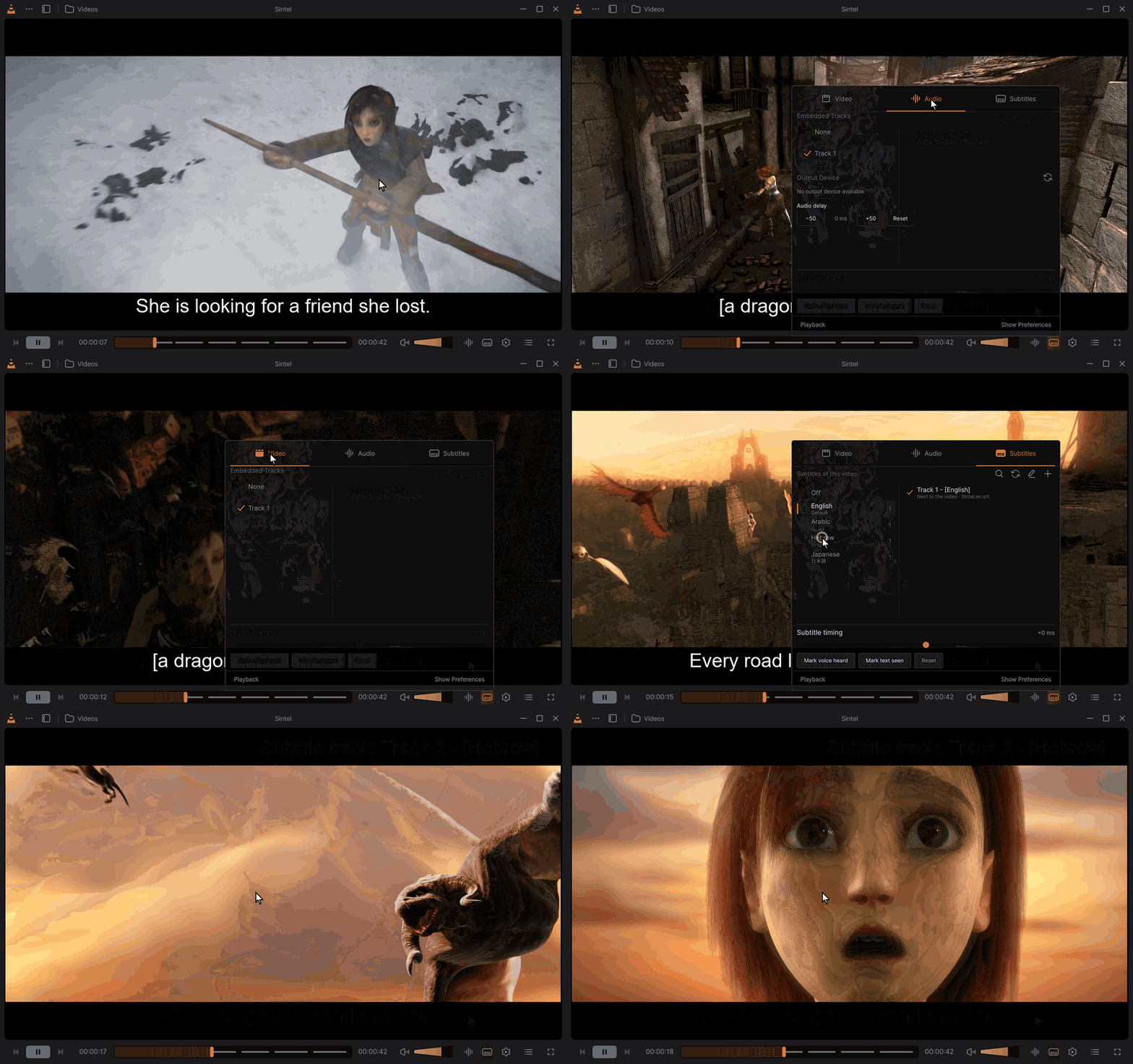
The languages and tracks panel. Its Video, Audio and Subtitles tabs, the subtitle languages of the video, each written in its own language, and Hebrew picked from the list.
In depth: The Subtitles tab · Languages and tracks
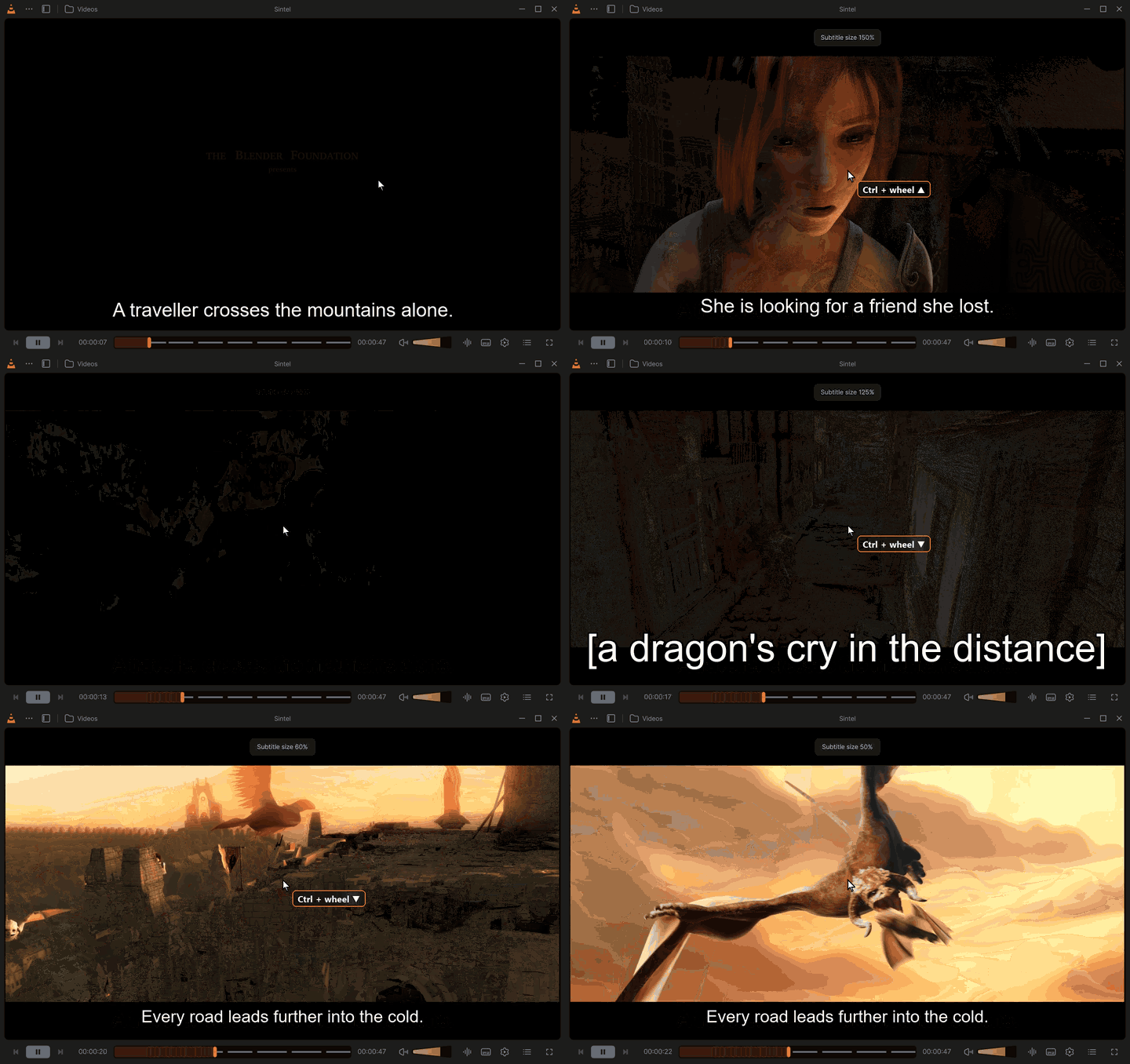
Ctrl + mouse wheel sizes the subtitles (new in 0.4.0, suggested in #10). Over the video, Ctrl and the wheel change the subtitle size, as in classic VLC: in the clip up to 200 %, then down to 50 %, from the next line on. It goes by 10 % near 100 %, then by 25 %, from 25 % to 500 %, and a short Subtitle size message shows the value; Ctrl+0 goes back to 100 %. Elsewhere in the window, Ctrl and the wheel still zoom the whole interface.
In depth: Position and size · Keyboard shortcuts
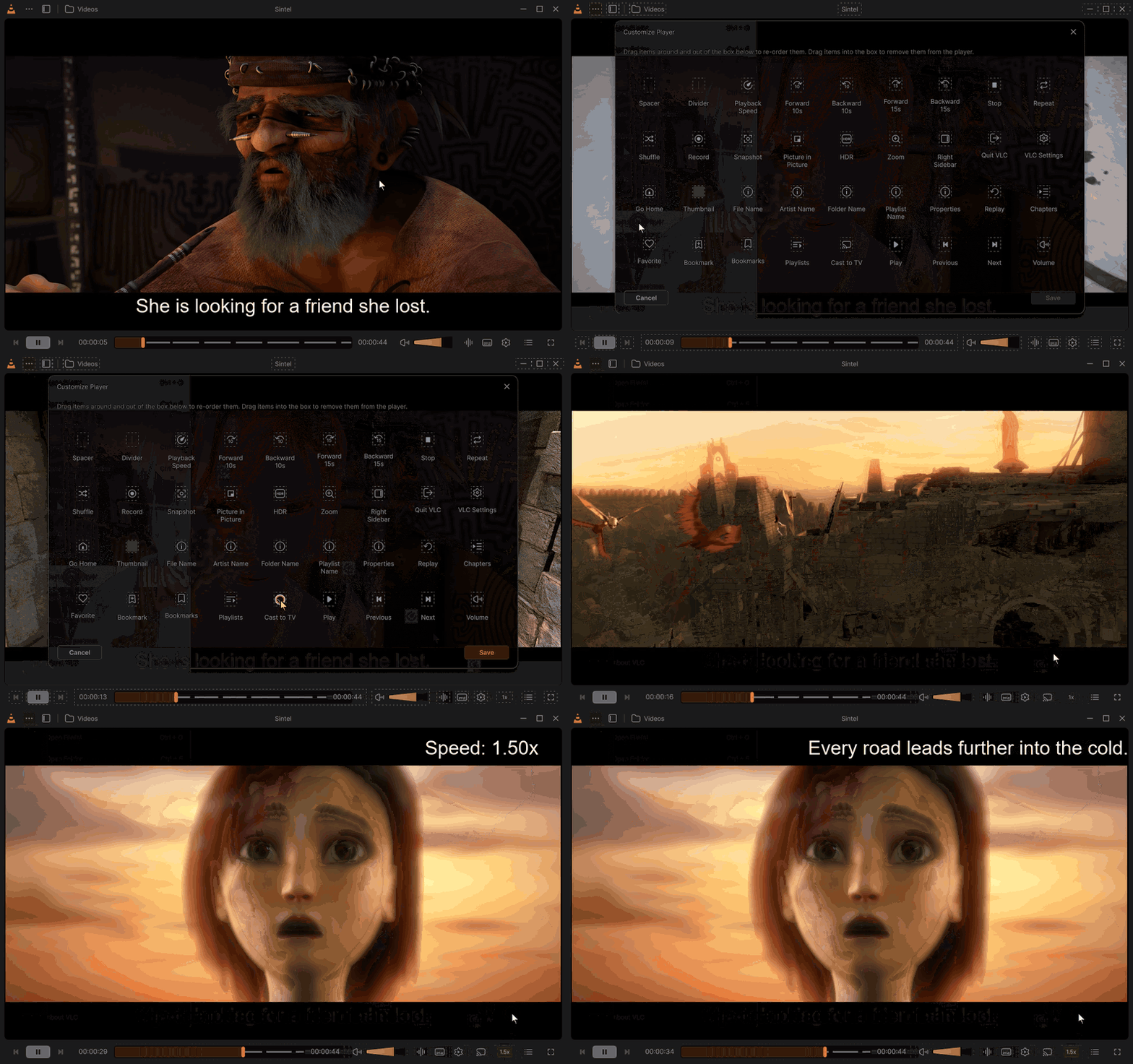
Customize Player. Playback Speed and Cast to TV are dragged from the palette onto the bar, the layout is saved, then 1.5× is chosen from the new speed button. In 0.4.0 the speed button can be added again (#9): it used to leave an empty slot.
In depth: Customize the player · The palette · Speed
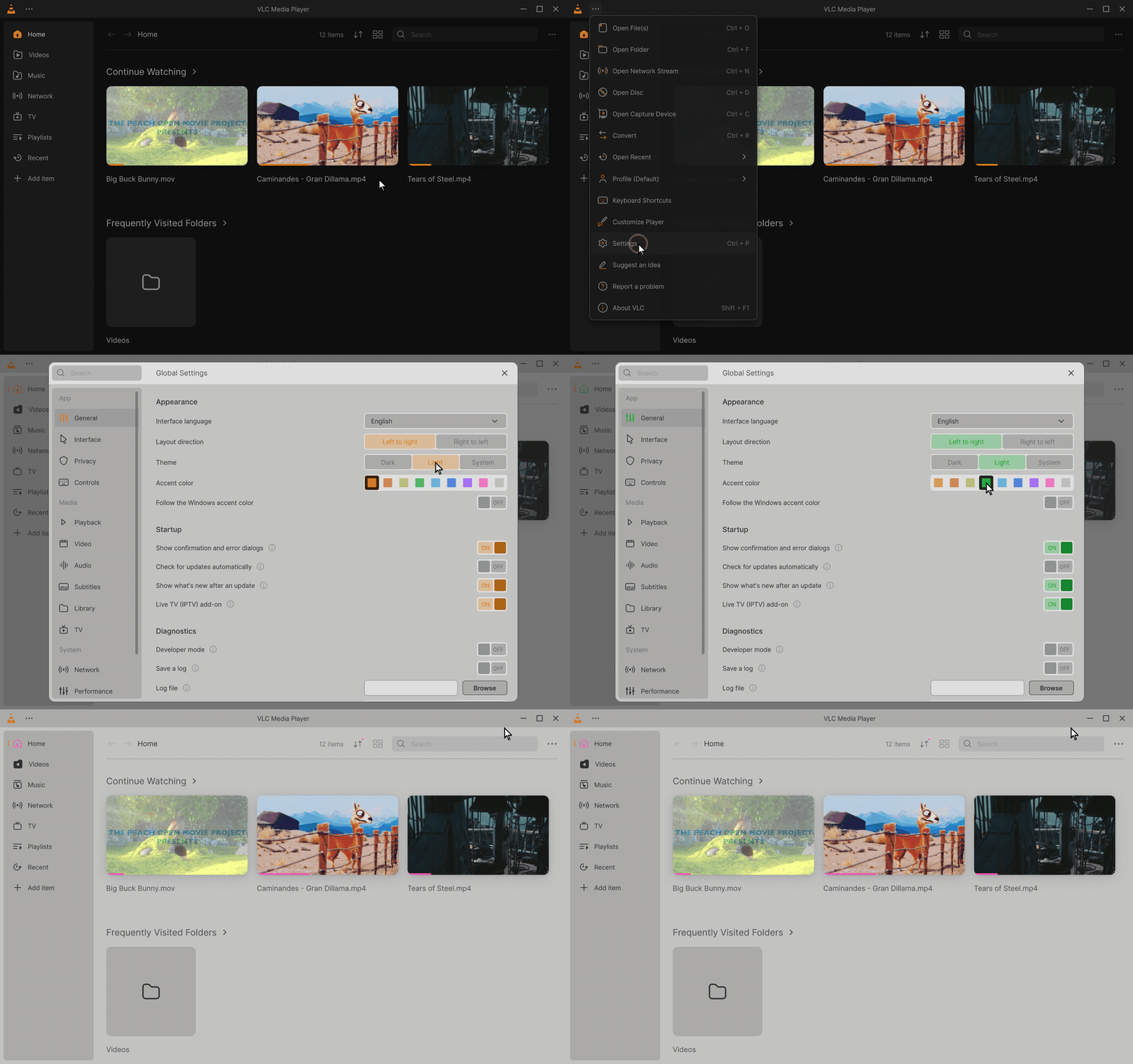
Theme and accent colour. In Settings, General, the light theme, then the blue, green and pink accents: each applies at once, with no restart. The clip ends on the library in the light theme with the pink accent.
In depth: Colours and themes · The accent colours · Settings: General
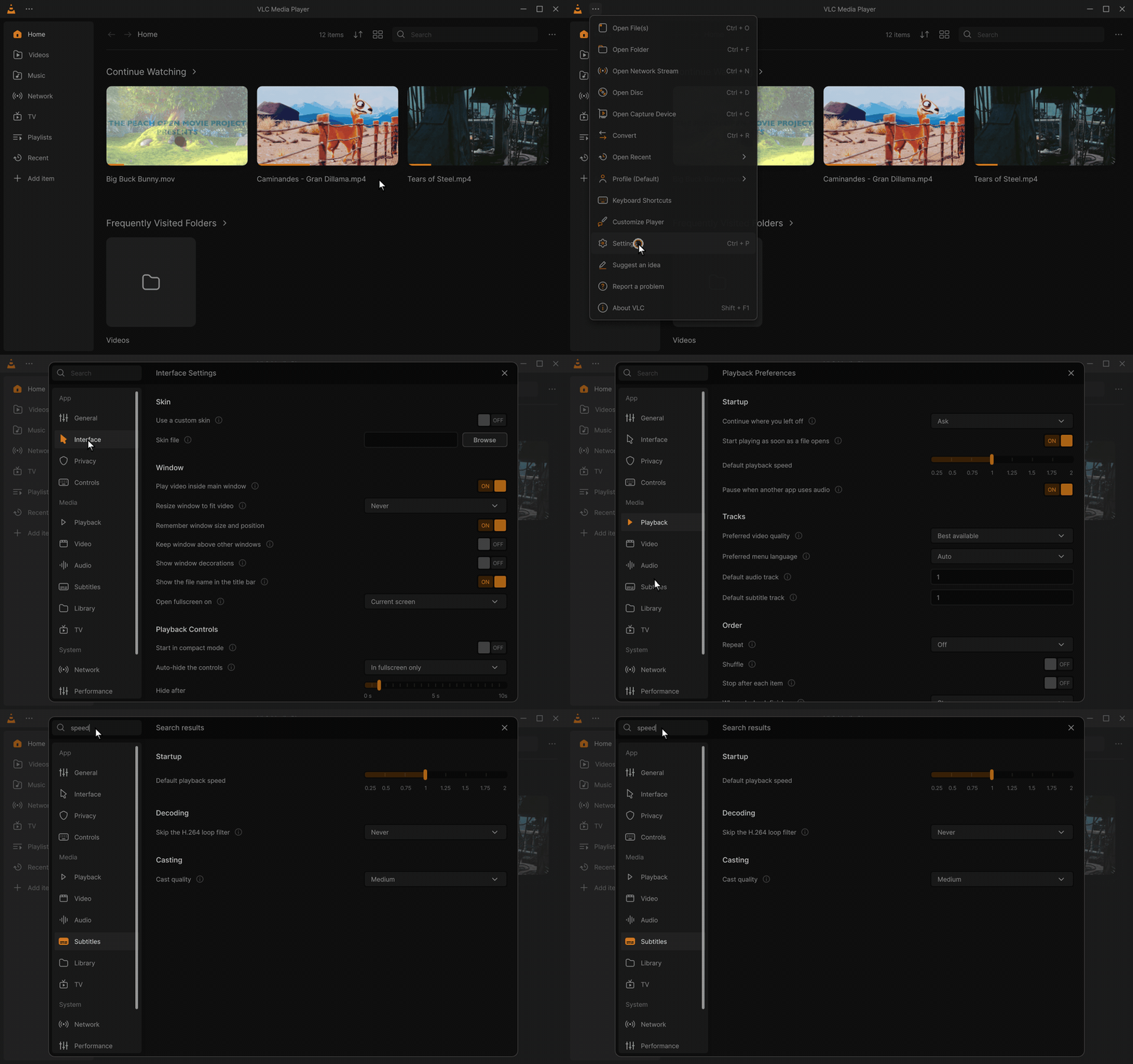
The Settings window. The Interface, Playback and Subtitles pages, then a search for "speed", which looks through every page at once.
New in 0.4.0. Live TV is an add-on, on by default; without it nothing of it shows.
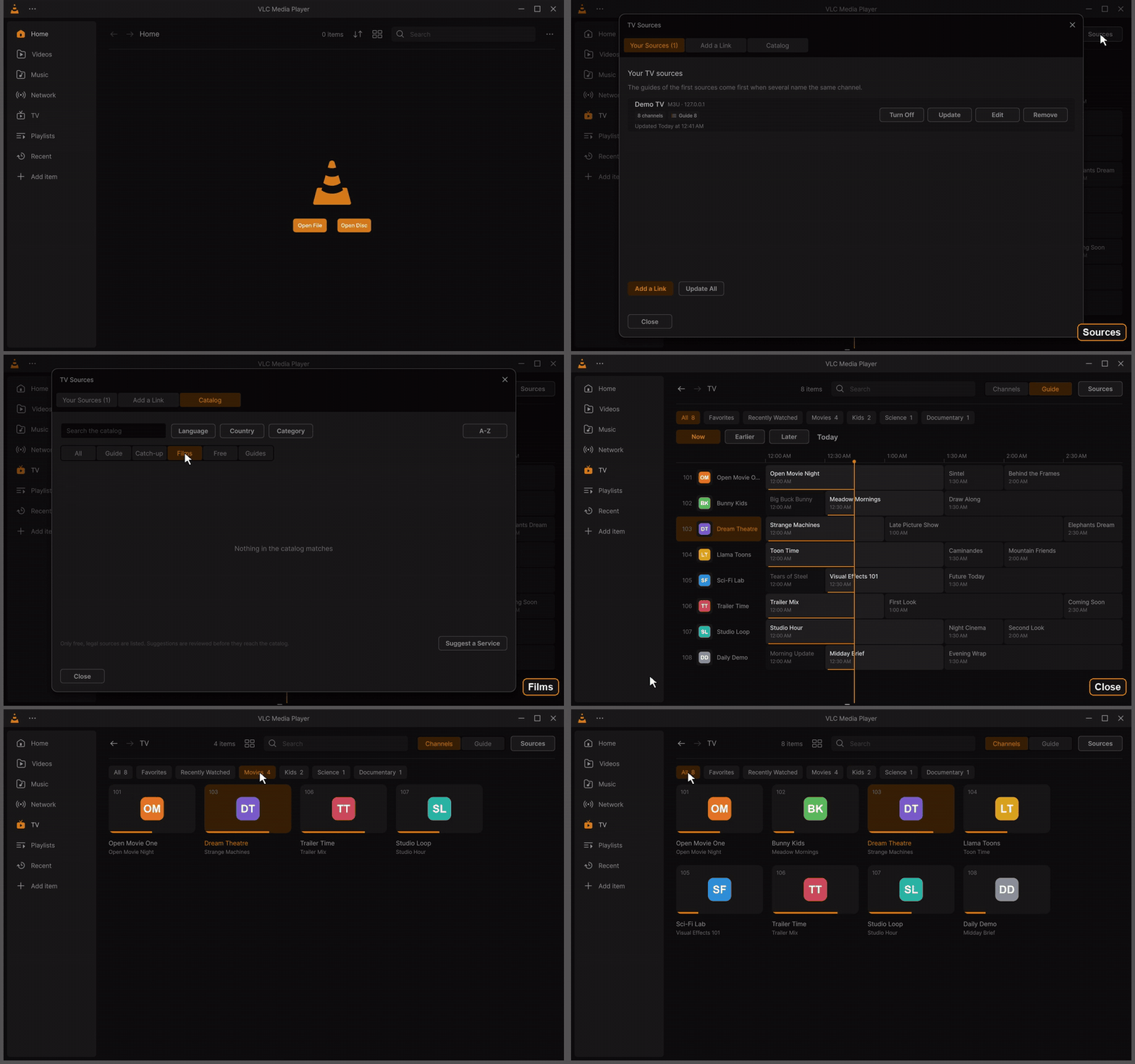
Sources and the catalog. Sources lists your TV sources; the catalog offers free, legal channel lists (the films filter, then all); then the channels of a source, with their logos, numbers, groups and what is on now, filtered by group. The channels are those of a made-up demo provider.
In depth: The catalog · The TV page · Add your TV
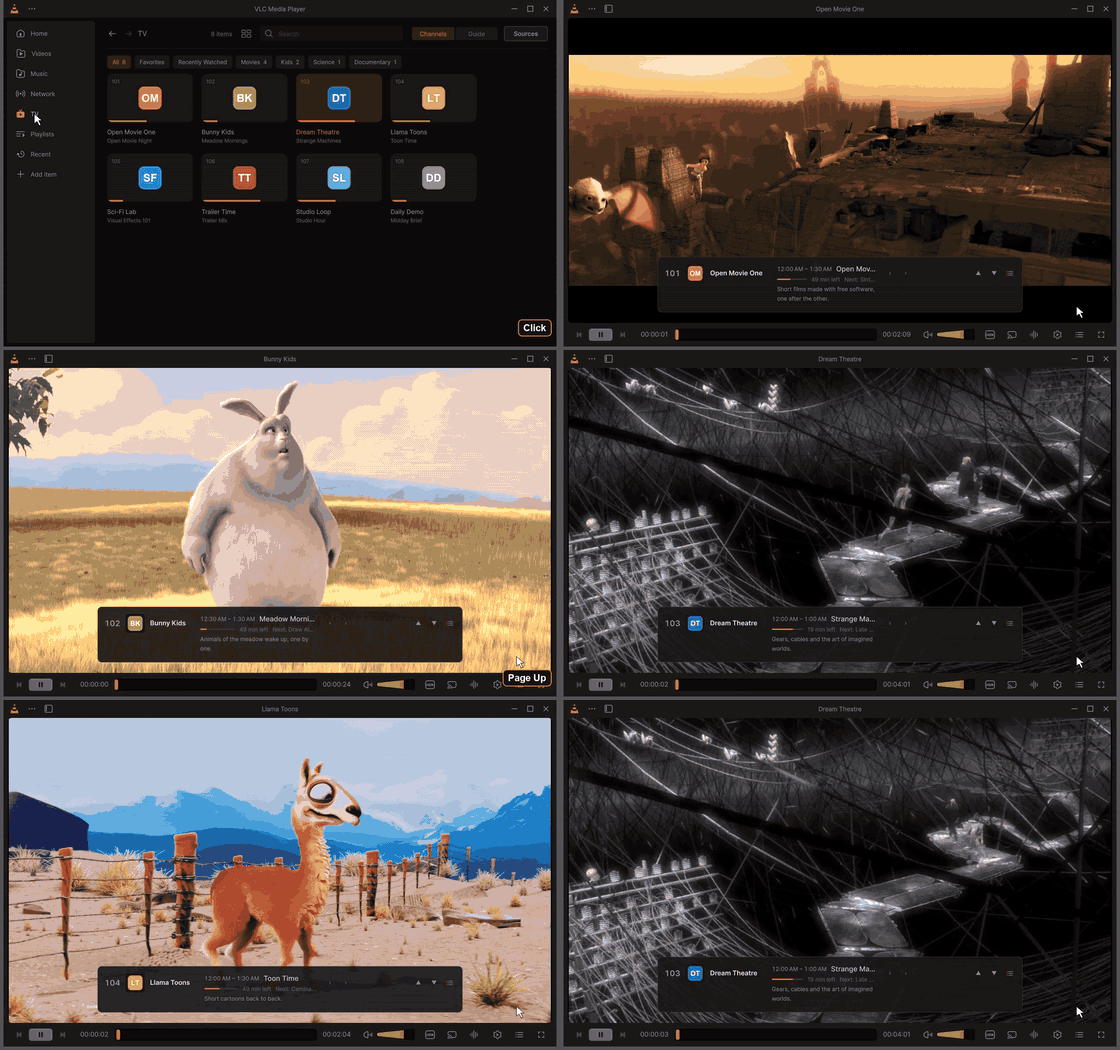
Change channel. Page Up and Page Down change channel. At every switch the banner shows the channel number, the programme on now with its progress, and its description.
In depth: Watching
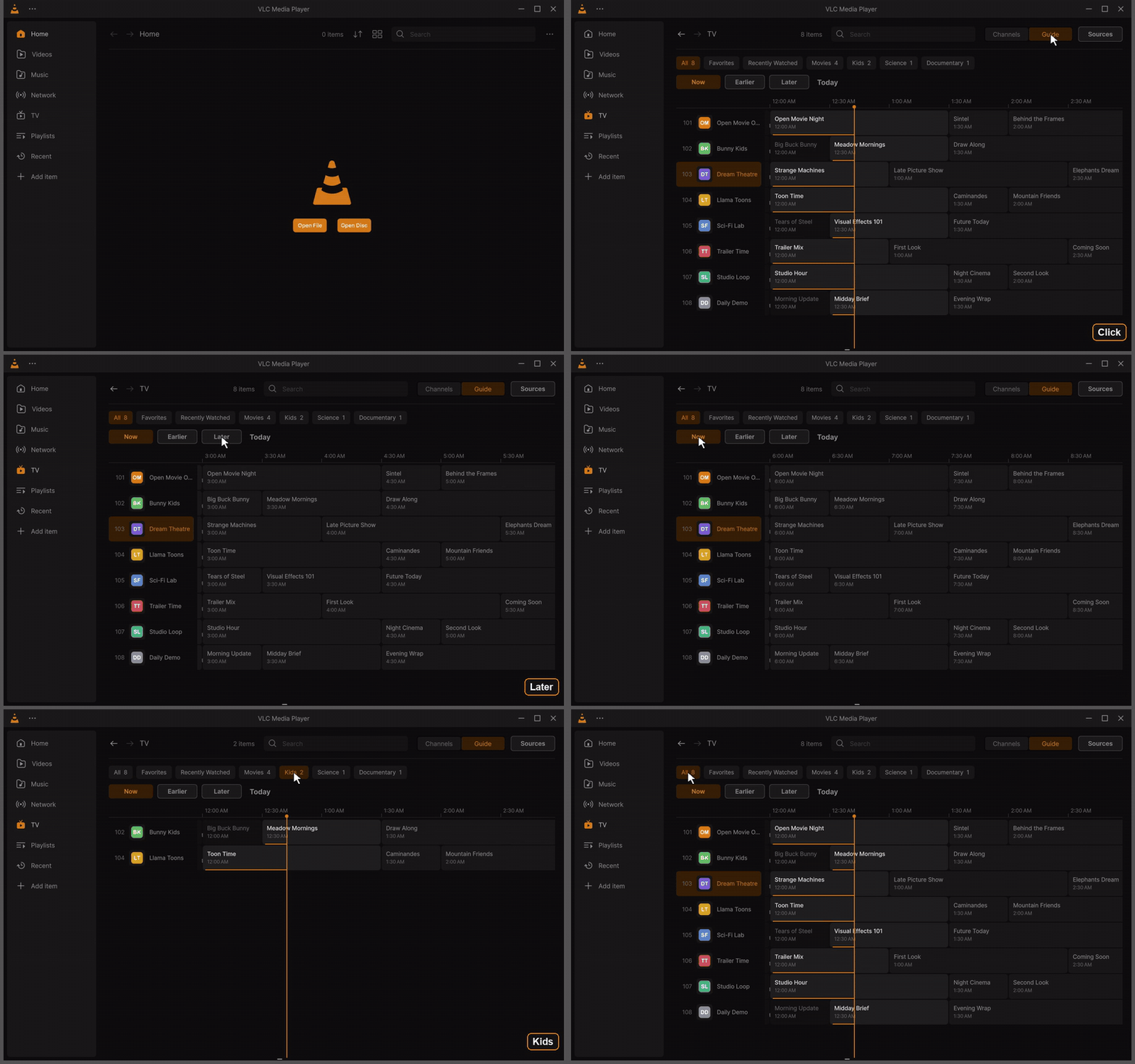
The guide. Guide at the top of the TV page: the channels down, the hours across, the line of now and each programme's progress. Later moves ahead by the hours shown and Now comes back; the clip ends on the Kids group.
In depth: The guide
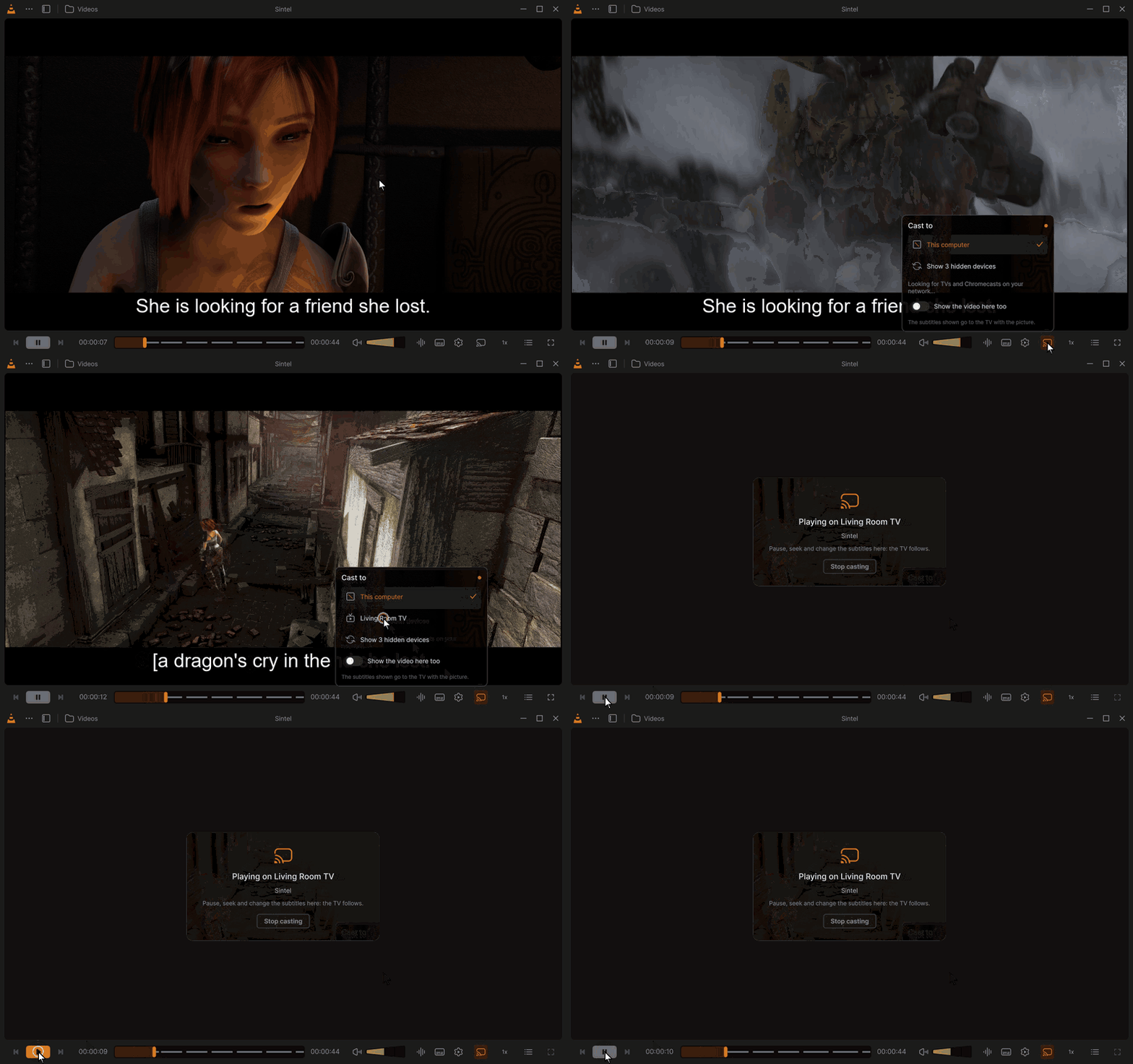
Cast to a TV. The Cast to panel lists the devices found (the real ones of the recording network are hidden here), a Chromecast is picked (a test Chromecast that runs on the recording PC), the player reads Playing on Living Room TV, and the bar goes on controlling it: pause, then play. In 0.4.0 the list keeps looking while it is open.
In depth: Casting to a TV · Cast · TV compatibility
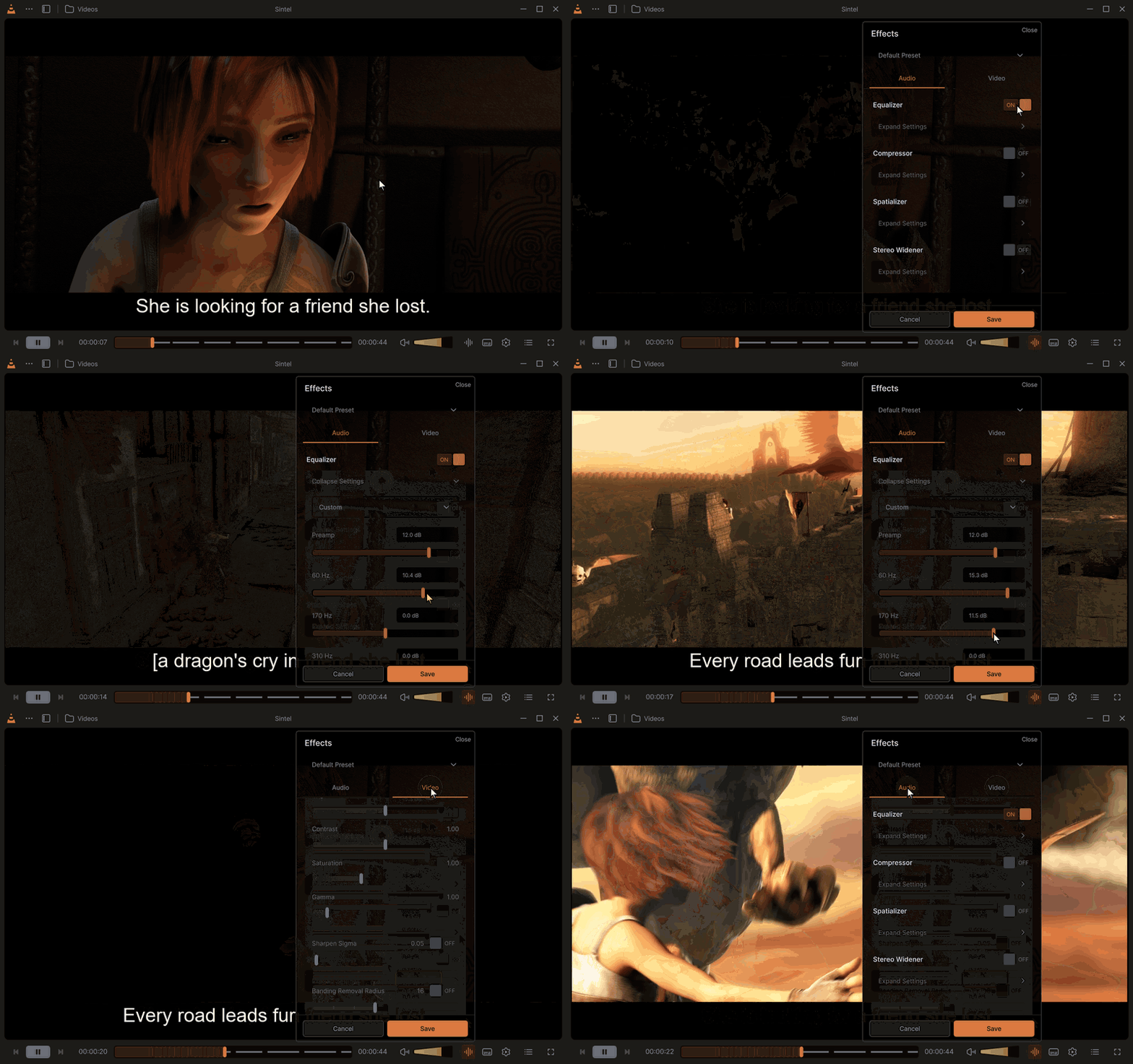
Effects while the video plays. The Effects panel over the playing video: the equalizer turned on and two of its bands raised, then the video effects, then back to the audio tab. Every change is heard or seen at once.
In depth: Effects · Equalizer · Video
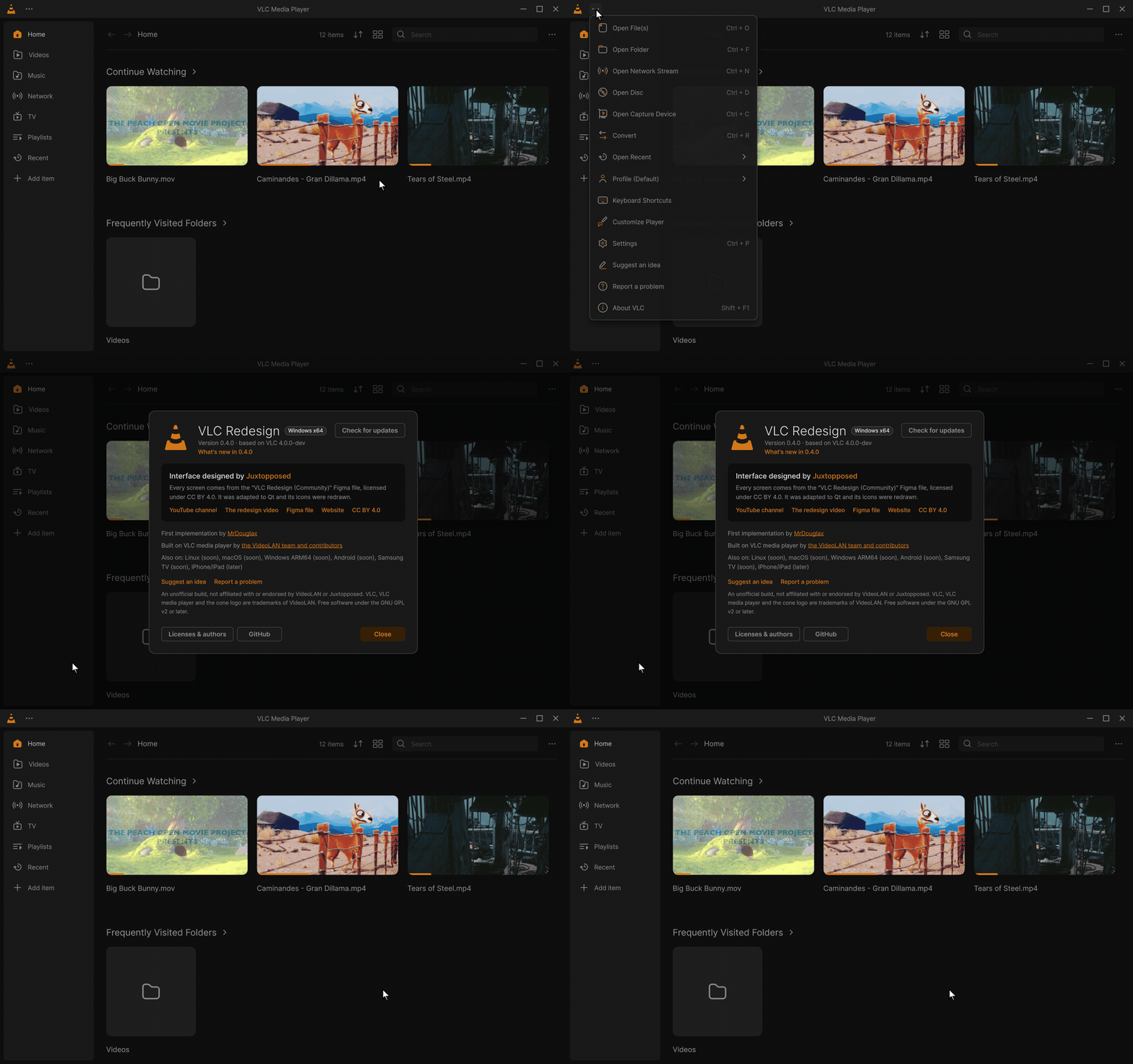
About. ⋯ → About VLC: the platform badge (Windows x64), What's new in 0.4.0, and the credit of the designer, Juxtopposed.
In depth: Credits and license · Small updates
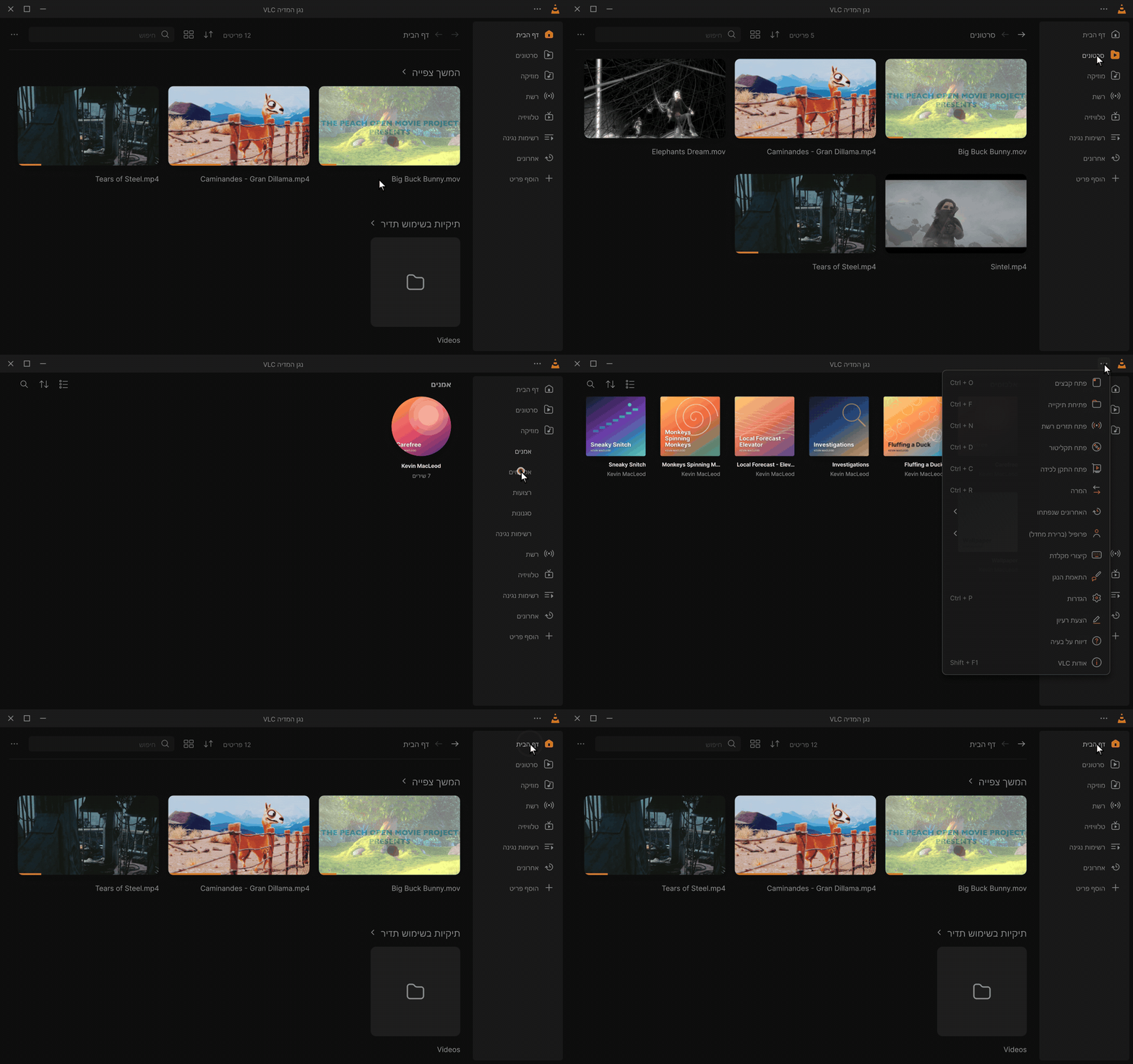
A right-to-left language. The interface in Hebrew, laid out right to left: the sidebar on the right, Videos, Music, Albums, and the ⋯ menu mirrored.
In depth: Languages · Right to left
Released, 0.5.0. A .deb, an .rpm, an AppImage, a Flatpak and a tar.xz for x86_64 and ARM64, next to the distribution's own VLC; a Flatpak comes next. How to install: Install and update: Linux. Requirements and what is tested: Platforms: Linux.
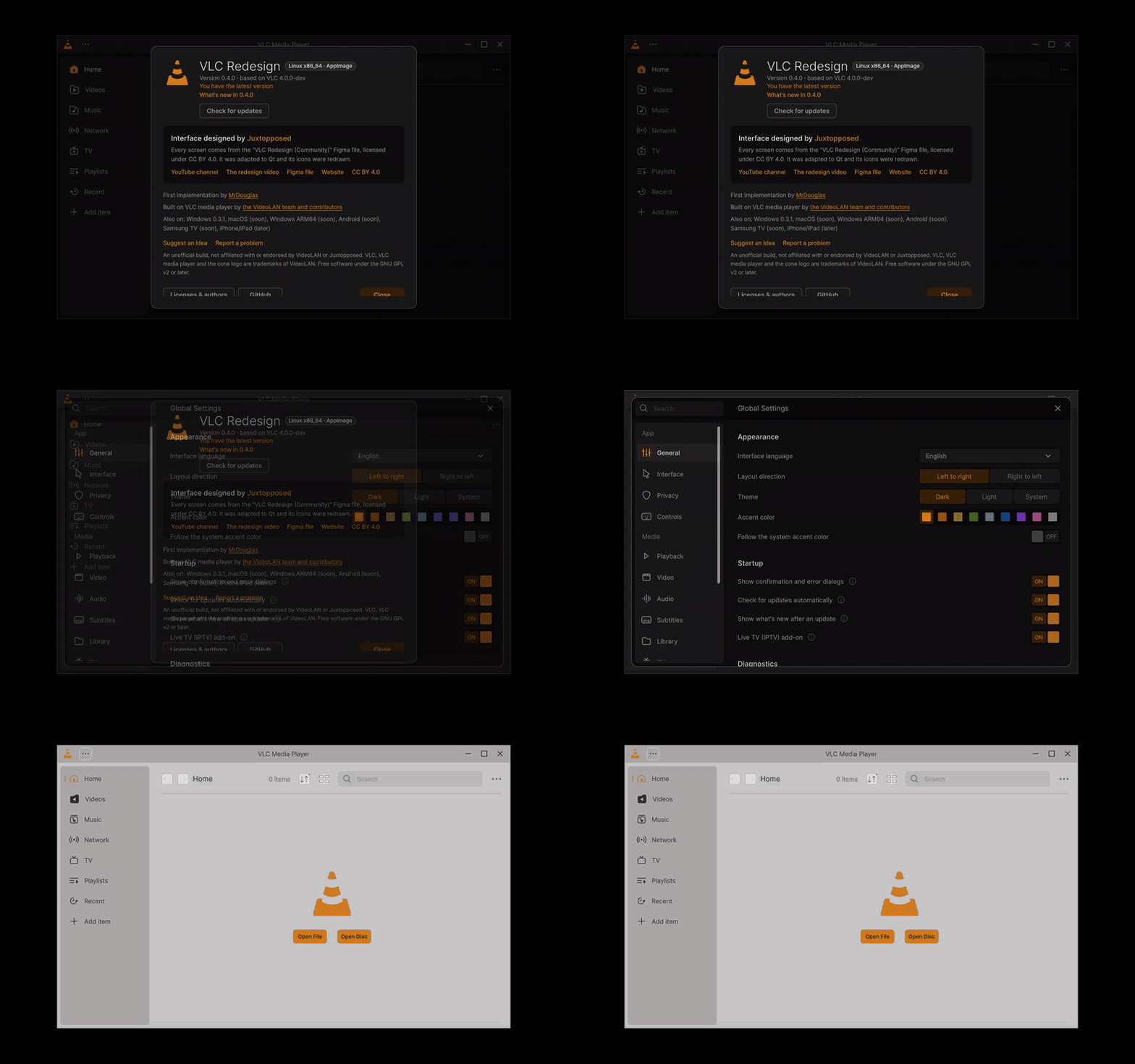
The Linux AppImage on Arch Linux. About with its badge Linux x86_64 · AppImage, Settings in the dark theme, then Home in the light theme. The same interface as on Windows, from the same code.
In depth: Platforms: Linux
Released, 0.5.0. A disk image for Apple Silicon and one for Intel, built and tested by GitHub's Macs, signed ad hoc (macOS asks once to open it). How to install: Install and update: macOS. Requirements and what is tested: Platforms: macOS.

The macOS app (Intel), Home. A screenshot taken by the launch test of the build (a picture, not a clip).
In depth: Platforms: macOS
Note
The Android app is released since 0.5.0 (an APK: Install and update). It is a separate app, a fork of VLC for Android with its screens redrawn in the design, in its own repository. These clips were recorded on the Android emulator before the release. Where it stands: Platforms: Android.
Portrait phone clips (Home at 400 px wide, the others at 360 px), then the tablet clip.
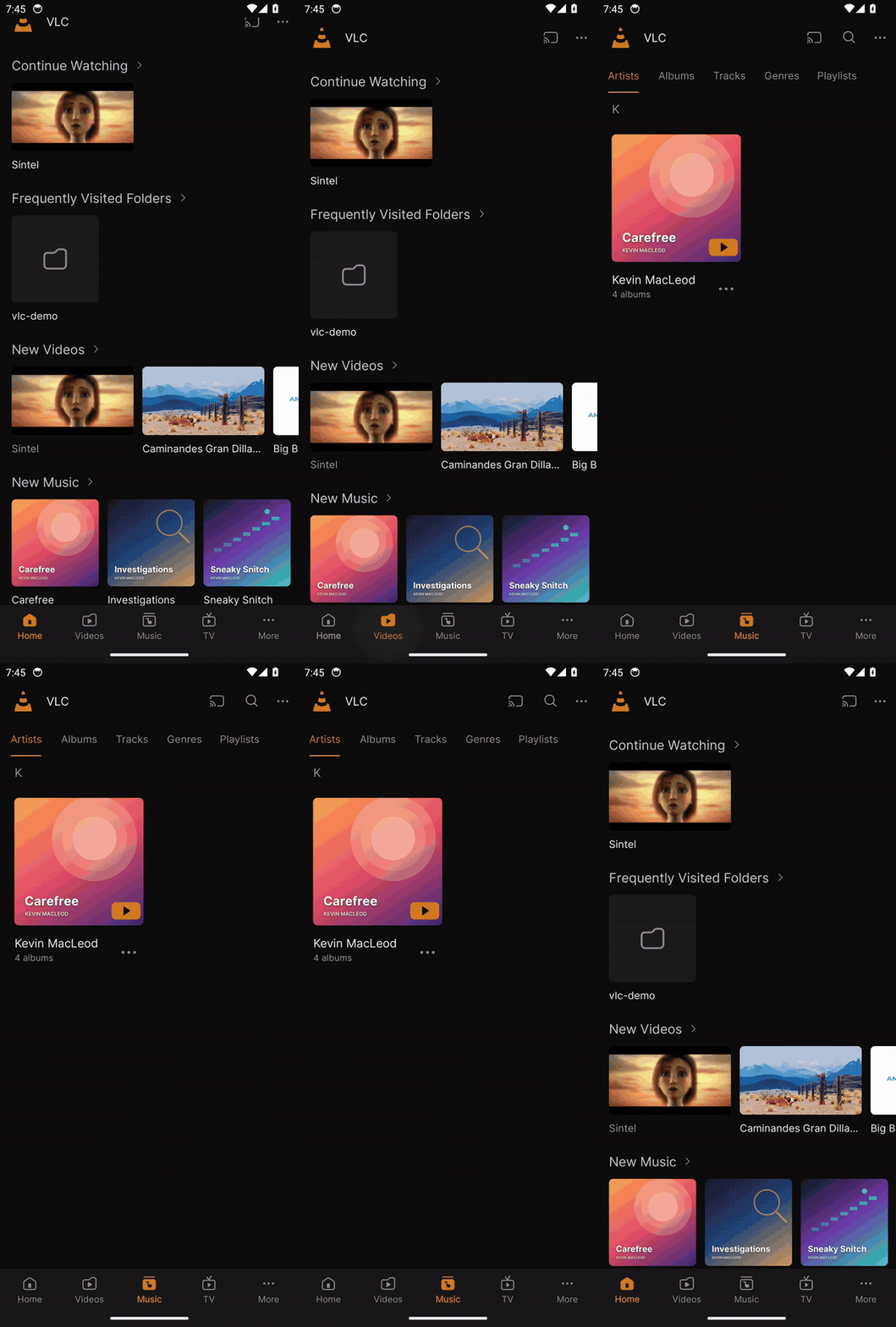 Home and the library. The phone's Home with Continue Watching, folders, new videos and music, then Videos, Music and TV. Desktop: Library |
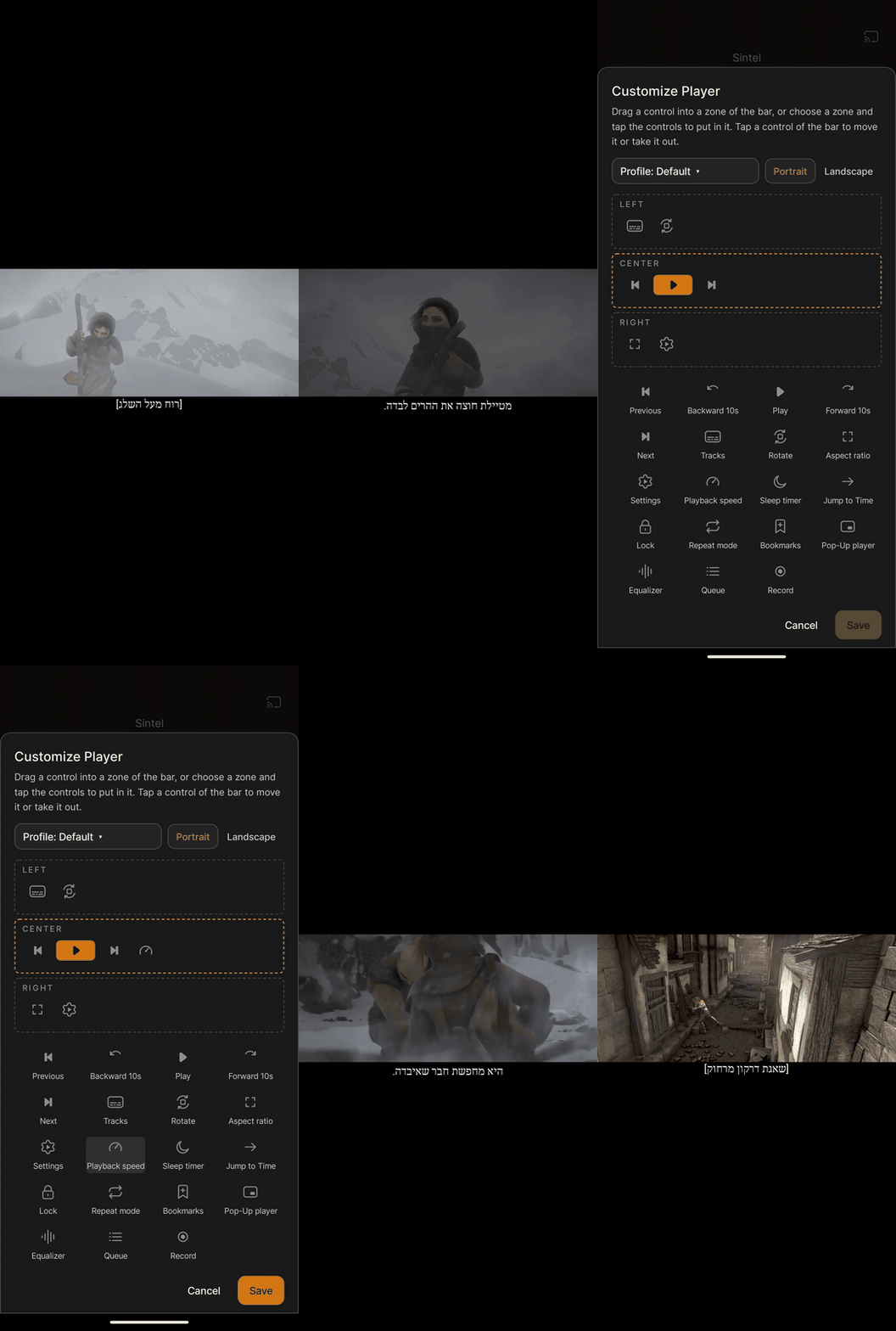 Player bar and Customize Player. The player's menu, then Customize Player: the bar's three zones, Playback speed and Queue added, saved. Desktop: Customize the player |
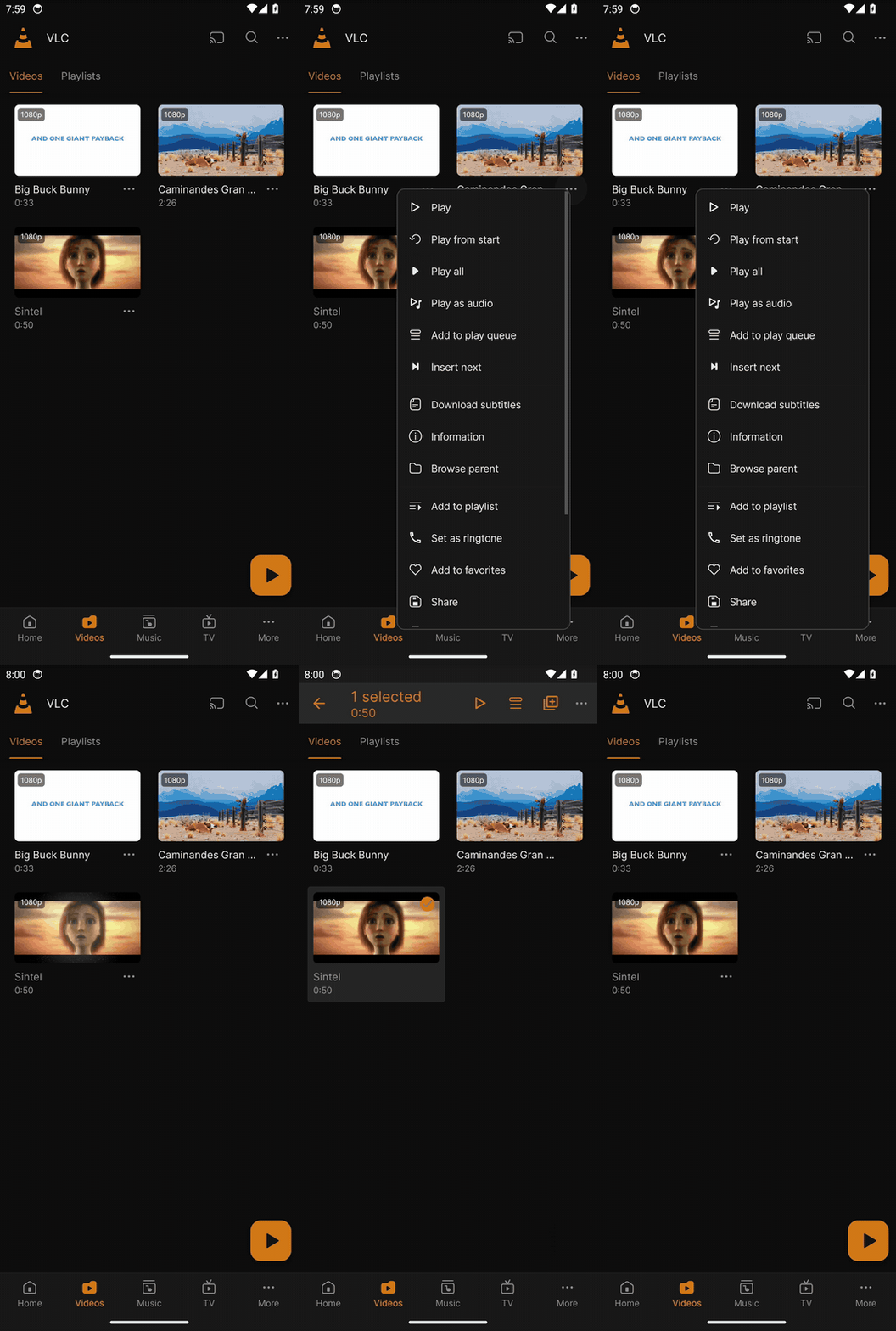 The compact context menu. The ⋯ of a video opens a compact menu; a long press selects. Desktop: The right-click menu of a media |
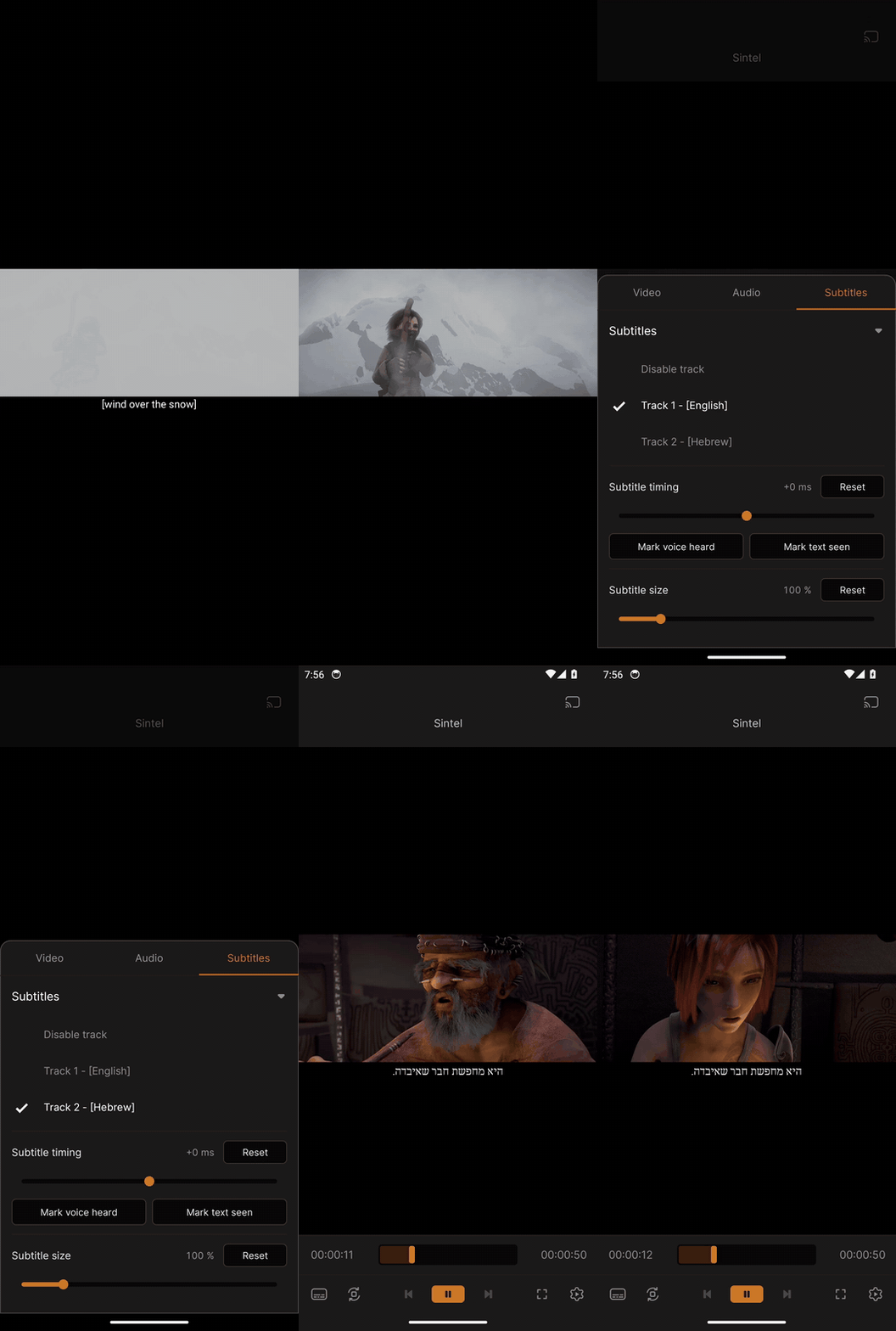 Tracks and subtitles in Hebrew. The tracks panel over the video: the subtitle files next to it, Hebrew picked, read right to left. Desktop: Subtitles |
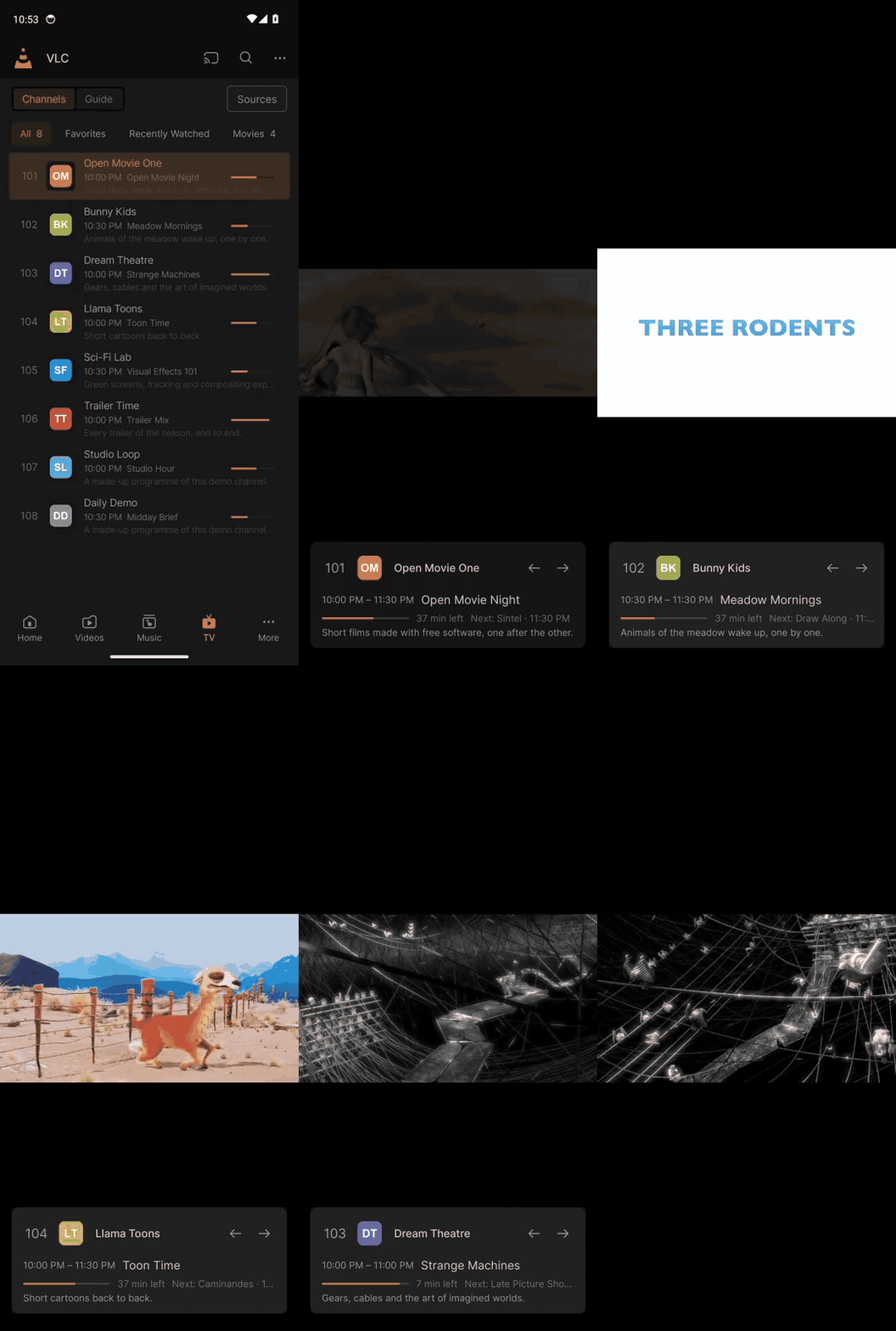 Live TV zapping. A channel of the demo provider, then the next ones: the banner shows the number, the programme, its progress and description. Desktop: Live TV: Watching |
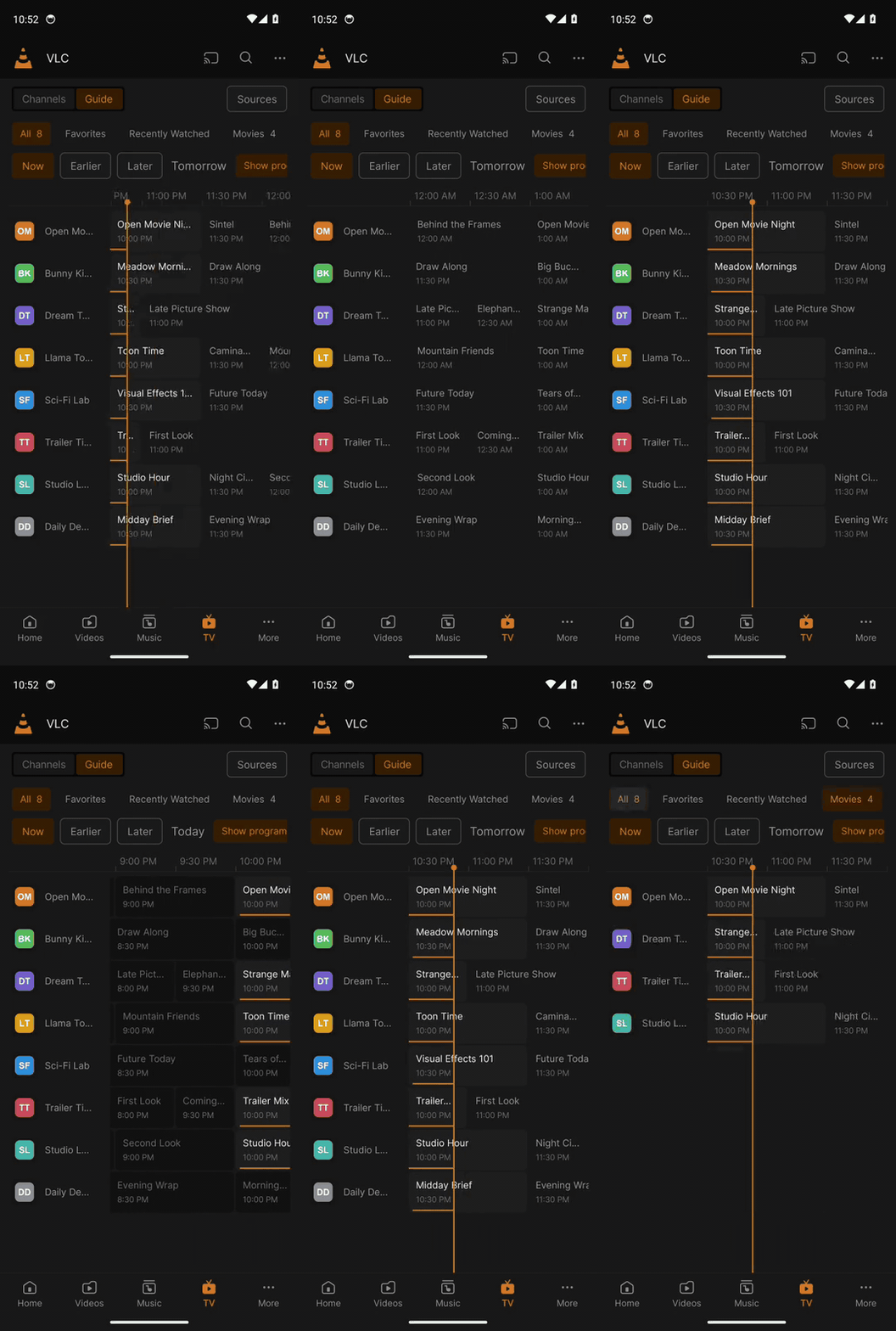 Live TV guide. The guide on a phone: the line of now, swiped through the hours and the channels. Desktop: Live TV: The guide |
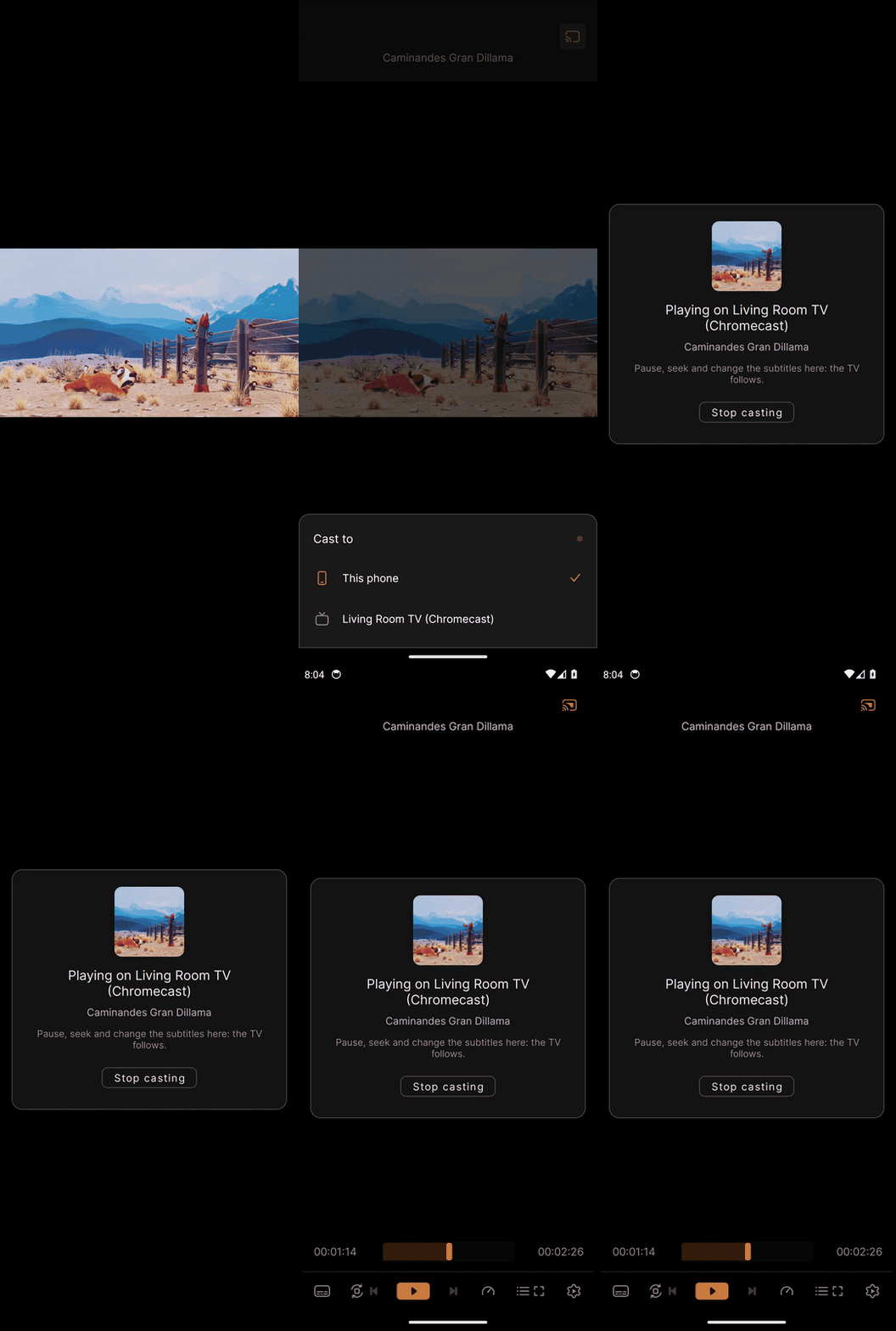 Casting card. The Cast to list (a test Chromecast of the recording PC), then the card that shows while the video plays on the TV. Desktop: Casting to a TV |
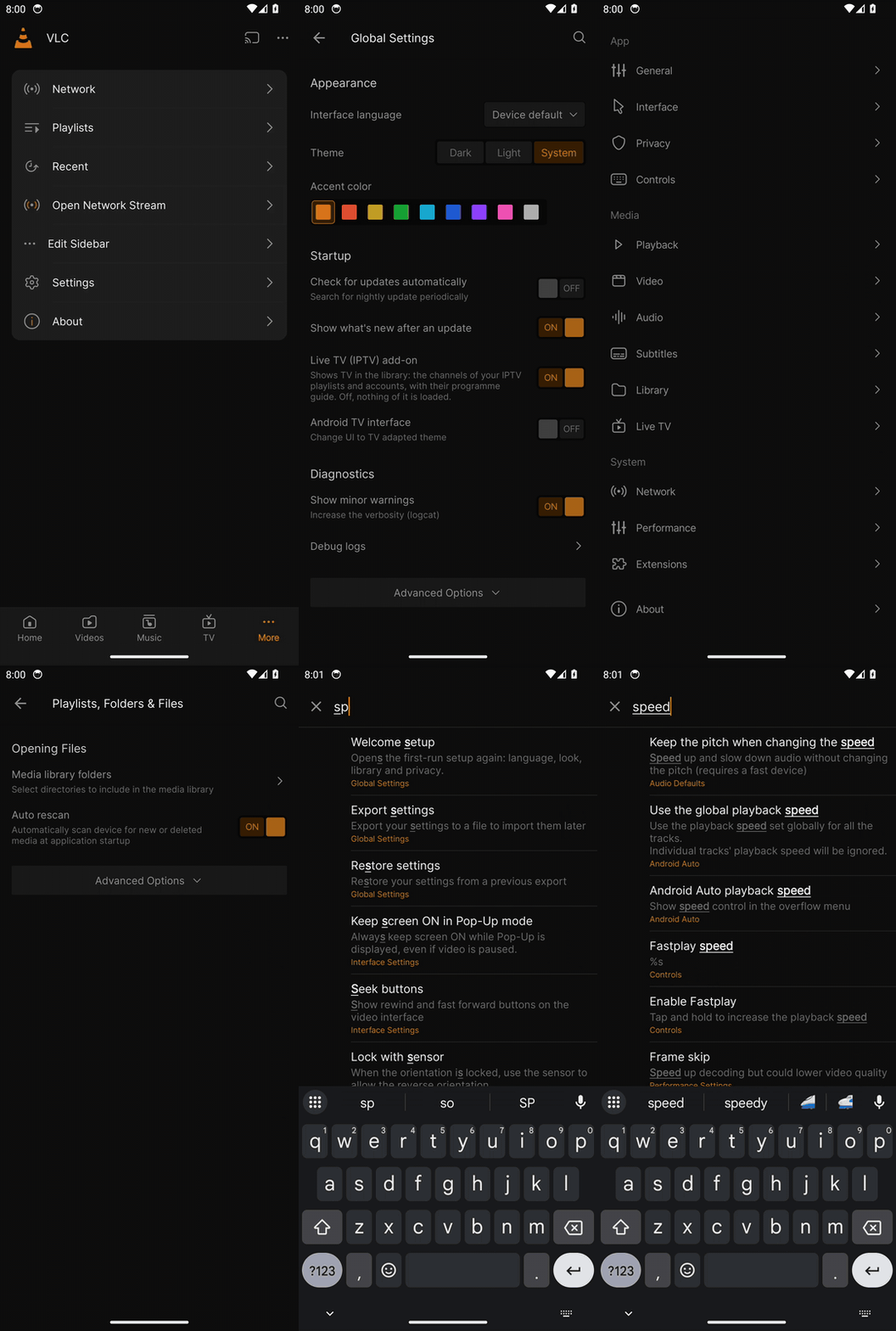 Settings. The settings pages, General with the theme and the accents, a page, and the search. Desktop: Settings |
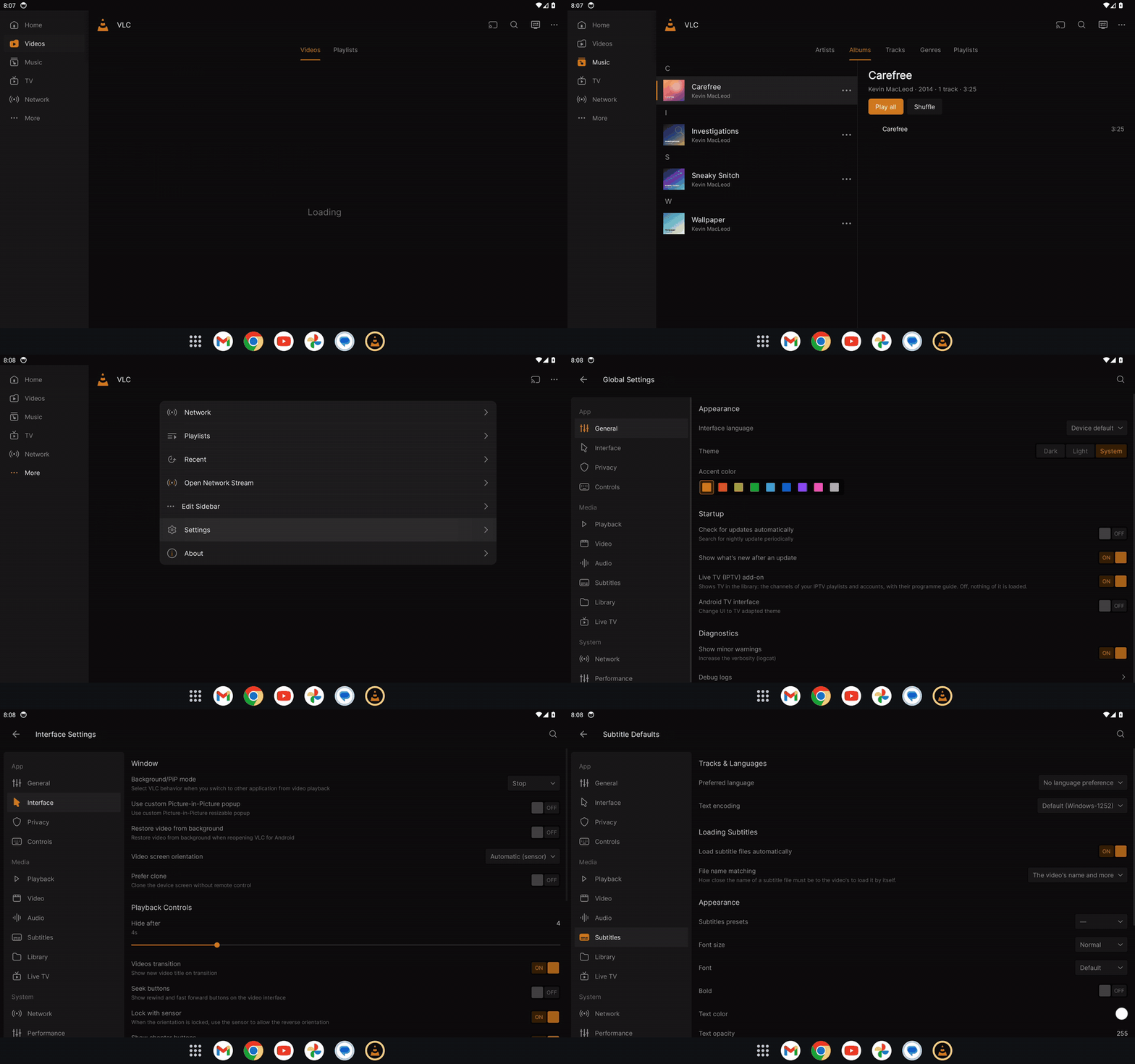
Tablet layout. The sidebar and a list with its detail beside it: an artist and an album next to their list, More, and the settings pages next to their list.
In depth: Platforms: Android
All the clips with their files: docs/media/demo. Interface design by Juxtopposed.
Home · Platforms · The player · Live TV · Credits and license