v1.1.0

Important
In this version ,You should download pdfjs plugin again
PC : Pdf js plugin
Andriod/ios : Mobile pdf js plugin
You should set up pdf js plugin path in setting tab , it is a absolute path
For example :
D:plugins/pdfjsin pc/storage/emulated/0/Documents/obsidian/obsidian/plugin/pdfjsin andriod
you should put pdfjs plugin to a accessible folder in mobile .
you can find your vault path in mobile app , the best way is create a folder in your vault , then put pdfjs plugin in it.
-
fix #40 , you can select mode of mindmap (when create mindmap) in setting tab , the default is
basic -
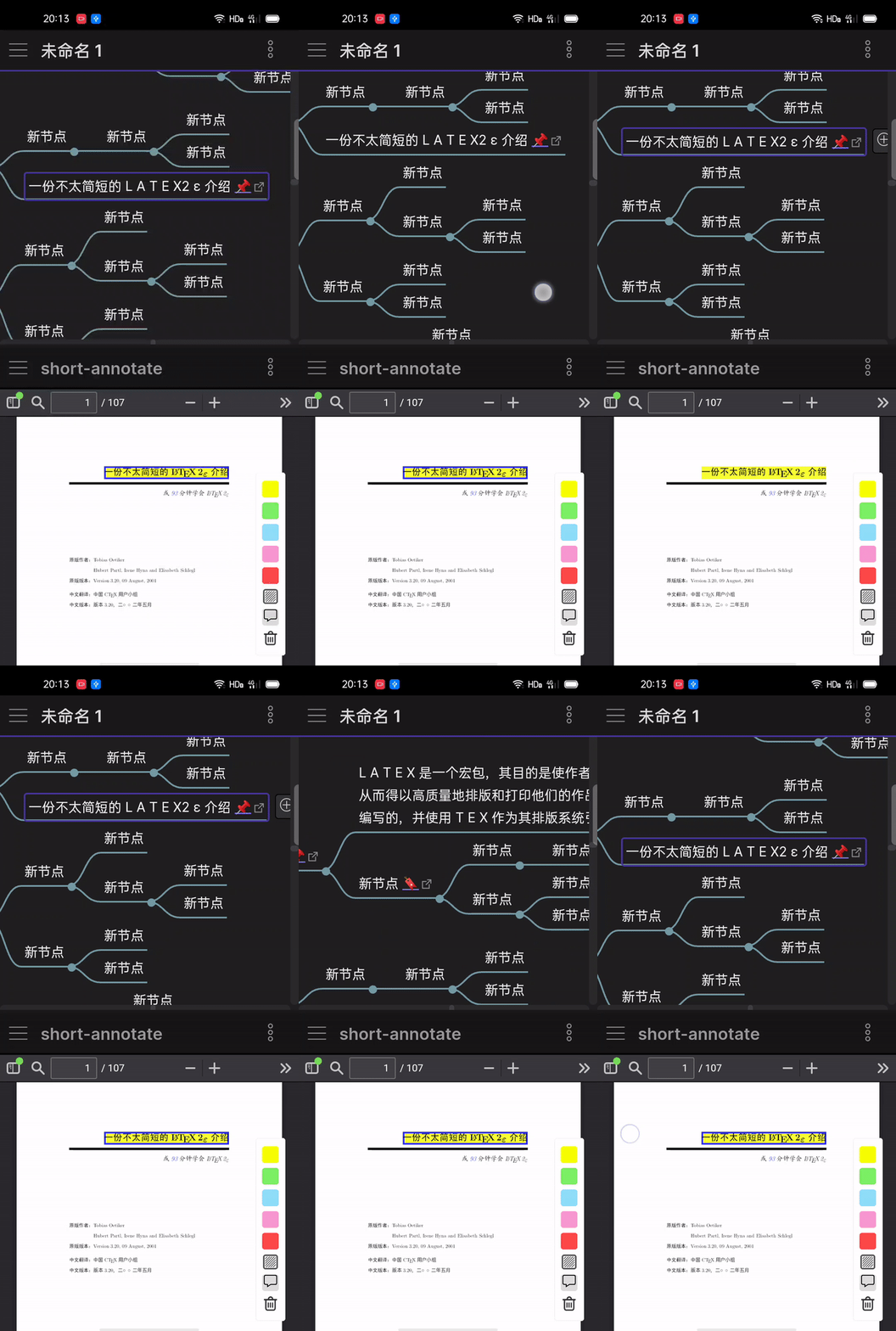
pdf annotate support mobile , only support pdf of your vault , not support
file:// -
in md file , support use
[[md#^node id]]to reference node ofrichmode mindmap , you can find menucopy node idinmore options -
support set up image folder in setting tab to save image of pdf rect annotate . please restart obsidian app .
- for example :
Screenshot, the Screenshot folder must be exists in your vault, the image of rect annotate will be save toScreenshotfolder
- for example :
-
fix when annotate
file:// pdf pathcannot use rect annotate bug -
mobile active code will create auto when you input active code in setting tab , you can get it by restart obsidian
-
support 3 theme of mindmap , you can add yaml to markdown
---

mindmap-plugin: basic( or rich )
mindmap-theme: dark(or light or card)

---
Markmind all functions will support mobile and pc from this version ,andriod/apple/window/linux has consistent experience.
重要提示:
该版本您需要重新下载PDFjs 插件
电脑端:Pdf js plugin
移动端:Mobile pdf js plugin
下载解压pdfjs 之后,您需要在设置页面设置PDF插件路径,这是一个绝对路径,比如在电脑端:D:plugins/pdfjs, 在手机上,您需要将pdfjs插件放在一个Obsidian app可访问的位置 , 比如安卓手机上,你可以在文件夹中新建一个plugin文件夹,然后将pdfjs 插件放入其中,设置路径为/storage/emulated/0/Documents/obsidian/obsidian/plugin/pdfjs
- 修复 #40 ,你可以在设置页面选择创建思维导图时的模式 , 默认是
basic模式 - pdf 标注支持移动端,只支持库内pdf文件
- 支持在md文档中使用
[[md#^node id]]的形式引用rich模式下的节点,你可以在更多菜单中发现复制节点ID按钮 - 支持在设置页面设置矩形截图存储的文件夹,需要重启obsidian
- 比如设置为'screenshot' ,
screenshot必须存在您的文件夹里,之后的矩形标注截图将被存在screenshot文件夹内
- 比如设置为'screenshot' ,
- 修复标注
file://非库内pdf文件时,无法使用矩形标注的问题 - 您在设置页面设置激活码时,移动端的激活码会自动生成,当您重启obsidian后可以获取
- 添加3个皮肤,你可以使用yaml语法激活
---

mindmap-plugin: basic( or rich )
mindmap-theme: dark(or light or card)

---
从这个版本开始,markmind的思维导图和pdf标注功能将全部支持移动端和电脑端,在安卓、苹果、window和linux下拥有一致的体验 , 另外建议在电脑版本上进行pdf标注,不建议在手机上,手机屏幕太小,更适合阅读。