Releases: McCal-Codes/folio
Release list
Folio 0.6.0

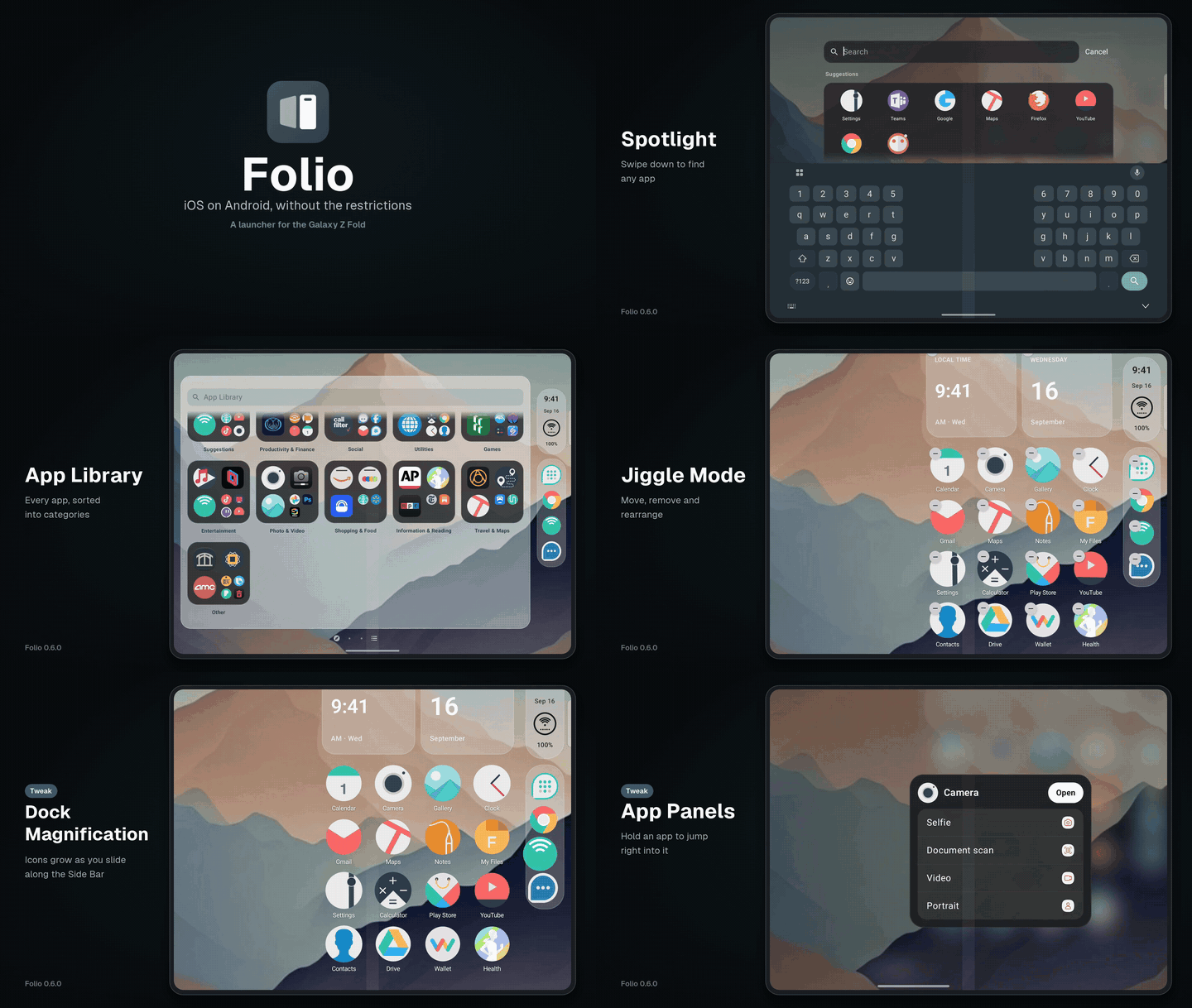
The Tweak Library, updates straight from Folio, notifications in the Dynamic Island, new status styles, rounded screen corners, and fixes for what you reported. Thanks to everyone testing!
Install
- Have 0.5.x? Settings › Software Update, or download Folio-0.6.0.apk below and open it. It installs over your current Folio and keeps your layout.
- New to Folio? Download the APK, open it on your phone (allow installs if asked), then press Home and pick Folio.
Android 12 or newer. No root.
Verify
- APK SHA-256:
5c9afb7886f6144598d1dde492e0da160b83d2eaf8eb2b712d74dffcf65d99cd - Signing certificate SHA-256:
bad8e099557b70c690e71a3fffe13561c8662c20612047ce1e2559a1c14d8441(CN=McCal Media), the same as every Folio release
What's new in 0.6.0
Added
- Badge options: an iOS, Classic or Glass look, three sizes, and blue, green, orange and purple colors, with a live preview (Icons & Side Bar).
- Folder options (columns and a glass, solid or clear background), app name size, and Animation Speed (Relaxed, Standard or Snappy).
- Side key: choose what holding it does: Folio's picker, a Google search without AI Overviews, or talking straight to Google, Claude or Perplexity (Side Key page).
- Software Update: check GitHub for a new Folio, download and install it after verifying its checksum and signing key; optional daily checks, update notifications and automatic installs.
- Roadmap in Settings (replaces Coming Soon): what's in this update, what's next, later and being explored.
- Tweak Library: tweaks are packages you Get (Sileo-style) and only the ones you get show in Settings › Tweaks. New installs start with none; updating keeps the tweaks you already use.
- Hidden apps stay out of the App Library, like iOS: they're listed in Settings › Search & App Library after you unlock with your fingerprint, face or PIN. A Work Apps switch hides the Personal and Work toggle.
- Left of Home can be None (Settings › Today View), alongside Today View and Google Discover.
- Support Folio in Settings, for buying me a coffee on Ko-fi.
- Save Backup and Save Theme go straight to Download/Folio; backups can be named (the default is dated).
- Fold transition: a light tick as the hinge passes halfway, a soft light sweep and a slight settle in size as the open screen clears, and a Preview slider in Fold & Displays to see the effect without folding. Phones whose hinge sensor reports in-between angles follow the real angle. Ideas from FoldFX.
- Beta Updates in Software Update: choose Folio Beta to get GitHub pre-releases too. Turning it off keeps your beta until a newer public release.
- Other notifications in the Dynamic Island (off by default): new notifications from apps you choose pop up in the island like messages, following each app's alert settings, Do Not Disturb and "Don't double up with Android pop-ups". Choose apps in Dynamic Island › Other Notifications.
- Swipe an island pop-up up to hide it early, on Home and over other apps; it stays in Notification Center.
- Finish Setting Up: if required setup is left, a card on Home brings you back (not on the first day; Not Now waits three days; never again once setup is finished), and Settings shows a progress ring.
- Folio's own short messages (an app that won't open, a panel Android couldn't open) show in the Dynamic Island instead of a toast when the island is on screen.
- Status styles for the Side Bar: Rings (battery, Wi-Fi and cellular as Activity-style rings) and Ring with Percentage, alongside Ring, Icons and Battery only.
- A red bell in the Side Bar while the phone is on silent or vibrate, like iPhone (Icons & Side Bar › Silent mode icon). "Color battery when charging or low" is now "Status colors" and covers it.
- Rounded screen corners (Wallpaper & Appearance › Screen Corners, off by default): black iPhone-style corners over Home with a size slider, for the iPhone Duo look (issue #8).
- Settings opens where you left it, on the same page and scrolled the same, like iPhone Settings.
- Report a Bug and Show Welcome Again moved into Settings › Help, so the main list is shorter; searching Settings for "bug" or "welcome" finds them.
- Screenshot Mode (Advanced): Folio shows 9:41 with full battery and signal and hides notifications, music, messages, device names, calendar events and alarms, for sharing your setup. Turns off by itself after 30 minutes.
- Headphones & speakers: when Bluetooth headphones or a speaker connects, an iPhone-style card shows its name on Home, and the Dynamic Island shows it over other apps.
Changed
- New muted teal app icon. Olive and Soft are alternate icons in Wallpaper & Appearance › App Icon.
- Development builds install as a separate "Folio Dev" app with an amber icon, next to the release.
- Folio no longer asks for the Nearby devices (Bluetooth) permission: headphone and speaker names now come from Android's audio device list.
Fixed
- Home can no longer stay blurred behind a Lock Cover that was turned off while it was about to show.
- Folio's short notices fall back to a regular message while Settings or another sheet covers Home, so they're never hidden behind it, and they don't follow you into other apps.
- The dock no longer overlaps the Side Bar's status when it grows (Focus or Silent icons, the Rings styles); it always starts just below it, including in Discover.
- In jiggle mode, the dock's remove buttons stay inside the Side Bar instead of hanging off its edge.
- Spotlight's Suggestions show whole rows only, so the unfolded screen shows one clean row above the keyboard instead of a cut-off second row.
- Unfolded in portrait, Home's four columns spread across the screen at every Screen zoom instead of sitting in a narrow block with a wide gap (issue #10).
- On phones without Samsung's "Continue apps on cover screen" setting, setup no longer lists it as a required step that can never be done.
- Scrolling lists and grids fade softly at their edges instead of being cut off.
- The App Library on the unfolded screen shows more, phone-sized category tiles (five across in landscape) instead of two giant columns (issue #9), and no longer covers the Side Bar's status.
- Beta labels no longer wrap in narrow Settings layouts.
- Turning on Folio gestures explains Android's "Allow restricted settings" step for apps installed from a file, with a button to App Info.
- Friendlier setup: Folio's own icon on the welcome page, Skip on every step, setup moves on by itself after you allow something, clearer tips at the end, and choosing a wallpaper no longer restarts the screen.
- Phone-sized screens keep the phone layout when Developer options' Smallest width or Display size is changed (a Fold8 cover set to 600dp got the unfolded layout, with the dock at the bottom and wide margins).
- Folders take more than two apps from the app menu: Create Folder becomes Add to Folder once you have one, listing your folders first.
- Scrolling lists fade at their edges more softly, and the fade grows in as you scroll instead of popping in.
- App Library folders open without building every app at once, and holding an app there opens its menu.
- Setting Folio up no longer leaves the screen blurred and unresponsive. A sheet opened while Folio was behind a system permission screen could stay invisible and still take every tap, so Home sat blurred with no way out but a restart. Sheets now always appear, and the Home button closes anything that's open.
- Setup and full-screen Settings pages are smoother: Home no longer blurs behind a page that covers it, which was work nobody could see.
- Message pop-ups can be handed back to Android: every messaging app in Dynamic Island settings has a button to its own notification settings, both ways, and that list stays reachable while the island is off. Apps switched to the island used to end up with no pop-up at all and no way back.
- With Dock Magnification on, sliding along the side dock no longer opens Spotlight.
- The fold preview in Settings shows one Side Bar, like the open Fold, instead of one on each page.
- Folio's own screens always show its real icon; only the Folio Dev launcher icon is amber.
- Back in Settings returns to the page you came from, such as Tweaks or Focus, instead of the top of Settings.
- Unfolded in portrait, going back to the top of Settings opens the settings list again instead of a mostly empty page.
Icons in the GIF: Minimal O by JustNewDesigns.
Folio 0.5.1
Fixes from your first reports, plus updates straight from Folio. Thanks to everyone who tried 0.5.0 and reported bugs!
Install
- Have 0.5.0? Download Folio-0.5.1.apk below and open it; it installs over 0.5.0 and keeps your layout.
- New to Folio? Download the APK, open it on your phone (allow installs if asked), then press Home and pick Folio.
Android 12 or newer. No root. From now on, Folio can update itself: Settings › Software Update.
Verify
- APK SHA-256:
d17b4b062ed6af47b1ad3eb53cddc8fffad53a84358daa635982f81e57778efd - Signing certificate SHA-256:
bad8e099557b70c690e71a3fffe13561c8662c20612047ce1e2559a1c14d8441(CN=McCal Media), the same as 0.5.0
What's new in 0.5.1
Added
- Software Update (Settings › Software Update): check GitHub for a new Folio, download and install it after verifying its checksum and signing key, with optional daily checks, update notifications and automatic installs. Beta Updates lets you try pre-releases.
- Support Folio in Settings, for buying me a coffee on Ko-fi.
- Hidden Apps and Work Apps in Settings › Search & App Library.
Changed
- Friendlier setup: Folio's icon on the welcome page, Skip on every step, setup moves on by itself after you allow something, and clearer tips at the end.
- Turning on Folio gestures explains Android's "Allow restricted settings" step for apps installed from a file, with a button to App Info.
- Hidden apps no longer appear in the App Library; they're listed in Settings after you unlock with your fingerprint, face or PIN.
- Choosing a wallpaper no longer restarts the screen.
Fixed
- Setup no longer leaves the screen blurry and frozen until you restart the phone. The Home button now also closes anything Folio has open.
- Setup and full-screen Settings pages are smoother.
- Apps you switched to the Dynamic Island can go back to Android's own pop-ups: Settings › Dynamic Island lists each messaging app with a button to change it, even while the island is off.
- The App Library on the unfolded screen shows phone-sized category tiles instead of two giant columns (issue #9).
- Phone-sized screens keep the phone layout when Developer options' Smallest width or Display size is changed.
- Folders take more than two apps: Create Folder becomes Add to Folder once you have one.
- App Library folders open without building every app at once, and holding an app there opens its menu.
- With Dock Magnification on, sliding along the side dock no longer opens Spotlight.
Folio 0.5.0
The first Folio release. It's very early, so please report bugs!
Install
- Download Folio-0.5.0.apk below and open it on your phone (allow installs from your browser or file manager if asked).
- Press Home and pick Folio, or open Folio and tap Set as home app.
Android 12 or newer. No root. Want automatic updates? Add this repo to Obtainium.
If you built Folio yourself before, this release can't install over it (different signing key). Save a backup in
Settings › Backup, uninstall the old build, then install this one.
Verify
- APK SHA-256:
50045ef8890f596e8d600e420d553987489541db04f29c6c372632a8f4fe8755 - Signing certificate SHA-256:
bad8e099557b70c690e71a3fffe13561c8662c20612047ce1e2559a1c14d8441(CN=McCal Media)
Every future release will be signed with this same certificate.
What's new in 0.5.0
Added
- Alternate app icons: choose Olive or Soft in Settings › Wallpaper & Appearance › App Icon.
- Folio shows up as an app: its icon (in the App Library or another launcher) opens Settings, like iOS Settings.
- Clear Badge in an app's long-press menu hides its badge until a new notification arrives.
- Clock & Calendar setting: the apps' own icons, or live icons that are Automatic, Light or Dark.
- Coming Soon in Settings: what's planned next (including Page Effects, inspired by Barrel), with a Suggest a Feature link.
- Version History in What's New, with every earlier version.
- Beta: Layout History saves Home before big changes (restoring a backup, Arrange Like iPhone, restoring an older layout) so you can go back. Settings › Backup.
- Beta: Recent App Dots mark dock apps you used in the last hour, using Usage Access. Settings › Home Screen & Dock.
- Credits for SnowBoard, Apex, Icon Restore, Lynx 2, ColorBadges, Barrel and Contributor Covenant.
- Email the Developer and Buy Me a Coffee (Ko-fi) in Settings › Help.
Changed
- New olive green app icon.
- Glass settings in Wallpaper & Appearance: a Clear, Light, Frosted or Solid style, plus sliders for widget frost, Side Bar frost and the outline.
- Shorter, iPhone-style setup: Home app, notifications, pull-down gestures and a look. Optional permissions are asked where they're used.
- Settings has one list of permissions (Privacy & Permissions) instead of a separate Setup Checklist, and no repeated Home app rows.
- Settings tidied: the Notification Center and Control Center switch sits with their options, page dots and haptics moved to Gestures & Actions, and the Side Bar frost moved into the new Glass settings.
- Live Clock and Calendar icons match the icons around them: light or dark to fit the app icons, the tint color for Tinted, and an icon pack's own Clock and Calendar when it has them.
- Notification Center slides down like iOS instead of zooming, stacks slide apart when you expand them, swipe buttons grow in as you swipe, and cards press down when tapped.
- Built with Android Gradle Plugin 9.4, Gradle 9.7.1 and Kotlin 2.4.20.
- Layouts are checked against real Android phone, foldable, tablet and desktop screen sizes from Android Studio's device list.
Fixed
- Back always closes Spotlight first, instead of sometimes changing the Home page behind it.
- Spotlight's keyboard comes back if it didn't appear when Spotlight opened.
- Unfolded, Settings › Icons & Side Bar no longer shows its Home preview twice.
- Restoring a Layout History snapshot handles removed apps and folders the same way as a normal refresh, so the saved layout always loads again.
- Switching the app icon keeps Folio's place on Home, in the dock and in folders.
- Sharing a theme file to Folio reads it in the background, so a slow or broken file can't freeze Home.
- Spotlight no longer closes when the keyboard drops for a moment while folding, rotating or switching to voice typing.
- Clear Badge stays cleared while an app updates the same notification, and is hidden when badges are off.
- Setup resumes on the right screen after an update.
- Discover's Side Bar follows the Glass outline setting.
- Holding the side key opens Folio's assistant picker on phones that start the assistant through a voice interaction service (like One UI 9). Folio asks Android not to share the current app's screen with it, and the Side Key page warns when Good Lock's RegiStar can override the key.
- The live Clock icon no longer occasionally stays a normal icon.
- An app's long-press menu no longer cuts off its last row when Clear Badge is showing.
- Spotlight's Cancel hides the keyboard and has a bigger touch target.
Known issues
- Lists and grids are cut off hard at their edges instead of fading out (App Library, Settings, Notification Center, Spotlight and folders). Fixed in the next update.
- On the unfolded screen in portrait, the App Library shows two oversized columns and can cover the Side Bar's status. Fixed in the next update.
Full history: CHANGELOG.md