Repository navigation
Storyboard
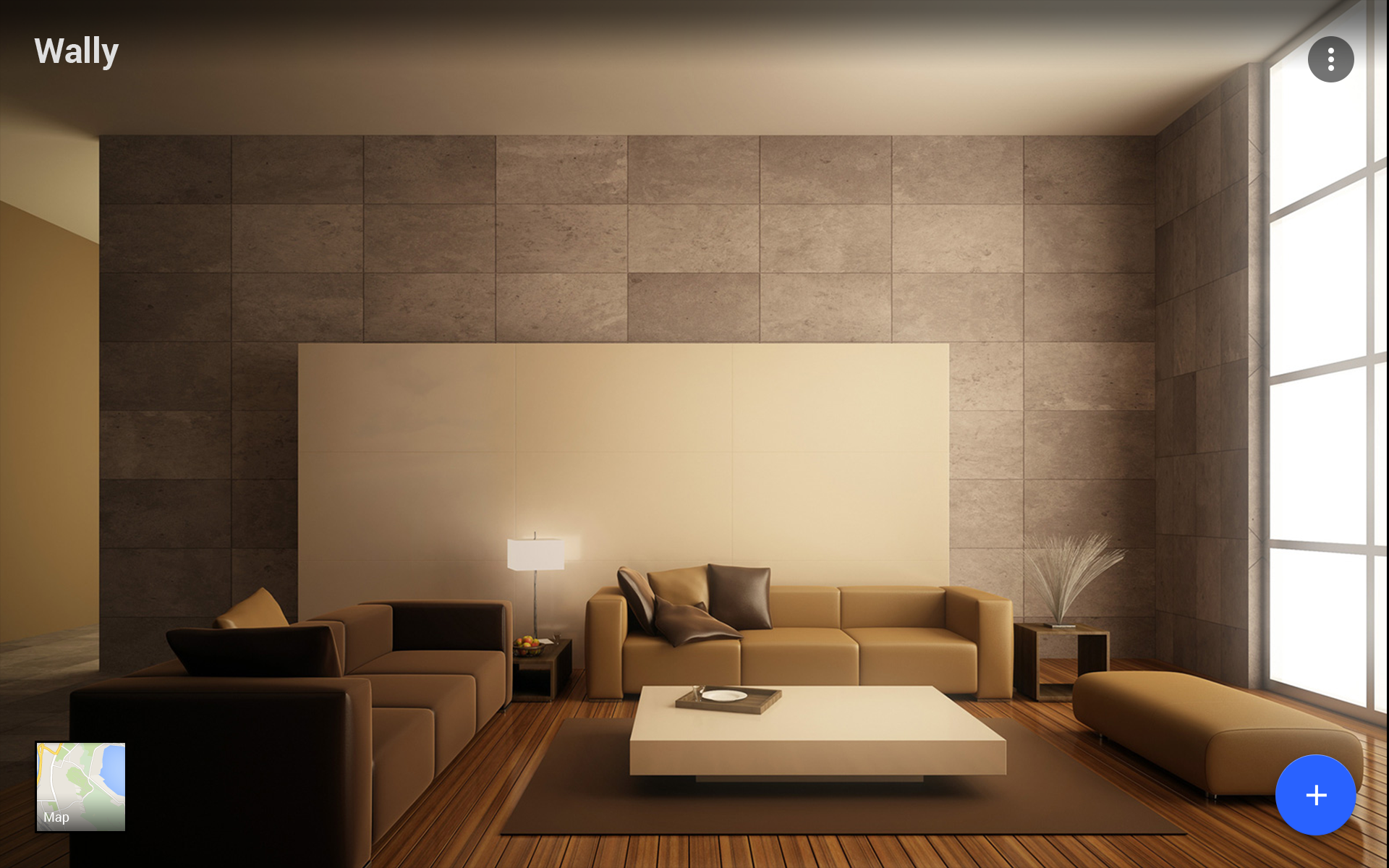
Startup screen
- Camera preview at the background. Here we don’t have any content to show.
- Map button at left-bottom corner. That leads to Map Screen.
- Add action button to add new content.
- Settings button.
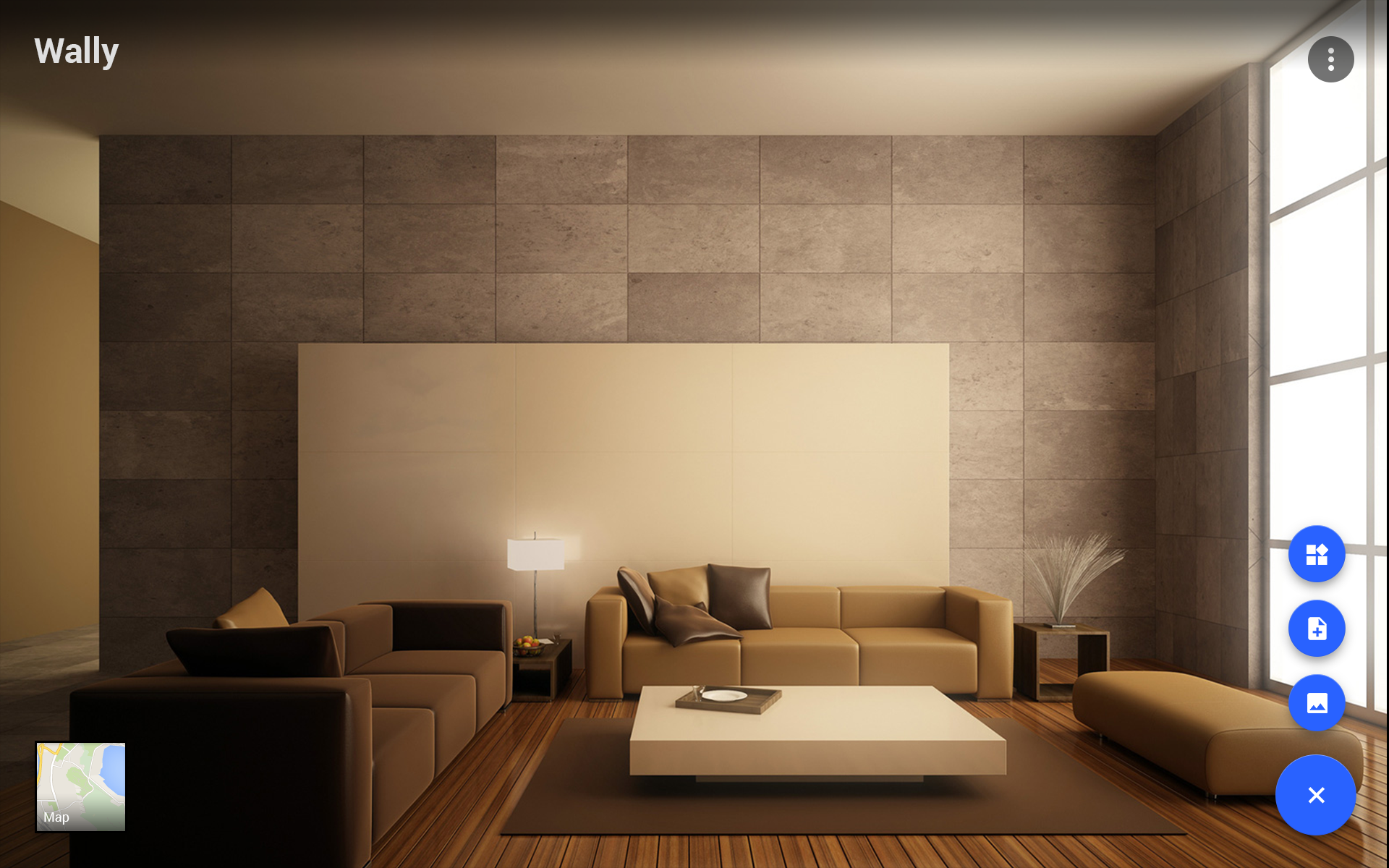
User touched add action button and opened floating action menu. As soon as it touches is back, floating action menu closes.
We see three options in FAM:
- Add photo
- Add note
- Add widget On click user will be redirected to separate chooser.
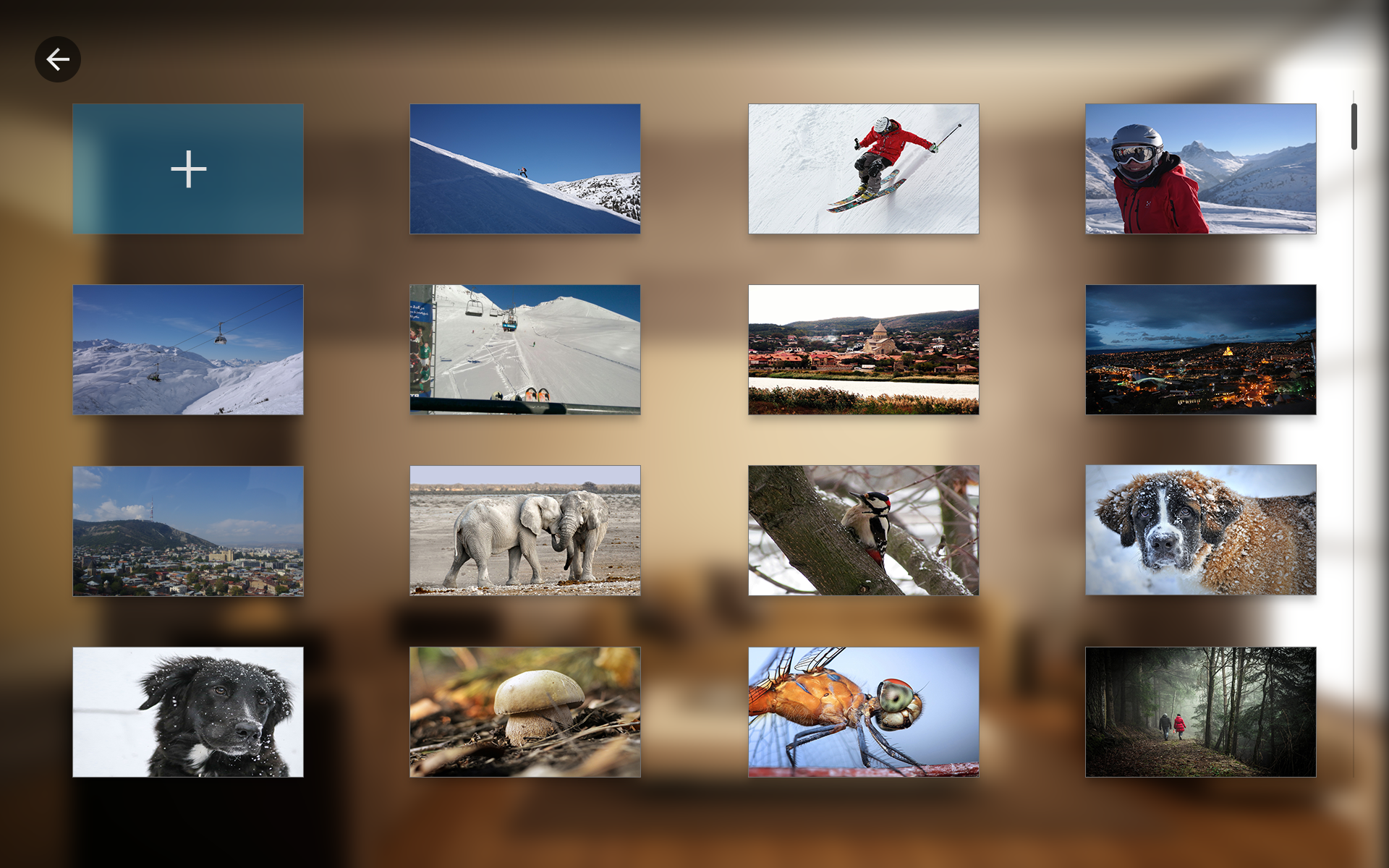
User clicked image chooser action button, and now sees images on the device.
- User can use device gallery to pick photo, by clicking fist item(Top-left).
- By clicking any other item, user is redirected to image placer screen.
- On back navigation user is returned to Main screen.
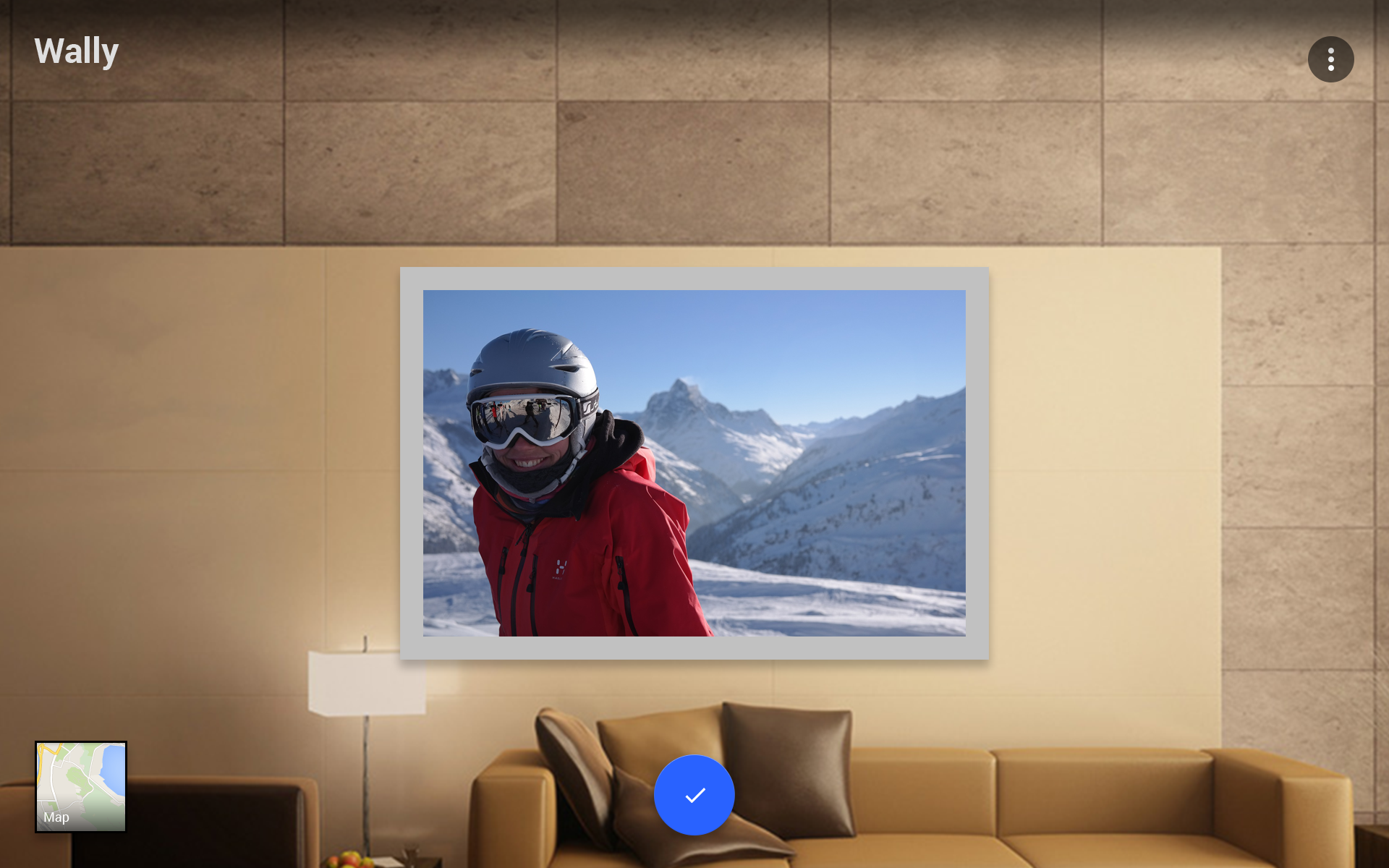
User selected image to place, now is choosing place for the picture, by pointing screen.
- With gestures user can rotate and zoom image.
- On Done action button click, user places image on the wall.
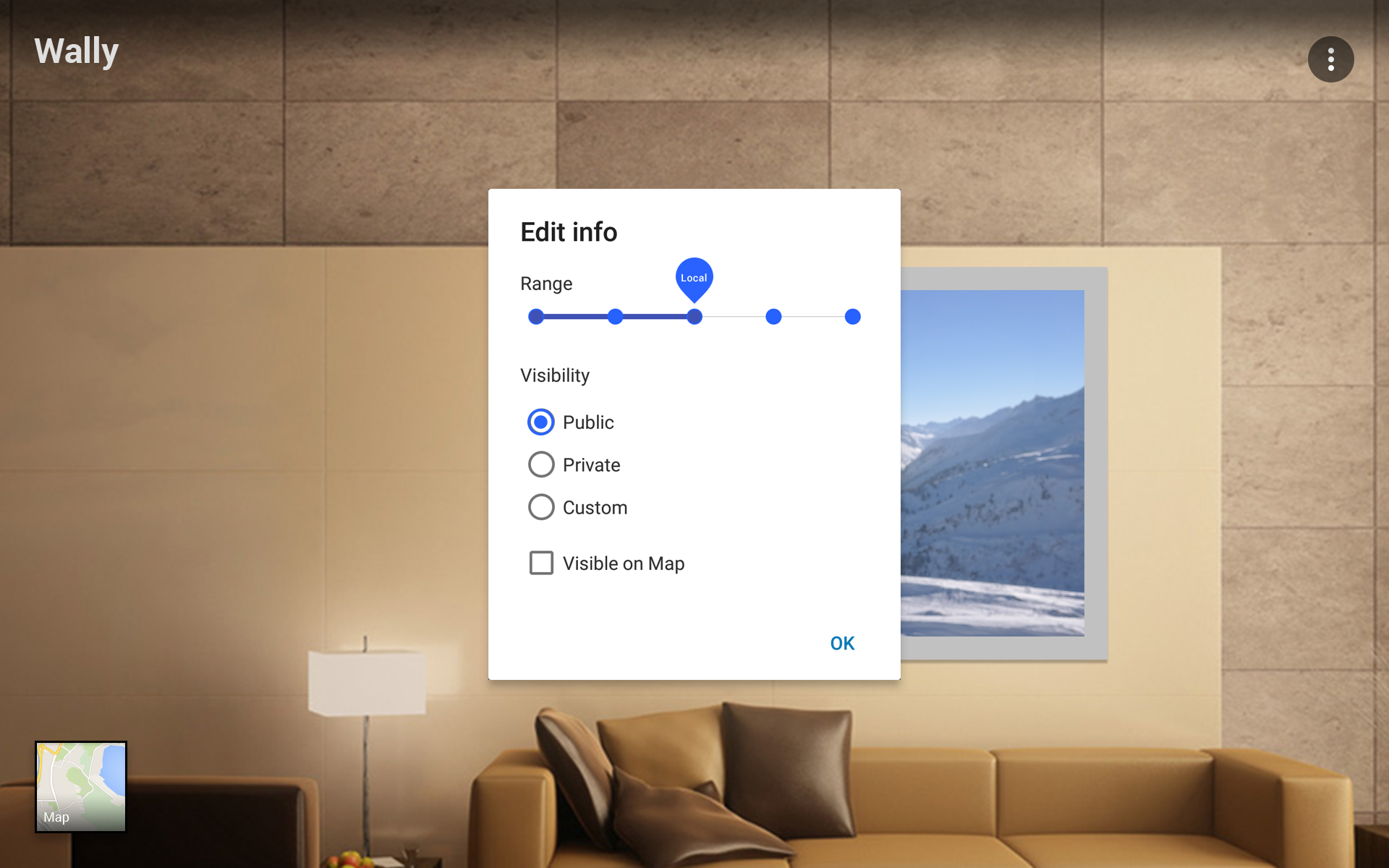
User placed image. Now needs to fill additional info.
Several fields here:
- Visibility Range
- here - up to 10 meters
- near - 100 meters
- local - 3 km
- distant - 20 km
- far - any distance
- Visibility Group
- Public - everyone can see
- Private - Only I can see
- Custom - Pops up new dialog, where user can select specific users to share content with
- Visible on map
- Checkbox controls whether item can be seen on map.
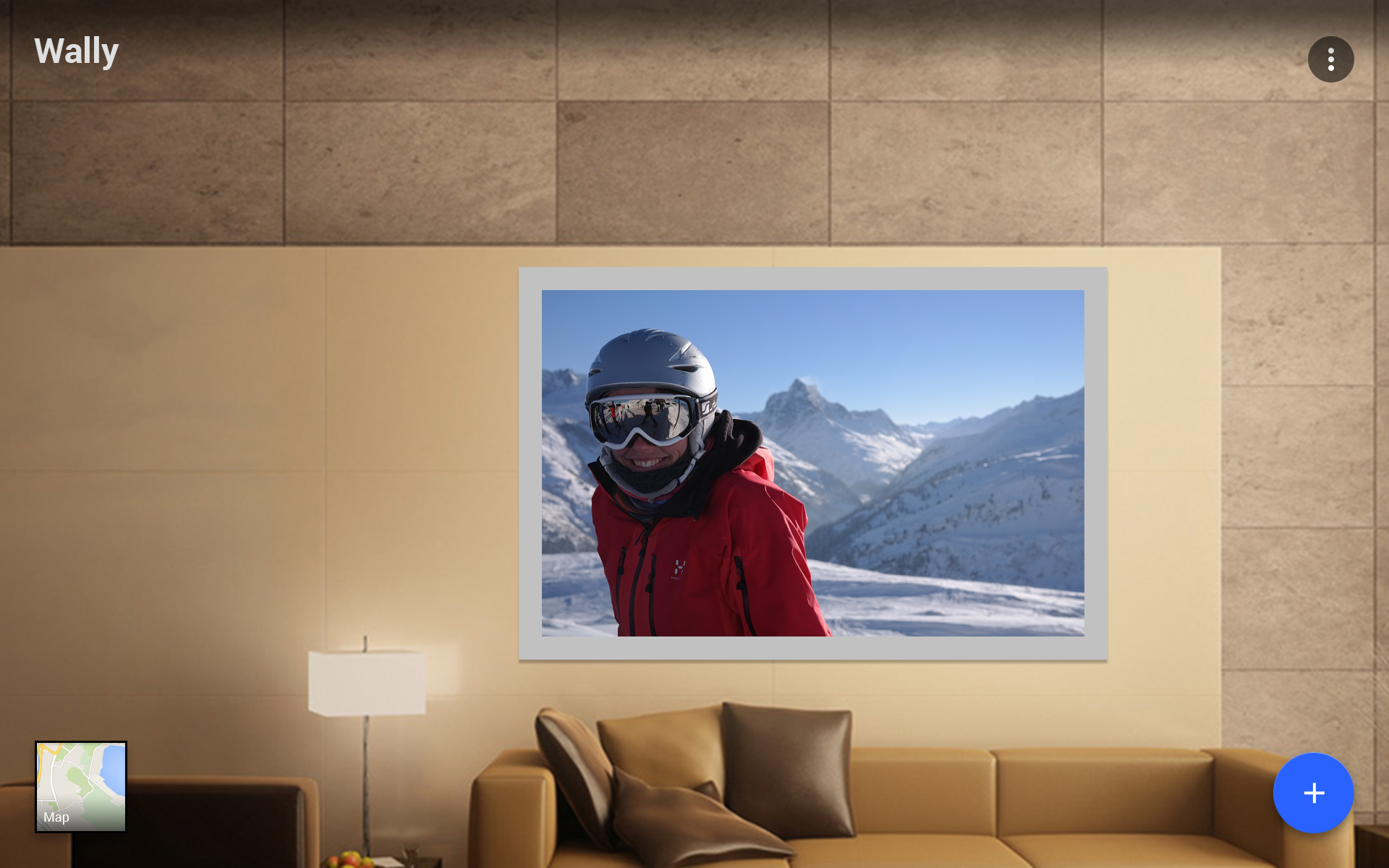
This is main screen. Just to see, how placed Image looks.
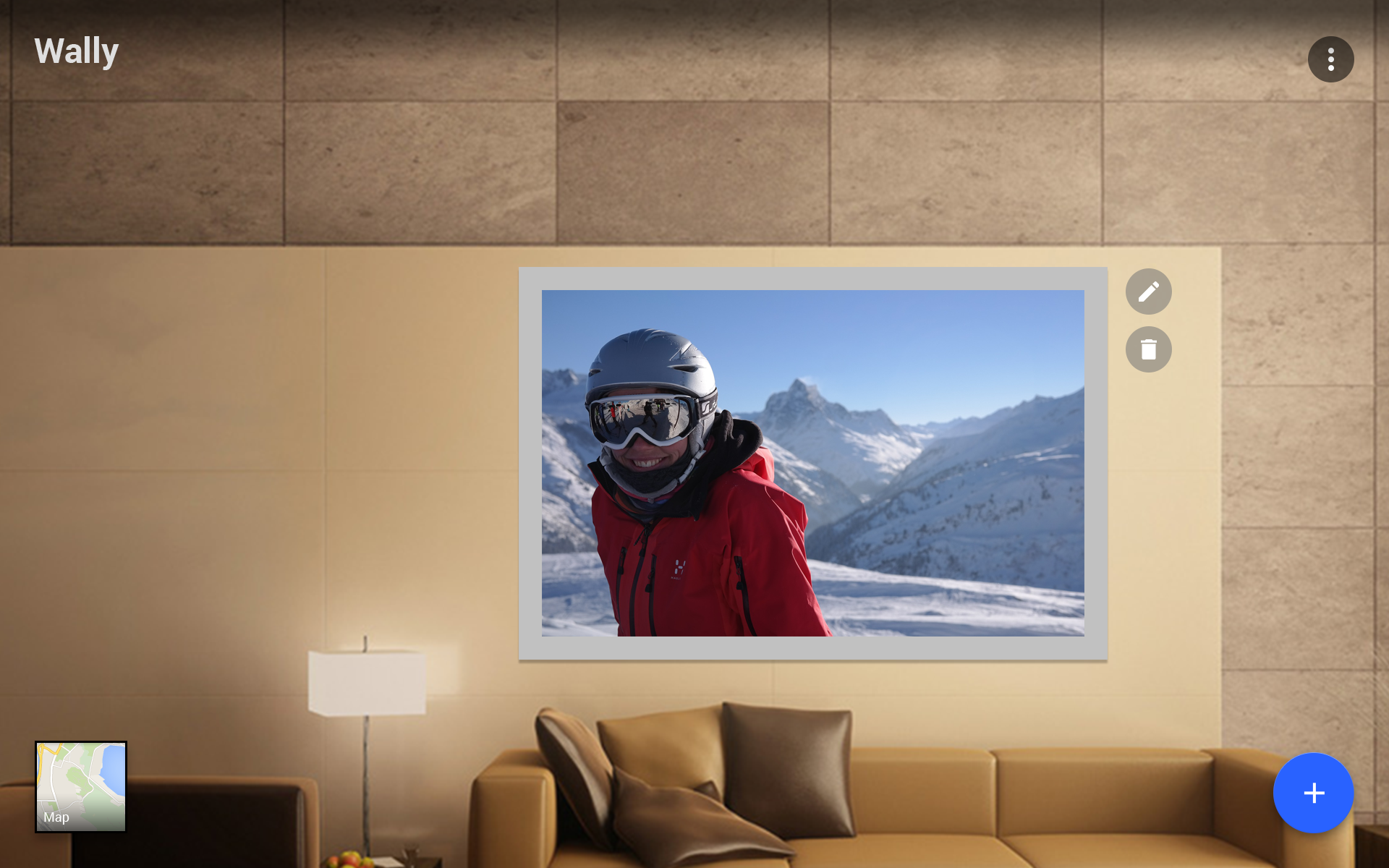
When you focus your placed image several seconds, you see edit and delete buttons for that image.
- On edit button you see edit popup. (Same as additional info)
- On delete button - delete warning.
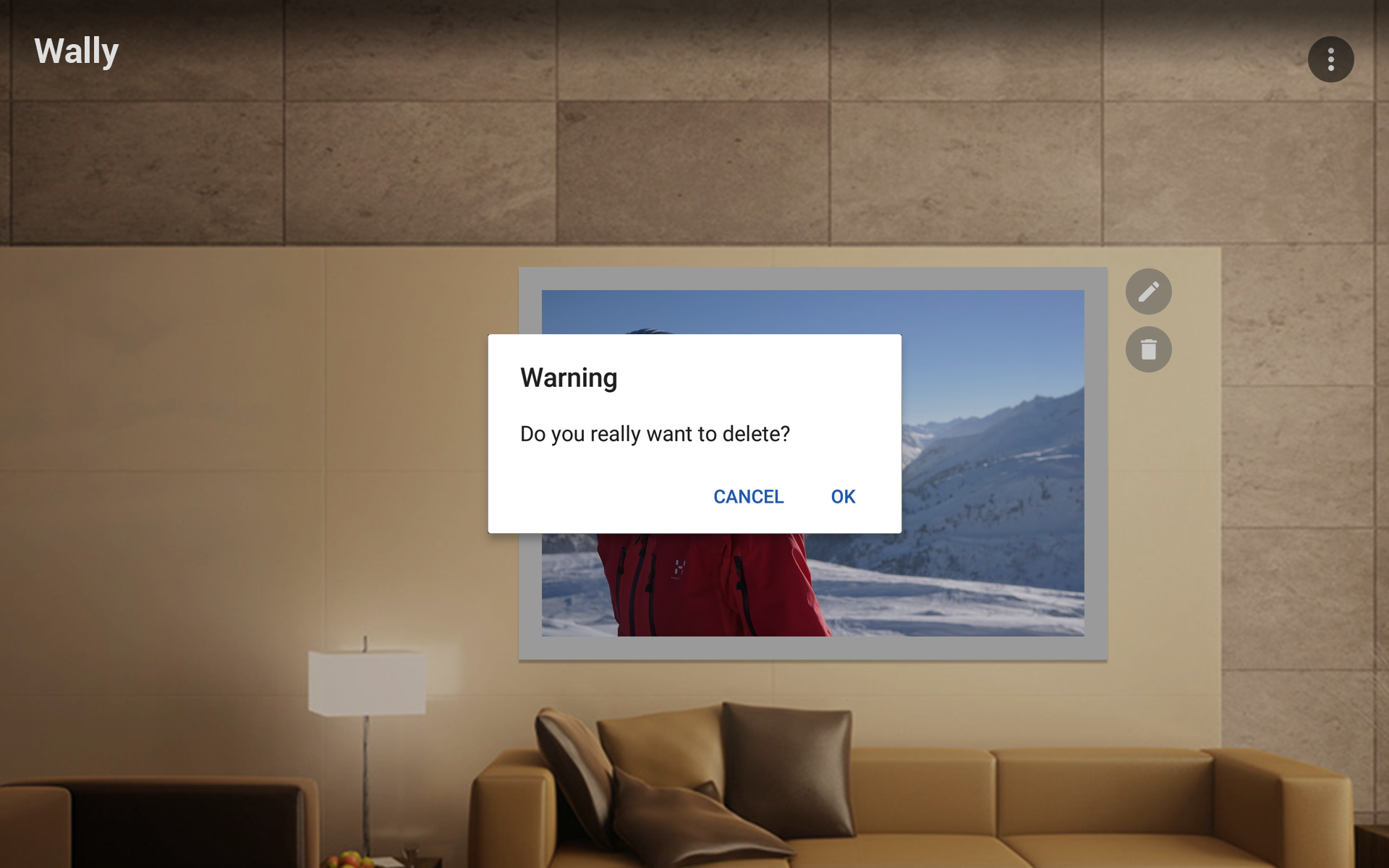
Confirmation on item deletion.
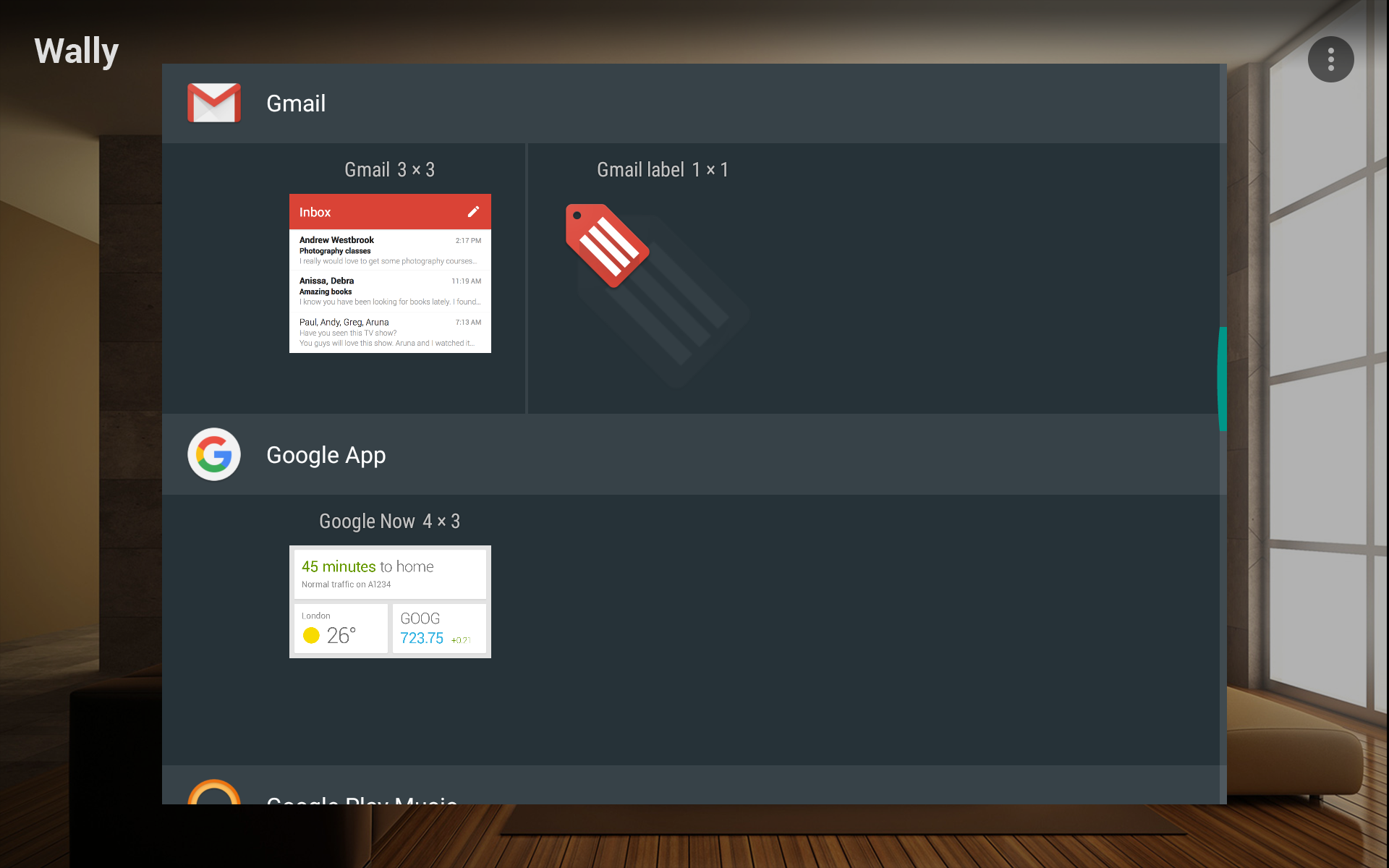
After user clicks widget add action button, user sees widget picker. On outside click action is cancelled and user returns to main screen. If any widget is chosen, User can place it on the wall.
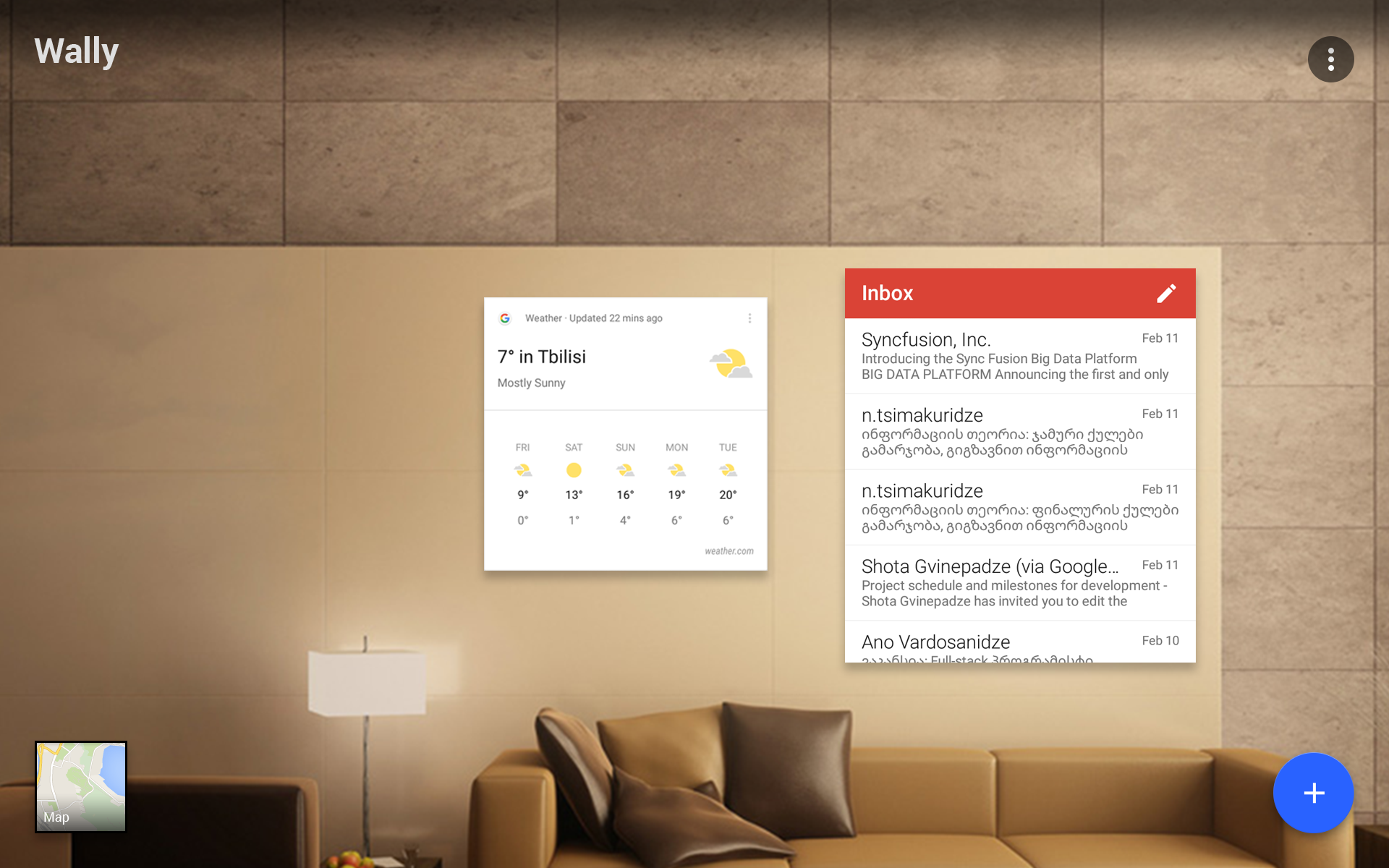
Widgets on the wall, user can rearrange widget or delete with drag at the top edge, as it would be on phone’s home screen.
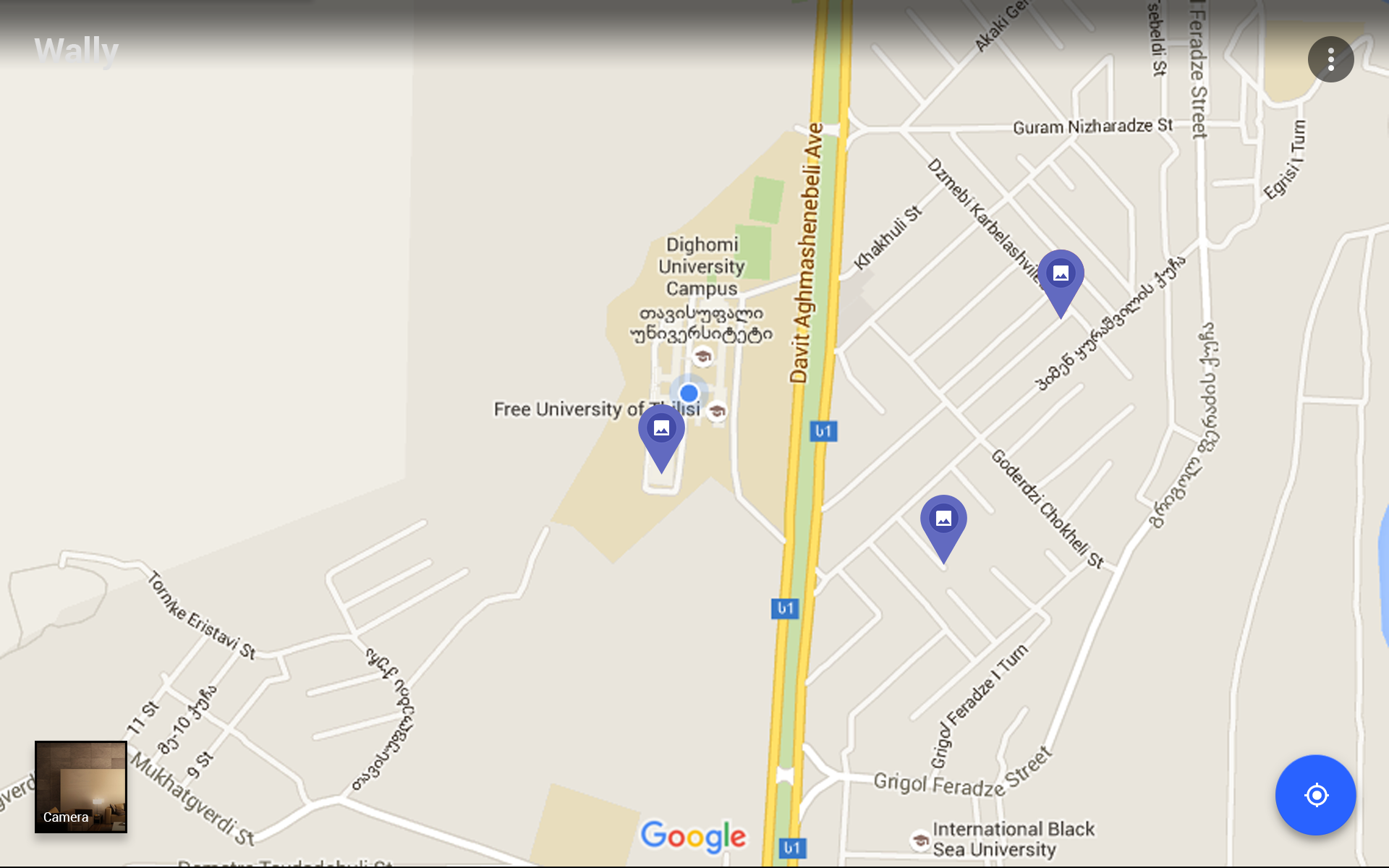
- On bottom-left button click, map view appears, where notes and photos can be seen.
- On pin click, if user has permission sees preview, otherwise appropriate message appears.
- Clicking bottom-left button again returns user to main screen.
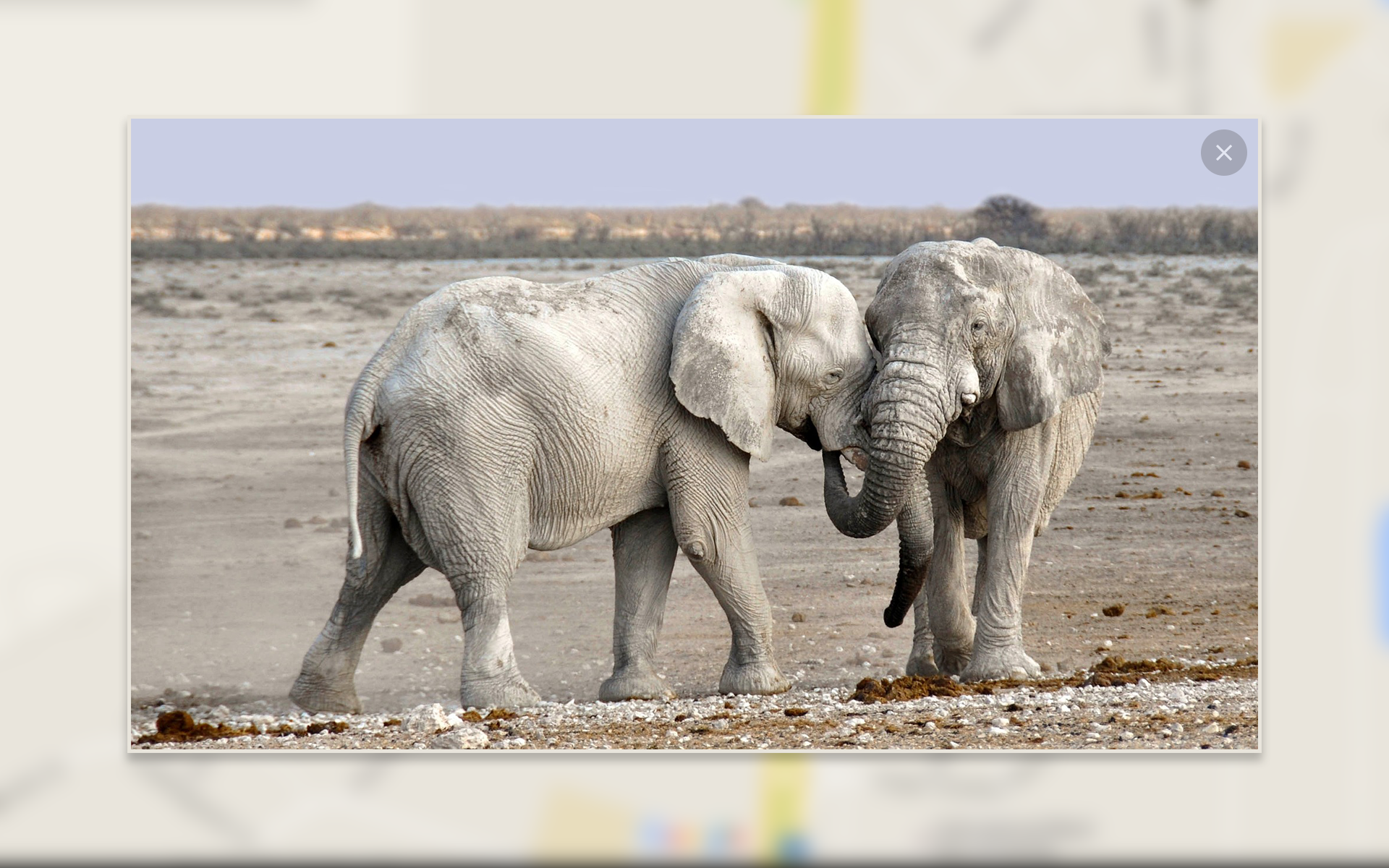
User clicked annotation on map, so preview appeared.
- On Outside or close button(top-right) click user returns to map.
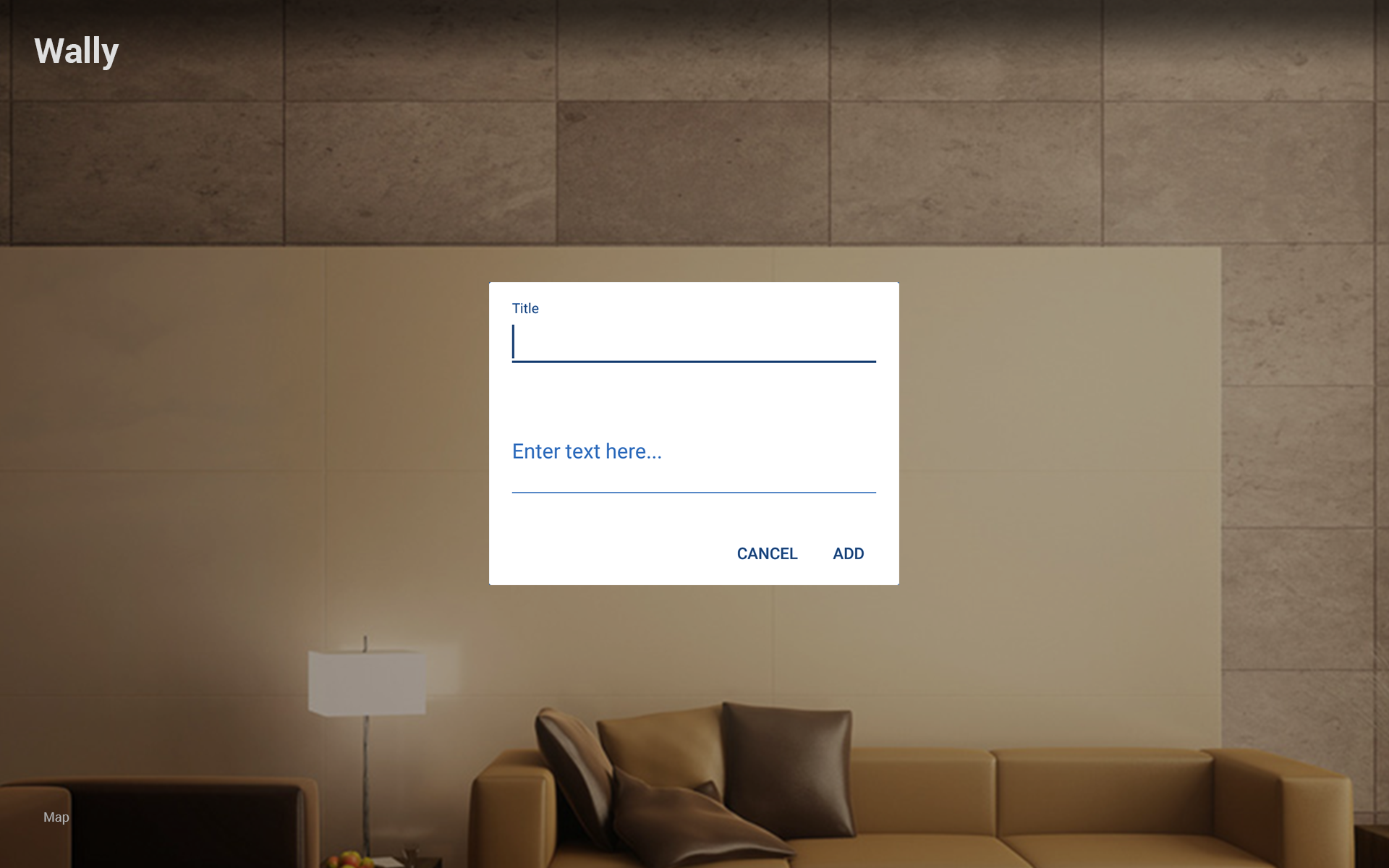
User chose add notes action from floating action menu.
- We have only two fields yet (Title, Note body)
- User can cancel or add note.
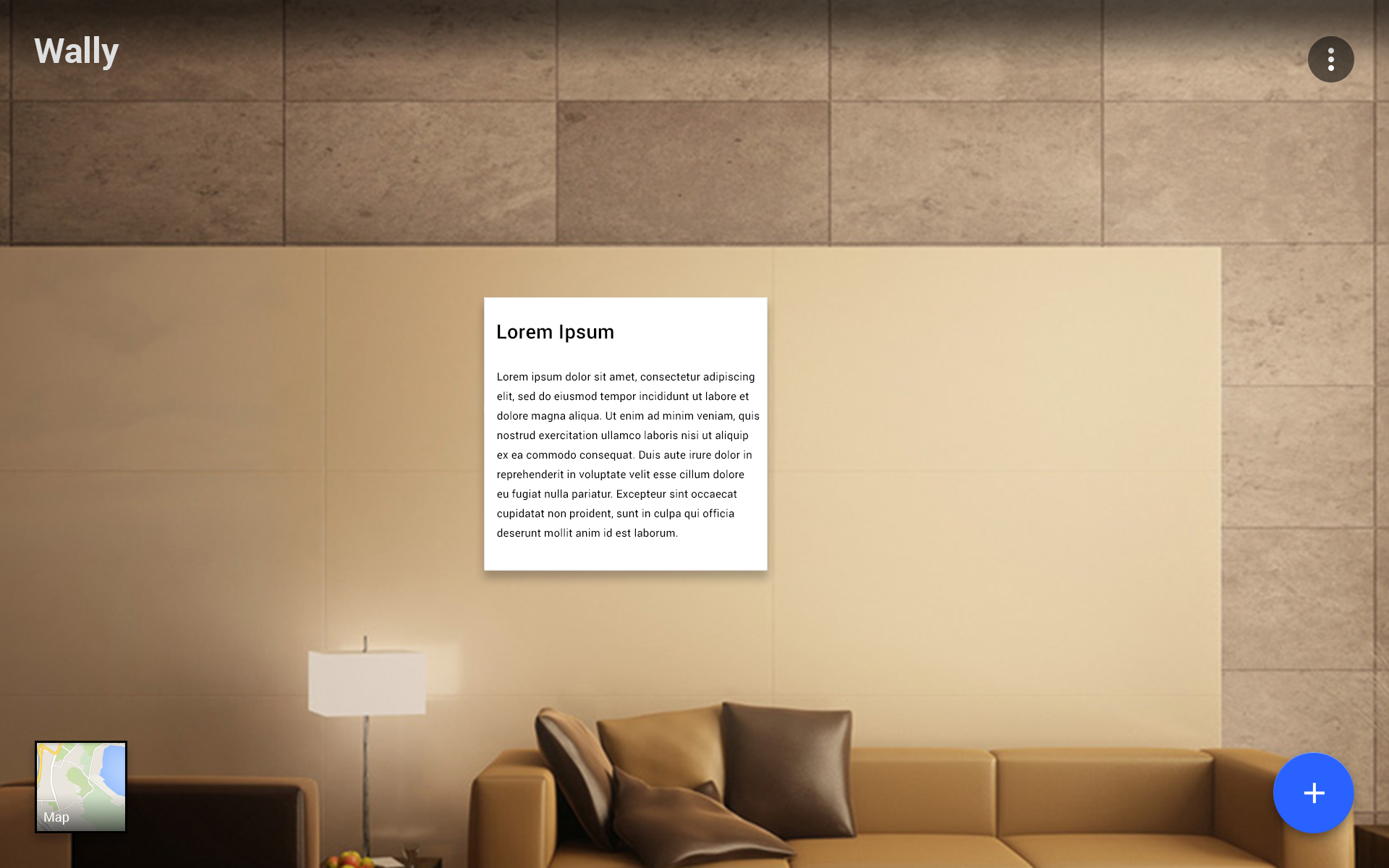
This is how virtual note looks like on the wall.