Repository navigation
Color Picker
Pick any pixel on any monitor, see it magnified and named, find colors by name, and copy them in the format you need. Hotkey: Ctrl+Super+C.
|
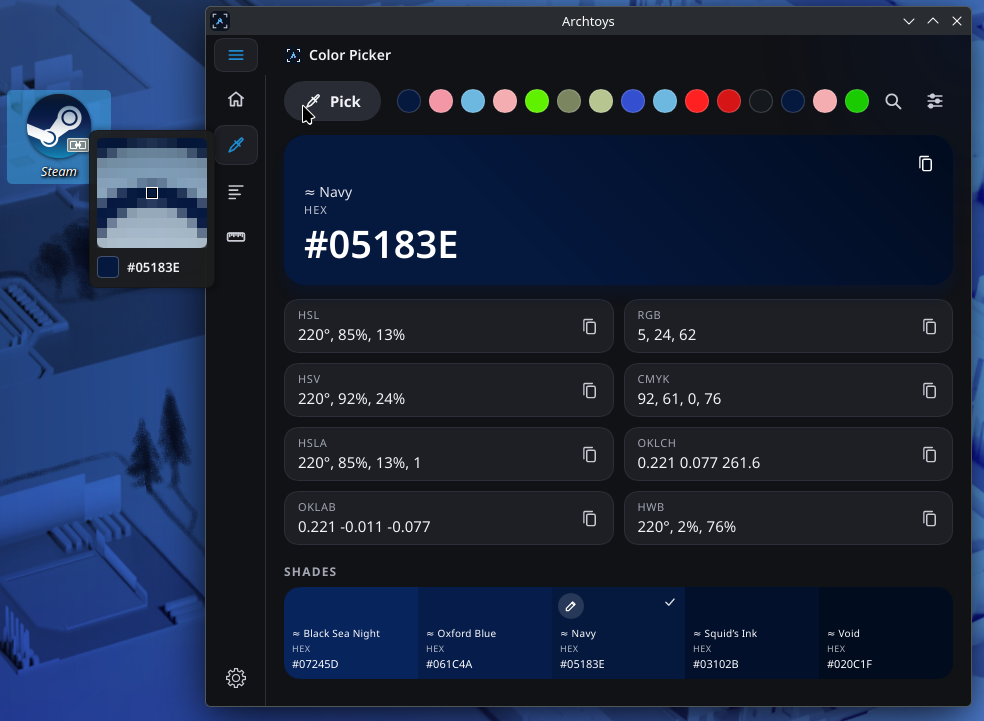
Pixel magnifier The pixels around your cursor, 10× larger, with the one you'll get outlined. |
Live preview, on Wayland too The color follows your mouse. On Wayland, Archtoys picks from one frozen screenshot. |
|
The color card Your first format, big, on the color itself. Click the value to type a new one. |
Color search Press Ctrl+F and type a name, a word like sky, or a code like #FF46A2. |
|
Your formats, your order HEX, RGB, HSL, HSV, CMYK, HSLA, OKLCH, OKLab and HWB. Type plain numbers like 255, 70, 162, and copying gives rgb(255,70,162). |
Color names The CSS name when there is one ("Hot Pink"), otherwise the closest of ~32,000 ("≈ Barbie Pink"). |
|
Shades and history Five shades under the card, each with its value and name, and every color you pick is kept. |
Auto copy Copies the value on the card the moment you click, without opening the window. |
|
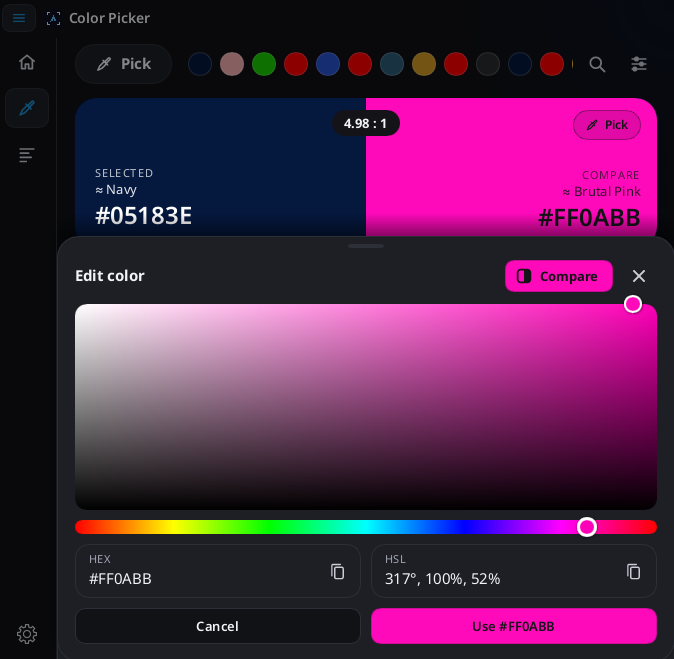
Color editor The pen on the middle shade opens it: drag saturation, brightness and hue, or type in your formats. Nothing changes until you press Use. |
Compare two colors Put a picked or typed color next to yours and see their contrast ratio (21 : 1 is black on white). |
|
Pixel-precise picking The arrow keys move the pick one pixel, Enter picks. The value next to the cursor is in your first format. |
Every monitor Pick on any of your monitors, right up to their edges, also with different scaling per monitor. |
|
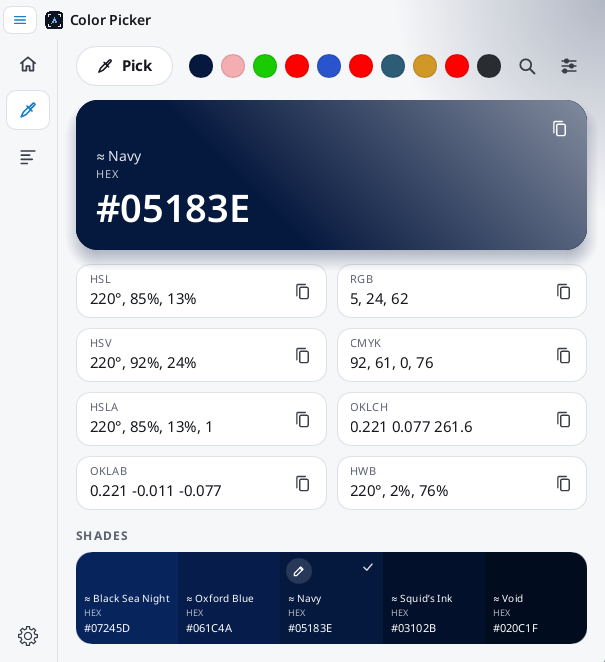
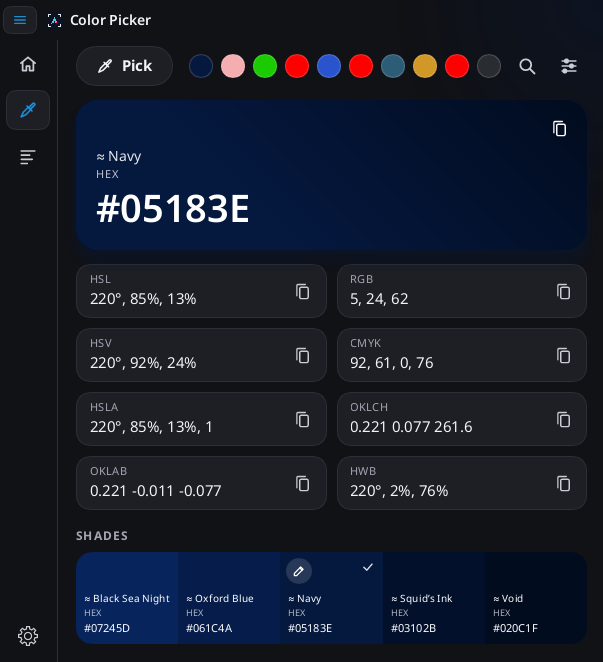
Light, dark or your desktop's theme A faint glow in the corner follows your color, and so does the dot on the tray icon. |
| Light | Dark |
|---|---|
 |
 |
Settings, and the Customize formats panel
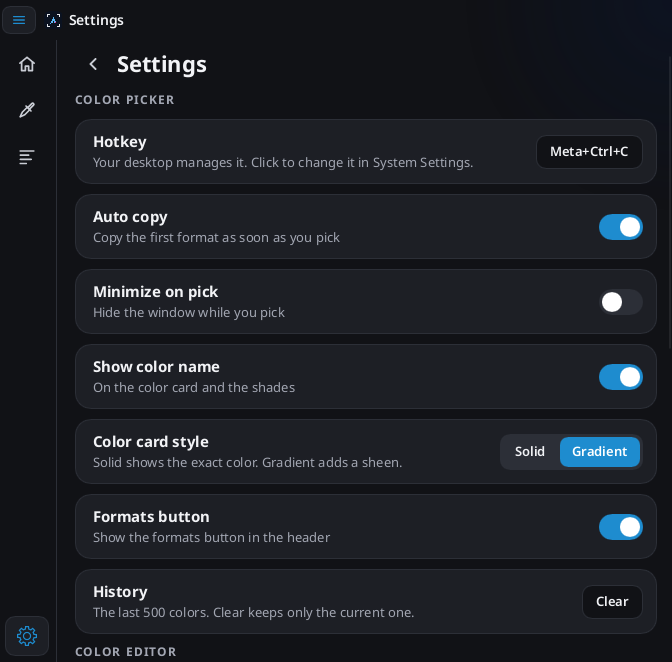
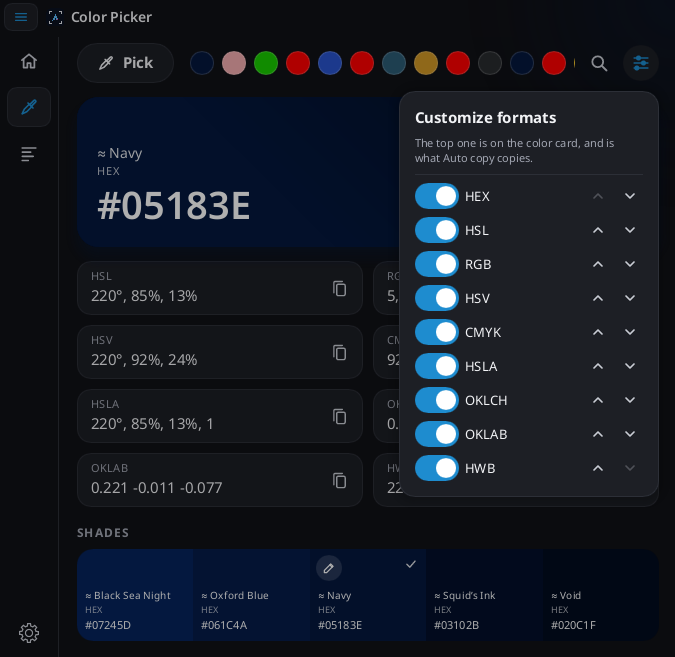
| To | Do |
|---|---|
| Pick a color | Click Pick or press Ctrl+Super+C, then left-click (or move with the arrow keys and press Enter). Esc or right-click cancels and brings the previous color back. |
| Find a color by name | Press Ctrl+F or click 🔍 (see Color search) |
| Copy a value | Click the copy icon next to it. You get the full form, like rgb(255,70,162). |
| Enter a color by hand | Click the big value on the card, or a box, type, and press Enter. Plain numbers work. |
| Choose and reorder formats | The sliders button in the picker's top row (you can hide it in Settings, then it's there) |
| Use a shade or an old color | Click it in the shades or the history row |
| Edit a color, or compare two | Click the pen on the middle shade. Compare splits the card, Pick (or your hotkey) picks the second color, Use applies. Esc closes and keeps your edit. |
| Pick from a terminal |
archtoys --pick (starts Archtoys if it isn't running) |
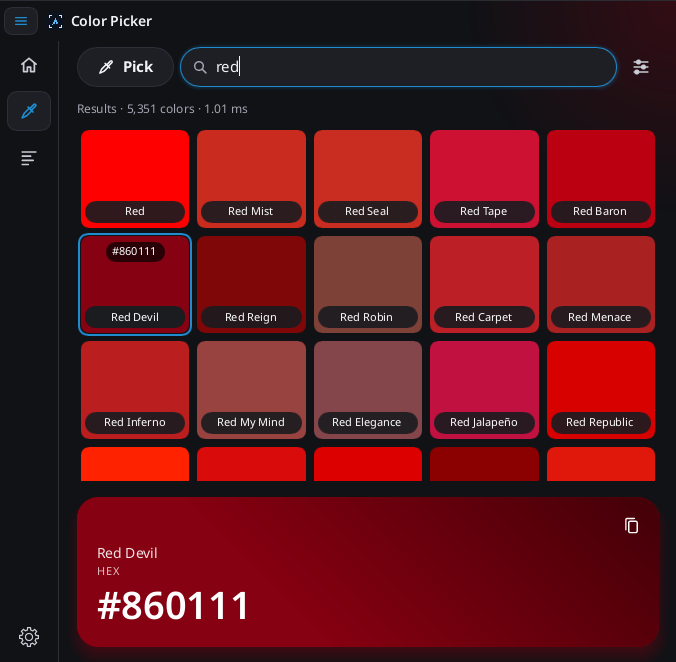
Press Ctrl+F and type. Results appear as you type, as a grid of color cards, with how many colors matched and how long it took. The color card moves down under the results.
| You type | You get |
|---|---|
red, blue, gray
|
Colors that really are that color, even without the word in their name (Maroon for red). The exact name comes first. |
dark red, pale blue
|
The same, only dark or light ones |
sky, blue sky
|
Names with those words, in any order |
#FF46A2, rgb(255,70,162), oklch(…)
|
The nearest named colors |
pnik |
A typo is fixed only when nothing matches, and the search says so: Showing results for pink |
Hovering a result shows it on the color card and shows its value in your first format. Click it (or use the arrow keys and Enter) to use it. Esc, Ctrl+F or a click on the color card goes back to your previous color.
Color names come from meodai/color-names by David Aerne (MIT).