Repository navigation
Micro toys
Micro-toys (since v0.8.0) are small helpers with no page of their own: a hotkey, or your file manager's right-click menu. Each one is off until you switch it on, on Home, and their settings are together in Settings → Micro-toys.
| Micro-toy | What it does | Hotkey |
|---|---|---|
| Screenshot to clipboard | Drag over an area of the screen and it's copied as a picture, never saved | Ctrl+Super+S |
| Image Resizer | Resize and convert pictures from your file manager, many at once | right-click |
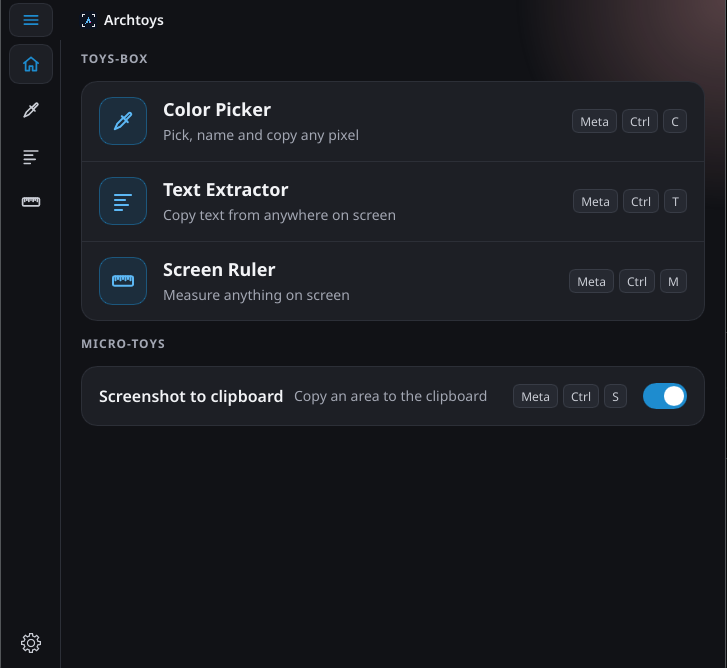
- Switch it on, on Home.
- Press
Ctrl+Super+S(or runarchtoys --screenshot). - Drag over the area you want. It's on the clipboard as a picture, ready to paste.
Esccancels.
The screenshot is never saved to a file.
On GNOME before 48, add the shortcut yourself (see Desktop support) with the command archtoys --screenshot.
Since v0.9.0. Switch it on, on Home. The first time, Archtoys installs ImageMagick from your system's packages (it asks for your password, like Text Extractor's Turn on), then adds Image Resizer to your file manager's right-click menu. Turning it off takes the menu entries away again.
Select one picture or many, and right-click:
- Dolphin and Thunar: an Image Resizer submenu with Resize to 25%, 50%, 150% or 200%, Fit in 1920 px or 1280 px, Convert to PNG, JPG or WebP, Make smaller, your presets, and Custom...
- Nautilus (under Scripts) and Nemo: one Image Resizer... entry that opens a small panel with the same choices as buttons.
The new pictures are saved next to the originals with -resized added (beach-resized.jpg). Anything that isn't a picture is skipped, and the summary says so: "12 resized, 1 skipped: notes.txt: not a picture". Open the folder shows the new pictures. Make smaller brings big pictures down to 2560 px on the long side and saves JPG and WebP at 80% quality.
- Size in pixels, percent, centimeters or inches. The chain keeps the proportions.
- Fit keeps all of the picture inside the size, Fill fills the size and cuts the edges, Stretch fills it and squashes the picture.
- Format: keep each picture's own, or PNG, JPG or WebP, with the quality for JPG and WebP. "About 9.6 MB → 2.1 MB" estimates the result before you start.
- Save to: next to the originals (the default), a folder you choose, or Replace originals (red, it asks once before it overwrites).
- Metadata: when a picture has it, a line says so. The i lists what Remove it removes: the place it was taken (GPS), the camera or phone and its settings, the date and time it was taken, the program that made it and a small preview copy. It keeps which way up the picture is. It's off unless you click it.
- Save as preset keeps the setup. Presets show in the right-click menu and in the panel.
Resizing uses Lanczos, through ImageMagick. Pictures turned by the camera are turned first, so they come out the right way up.