Repository navigation
Screen Ruler
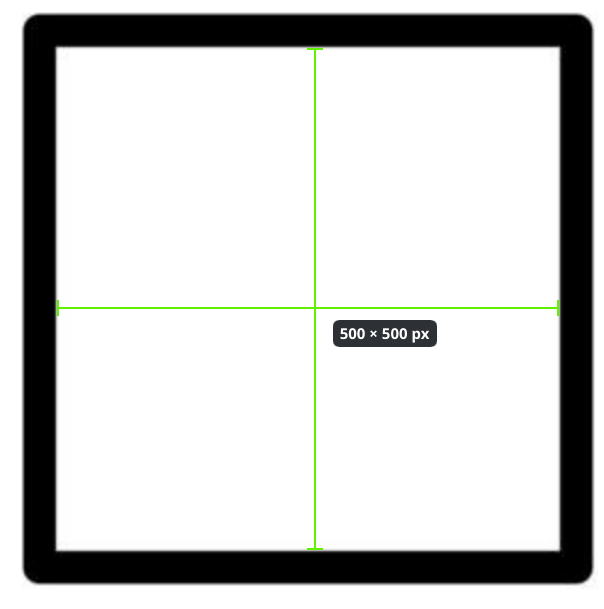
Measure anything on screen, the way it looks: a button, the gap between two boxes, a line of text. Press Ctrl+Super+M (or Measure) and the screen freezes with a small toolbar at the top. The edges are where the color changes.
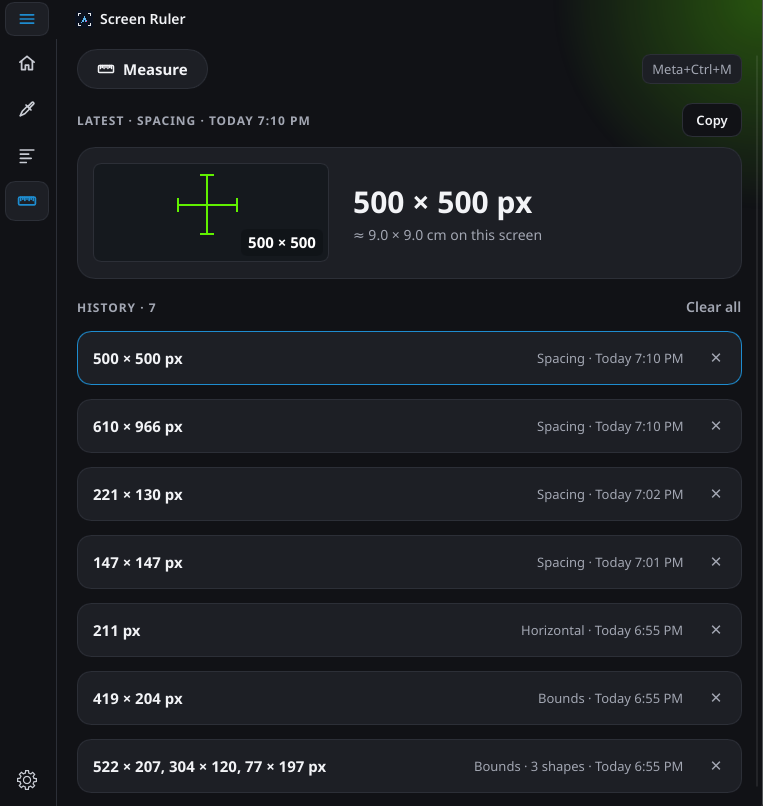
| Its page | Measuring |
|---|---|
 |
 |
| Mode | Measures | Key |
|---|---|---|
| Bounds | A box you drag | Ctrl+1 |
| Spacing | From the cursor to the edges, across and up and down | Ctrl+2 |
| Horizontal | From the cursor to the edges, across only | Ctrl+3 |
| Vertical | From the cursor to the edges, up and down only | Ctrl+4 |
| To | Do |
|---|---|
| Copy the size | Click, or Enter. In Bounds, drag a box, then Enter, Ctrl+C or Copy. |
| Measure several boxes |
Shift-click keeps the box on the screen, then drag the next one. Copy all copies them all (3 at most). |
| Move one pixel | The arrow keys (ten pixels with Shift). In Bounds they move the box. |
| Change how much a color must differ to be an edge | The scroll wheel, or the − and + buttons (Settings → Change the tolerance with) |
| Measure in cm or inches | Settings → Units, when your screen reports its size (most monitors do, some projectors don't) |
| Measure across screens | A measure stops at the edge of the screen it's on, so it's never bigger than that screen. With more than one screen, Settings → Across screens lets it go on to the next one (never bigger than your screens added up). |
| Cancel | Esc |
| See older measurements | The history on its page (sizes only, the last 500, never the screen). Delete one or all. |
| Measure from a terminal |
archtoys --measure (starts Archtoys if it isn't running) |
The Screen Ruler is inspired by the ruler in PixelKit by Kuucheen (MIT).