Repository navigation
importing fonts
This document is a rough draft. It is recommended to simply follow the Easy Way section.
This document describes how to convert a font to an asset that can be used by the New Language Loader mod. It is assumed that the user has already completed the New Language Tutorial
The easiest way to import a font is to simply ask me to do it.
I can be found on the Stacklands Modding server found here: https://discord.gg/PkgNDBtq
Use the #development channel and send me a message. Such as this:
@nbk_redspy Can you convert a font for me?
Make sure to use the @nbk_redspy as it will send me an alert.
I'll ask for the following:
- A font that has the characters that are needed. (I'm happy to help with this.)
- Your localization.tsv file
- Your add-language-info.json file.
I'll reply with a file and an updated version of the add-language-info.json file.
Add the items to your mod and you are ready to test your mod with the font.
If you need to import a font yourself, see the Importing a Font below.
If you are not familiar with Unity, skip to the Importing a Font section.
For those already familiar with Unity, the process is:
- Use the TextMeshPro font creator to create a font.
- Import the font to the project.
- Create a bundle with the converted font.
Add the font to the mod's folder
Add the following properties to the add-language-info.json file:
    "fontUnityAssetPath": "assets/fonts/my-font.asset",
    "fontBundleFile":  "example.bundle"
FontUnityAssetPath is the Unity path to the font in the bundle.
fontBundleFile is the name of the bundle file.
This section discusses how to create a Unity font that is useable by the game.
Note: The Unity Editor is several gigabytes and also takes a while to install.
The process of importing a font from scratch is as follows:
- Install the Unity Editor
- Use the TextMeshPro utility to create a font from a .TTF or .OTF file.
- Import the font into the project.
- Add a script that will create an asset bundle.
- Run the script.
- Copy the asset bundle to the mod's directory.
- update the
add-language-info.jsonfile to point to that file.
Before starting the font conversion process, make sure to have a font that contains all the characters the translation will require.
The font file will need to be a .ttf or .otf file.
The Noto-Sans font is a example. It can be found here. Bold fonts seem to look best in the game.
Todo: how to get the list of characters for the font generation.
Download and install Unity Hub from here.
The download button will be about half way down the page:
Run Unity Hub and sign into Unity. Creating an account with a personal license is free.
Install the editor when prompted.
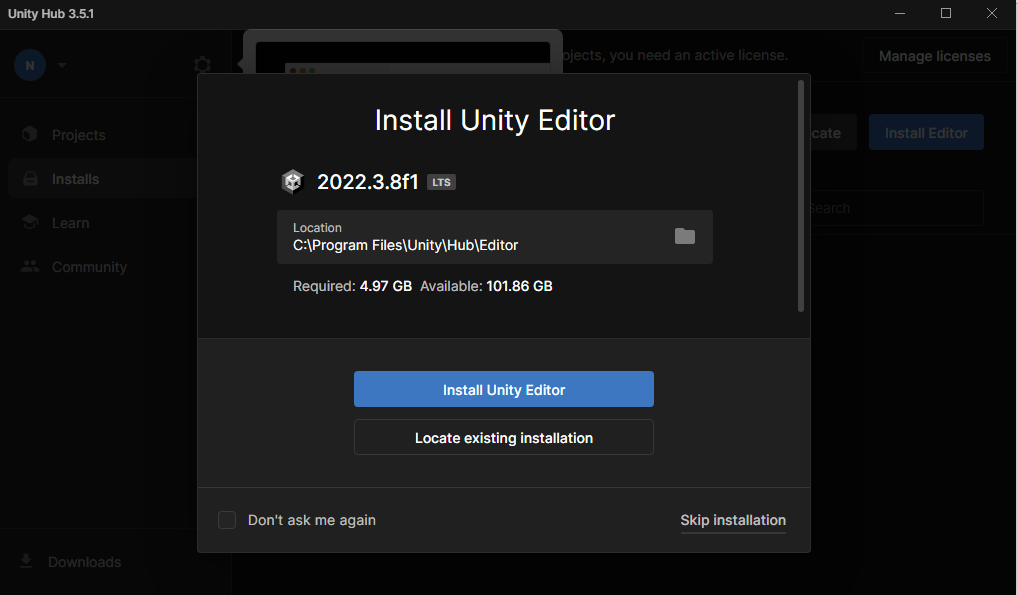
This will take a while to download and install as it is several gigabytes.
TODO: Can you cancel the VS install?
Download the Font Project Template from https://github.com/NBKRedSpy/UnityFontTemplate/tree/master
Extract the file.
Using Unity Hub, open the project.
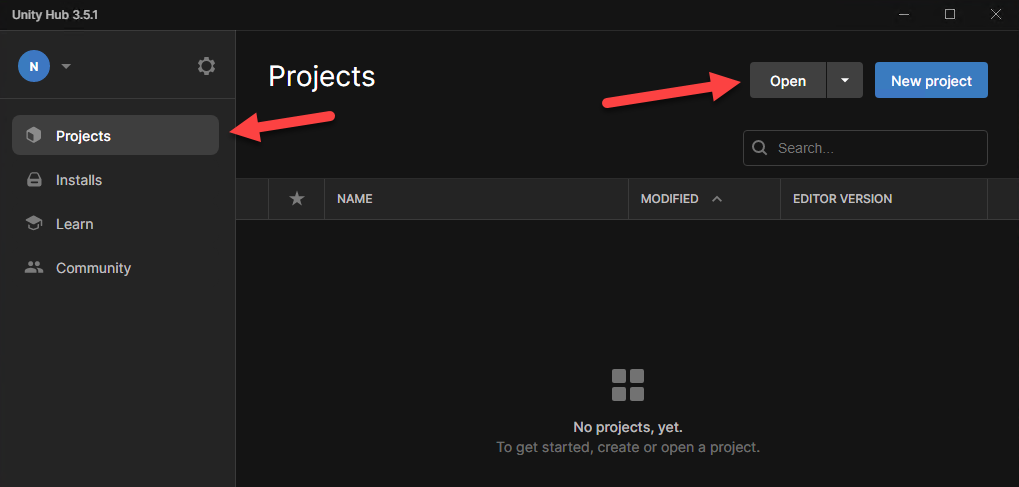
Note that this can take several minutes to open the project the first time as Unity will install any additional packages it requires.
TODO: Install prompt.
TODO: Missing earlier steps.
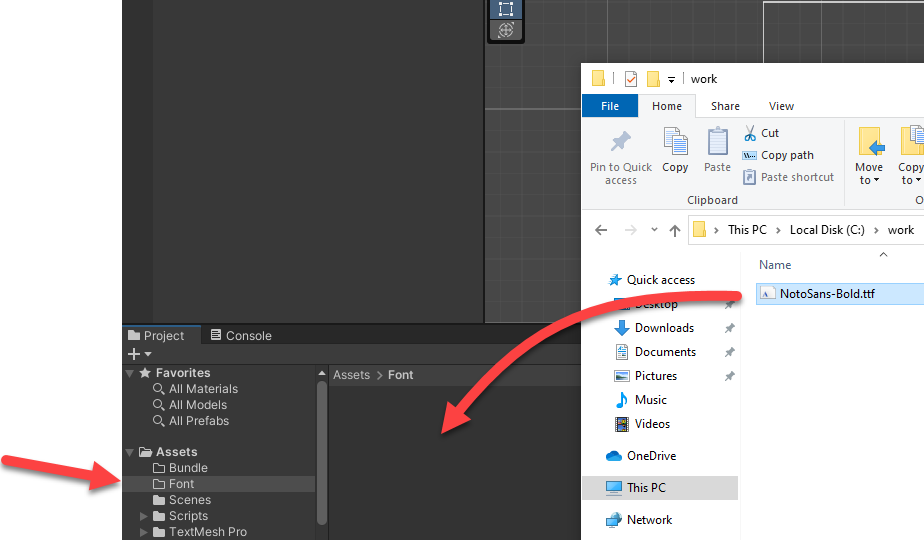
Copy the .ttf or .otf font file into the project's Assets/Font Folder.
In the menu, go to Window -> TextMeshPro -> Font Asset Creator
In the menu,
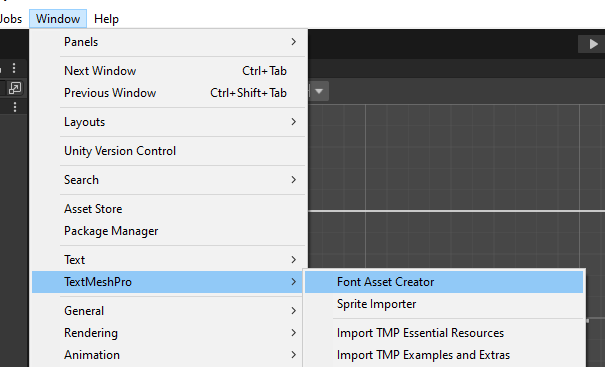
The first time the window is opened there will be a window with two buttons. Click on the "Import TMP Essentials" button.
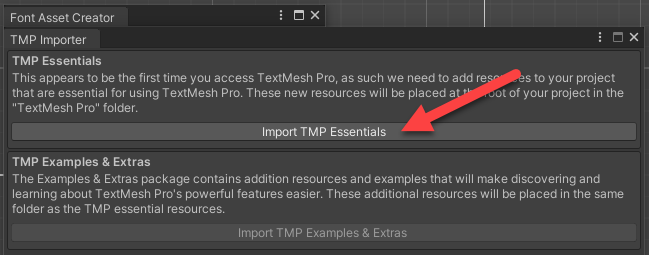
After the Import is completed, close the window:
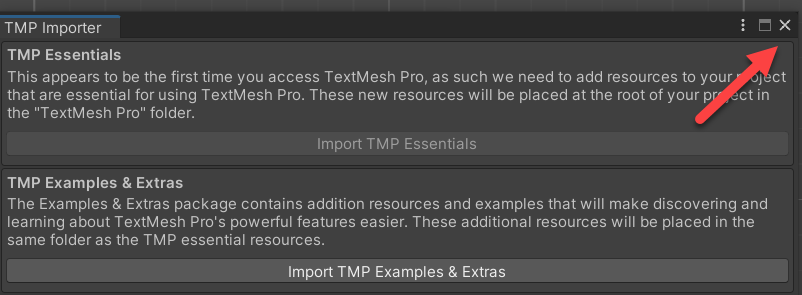
Select the font that was added to the project earlier. The example image uses NotoSans.
Important: Make sure you select your font. By default there will be other fonts listed such as LiberationSans and Legacy.
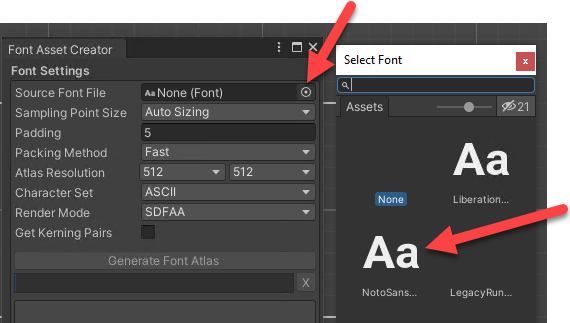
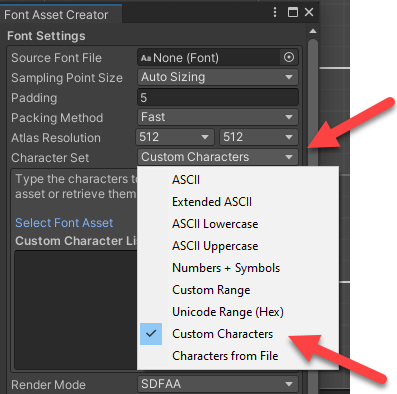
Change the Character Set to "Custom Characters"
In the Custom Character List box, paste in all the characters that the translation requires.
It is recommended to also include the ASCII characters.
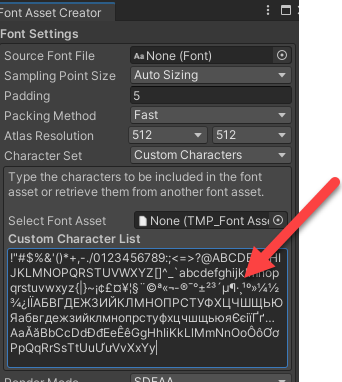
For reference, the ASCII characters are:
!"#$%&'()*+,-./0123456789:;<=>?@ABCDEFGHIJKLMNOPQRSTUVWXYZ[\]^_`abcdefghijklmnopqrstuvwxyz{|}~
Click the "Generate Font Atlas" button
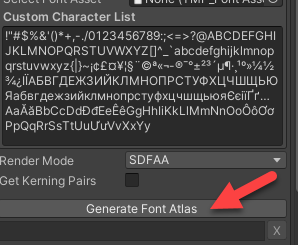
Scroll down to the "Save" Button and click it:
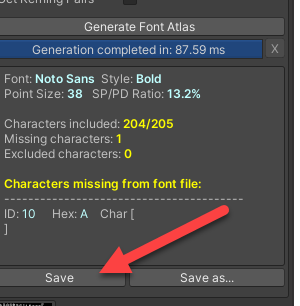
When prompted, save the .asset file in the project's Asset/Bundle folder. Add text to the end of the font to indicate the language it is for. For example in the image, -en was added to mean English.
If the font name is not unique and another translation mod loads a font with the same name, the font will not be loaded.
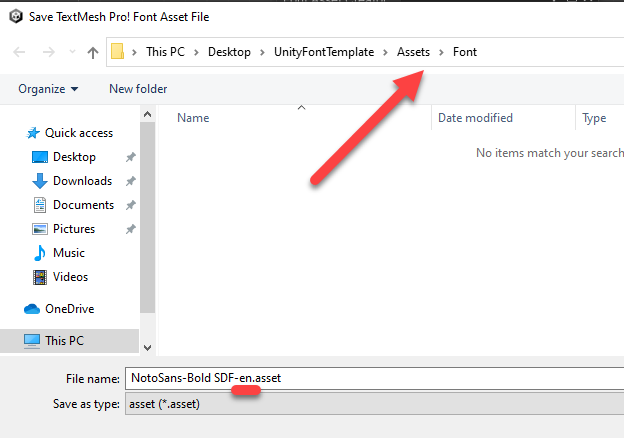
Close the Font Asset Creator window.
Navigate to the Project's Assets/Bundle folder and click on the newly created Font asset:
Important: Ensure the file with the blue F is selected, not the Aa entry.
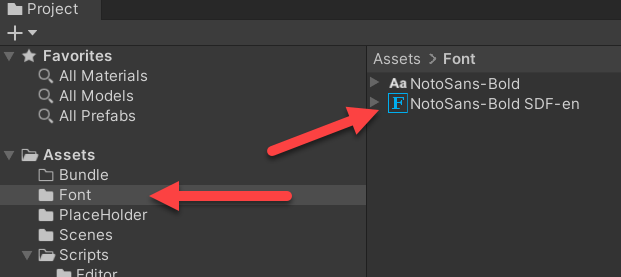
On the far right, there will be an AssetBundle drop down. Click on the drop down.
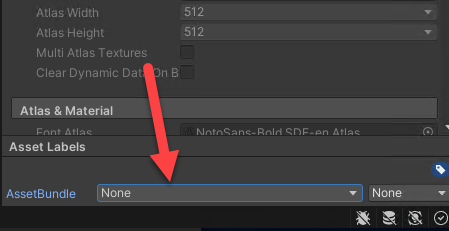
Click New...
In the text box, type font
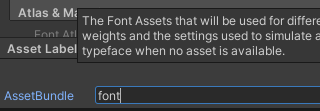
In the menu, go to Assets -> Create Asset Bundles
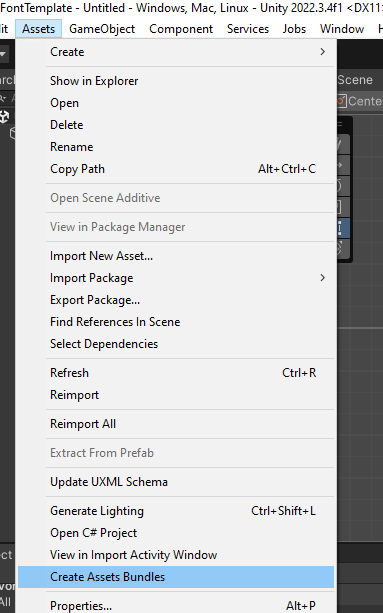
After the process is completed, go to the Bundle directory and click on the font file that has lines in the icon.
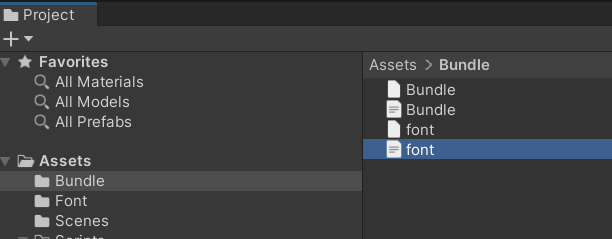
On the right will be an asset list. Copy the Assets/Font/* text. This will be used in the mod's config later.
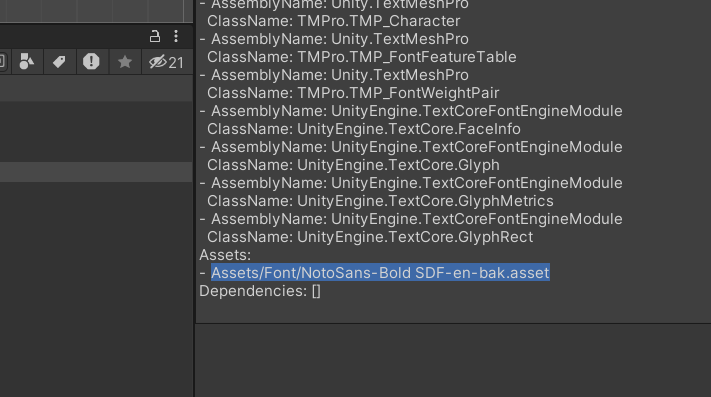
In the Assets > Bundle window, right click the window and go to Show in Explorer:
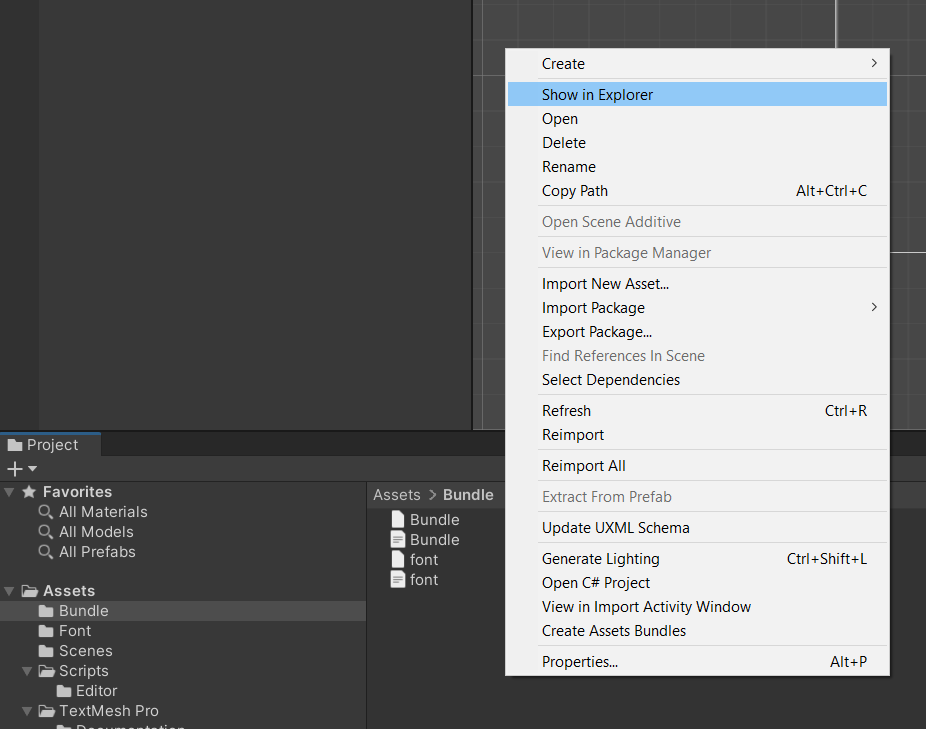
Navigate to the Assets/Bundle directory and copy the font file to your mod's directory. The font.meta is not needed.
Open your mod's add-language-info.json file and add the FontUnityAssetPath and FontBundleFile properties.
Make sure to add the comma at the end of the previous property (arrow shown in the image below), or the file will not load correctly.
For the FontUnityAssetPath, this will be the Assets/Font/* text from the previous step.
The FontBundleFile will be set to font file that was copied earlier, like this
"FontBundleFile": "font"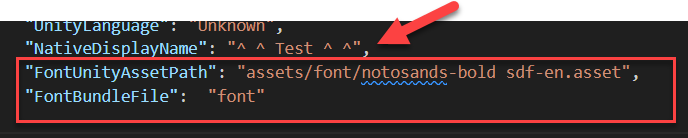
When completed, load the game and change the game's language to your new language. The game will reboot if the language has been changed.
Once the game is rebooted, check the menus and Card-o-pedia to see if there is any text with squares instead characters.
For example:
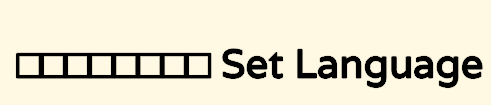
To fully test, start or continue a game, and enter the debug menu. The shortcut is K+O+F1 all at the same time. Go to the Cards list and verify all text is correct. That menu will also allow unlocking all cards in the Card-o-pedia, which can also be checked.
If the font is not loaded, there could be a few issues:
-
add-language-info.json- The
FontBundleFileis missing or does not point to the font bundle file. - The
FontUnityAssetPathis not correct. - One or both of the above are not set.
- The
add-language-info.jsonis incorrect. Usually there is a comma missing at the end of one of the lines.
- The
- When the font was created in the Unity Explorer, not all of the characters needed were entered in the "Custom Characters" list.
There will be log entries in the game's Player.log for the font load.
If a font was defined in the add-language-info.json there will be a success or failure message.
For success:
[Log : Stacklands_NewLanguageLoader] Loading font asset 'assets/font/notosans-bold sdf-en.asset'
For failure:
[Log : Stacklands_NewLanguageLoader] Error loading font for language 'Test Language'. Error: 'Unable to find asset bundle for font: Assets/Font/Some Font.asset in asset file 'C:\Users\SomeUserName\AppData\LocalLow\sokpop\Stacklands\Mods\TestLanguage\font.
If the font is loaded successfully, but symbols are still missing, go through the font creating steps again, and make sure all the characters needed were entered in the "Custom Characters" list.
Older
If there are any issues, feel free to contact me on the modding Discord server. https://discord.gg/PkgNDBtq
I'm @nbk_redspy
- Get bare bones unity project to use as template
- Make sure it is the files that aren't in the .gitignore.
- Links for the downloads from GitHub.
- Create web site to make the unique character list.