Feature guide: Bossbar

To enable this feature, open bossbar.yml and set
bossbar-enabled: true.
bars:
  MyBossbar:
    style: "PROGRESS"
    color: "%animation:barcolors%"
    progress: "100"
    text: "&fWebsite: &bwww.domain.com"
Every bossbar line has 4 properties:
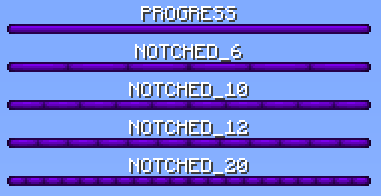
Type of bossbar division. Only visible on 1.9+ clients.
You can choose from 5 styles: PROGRESS, NOTCHED_6, NOTCHED_10, NOTCHED_12 and NOTCHED_20
These were defined by mojang, no other options are available. Other plugins using bukkit API to send bossbars may be using different names, but it's the same afterall.
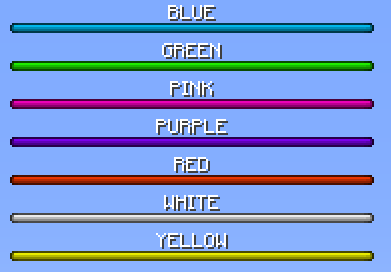
Color of bossbar. Only visible on 1.9+ clients. Old clients will see it purple.
You can choose from 7 colors: BLUE, GREEN, PINK, PURPLE, RED, WHITE and YELLOW
These were defined by mojang, no other options are available.
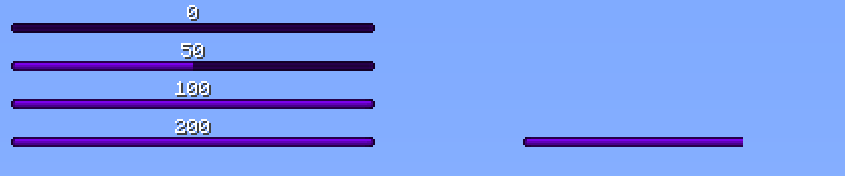
A number from 0 to 100. Accepts decimals. Using values higher than 100 will result in visual glitch.
If you want to show the progress of a placeholder's value based on a maximum value, you can use the Math Expansion from PlaceholderAPI and use a placeholder like this one: %math_{placeholder_current_value}/{placeholder_max_value}*100% or simply %math_{placeholder_current_value}/<max_value>*100% if you have a fixed max value. (Note: replace the placeholders within the {} by what they should be and keep the {} instead of the %%, for the <max_value> you have to remove the <> and replace it by the max amount that you want, for example %math_{player_health}/20*100%).
Text of the bossbar.
All 4 properties support placeholders. This includes animations, which can be used to create changing text using a slow animation for example.
In the next example, the bossbar text will switch between the four texts we added in our animation: animations.yml
animations:
  bossbarText:
    change-interval: 10000
    texts:
      - "&avote.domain.com"
      - "&a&nvote.domain.com"
      - "&5vote.domain.com"
      - "&5&nvote.domain.com"
bossbar.yml
bars:
  MyBossbar:
    style: "PROGRESS"
    color: "BLUE"
    progress: "100"
    text: "%animation:bossbarText%"
You can also use some level progress placeholder in bossbar progress to make it look even better.
There are 3 ways to display a bossbar
default-bars:
  - MyBossbar
  - MyBossbar2
These bars are visible all the time if they display condition is met.
If you don't want any permanently visible bossbars, set it to default-bars: [].
per-world:
  testworld:
    - "testbar1"
    - "testbar2"
Where testworld is a name of world where the bossbars should be visible and testbar1 with testbar2 are bossbars visible only in that world.
Note: per-world works as per server on bungeecord. Simply put names of servers into per-world category. This is due to universal file so I don't need to create another one just for bungeecord with a single word changed.
/tab announce bar <name> <time>
name is name of bossbar defined in bossbar.yml, time is length of display time in seconds.
When using a bossbar announcement, you have a new placeholder available: %countdown% that shows remaining time of the announce in seconds.
bossbar-enabled: false
When enabled, enabled the entire bossbar feature.
bossbar-toggle-command: /bossbar
A command to toggle bossbar visibility for player running the command.
permission-required-to-toggle: false
If enabled, tab.togglebar permission is required to perform bossbar-toggle-command.
remember-toggle-choice: false
If enabled, disabling bossbar using bossbar-toggle-command is remembered between reloads and restarts.
- Will not display at all if TAB is installed on bungeecord (bungeecord is missing entity packets needed to make it work)
- Doesn't offer color and style features.
- Has a visual bug if you set the progress to 50% or less (client sided bug).
- Only one line can be displayed at a time.
- You can see the fog if you don't disable particles in options.
- Text length is limited to 64 characters on <1.7
- May not be visible when looking at blocks
Take a look at Behind the scenes: 1.8 vs 1.9 bossbar