Screenshots
This page is the single source of truth for every screenshot referenced across the wiki.
Captured screenshots are embedded directly into the documentation pages, like this:
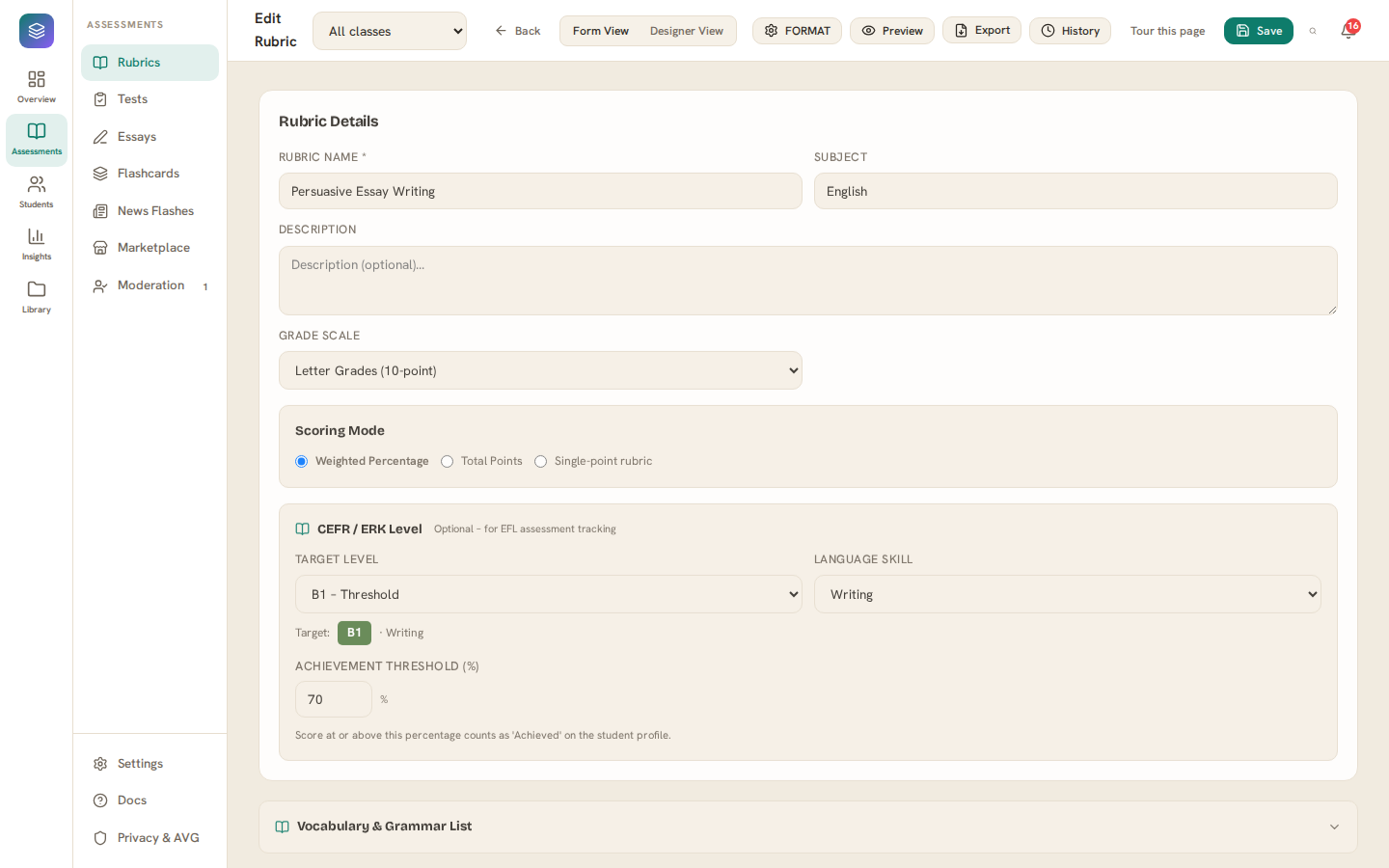
Rubric Builder with two criteria and the level columns.
Screenshots that are not captured yet stay in the docs as a marker line that tells you three things:
📷 Screenshot needed — manual capture:
images/…— what the image should show. See Manual Capture.
-
The exact filename the image must have (
images/…). - Which page it belongs on (search for the filename to find it).
- What the image should show, so anyone capturing it knows what to frame.
- Capture the screen as a PNG.
- Name it exactly as the marker says (lowercase,
-separators,.png). - Commit it to this wiki repository under the
images/folder (e.g.images/rubric-builder-criteria.png). - Replace the marker line in the page with an inline embed —
— keeping the caption, and flip the checklist row below to ✅.
Keep images small. Resize to ~1280px wide and crop to the relevant part of the UI. GitHub wikis render images best at "fit to width" scale; very tall full-page captures are hard to read.
- Never include real student names, email addresses, or grades in screenshots — use clearly fictional names ("Alex Johnson", "Sofia García") and sample scores.
- A dev-only "Load sample data" button (Settings → Administration, visible only in
npm run devbuilds) creates a ready-made set of classes, students, CEFR-tagged rubrics with grades, tests, essays, and comment-bank entries to capture against. In production builds, create two or three throwaway rubrics/students yourself and delete them afterwards.
Legend: ⬜ not yet captured · ✅ captured & committed · ✏️ needs re-capture
Rows still ⬜ need a human or live services (microphone, native dropdown, Supabase, PDF viewer) — see the Manual Screenshot Capture Guide for step-by-step instructions for each one.
| # | Filename | Page | What to show | Status |
|---|---|---|---|---|
| 1 | images/landing-page.png |
Home | The landing page hero with the feature cards | ✅ |
| 2 | images/onboarding-welcome.png |
Home | First-run onboarding welcome step | ✅ |
| 3 | images/two-tier-navigation.png |
Home | The two-tier sidebar: icon rail + contextual sub-panel | ✅ |
| 4 | images/dashboard-overview.png |
Home | Dashboard with the stat cards and at-risk panel | ✅ |
| # | Filename | Page | What to show | Status |
|---|---|---|---|---|
| 5 | images/rubric-builder-criteria.png |
Features | Rubric Builder: criteria rows, level columns, scoring-mode selector | ✅ |
| 6 | images/rubric-builder-level-options.png |
Features | The expanded level-options panel: sub-items, point range slider | ✅ |
| 7 | images/standards-picker.png |
Features | The standards picker modal (Common Standards Project) | ✅ |
| 8 | images/cefr-framework-link.png |
Features | CEFR descriptor picker linked to a criterion | ✅ |
| 9 | images/grading-interface.png |
Features | GradeStudent: level cells, sub-item chips, feedback composer | ✅ |
| 10 | images/grading-grid-layout.png |
Features | The criterion × level grid layout (multi-level rubrics) | ✅ |
| 11 | images/grading-single-point.png |
Features | Single-point rubric layout during grading | ✅ |
| 12 | images/comment-bank-modal.png |
Features | Comment bank open during grading with a snippet inserted | ✅ |
| 13 | images/keyboard-shortcuts.png |
Features | The ? shortcut cheat-sheet overlay |
✅ |
| 14 | images/comparative-grading.png |
Features | Split-screen comparative grading of two students | ✅ |
| 15 | images/group-grading-selector.png |
Features | The group-grading student multi-select on the Rubrics list | ✅ |
| 16 | images/voice-grading.png |
Features | Feedback field with the microphone button active | ⬜ |
| # | Filename | Page | What to show | Status |
|---|---|---|---|---|
| 17 | images/test-builder-question-types.png |
Tests-and-Practice | Test Builder question-type dropdown with the option list | ⬜ |
| 18 | images/test-builder-cloze-gap.png |
Tests-and-Practice | The click-to-insert gap pill in a cloze prompt | ⬜ |
| 19 | images/test-builder-placement-mode.png |
Tests-and-Practice | Mode selector: Assessment / Practice / Placement | ✅ |
| 20 | images/student-test-taking.png |
Tests-and-Practice | Student test page with question palette and timer | ⬜ |
| 21 | images/test-results-overview.png |
Tests-and-Practice | Test Results: score, per-question accuracy, item analysis | ✅ |
| 22 | images/live-monitor.png |
Tests-and-Practice | Live monitor grid with presence and proctoring flags | ⬜ |
| 23 | images/question-bank-page.png |
Tests-and-Practice | Question Bank page with search facets and bulk actions | ✅ |
| # | Filename | Page | What to show | Status |
|---|---|---|---|---|
| 24 | images/flashcards-list.png |
Flashcards | Flashcards list with deck kind badges and assignment info | ✅ |
| 25 | images/flashcard-deck-editor.png |
Flashcards | Deck editor: card front/back, phonetic/POS fields, import | ⬜ |
| 26 | images/student-flashcard-study.png |
Flashcards | Student study view with Again/Hard/Good/Easy buttons | ⬜ |
| 27 | images/flashcard-insights.png |
Flashcards | Per-student deck insights panel | ✅ |
| 28 | images/news-flashes.png |
Flashcards | News Flashes list with read-receipt counts | ✅ |
| # | Filename | Page | What to show | Status |
|---|---|---|---|---|
| 29 | images/students-roster.png |
Features | Students roster with class tabs and CSV import | ✅ |
| 30 | images/student-profile.png |
Features | Student profile: history, CEFR badges, links | ✅ |
| 31 | images/cefr-overview.png |
Features | Whole-class CEFR overview grid | ✅ |
| 32 | images/student-cefr-detail.png |
Features | Per-student CEFR detail with track/year band | ✅ |
| 33 | images/learning-path.png |
Features | Student learning path with recommendations | ✅ |
| 34 | images/statistics-dashboard.png |
Features | Statistics: class average card and charts | ✅ |
| 35 | images/statistics-compare.png |
Features | Multi-class Compare view with insights panel | ✅ |
| 36 | images/activity-dashboard.png |
Features | Activity Dashboard grid | ✅ |
| 37 | images/admin-users.png |
Features | Admin → Users tab (roles) | ⬜ |
| 38 | images/admin-audit.png |
Features | Admin → Audit log with filters | ⬜ |
| 39 | images/messages-inbox.png |
Features | Messages inbox with a student thread | ✅ |
| 40 | images/notification-center.png |
Features | Notification Center with the three categories | ✅ |
| 41 | images/marketplace.png |
Features | Marketplace with type filter and upvotes | ⬜ |
| 42 | images/moderation-queue.png |
Features | Moderation queue with per-criterion delta breakdown | ✅ |
| # | Filename | Page | What to show | Status |
|---|---|---|---|---|
| 43 | images/student-portal-overview.png |
Student-Portal | Student portal home with My Work and messages | ✅ |
| 44 | images/student-essay-focus-mode.png |
Student-Portal | Essay focus-mode view with sidebar prompt/tips | ⬜ |
| 45 | images/student-share-code.png |
Student-Portal | Teacher view of a share link/QR code dialog | ✅ |
| 46 | images/export-page.png |
Features | Export page with format selection | ✅ |
| 47 | images/export-pdf-report.png |
Features | A rendered PDF report | ⬜ |
| # | Filename | Page | What to show | Status |
|---|---|---|---|---|
| 48 | images/settings-general.png |
Features | Settings → General (language, theme, Cambridge labels) | ✅ |
| 49 | images/settings-theme-bundles.png |
Features | Theme bundle picker | ✅ |
| 50 | images/settings-database-connected.png |
Supabase-Sync | Settings/Admin database panel showing a connected instance | ⬜ |
| 51 | images/privacy-page.png |
Data-and-Privacy | The in-app /privacy page |
✅ |
- When a placeholder is removed from a page (feature retired), also remove its row here and delete the image.
- When a feature changes visually, mark its row ✏️ so it gets re-captured.
- The filename in a placeholder and the filename in this table must always match — that's how the list stays machine-checkable.
Last reviewed: August 2026 (wiki documentation upgrade).