Blocks
As mentioned in the Basic Rock Concepts section, BlockTypes are simply ASP.NET User Controls that inherit from Rock.Web.UI.RockBlock.
Blocks are simply instances of BlockTypes and can have admin/user controlled, configurable properties which are often used to change the behavior or default functionality of the BlockType. Blocks are added to a page by adding them a zone on a page or by adding them to a zone in a layout. Adding a block to a zone in a layout will cause all pages which use that layout to automatically include that block instance.
Here are several basic things to know about when developing your own custom block types:
- If a block needs data from the page routing/path information (such as the action value or site ID) it can use the
PageParameter()method to fetch the value. - The
CurrentPersonproperty represents the currently authenticated (logged in) person and theCurrentPersonIdis that person's ID. - The
CurrentPageproperty represents the page the block is currently on.
When a BlockType class is decorated with one or more Rock.Attribute field attributes, administrator users can configure values for each instance of the BlockType. For example, a "Root Page" attribute might be found on a BlockType whose purpose is to generate navigation in order store the value of the "root" page id.
using Rock.Attribute;
[IntegerField( 1, "Root Page", "The root page to use for
the page collection. Defaults to the current page instance if not set.", false )]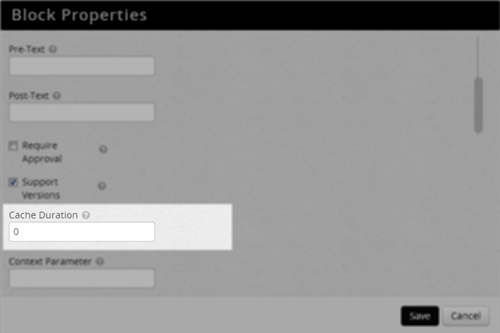 Rock's Framework UI allows admins to configure block attributes
Based on the parameters given in the declaration, the attribute can be ordered, named, categorized, described, required, and a default value can be provided.
To retrieve the stored property value use the GetAttributeValue( attributeName ) method.
int pageId = Convert.ToInt32( GetAttributeValue( "RootPage") );There is different kind of configurable property, called Global Attributes, which are not block instance specific but instead are used to store configurable values for any and all blocks and code (Scheduled Jobs, Transactions, etc.). See the Global Attributes section for more information about these settings.
The following are different types of FieldsAttributes which can be used in your blocks. Generally speaking, Rock will render some appropriate input UI (which corresponds to the datatype of the field) along with the description provided in the decorator.
BooleanFieldAttribute( int order, string name, bool defaultValue, string key, string category = "", string description = "" )Example:
[BooleanField( 6, "Require Approval", false, null, "Advanced", "Require that content be approved?")]TODO: once UI settles down, include picture showing this field rendered.
    IntegerFieldAttribute( int order, string name, string defaultValue, string key = null,
        string category = "", string description = "", bool required = false )
Example:
[IntegerField( 2, "Cache Duration", "", null, "", "Number of seconds to cache the content.")]TODO: once UI settles down, include picture showing this field rendered.
    TextFieldAttribute( int order, string name, string category, string description,
        bool required, string defaultValue )
Example:
    [TextField( 0, "XSLT File", "Menu XSLT", "The path to the XSLT File ", true,
        "~/Assets/XSLT/PageList.xslt" )]
TODO: once UI settles down, include picture showing this field rendered.
Note: Creating custom field attributes is considered an advanced topic.
By extending Rock.Attribute.FieldAttribute, custom field types can be created (that exist in other assemblies) and utilized in block properties. See the Custom Field Attributes and FieldTypes for details.
The Rock framework has a mechanism for storing and retrieving preferences (settings) for the current user. For example, let's say your block has options for sorting or filtering, and you'd like to "remember" how the user sets them each time they use the block. This is an ideal case for using this mechanism. See the user's preferences document for more details.
Securing functionality access within your block is easy to do. To test whether the current user (if there is one) is allowed to perform the requested action just use the IsUserAuthorized (string action) method
where action is one of "View", "Edit", or "Administrate" as seen here:
    if ( ! IsUserAuthorized( "View" ) )
    {
        message = "You are not allowed to see this content.";
        ...

    if ( IsUserAuthorized( "Edit" ) || IsUserAuthorized( "Administrate" ) )
    {
        rGrid.Actions.IsAddEnabled = true;
        ...
If you need to define additional custom action names to control your custom functionality, you can simply decorate your block with [AdditionalActions()] like this:
[AdditionalActions( new string[] { "Approve" } )]Once you do this, you can then use the IsUserAuthorized(string action) method to verify user authorization.
- "View" - grants the ability to view the item's public properties
- "Edit" - includes view access and the ability to change the item's name and other properties
- "Administrate" - means the block's security and block's settings can be changed.
TODO: David please confirm.
When validating a user's input, you'll need to provide some feedback to let them know when they've entered something incorrectly. Use a ValidationSummary control at the top of an edit panel with the Bootstrap standard class:
<asp:ValidationSummary ID="ValidationSummary1" runat="server" CssClass="alert alert-error" />
It will look something like this when the user runs into trouble with their input:

The standard data field controls (DataTextBox, DataDropDownList, etc.) in your UI Toolkit will also render appropriate error conditions with the proper Bootstrap validation states as seen here:

If using a custom or regular input control, be sure to follow the Bootstrap documentation on Form control Validation states.
Both the BlockType and the Page entities have a public CurrentTheme property that can be used in either a block or template file to get the resolved path to the current theme folder. Here's an example of how to use this property:
Markup:
<img src="<%= CurrentTheme %>/Images/avatar.gif">
Code Behind:
myImg.ImageUrl = CurrentTheme + "/Images/avatar.gif";If trying to reference a resource that is not in the theme folder, you can use the ResolveUrl() method of
the System.Web.UI.Control object. For example:
<link type="text/css" rel="stylesheet" href='<%# ResolveUrl("~/CSS/reset-core.css") %>' />
When a block needs to add a reference into the page Head for another asset (JavaScript, CSS, etc.) it should use one of these methods from the Page class. The path should be relative to the layout template.
JavaScript - CurrentPage.AddScriptLink( this.Page, "../../../scripts/ckeditor/ckeditor.js" );
CSS - CurrentPage.AddCSSLink( this.Page, "../..//css/cms-core.css" );
Custom – CurrentPage.AddHtmlLink( this.Page, linkObject );
Example Usage:
 System.Web.UI.HtmlControls.HtmlLink rssLink = new System.Web.UI.HtmlControls.HtmlLink();
 rssLink.Attributes.Add( "type", "application/rss+xml");
 rssLink.Attributes.Add( "rel", "alternate" );
 rssLink.Attributes.Add( "href", blog.PublicFeedAddress );
 rssLink.Attributes.Add( "title", "RSS" );
CurrentPage.AddHtmlLink( this.Page, rssLink );Blocks can communicate with each other through the sharing of objects. The base Block class has a CurrentPage object that is a reference to the current Cms Page object. This object has two methods for saving and retrieving shared objects specific to current page request. Within your block, you can call:
   CurrentPage.SaveSharedItem( string key, object item )`
   CurrentPage.GetSharedItem( string key )
Example Usage:
 // try loading the blog object from the page cache
 Rock.Models.Cms.Blog blog = CurrentPage.GetSharedItem( "blog" ) as Rock.Models.Cms.Blog;

 if ( blog == null )
 {
     blog = blogService.GetBlog( blogId );
     CurrentPage.SaveSharedItem( "blog", blog );
 }
It's worth noting that the order in which loaded blocks modify these shared objects cannot be guaranteed without further preparation and coordination.
TODO: Is this section still accurate?
In Rock ChMS we've abstracted the jQuery plugin used for displaying popup windows to standardize its look (animation settings, size, etc) by creating our own "popup" jQuery plugin. It's located in RockWeb\Scripts\rock\popup.js. It currently implements the colorbox plugin but if we later decide to switch from colorbox to something new, it will be an easy swap (provided all Rock Blocks are using our popup plugin). To implement a popup, you'll first need to create an anchor tag where the href attribute is either the id of a div element on the same page, or an external page's url. When using the id of a div, it's important to include the '#' character. The plugin evaluates the first character of the href property and will set things up differently (inline div vs. external page) based on the presence of this character. You can call the plugin for your anchors like so:
    $(document).ready(function () {
        $('a.zone-blocks').popup();
    });
This is all that is needed to display a popup with the default values. Any of the default values can be overridden though. Here's an example overriding the width and onClosed:
$('a.zone-blocks').popup({height: '80%', onClosed:function(){ location.reload(true); }});Note: When using an inline div, your div should be wrapped within another div that has the display:none css style.
The standard location for all custom blocks is in the Plugins folder. Create your own folder under the Plugins folder to hold any custom blocks created by your team:
+---Plugins
    \---FakeCompany.com
        \---TimeClock
            \---Blocks
                    ExampleTimeBlock.ascx
                    ExampleTimeBlock.ascx.cs
There's not really any big difference besides preference. Overriding the base method (OnInit) may be slightly
faster than invoking an event delegate (Page_Init), and it also doesn't require using the AutoEventWireup
feature, but essentially it comes down to preference. My preference is to override the event. (I.e. use OnInit or
OnLoad instead of Page_Init or Page_Load).
This article
discusses this in detail.
There's a significant difference between putting code into the OnInit (Page_Init) method compared to the
OnLoad (Page_Load) method, specifically in how it affects ViewState. Any change you make to a control
in the Init portion of the page life cycle does not need to be added to ViewState, however, if changed in the
Load portion it does. Consider a dropdown box of all the states. If you load the dropdown in the OnLoad method,
all of the 50 items of the dropdown box will be added to the ViewState collection, but if you load it in the OnInit
method, they will not. For performance sake, we want to keep ViewState as small as possible. So whenever
possible set the properties of controls in the OnInit method.
Please read this article on Understanding ViewState.
To cache methods (AddCacheItem(), GetCacheItem(), FlushCacheItem()) can be used to cache custom data across requests. By default the item's cache key will be unique to the block but if caching several items in your block you can specify your own custom keys for each item.
    // Store into cache
    int cacheDuration = 0;
    if ( Int32.TryParse( GetAttributeValue( "CacheDuration" ), out cacheDuration ) && cacheDuration > 0 )
    {
        AddCacheItem( entityValue, html, cacheDuration );
    ...

    // Elsewhere, pull from cache
    string entityValue = EntityValue();
    string cachedContent = GetCacheItem( entityValue ) as string;


    // When finished, flush the cache
    FlushCacheItem( entityValue );