Check In System
The Rock check-in system is a combination of a set of Blocks (that inherit CheckInBlock) that operate in cooperation with a configured non-persisted Workflow. Using the CheckInState object (stored in session) these blocks largely control the flow which block is displayed next, while the Workflow Activity "Actions" manipulate what's stored in the CheckInState object.
From a high level, the current-out-of-the-box flow for a standard, successful check-in would be as follows (as visualized by http://www.websequencediagrams.com/)
Note: Do NOT delete this sequence diagram markup below because I'm still hopeful that Github's Gollumn will begin supporting them again. In the mean time I'm manually using the tool at www.websequencediagrams.com to generate an image for the markup.
[ ][img1]
[img1]: Attachments/Checkin-System/standard-checkin-sequence.png
][img1]
[img1]: Attachments/Checkin-System/standard-checkin-sequence.png
{{{{{{ vs2010
participant User
Welcome-->WF: SaveState()
User->+Welcome: *press search
Welcome->-Search: redirect
Search->User: show phone keypad
User->+Search: *enter phone
Search-->WF: SaveState()
Search->-FamilySelect: redirect
FamilySelect-->WF: ProcessActivity("Person Search")
FamilySelect-->WF: SaveState
FamilySelect->User: show families
User->+FamilySelect: *select family
FamilySelect-->WF: SaveState()
FamilySelect->-PersonSelect: redirect
PersonSelect->User: show family members
User->+PersonSelect: *select person
PersonSelect-->WF: SaveState()
PersonSelect->-GroupTypeSelect: redirect
GroupTypeSelect->User: show group types (classes)
User->+GroupTypeSelect: *select group type
GroupTypeSelect-->WF: ProcessActivity("Location Search")
GroupTypeSelect-->WF: SaveState()
GroupTypeSelect->-LocationTypeSelect: redirect
LocationTypeSelect->User: show group type locations
User->+LocationTypeSelect: *select location
LocationTypeSelect-->WF: ProcessActivity("Group Search")
LocationTypeSelect-->WF: SaveState()
LocationTypeSelect->-GroupSelect: redirect
GroupSelect->User: show location's groups
User->+GroupSelect: *select group
GroupSelect-->WF: ProcessActivity("Schedule Search")
GroupSelect-->WF: SaveState()
GroupSelect->-TimeSelect: redirect
TimeSelect->User: show times
User->+TimeSelect: *select time(s)
TimeSelect-->WF: ProcessActivity("Save Attendance")
TimeSelect-->WF: SaveState()
TimeSelect->-Success: redirect
Success-->WF: SaveState()
  note over Success, User
  if printFromServer then socket print labels
  end note
Success->User: go to person select or welcome
}}}}}}
The Check-in Blocks invoke one of the six (6) standard check-in workflow Activities by name. They are:
- Family Search
- Person Search
- Location Search
- Group Search
- Schedule Search
- Save Attendance
This means an organization can modify the Actions for any of those known check-in Activities in order to change the behavior of the check-in system logic without changing or breaking the standard flow. New actions can be developed or installed as needed using Rock's Plugin system.
To get a better idea of what Actions do and how they inter-operate with the CheckInState object, let's examine the itemized ordered list for the "Person Search" activity:
- Find Family Members - family members are added to the
Peoplecollection of the selected family in thecheckInState.CheckIn.Familieslist. - Find Relationships - TBD
- Load Group Types - for each class (a
GroupType) that thecheckInState.Kioskperforms check-in for, it is added to each person's GroupTypes list in the selected familyPeoplecollection of the selected family mentioned above. - Filter by Age
- Remove Empty People
- Update Last Attended
In this action,
In a nutshell, the members of a family are added to the CheckInState, additional people are added too based on their relationship to the family, relevant GroupTypes (classes) are added to each person into the CheckInState, and then are filtered out of a person's list based on their age and the min/max age attributes of the GroupType, people who then have no GroupTypes
Similar to what's described in the Workflow Actions section, custom check-in Actions need to inherit from the CheckInActionComponent class and implement the required Execute() method to function properly with the check-in system. This will give the Action access to the CheckInState instance which represents the state of a person checking in. Inside the Execute() method of a custom check-in action you'd probably want to do something like this:
        var checkInState = GetCheckInState( action, out errorMessages );
        if ( checkInState != null )
        {
            // Do something relevant
            // <your code here>

            SetCheckInState( action, checkInState );
            return true;
        }
        return false;
For example, if we look at the code for the RemoveEmptyPeople action, we will see the people in each families in the CheckInState who have no GroupTypes are removed from the family for that particular check-in attempt. This is done so their names do not unnecessarily clutter the screen (since they cannot be checked into anything anyhow).
    public override bool Execute( Model.WorkflowAction action, Data.IEntity entity,
        out List<string> errorMessages )
    {
        var checkInState = GetCheckInState( action, out errorMessages );
        if ( checkInState != null )
        {
            foreach ( var family in checkInState.CheckIn.Families.ToList() )
            {
                foreach ( var person in family.People.ToList() )
                {
                    if ( person.GroupTypes.Count == 0 )
                    {
                        family.People.Remove( person );
                    }
                }
            }

            SetCheckInState( action, checkInState );
            return true;
        }

        return false;
}This class is pretty important to understand so let's examine the properties of this class a layer at a time.
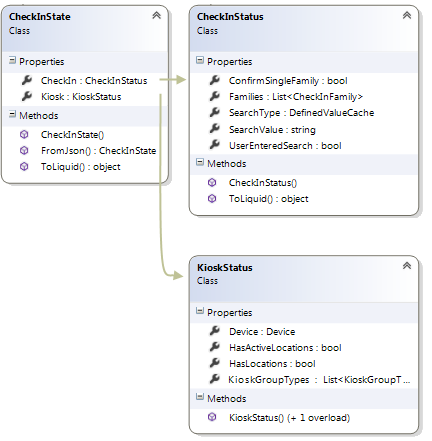
-
CheckIn - (CheckInStatus) object which has the
SearchTypethat was performed, theSearchValue, and the list ofFamilies. -
Kiosk - (KioskStatus) object which has the
Deviceof the kiosk, a list ofKioskGroupTypesTheCheckInStatehas aKioskproperty.
Let's look at this next layer a little closer...
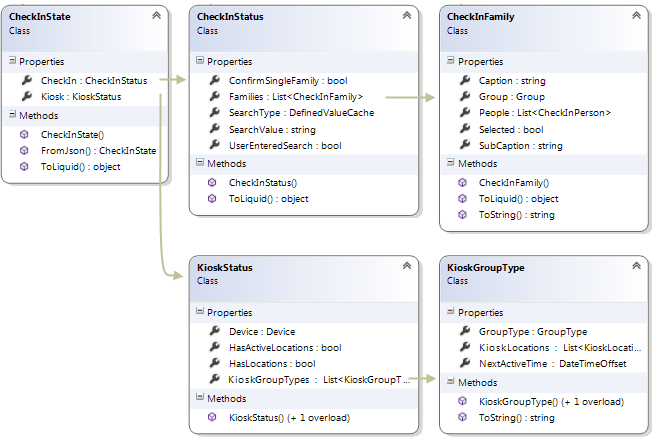
- ConfirmSingleFamily - (bool) indicates whether or not the search that results in a single family match should be confirmed before proceeding to the next step.
- Families - (List) this is a list of families that matched the family search.
-
SearchType - (
DefinedValue) the kind of search being performed (such as "Phone Number", "Barcode", etc.). - SearchValue - (string) the search value (a particular phone number, a barcode id, etc.)
- UserEnteredSearch - (bool) indicates whether or not a person entered the search value; false if it was via a scan of some sort.
- Device - (bool) TBD
- HasActiveLocations - (bool) TBD
- HasLocations - (bool) TBD
- KioskGroupTypes - (List) this is a list of classes (GroupTypes) associated with the kiosk.
So what if you want to change the flow of the check-in process? For this you will need to...
TODO