Installing rock chms
These are instructions meant for developers to setup Rock-ChMS in their local dev environment. You'll also need to make sure you've met the requirements. We also did a walk-through-presentation at RefreshCache 2012.
Clone the Rock-ChMS repo.
Create an empty "RockChMS" database on your local system with a default user (owner) of "RockUser". When you run Update-Database (described below), the EF framework will create all the needed tables and data.
If it does not exist, create an empty web.connectionStrings.config file under your RockWeb project. Add a connectionStrings section for a RockContext with the password you created in step 2:
    <connectionStrings>
        <add name="RockContext" connectionString="Data Source=localhost; Initial Catalog=RockChMS;
            User Id=RockUser; password=<PASSWORD>; MultipleActiveResultSets=true"
            providerName="System.Data.SqlClient" />
    </connectionStrings>
Replace
<PASSWORD>with the one you created in the Database step above.
If you are developing using the newer SQL Server 2012 LocalDB Edition, you can use the following connection string:
<connectionStrings>
  <add name="RockContext" connectionString="Server=(localdb)\v11.0;Integrated Security=true;MultipleActiveResultSets=true" providerName="System.Data.SqlClient" />
</connectionStrings>
Start Visual Studio and open the Package Manager Console window and run Update-Database (you can pass the –Verbose flag if you wish) as shown below. Make sure your Default project is set to Rock as shown here in this screenshot.
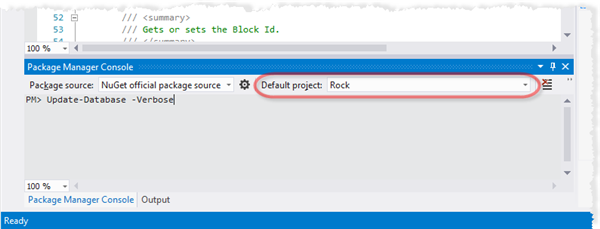
Once you do this, your RockChMS database will have all the required tables and initial seed data required to be able to run Rock as the Administrator user.
In the event that you pull down the lastest
developbranch of Rock, you will probably need to run theUpdate-Databasecommand again. This is needed in order to synchronize your development database with the changes that have been made to the core project.
Press F5 to launch Rock in Debug mode and then login to rock using the default administrator login (admin) and password (admin).
Eventually, if you want to contribute code to the core, please follow our simple Coding Standards.