Repository navigation
Quick Start
This page covers the Burp editions. If you have not installed yet, see Installation.
- Load the extension. A Secret Sifter tab appears (SecretSifter MCP for the MCP edition).
- Browse your target through Burp's browser or proxy.
- SecretSifter scans responses as they pass through Burp.
- View findings:
- Burp Professional: Dashboard, Issue Activity, and the site map issues.
- Any edition: open a request in Proxy history and select the SecretSifter tab on the response.
When the extension loads, it also scans what is already in Target, Site map, so findings from earlier browsing appear.
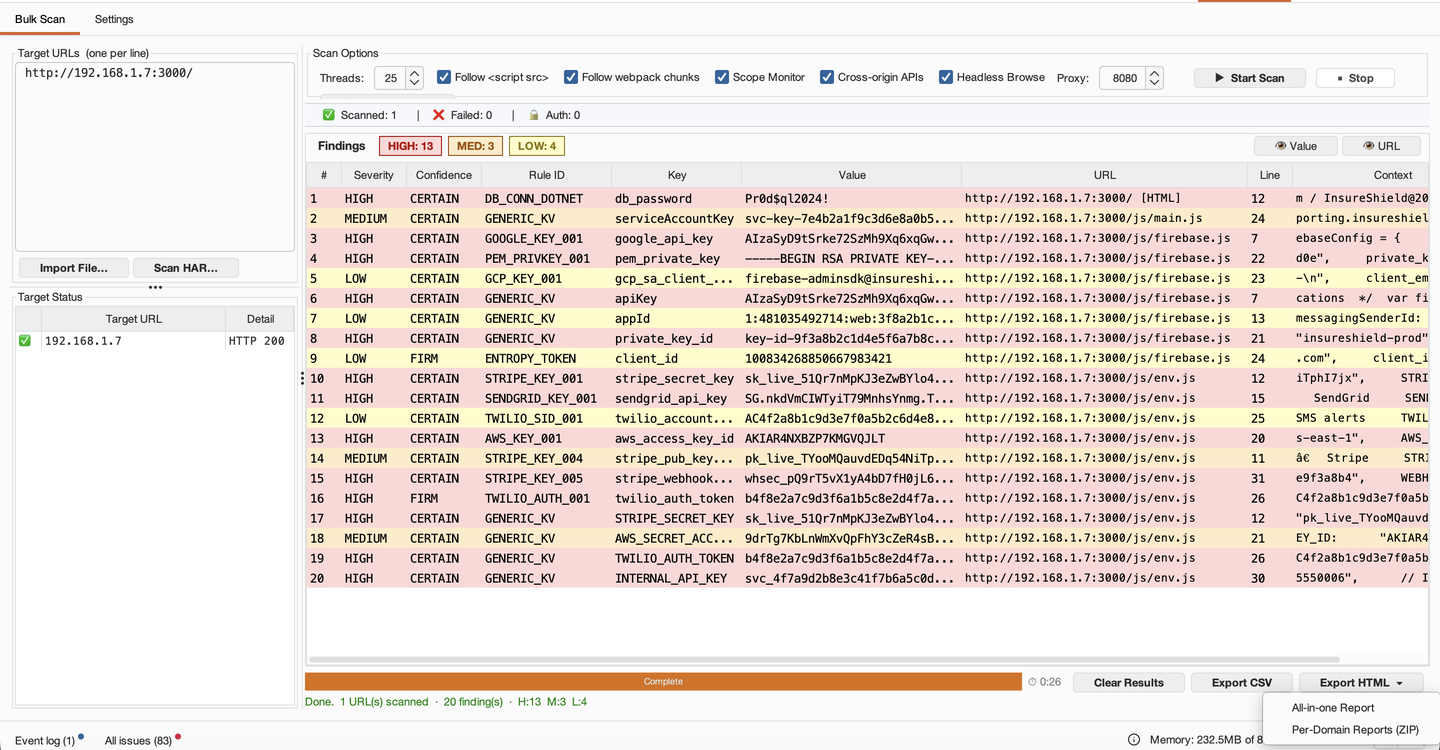
- Open the Bulk Scan tab inside the Secret Sifter tab.
- Paste one URL per line, or click Import File… (
.txtor.csv). To scan a HAR capture directly, click Scan HAR…. - Choose a Scan Tier (FULL is the default) and a thread count.
- Click Start Scan. Results fill the table as the scan runs.
- Export with Export ZIP, then All-in-one Report or Per-Domain Reports (ZIP), or with Export, then Export JSON.
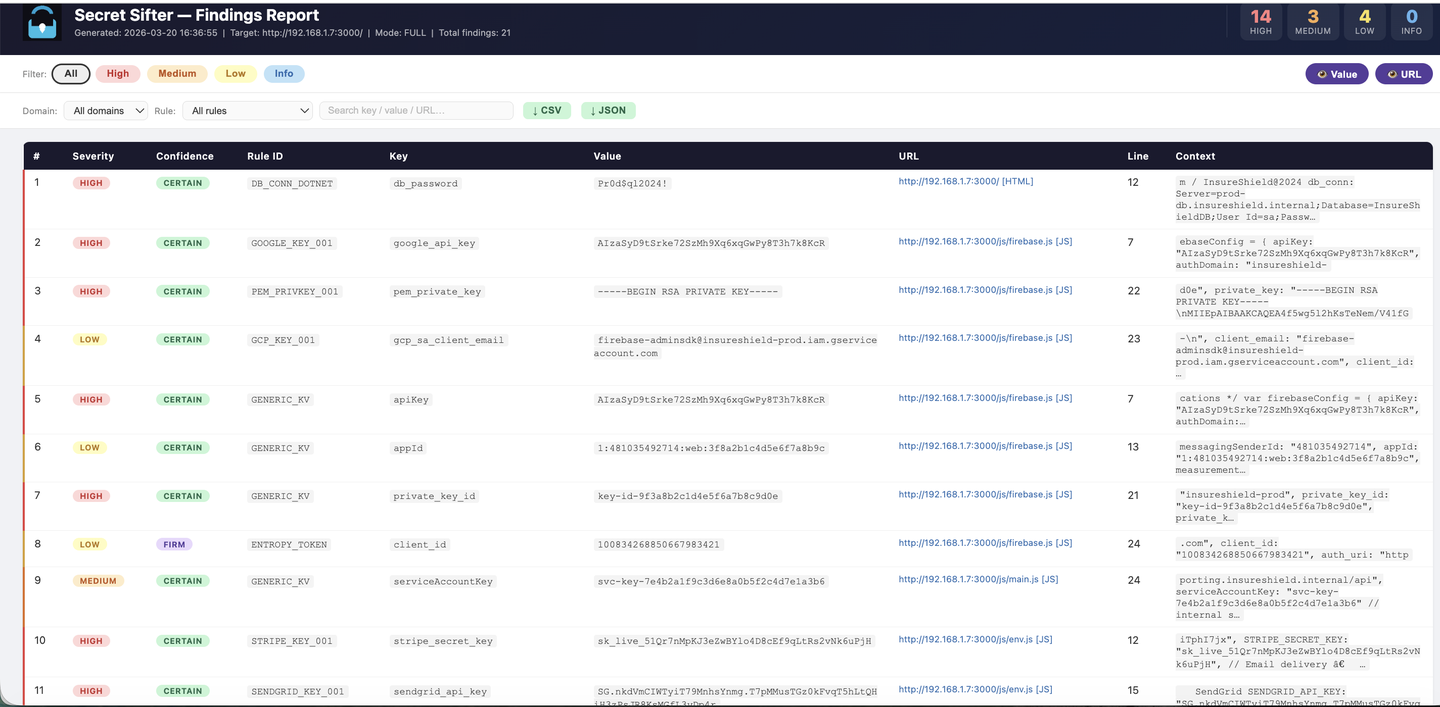
The HTML report inside the exported ZIP is a single self-contained file you can attach to a ticket:
To scan what Burp has already captured, click Scan Site Map on the Bulk Scan tab.
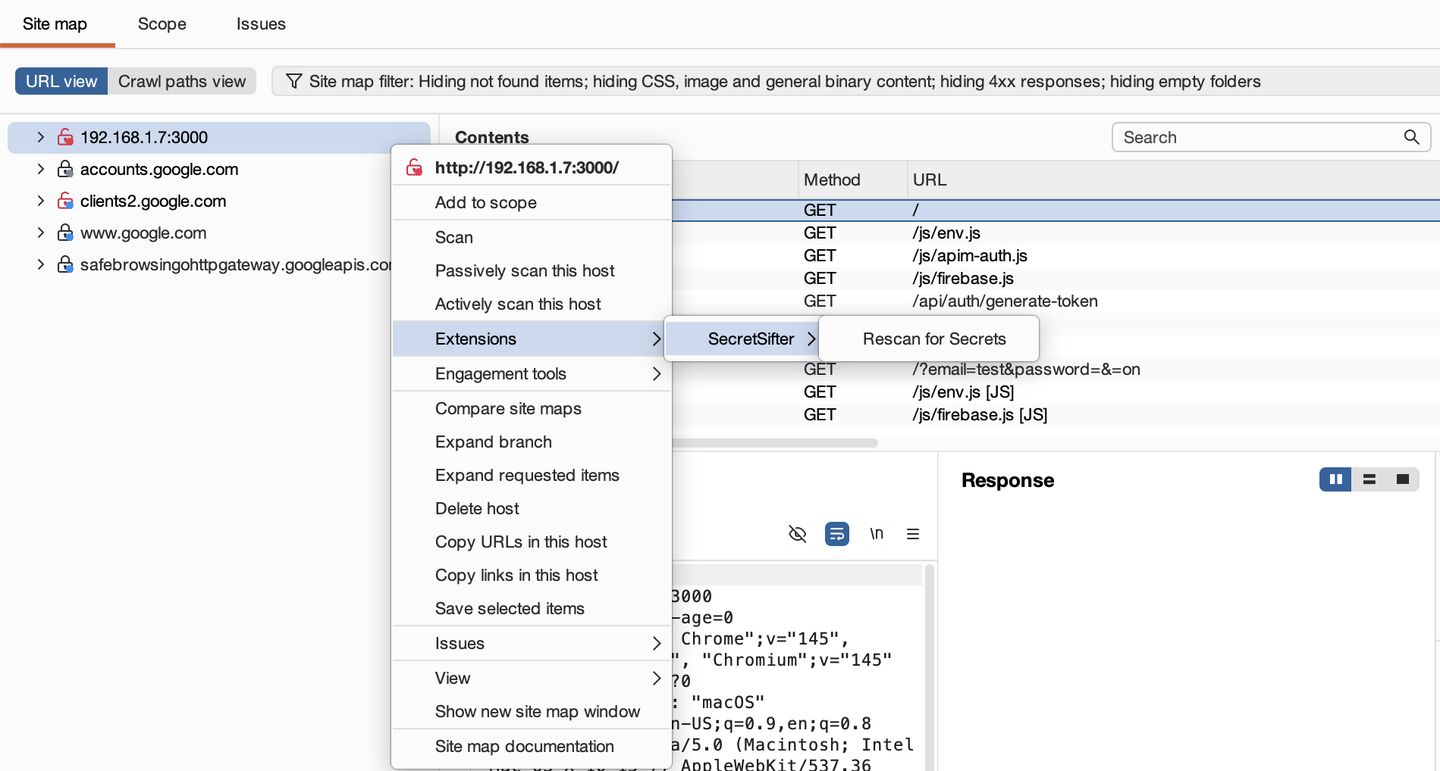
In Proxy history, Repeater, Logger or the site map, right-click a request and choose Extensions, SecretSifter (SecretSifter Burp MCP in the MCP edition), Rescan for Secrets. SecretSifter rescans the site-map entries for the selected host.