Repository navigation
User Guide
Install the package enigma2-plugin-systemplugins-jobcockpit and restart Enigma2. It needs enigma2-plugin-systemskins-fontcockpit for the fonts, which is installed with it.
Plugins that run jobs, such as the downloads of MediathekCockpit or the recordings of the timeshift in TimeshiftCockpit, use JobCockpit if it is installed. See their pages for what they do with it.
Enigma2 has a module for background jobs, Components/Task.py. JobCockpit needs a changed version of it that remembers the finished and failed jobs. The installation therefore
- saves the original as
/usr/lib/enigma2/python/Components/Task.py.org(and the compiled one asTask.pyc.org), unless a copy exists already, and - copies the changed version over
Components/Task.py.
Removing the package puts the original back. The changed module offers everything the original does, so the other plugins and the screens of Enigma2 that use jobs keep working.
| From | What you see |
|---|---|
| Plugin menu or extensions menu, entry JobCockpit | The jobs of all plugins |
| A plugin that offers its jobs (for example the download manager of MediathekCockpit) | Only the jobs of that plugin |
The screen is called Job Management.
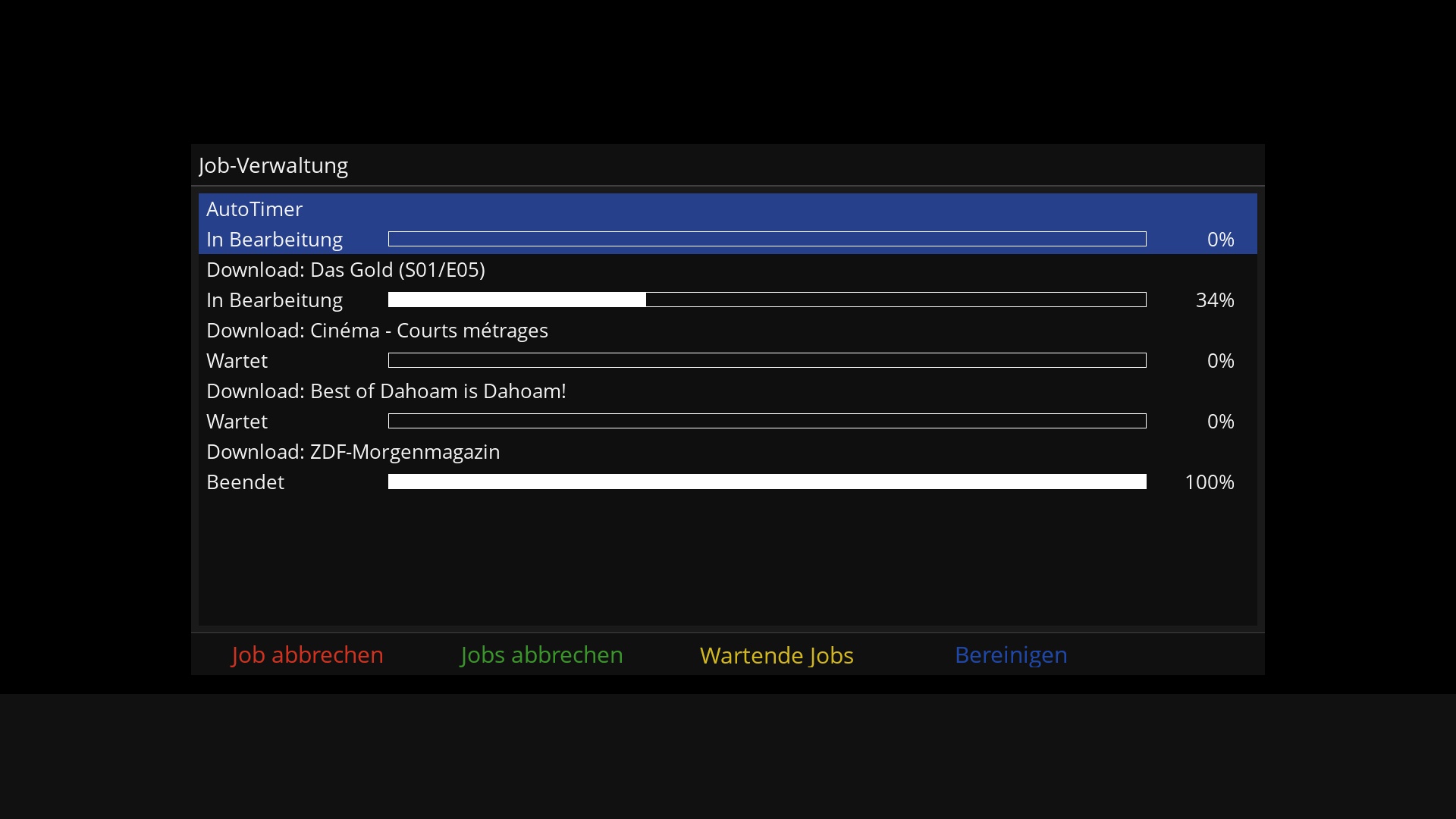
Each job has two lines:
- the name of the job, for example Download: Das Gold (S01/E05), and
- below it its state, a progress bar and the percentage.
The states are:
| State | Meaning |
|---|---|
| Waiting | The job is queued and has not started. Only one job of a plugin runs at a time, the others wait for it. |
| In Progress | The job is running. |
| Finished | The job has ended successfully. |
| Failed | The job has ended with an error, or was aborted. |
The list is in this order: the jobs that are running or waiting, then the failed jobs, then the finished ones. It is refreshed every second, and the selection stays where it is. Move through it with UP / DOWN (and the page keys for a long list).
Jobs of different plugins can run at the same time: each plugin has a queue of its own. In the picture the AutoTimer and a download are both in progress, the other downloads wait.
A job stays in the list after it has ended only if the plugin that started it asks for that. The jobs of plugins that do not (and jobs of Enigma2 itself, such as the AutoTimer) disappear when they end, like with the original job manager.
| Key | Label | Action |
|---|---|---|
| RED | Abort current job | For the selected job: abort it if it is running. Otherwise remove it from the list: a waiting job is cancelled, a finished or failed one is cleared. |
| GREEN | Abort all jobs | Abort every job that is running, in all job managers shown. |
| YELLOW | Abort all pending jobs | Remove all jobs that are waiting and have not started. |
| BLUE | Cleanup jobs | Clear all finished and failed jobs from the list. |
| OK or EXIT | Close the screen. | |
| UP / DOWN | Select a job. |
The keys act on the jobs shown: opened from a plugin, only its jobs are touched.
The list is empty. No job is running or kept at the moment. Jobs that have ended are only kept if the plugin asks for it, see above.
A job I expected is not in the list. The plugin may not use JobCockpit's job managers, or it did not ask to keep ended jobs. Check that the plugin is a recent version.
The jobs are not kept any more after an update of the image.
The update may have replaced Components/Task.py by the original again. Install the package enigma2-plugin-systemplugins-jobcockpit again, which copies the changed version back.
I removed the plugin and a job screen of Enigma2 behaves differently.
Removing the package restores the original Task.py from the copy Task.py.org. Restart Enigma2 afterwards.
Reporting a problem.
Debug messages of the plugin start with JOC: in the Enigma2 debug log. Attach that log, with the steps that lead to the problem.