Repository navigation
User Guide
SamsungTVCockpit (STV) brings the free live channels of Samsung TV Plus to your Enigma2 receiver:
- Live TV: Samsung TV Plus channels as normal Enigma2 bouquets, with programme guide (EPG) and picons.
- Channel browser: browse the channels by category and watch them straight from the plugin.
- Recording: instant and timer recordings of live channels, like any other channel.
Samsung TV Plus has no video on demand, so the plugin offers live channels only.
- Requirements and installation
- First steps
- Live TV
- The channel browser
- Recording
- Settings
- Available regions
- Files and locations
- Troubleshooting
Install the package enigma2-plugin-extensions-samsungtvcockpit. It needs these packages, which your package manager installs with it:
| Package | Used for |
|---|---|
enigma2-plugin-extensions-epgimport |
importing the programme guide |
enigma2-plugin-skincomponents-componentscockpit |
common screen components |
enigma2-plugin-systemplugins-jobcockpit |
background jobs |
enigma2-plugin-systemplugins-streamproxycockpit |
the stream proxy: plays and records the streams |
Your receiver needs a working internet connection. The channels depend on the region, see Available regions.
Restart Enigma2 after installing or updating the plugin.
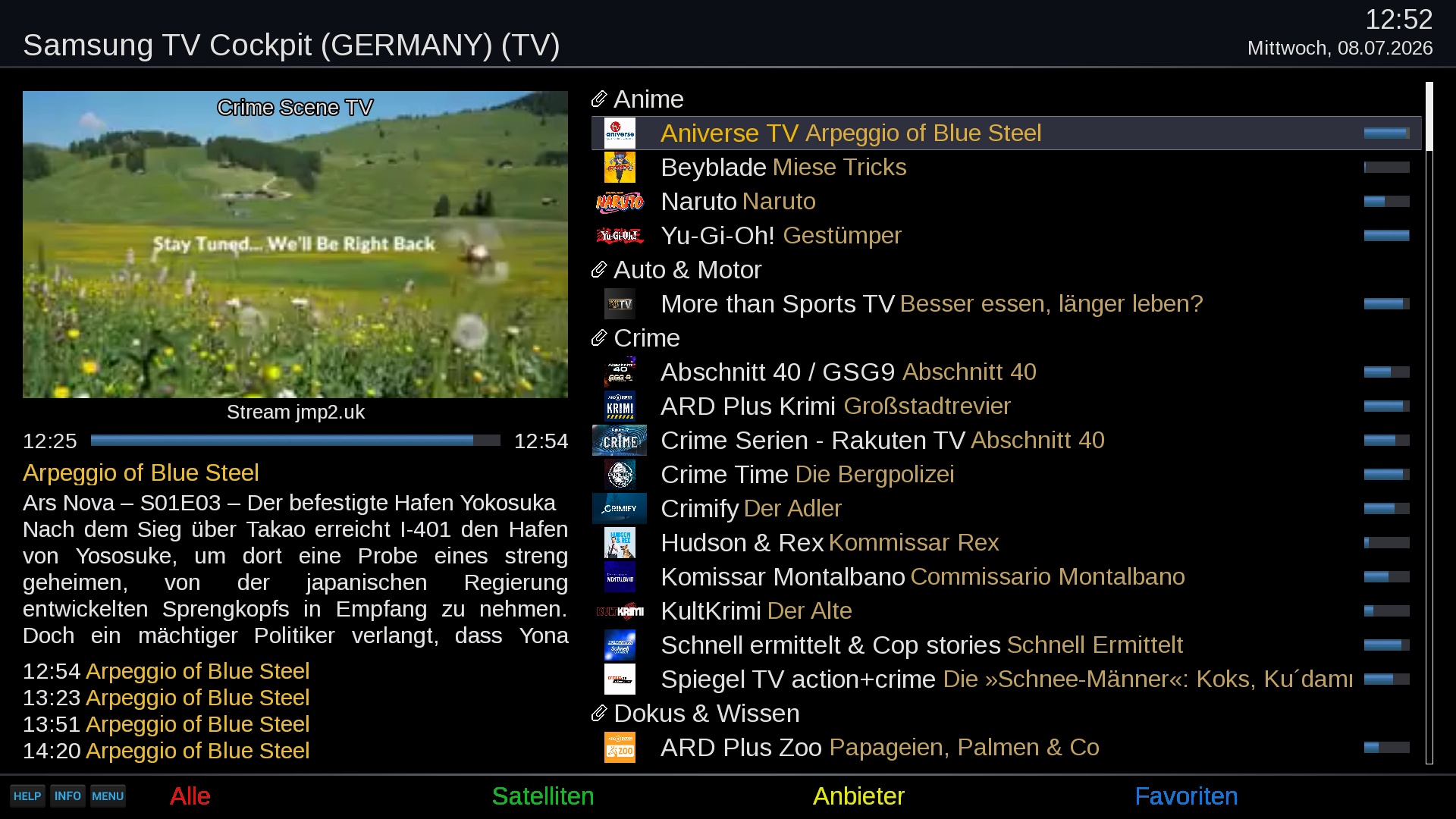
- Open SamsungTVCockpit from the plugin browser. It shows the channel categories of the selected region (Germany at first).
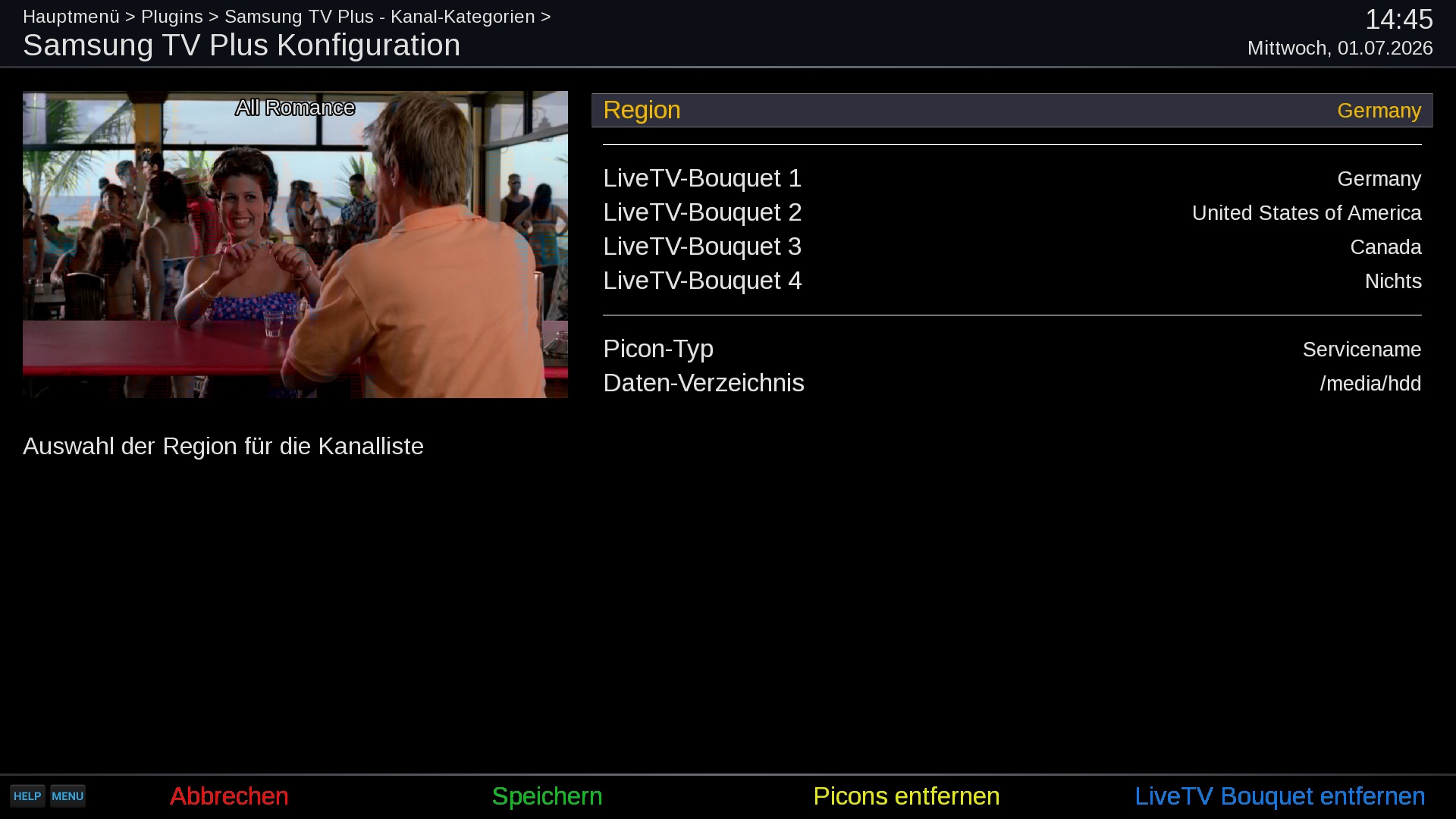
- If you want another region, press MENU, change Region and, under Live-TV bouquet 1, the region for your bouquet. Save with GREEN. If you changed a region, saving creates the bouquet.
- Otherwise press GREEN in the main screen (Create Live-TV Bouquet). The plugin downloads the channel list, the guide and the picons and adds a bouquet called Samsung TV Cockpit (<REGION>) to your TV channel list.
- Leave the plugin and zap to the new bouquet.
The bouquet is then kept up to date by itself, see Live TV.
There is a second entry, Download Samsung TV Plus bouquet, picons and EPG, in the extensions menu. It runs the same update without opening the plugin.
Samsung TV Plus channels are normal Enigma2 services. Pick them from the channel list, use the guide and record them.
The channel list and the guide come from the community service i.mjh.nz, and the streams are played through the jmp2.uk service. If one of them is down or out of date, channels or the guide can be missing or stop working for a while.
You can have up to five Live-TV bouquets, each for a different region, for example Germany and Austria. In the settings you choose a region for Live-TV bouquet 1 (preset to Germany); the entry for bouquet 2 appears once bouquet 1 is set, and so on. Each region gets its own bouquet, named Samsung TV Cockpit (<REGION>), for example Samsung TV Cockpit (GERMANY).
Within a bouquet the channels are grouped by category.
- The bouquets and picons are rebuilt automatically every 5 hours.
- The programme guide is additionally refreshed every 90 minutes, because the guide source only publishes the next few hours.
- Press GREEN in the plugin at any time to update right away. With several regions selected you can update All or a single one.
- The line Live-TV Bouquet last updated at the bottom of the main screen shows when the last update ran. If it says needs updating, press GREEN.
- Changing the Region or a bouquet region in the settings starts an update when you save.
- A region that returns no channels (Samsung TV Plus not available there, or geo-blocked) is skipped. An update started from the plugin tells you; the automatic one only logs it.
The guide is loaded with the bouquet and refreshed every 90 minutes. It covers only a few hours ahead. It needs the EPGImport plugin. Without it the plugin still updates the channels but reports that the guide cannot be imported, and the guide stays empty.
Samsung TV Plus's channel logos are downloaded as picons. The setting Picon type decides how they are named:
- service name (default): works even if the service reference changes.
- service reference: one picon per service.
- None: no picons.
Now and then a channel starts without picture and sound. When this happens the plugin zaps to the same channel once more by itself. If the channel is still empty after that, it does not try again; zap away and back, or try again later.
Each update also writes an M3U playlist and an XMLTV guide per region into the data location (see Files and locations).
Channels listed in the file data/samsungtvplus.ignore in the plugin folder are left out of the bouquets. The file is part of the plugin, so a plugin update may restore it.
Open the plugin to browse the channels of the selected region and watch them without leaving the plugin.
The menu has two levels: category → channel. For a channel you see its logo, the description, genre, age rating and length where Samsung TV Plus provides them.
| Key | Action |
|---|---|
| OK | Open a category; start the selected channel |
| EXIT | Go back one level; leave the plugin at the top level |
| BACK / PREVIOUS | Go back one level |
| PAGE UP / PAGE DOWN | Scroll the description |
| GREEN | Create or update the Live-TV bouquet |
| YELLOW | Look up the selected channel in TMDb or IMDb (only shown if one of those plugins is installed) |
| MENU | Open the settings |
| RED | Same as EXIT |
When you leave the player, you are back in the browser and the receiver returns to the channel you watched before.
If the browser shows There is no data for ..., Samsung TV Plus is not available in that region or blocks your address.
Live channels can be recorded like any other channel.
- Instant recording: press the record key while watching.
- Timer recording: set a timer from the guide or the timer menu.
- Several recordings at once work, also while you watch something else. Recordings of different channels are independent; recordings of the same channel share one connection.
- Recordings are normal
.tsfiles in your movie folder and appear in your movie list.
Timeshift (pause live TV) works if you use the TimeshiftCockpit plugin and have enabled it. Samsung TV Plus channels are supported.
Open the settings with MENU in the plugin.
| Setting | Meaning |
|---|---|
| Region | Region of the channel list in the browser. |
| Live-TV bouquet 1 ... 5 | One region per bouquet; leave at None for no bouquet. The next entry appears once the previous one is set. |
| Picon type | Picon naming: service name, service reference, or none. |
| Automatic update check | Check for a newer version of the plugin and of StreamProxyCockpit when the plugin is opened. If there is one, you are asked whether to install it (both together if both have one). |
| Data location | Where the M3U and XMLTV files are stored (default /etc/enigma2). |
| Log level | How much the plugin writes to the debug log. Use DEBUG only when you look for a problem. |
Buttons in the settings screen:
| Key | Action |
|---|---|
| LEFT / RIGHT | Change the selected setting |
| GREEN | Save. If the region or a bouquet region changed, the bouquet is updated first. |
| YELLOW | Remove picons (shown only when picons exist) |
| BLUE | Remove Live-TV Bouquet (shown only when a Samsung TV Plus bouquet exists). This also stops the automatic update. |
| EXIT / RED | Leave; asks first if you changed something |
To remove the plugin's content completely, use BLUE and YELLOW first, then uninstall the package.
Choose the region whose channels you want. Which channels a region offers is decided by Samsung TV Plus and changes over time, and some channels only work in their own country.
| Code | Region |
|---|---|
| at | Austria |
| ca | Canada |
| ch | Switzerland |
| de | Germany |
| es | Spain |
| fr | France |
| gb | United Kingdom |
| in | India |
| it | Italy |
| kr | Korea |
| us | United States of America |
| What | Where |
|---|---|
| Live-TV bouquet | /etc/enigma2/userbouquet.samsungtvcockpit_<region>.tv |
| M3U playlist | <Data location>/channellist.samsungtvcockpit_<region>.m3u8 |
| XMLTV guide | <Data location>/xmltv.samsungtvcockpit_<region>.xml |
| Last update time | /etc/enigma2/SamsungTVCockpit/ |
| Debug log | the Enigma2 debug log folder (/home/root/logs by default) |
The bouquet is empty or not created. Press GREEN in the plugin and wait for the progress to finish. If you get There is no data for ..., Samsung TV Plus does not serve that region to your address, or the channel list service is not reachable; pick another region or try later.
Channels work but there is no programme guide. Install the EPGImport plugin and update the bouquet again (GREEN). The guide only covers the next few hours and is refreshed every 90 minutes.
A channel does not start, or shows a black screen. The plugin retries once by itself. If the channel stays empty, zap away and back, or wait a little: the streams come from an external service that is sometimes unavailable.
I changed the region but the channels are the old ones. The bouquet is only rewritten by an update. Press GREEN, or save the settings with a changed region.
Reporting a problem. Set Log level to DEBUG in the settings, reproduce the problem, and attach the Enigma2 debug log. Set the level back afterwards.