Repository navigation
User Guide
TimeshiftCockpit (TSC) lets you pause live TV, go back and watch again what you missed. It works with normal TV channels (DVB) and with stream channels that can be recorded, for example those of the Pluto TV, Rakuten TV and Samsung TV Plus plugins.
- On demand timeshift: the timeshift starts when you press PAUSE and ends when you stop it.
- Permanent timeshift: the channel you watch (and up to two fixed channels) is timeshifted all the time, so you can go back from the moment you zapped there.
- Record from the timeshift: keep any event of the timeshift as a normal recording.
- Requirements and installation
- Timeshift modes
- Using the timeshift
- Recording from the timeshift
- Active timeshifts
- Settings
- Disk space and files
- Troubleshooting
Install the package enigma2-plugin-extensions-timeshiftcockpit. It needs these packages, which your package manager installs with it:
| Package | Used for |
|---|---|
enigma2-plugin-systemplugins-powercockpit |
power handling |
enigma2-plugin-skincomponents-componentscockpit |
common screen components |
enigma2-plugin-systemplugins-covercockpit |
covers for recorded events |
enigma2-plugin-systemplugins-jobcockpit |
background jobs (timeshift recordings) |
Conflicts: TimeshiftCockpit can conflict with other permanent timeshift plugins. The package refuses to install next to enigma2-plugin-extensions-permanenttimeshift. Remove other timeshift plugins first.
Restart Enigma2 after installing. The plugin works inside the normal TV screen (the InfoBar); only its setup is in the plugin menu.
The timeshift needs a timeshift location with enough free space, set in Enigma2's own recording settings. The location must exist, see Disk space and files.
Nothing is recorded until you ask for it. Press PAUSE while watching live TV: the picture freezes and the timeshift records the channel from this moment on. Press PLAY to carry on watching from where you paused, while the live programme keeps being recorded behind you. STOP (or EXIT) ends the timeshift playback and stops and removes the timeshift recording.
With Permanent timeshift switched on, the timeshift runs all the time:
- Variable timeshift: the channel you are watching is always timeshifted. When you zap, the timeshift of the old channel is dropped and one for the new channel starts. Press PAUSE: the picture freezes and you can go back as far as the moment you zapped to the channel.
- Fixed timeshift: you can pick up to two channels in the settings that are timeshifted all the time, whatever you watch. They keep running when you zap away, so when you zap to such a channel its timeshift is already there.
At most one timeshift per fixed channel plus one for the current channel run at the same time (three at most).
STOP / EXIT leaves the timeshift playback but the recording carries on.
Press PAUSE on live TV to enter the timeshift player. If the timeshift can't be started, the message No timeshift available for playback appears.
| Key | Action |
|---|---|
| PLAY / PAUSE | Start the timeshift (on demand), pause and resume |
| OK | While playing: show or hide the info bar. While paused, fast forwarding or rewinding: back to normal playback |
| LEFT / RIGHT | Rewind / fast forward |
| STOP / EXIT | Leave the timeshift playback (on demand: also stop the timeshift recording; permanent: the recording continues) |
| UP / DOWN | Permanent timeshift: leave the player and open the channel list |
| CHANNEL UP / DOWN | Smart jump in the timeshift |
| NEXT / PREVIOUS (TAB right / left) | Next / previous event |
| MENU | List of the events in the timeshift; choose one to jump to it |
| INFO | Information about the event you are watching |
| RECORD | Record an event of the timeshift, see below |
| YELLOW | List of the timeshift recording jobs |
| BLUE | Overview of the active timeshifts |
| POWER | Power off the receiver |
If you press POWER while a timeshift recording is still running, the recording is finished in standby.
You can keep any event that is in the timeshift, also when it has been broadcast hours ago:
- In the timeshift player press RECORD.
- Choose the event from the list.
- A message tells you that the event is being recorded. You can carry on watching.
- If the event is the last one in the timeshift and still running, the timeshift continues until the event is over, so the recording is complete.
- The recording is saved as a normal recording file, with description, cover and the event data. It is saved in the timeshift location, under the date, channel and title of the event, and it is not deleted with the timeshift.
- While a recording is in progress, the timeshift of that channel is kept, even if you zap away.
- Press YELLOW in the player to see the running and finished timeshift recordings and to manage them.
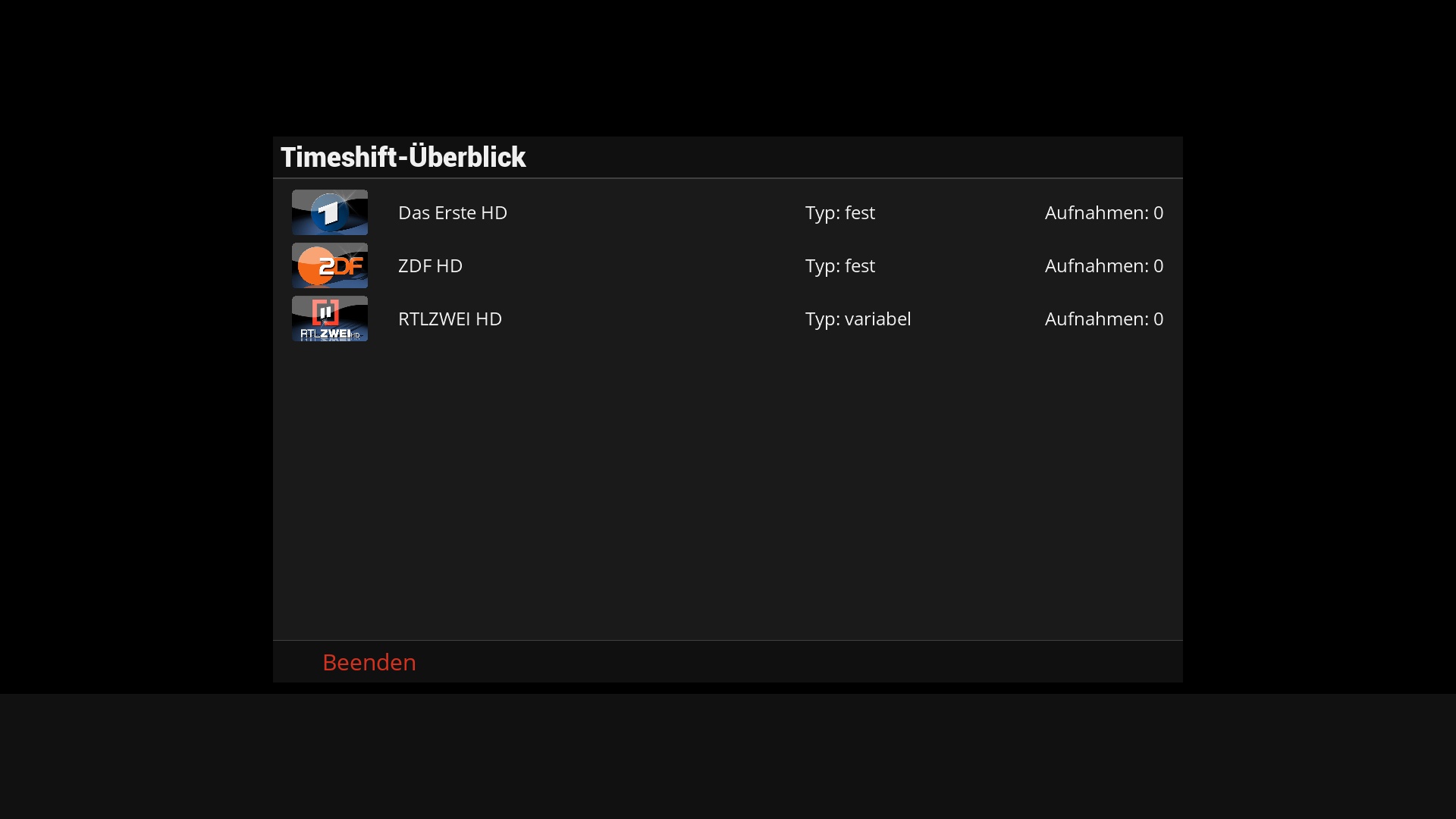
Press BLUE in the timeshift player to open the Timeshifts Overview. It lists the timeshifts that are running, with the channel logo and name, the type (fixed or variable) and the number of recordings made from it. Close it with OK, EXIT, RED or GREEN.
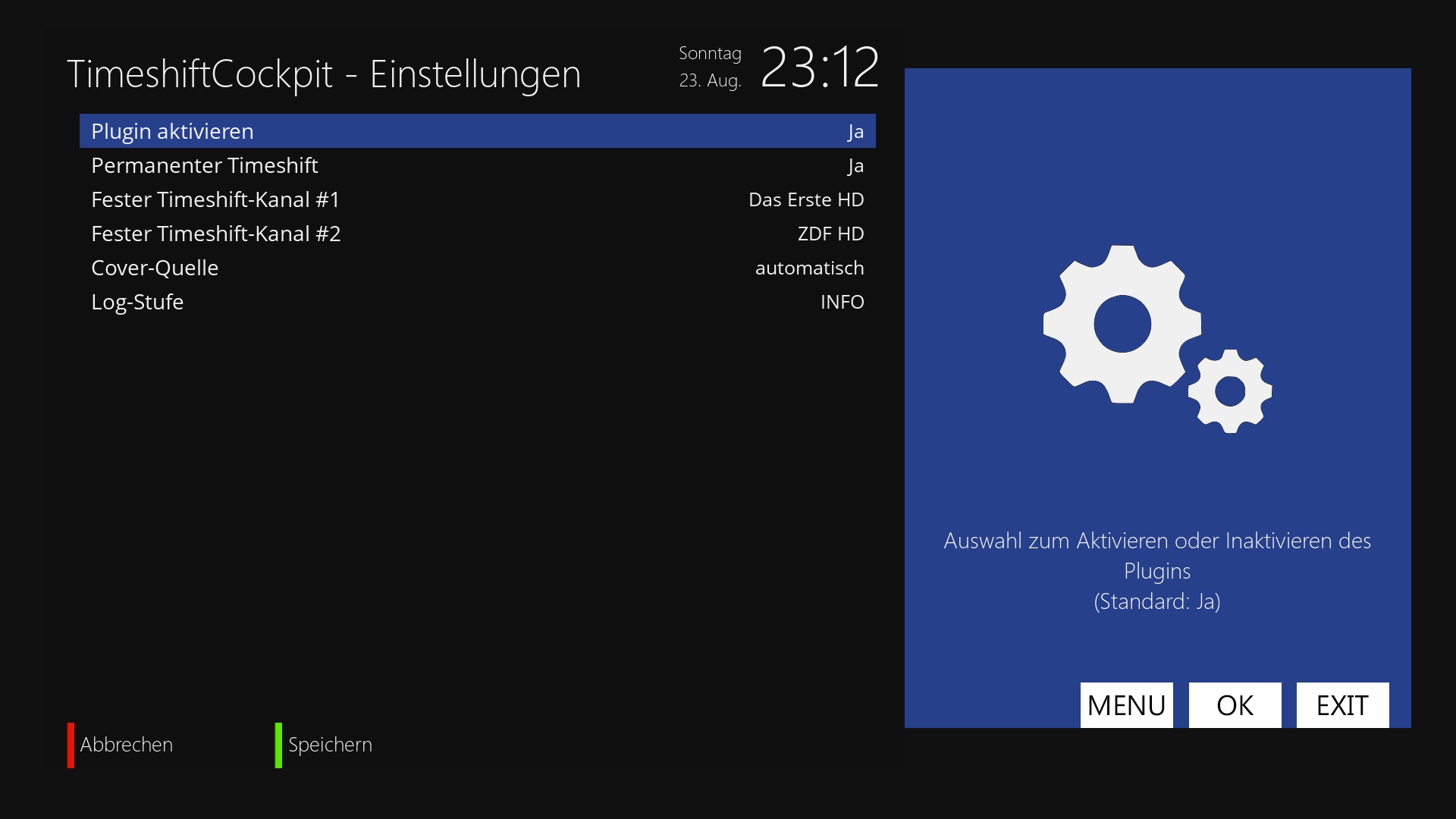
Open the settings from the plugin menu or the extensions menu: TimeshiftCockpit - Setup.
| Setting | Meaning |
|---|---|
| Enable plugin | Switch TimeshiftCockpit on or off. A change needs an Enigma2 restart; the plugin offers to restart when you save. |
| Permanent timeshift | Timeshift the current channel (and the fixed channels) all the time instead of only when you press PAUSE. |
| Fixed timeshift service #1 / #2 | Channels that are timeshifted all the time (permanent timeshift). Press OK to choose a channel from your channel list; Inactive switches it off. |
| Cover source | Where covers for recorded events come from. |
| Enable stream timeshift | On by default. Switch it off to not timeshift stream channels (IPTV, Pluto TV, ...). |
| Log level | How much the plugin writes to the debug log (expert setting). |
Saving changes to Permanent timeshift or to the fixed channels starts or stops the timeshifts right away.
- Location: the timeshift is written to the timeshift location of Enigma2. If the folder does not exist, the player tells you Timeshift directory does not exist and closes.
- Size: a timeshift file grows for as long as the timeshift runs. An HD channel can need several gigabytes per hour; with a permanent timeshift of up to three channels, plan for plenty of space.
- Clean-up: the timeshift files (their names contain Timeshift) are removed when the timeshift of a channel is stopped, and all of them when Enigma2 shuts down. Recordings made from a timeshift are kept.
Pressing PAUSE does nothing, or the normal Enigma2 timeshift answers. Check that Enable plugin is on and that Enigma2 has been restarted since. Remove other timeshift plugins.
The message No timeshift available for playback appears. The timeshift of the channel could not be started or is not running. Typical reasons are a channel that cannot be recorded, Enable stream timeshift switched off for a stream channel, or a full disk.
The timeshift of a stream channel is not available. Check that Enable stream timeshift is on. Only channels that can be recorded can be timeshifted.
The player says the timeshift directory does not exist. Set the timeshift location in Enigma2's recording settings and make sure the disk is mounted.
The disk fills up. Switch off Permanent timeshift or remove the fixed channels, and check the timeshift location. Stopping the timeshift deletes its files.
I can't go back to the start of a programme. The timeshift only reaches back to the moment it was started: when you pressed PAUSE (on demand), or when you zapped to the channel or the receiver started (permanent).
Reporting a problem.
Set Log level to DEBUG in the settings, reproduce the problem, and attach the Enigma2 debug log. Lines of the plugin start with TSC:. Set the level back afterwards.