Repository navigation
Notes and quick assistants
Generated from docs/notes.md: edit it there, changes made in the wiki are replaced. Em português: Notas e assistentes rápidos.
Notes are where you think: test ideas, meeting notes, questions for the team, a draft before it becomes a document. They are Markdown, open formatted, and save on their own.
| Loose note | Project note | |
|---|---|---|
| Where it lives | On this computer, outside any project | In the project's notes/ folder |
| How to create it | The 📝 button at the bottom of the icon rail | New note in the project, or send a loose note to a project |
| Who can see it | Only you, in Moki | The AI working on the project, and anyone who gets the project folder |
A note opens in the main area. The ↗ button opens it in the notebook, a window of its own with one tab per note.
- The title is in the header. Double-click it (or right-click) to rename the note; Enter keeps the new name.
-
Send to a project — a loose note has, at the right of its header, the project to send it to. Once sent, it leaves Loose notes and lives in that project's
notes/folder. - Move to another project — right-click a project note (in the tree, or in Favorites on the start screen) › Move to another project…. It goes with its title, tags and star; if the other project already has a note with that file name, it gets a number. Its places in PDF pages and its ties to lines of code stay behind, and links to files of the project it left no longer open: the dialog says how many before you move it.
-
Type
/for the commands menu,@to mention a file of the project, and paste or drop images right into the note. - Ctrl+E shows the Markdown source; the eye button brings back the formatted note.
- The ☆ makes it a favorite; tags (in a project note) share it with other projects.
-
Use in the terminal (the
>_of a project note's header) sends the note to the AI as context for what you ask next. - Export a project note as PDF, Markdown or text: a save dialog asks where.
- In a PDF, Create a note from here turns a selection into a note with the quote and its source; and a note can be dragged into a PDF to sit between its pages.
Four assistants help with the note in one click, without opening a terminal:
| Assistant | What it does | Where the answer goes | |
|---|---|---|---|
| 🖍️ | Improve the writing | Fixes spelling and grammar, makes sentences direct, organizes with headings and lists — keeping every fact, link and image. | Replaces the note |
| ☰ | Summarize | 3 to 5 points with only what the note says. | At the top |
| 🔎 | Research (Sherlock) | Researches the subject on the web and brings what is missing, each point with the link it came from. | At the end |
| Review critically (Moriarty) | Points out claims without support, contradictions, gaps and the questions a reader would ask. | At the end |
They are the group marked ✦ AI in the note's toolbar. When the note is narrow, the group folds into ✦ AI — click it to open the four.
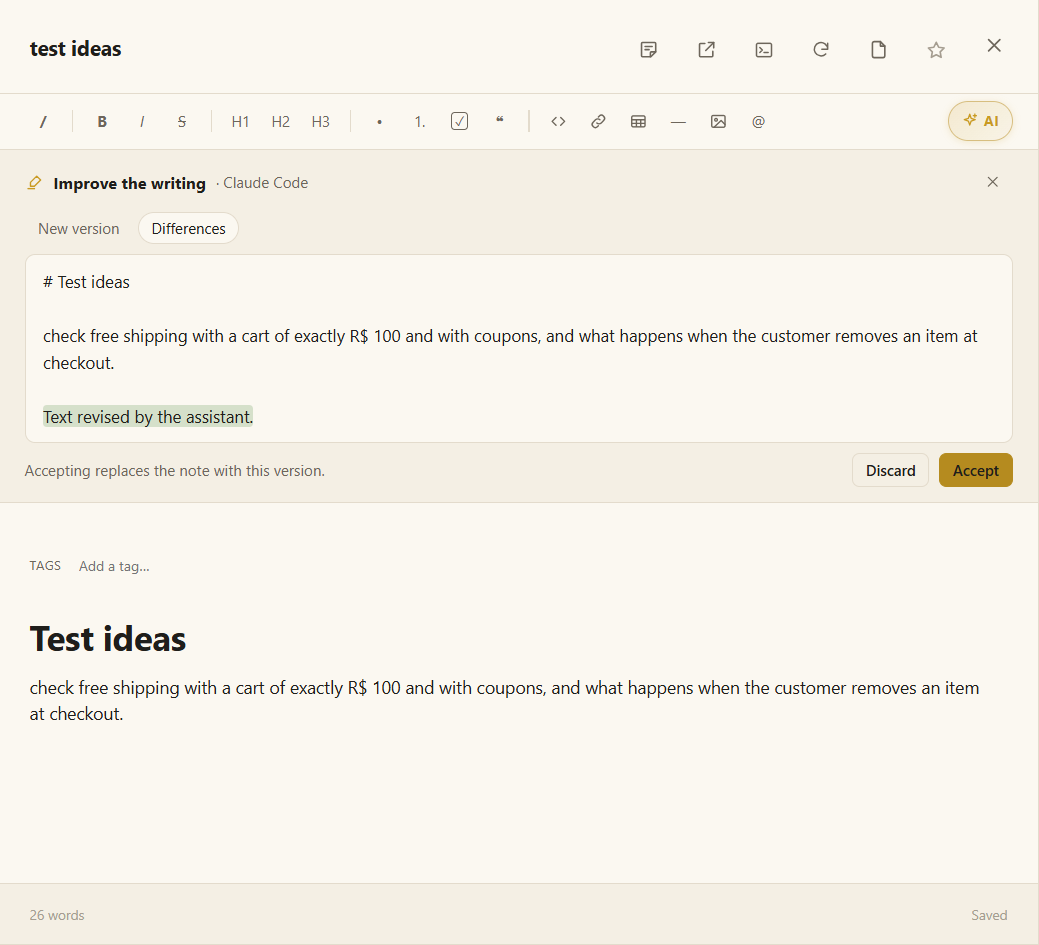
- Click an assistant. Your AI runs once in the background — Claude Code or Codex, your default first — in an empty temporary folder, with no tool that writes files or runs commands (only research searches the web).
- The answer comes back as a suggestion above the note. For Improve the writing, the Differences tab shows word by word what comes in and what goes.
- Accept applies it; Discard throws it away. Nothing changes in the note until you accept.
You can cancel while it works. They work in loose notes too, without any project.
Note
The quick assistants need Claude Code or Codex installed and logged in. Without either, the note says so and links to Settings › My AIs.
- Files and the editor — the same editor, for any Markdown file.
- Calling activities, agents and skills — for bigger work on a note, in a terminal.