The Shakespeare Script Editor is a website made by team Pawgrammers for CS121: Software Development in the Fall 2017 semester progressing upon work done by team MLCH completed in the Spring 2017 semester. Our web app provides a simple and easy way for directors and actors to edit scripts and read plays. On the website, a user can choose between any of Shakespeare’s plays. Chosen plays are not only readable, but editable! Users can cut down the play word-by-word. After editing the play to their specifications, the website will provide relevant data and statistics too, such as the number of lines in the play and the number of lines for each individual character in a particular play.
This section outlines the total functionality of the app.
- Viewing: The user will be able to see any Shakespeare play in readable, aesthetically-pleasing format.
- Navigation: The user will be able to navigate to any place in the script using a navigation bar on one side of the screen.

- Strikethrough: The user can cut through words and lines that they would like to remove from the play using highlighting or clicking on a speaker's name.
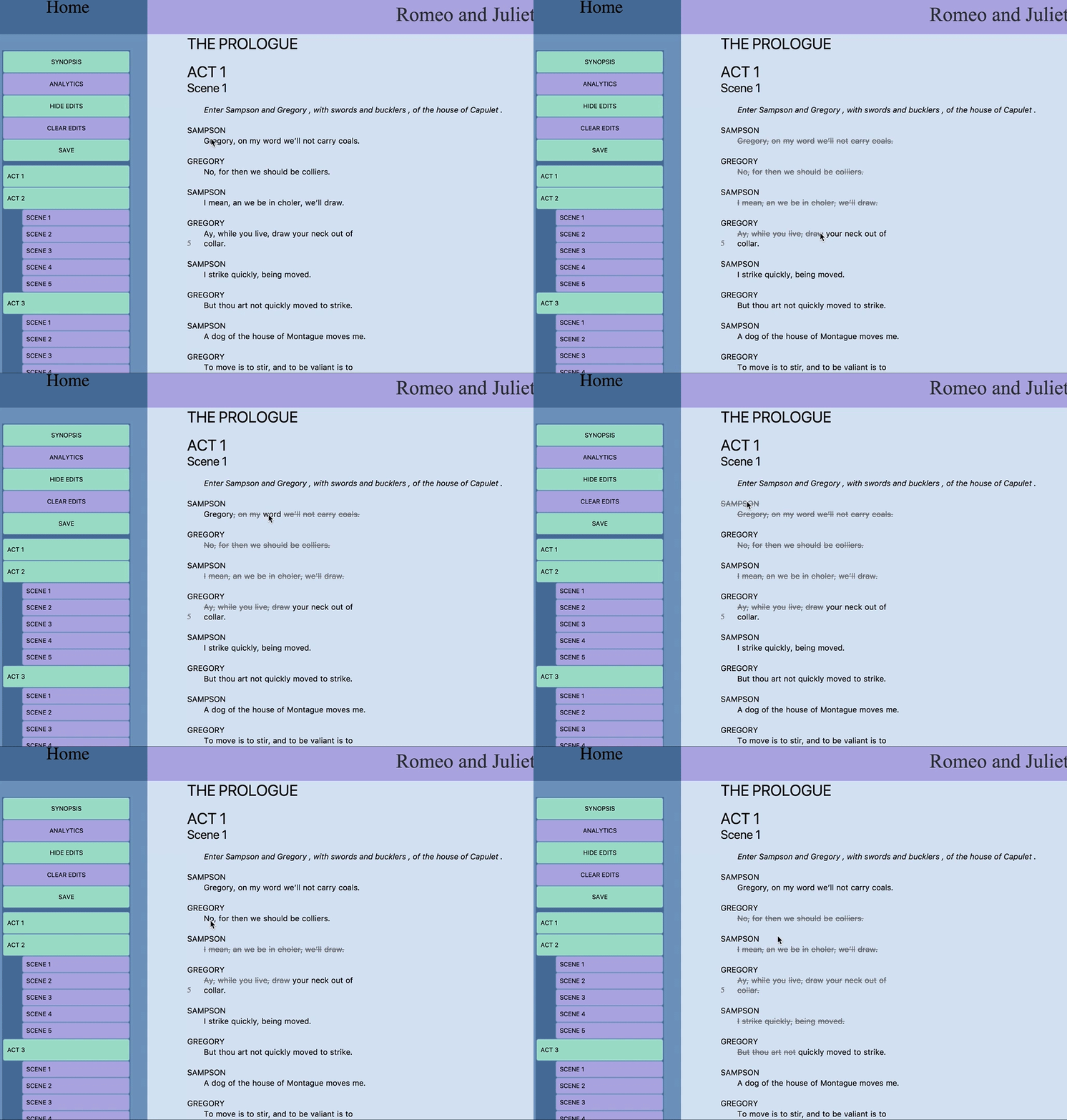
- Saving: The current state of the play can be saved by clicking the save button in the sidebar. From then on, when the play loads, the most recently saved version will be shown.
- Printing: The user van print their full, edited version of the play, with or without edits depending on the current toggle view mode.
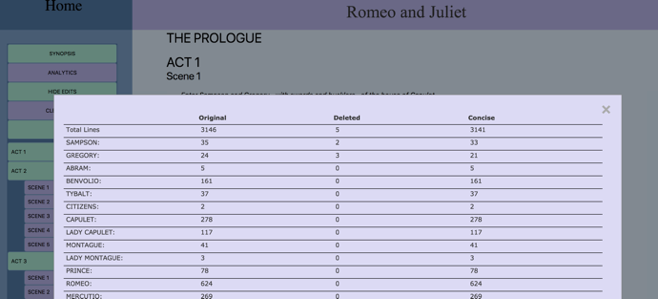
- Analytics: The site calculates and displays information about each play, namely the original line number of each character, how many have been deleted, and lines remaining, shown below.
- Synopsis: The play synopsis can be accessed via the 'Synopsis' button in the sidebar.
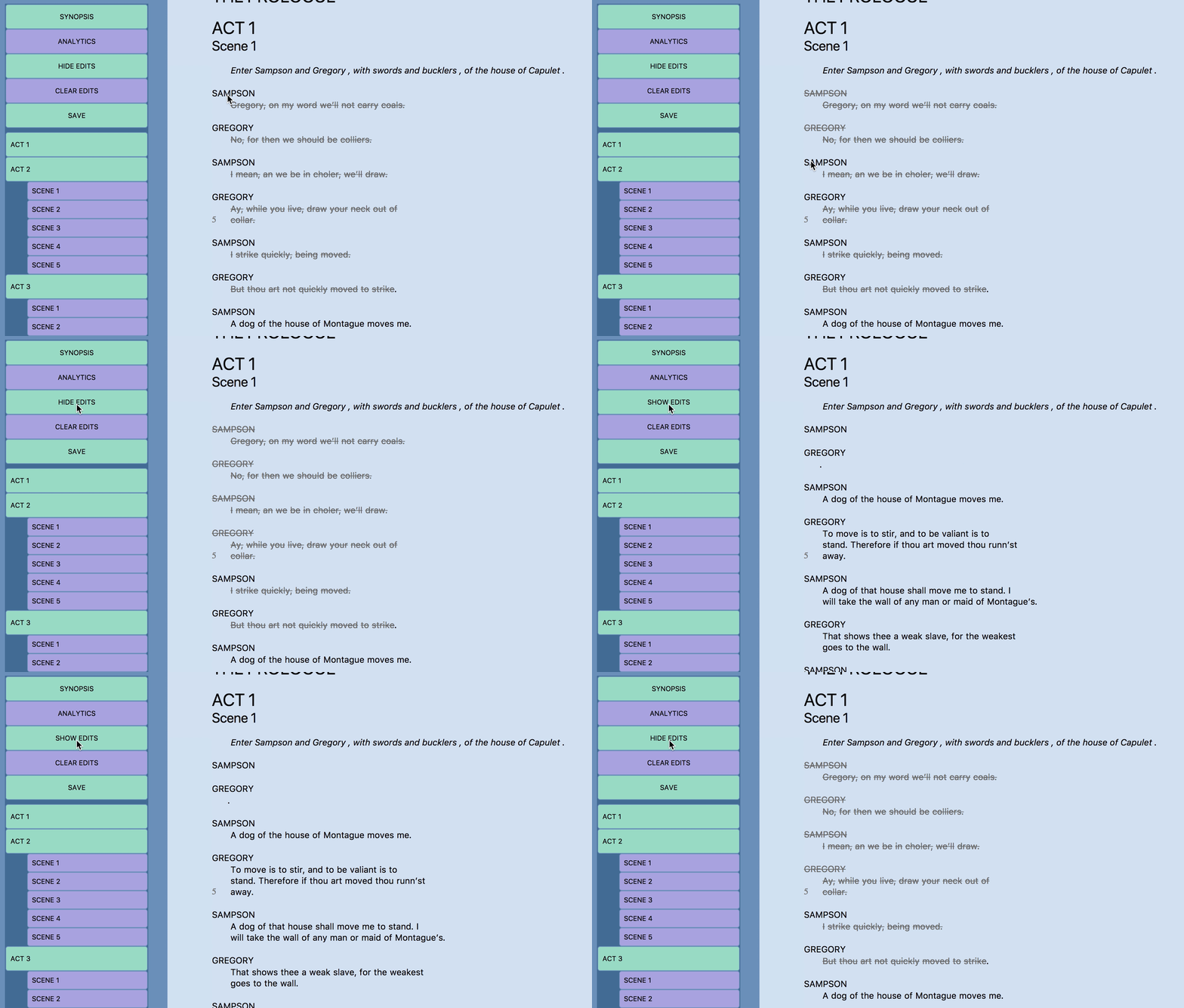
- Full and Concise Versions: The user has the option of viewing either the full original version of the play, having cuts distinct but visible, and the concise version where cuts are removed to see context when necessary, shown below.
- Clear Edits: The user can clear all the edits they've made by clicking the 'Clear Edits' button in the side bar. The page will prompt them to confirm this and then return the play to it's original unedited state. This does not autosave. If you want this change to become permanent, you must click the save button after clearing the edits.
If you do not run the preprocessing command before using the app, it will take about 30 seconds the first time you open any play. The Analytics information provides the number of full lines that have been cut, meaning from the beginning of the line to the linebreak has to be cut for it to be counted in deleted lines. Saving is not automatic, and if you change something but do not press the save button, when you reopen the play or refresh the page, any changes will be lost. When you open a play, what will be shown is the last saved version. Clicking 'Clear Edits' does not autosave. If you want to save this change, you must click the save button after clicking clear edits. The toggle button takes about 5-10 seconds to work. Please DO NOT click it again while waiting. Simply count to 10 and you will see the change in view happen.
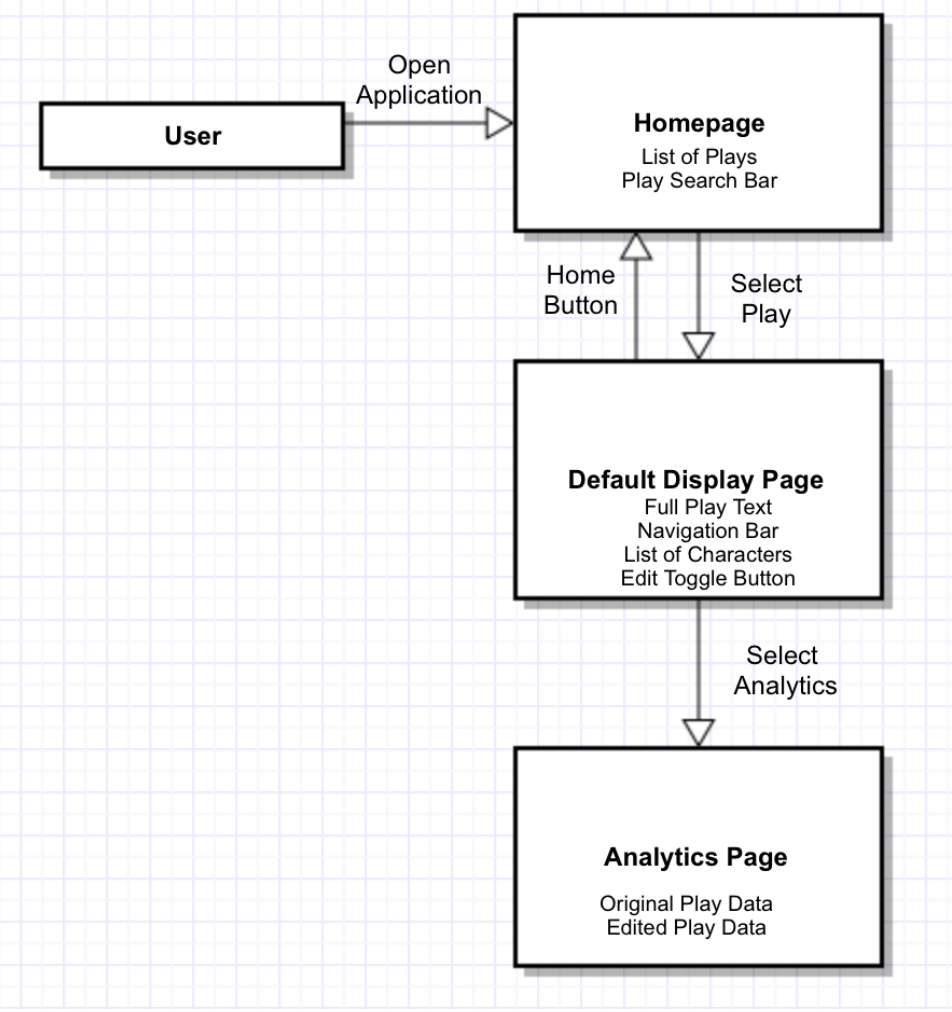
Figure 3 below outlines the use case of each page of the site.
Often when planning a play or preparing for a performance, directors and actors alike tend to cut out sections from the original script to make it shorter or get rid of unnecessary lines. Currently two methods exist for this task, and both have limitations. Directors and actors can either cross out sections by hand and ignore them, which is tedious and makes the plays harder to read and interact with, or they can use a generic text editor like Google Docs, but this provides so much freedom that the original content of the script can be easily manipulated or lost (as in the case where someone adds lines that didn’t previously exist to the script). A dedicated script viewer and editor that primarily only allows cutting and restoring lines would address both of these issues. It would allow for easier cutting and viewing without allowing the play to be lost in edits, while also being able to provide data analysis, like the number of lines per play and which characters are in it, on the works themselves.
Stakeholders for this project include:
- Professors BenWiedermann and Ambereen Dadabhoy – Clients whose desire for this project is to provide an easier platform to edit Shakespeare plays. Currently our clients use generic text editors and they are frustrated by their limited functionality that create difficulty in editing plays.
- Student collaborators – Users who eventually will be able to suggest edits to plays along with viewing them.
- Student performers – Users who have read only access to plays
- Directors – Users who are able to edit plays as well as accept or decline edits suggested by student collaborators. While these are similar to the clients, our clients explicitly expressed a desire for this application to be flexible for use outside of their class for generic directors.
You must have Ruby on Rails and git on your machine, and clone the repository onto your computer from https://github.com/Pawgrammers/Shakespeare-Script-Editor.git
1.Nokogiri - this gem is used to parse XML files into HTML files.
Our MVP is built off of one of the codebases provided from previous semesters. We used their webpage layout and the parser they worked on to put the plays on the site. Forking it provided some of the functionality desired in our MVP, namely choosing a play from those available, reading said play, navigating through the play’s acts, and searching text within the chosen play using the browser’s search functionality. On top of these pre-provided functions our MVP included the ability to cut out words of the play by highlighting them, and then saving these edits.
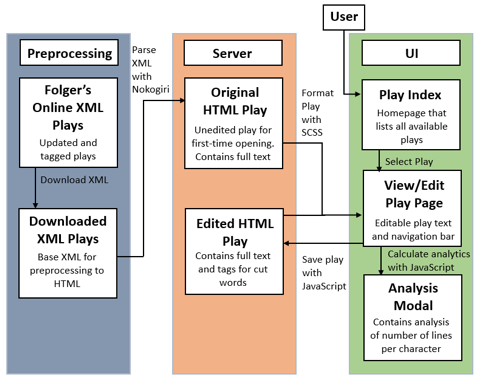
Our architecture at large has three categories: preprocessing steps, serverside architecture, and client-side UI. Figure 1 below presents a component diagram that outlines these three categories. Preprocessing involves downloading XML files of Shakespeare plays from Folger’s Online Library, which will then be parsed to HTML files by the Nokogiri gem. These original play HTML files will be stored on the server. The user starts on the play index, and upon choosing a play, the original play HTML file will be displayed, formatted by scss. The user will then be able to cut text from the play, which will be handled by JavaScript functions. When finished JavaScript will be used to save the edited version of the play, which will be loaded from then on. The user can also view analytics calculated by other JavaScript functions. The decisions and reasoning for using this architecture is presented later in this document.
The previous group’s work had scaffolding set up for a user role, a constant play role that models the original, unedited work as gathered from the Folger’s database, and an edited play role that holds the cuts and changes performed by a user; however, the user role was left incomplete and the play and edited play roles were never actually separated. We intend to finish these roles so that they fit the UML class diagram in Figure 2.
We will use the Model-View-Controller software design pattern as it is heavily supported by the Ruby on Rails framework and has proven to work well with the web applications we have developed previously.
Note: After any command saying "Type x", press enter before going on to the next command
Step 1: Installing/Updating Ruby Note: If you know you have the correct version of Ruby (2.4.1), skip this part
- Open terminal on your computer
- Type
\curl -sSL https://get.rvm.io | bash -s stable - Type
rvm install ruby-2.4.1 - Follow installation prompt (Note: usually just requires pressing
entera few times and entering password) - Close your terminal to restart it
Step 2: Installing Script Editor
- Open terminal on your computer
- (Optional) Navigate to where you would like the program to be on your computer
- Type
git clone https://github.com/Pawgrammers/Shakespeare-Script-Editor.git(Note: if you need to install git, a popup will occur. Follow it and retry the last step. If no popup occurs, continue following steps here) - Type
cd Shakespeare-Script-Editor/script_editor/ - Type
gem install bundler - Type
bundle install - Wait for gems to install
- Type
rake db:migrate - Type
cd app/controllers/ - (Optional)type
ruby create_scripts.rb “all”(Note: this will preprocess all scripts on the website. It takes about 15 minutes but will make the site run considerably faster) - Wait for scripts to be created
- To start the application type
rails sand go tolocalhost:3000in your internet browser of choice - To end the application, press
control + cin your terminal and close the terminal
Step 3: Starting the app after installation
- Open terminal on your computer
- Navigate to where the program was installed
- Type
cd Shakespeare-Script-Editor/script_editor/ - Type
rails s - Open your internet browser and go to
localhost:3000 - To end the application, press
control + cin your terminal and close the terminal
If you cut out an entire speech by highlighting, the speaker's name will not automatically be cut out, and vice versa. Version 2 of the app only works in the Google Chrome browser. When saving a play, all HTML in the script will be printed to the terminal. This does not cause problems, but it does take a while to scroll up to previous instructions and may look a little strange. In the play 'All's well that ends well', the character Parollus always has one deleted line. For some reason the translation of this line was unclear and so Folger's marked it as a missing or hidden line, and although there is nothing supposed to be said there, because of the way it is marked it is counted as a deleted line. The code has not been refactored and as such, there are several completely unused files and some of the logic in the Javascript functions is not clear or appropriately separated.
George Mason University. 2017. Open Source Shakespeare - Search Shakespeare’s Works, Read the Texts. https://www.opensourceshakespeare.org. Instructure. 2017. Canvas LMS. https://github.com/instructure/canvas-lms. MLCH. 2017. Shakespeare Script Editor. Print. Team 1. 2017. Shakespeare Script Editor. Print.
12/10/2017: Version 2.0.0 Implemented Features: Highlight cutting Toggle View Saving Printing Analytics
5/4/2017: Version 1.0.0
Implemented Features: Homepage Search Bar Formatted Play Display Editing interface Internal Play Navigation Synopsis
Contributors: Jackson Crewe, Chloe Elliott, Blake Larkin, Montana Roberts, Mahlet Melaku, Holly Mitchell, Lee Norgaard, Crystal Xiang
Client: Prof. Benjamin Wiedermann, Prof Ambereen Dadabhoy
CS121 Professor: Yekaterina Kharitonova
See LICENSE.txt