Repository navigation
App Device Capabilities
Device Capabilities supports BLL coding in the Set Text and Set List from text arguments, and offers Set Expression with Better Logic Library and AVD Reflection. An Advanced Virtual Device (AVD) is provided by Device Capabilities; it is not a separate BLL app.
See the Device Capabilities BLL guide for supported fields, expression formats and a first test.
| Where you enter code | Syntax |
|---|---|
| Set Text / Set List from text argument | Text containing {[ ... ]}. |
| Set Expression with Better Logic Library | A bare expression, without {[ ]}. |
| Reflection's BLL expression | A bare expression using the reflected context. |
| Calculation BLL expression for several reflected devices | A bare expression using $values. |
Reflection can update a field when its selected source changes, instead of requiring a separate Flow for every update. Configure the AVD through its maintenance/repair screen; labels depend on the app version.
The examples below link to their original community posts. Screenshots come from those posts and show the versions and languages used there. Code explicitly marked adaptation is a wiki example, not a quotation from the post.
- Install BLL and Device Capabilities, create an AVD and save a Text field.
- In a Flow, add the AVD's Set Text action and select that field.
- Enter
Today: {[ date("dddd") ]}in Text and run the Flow. - The field should display the resulting weekday. Its language depends on the locale used for formatting.
Another supported text field can display Last update: {[ date("HH:mm") ]}.
The output is updated when the Flow runs, not continuously by itself.
In this Shelly example, the reflected position ranges from 0 (closed) to 1 (open). The AVD presents it as a percentage:
- Add a status indicator field.
- Set Reflect to Devices, select the Shelly and its Position number property.
- Enter
$value * 100in BLL expression. - Choose zero decimals and set the percentage unit.
- Select this field as the device's status indicator.
For example, 0.35 becomes 35. In a BLL expression (Unit) field,
use the JavaScript string expression "%", including the quotes. A literal
percent sign alone is not a valid JavaScript expression. The post mentions
the percent unit, but the screenshot leaves that field unfilled.

Community screenshot: a reflected Shelly position is multiplied by 100 for display as a percentage.
The post also explains adding push buttons and Flows to control the shutter. Displaying the position and controlling the shutter are separate steps.
This dashboard example uses a reflected boolean to select between locked and unlocked status text. The demonstration uses a contact sensor to simulate the state.
An ASCII adaptation of the post's expression is:
$value === true ? "Locked" : "Unlocked"The original uses icons as well as text. Reflect the appropriate source
capability and place the expression in the status field's BLL expression.
Check the meaning of true for your actual device; a contact alarm does not
necessarily mean that a physical lock is secured.
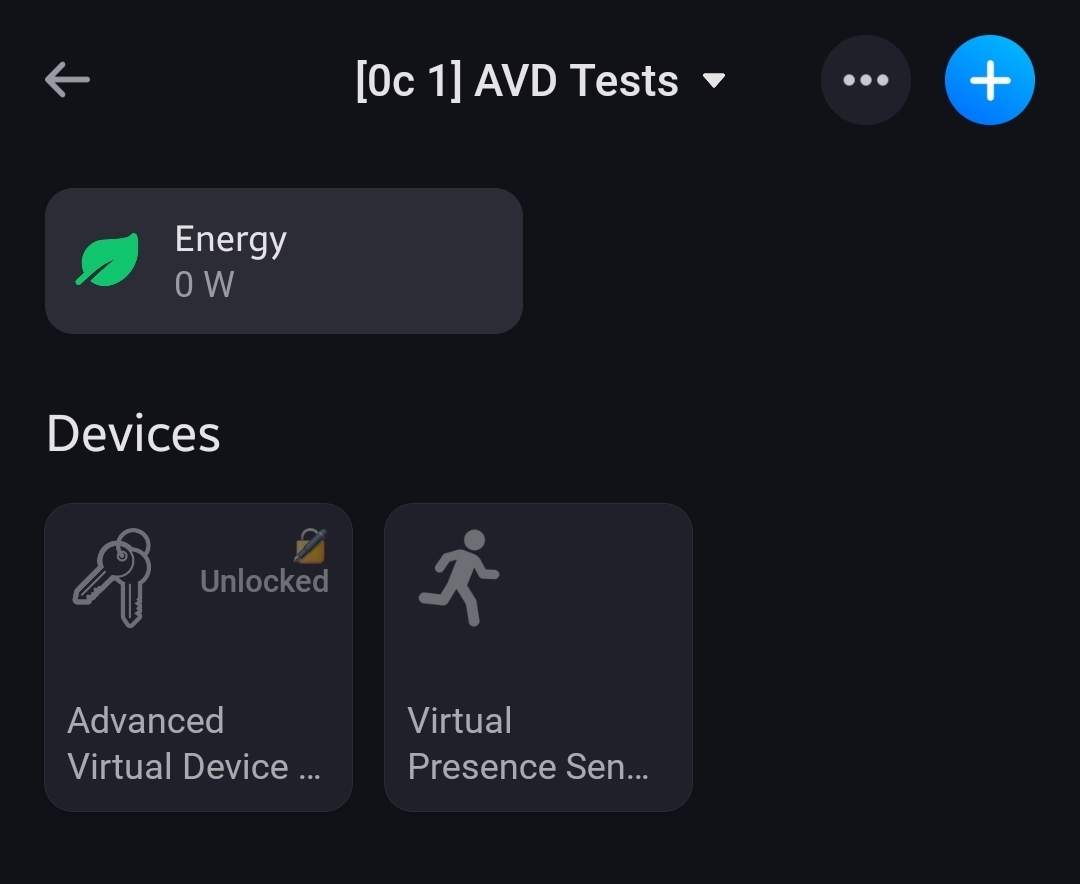
Community screenshot: custom reflected status text is shown on Homey device tiles.

Community screenshot: reflection and expression settings for the lock-status example.
The post reports increased resource use with many such reflected statuses and shows a Flow-based alternative. Treat this as a reported experience, not a fixed limit on how many expressions you can use.
This Chronograph example shows an AVD text field reflecting Chronograph → Remaining duration. Install Chronograph and BLL, select your chronograph, and use:
time("M:ss")This displays total minutes and the remaining seconds component. For an
hours/minutes/seconds display, use time("H:mm:ss").

Community screenshot: the reflected remaining duration is formatted as minutes and seconds.
Here Device Capabilities supplies the reflected duration to BLL, so the
expression can omit the duration argument. In an ordinary BLL expression
card there is no reflected duration: supply it explicitly, for example
time("H:mm:ss", 3723000), which produces 1:02:03.
To show elapsed time, select the corresponding Chronograph property.
See time for total-versus-component format codes and zero-value
caveats.
The stopwatch reflection walkthrough demonstrates two AVD fields reflecting the same Chronograph stopwatch:
- A number field reflects its elapsed duration without a BLL expression.
Device Capabilities converts the duration to seconds. The example uses zero
decimals and the unit
seconds. - A text field uses a BLL expression to format the elapsed duration as readable time, rather than a plain number of seconds.

Community screenshot: Device Capabilities reflects the stopwatch duration as seconds in a number field.
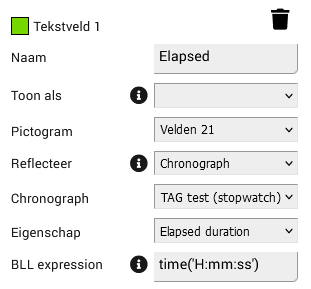
Community screenshot: the companion text field uses BLL to format the same duration.
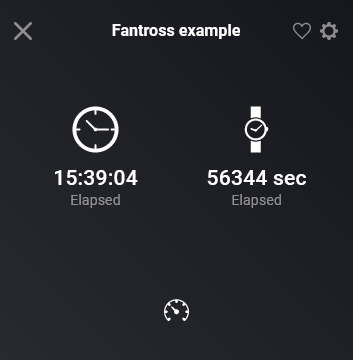
Community screenshot: the device displays both the numeric and formatted stopwatch values.
The post demonstrates updates after pausing or resuming without an extra Flow. Numeric duration display is a Device Capabilities feature; BLL adds the formatting for the text field.
This AVD forum answer gives this expression for a reflected duration:
time("DD:hh:mm", $value)For 90061000 milliseconds, the result is 01:01:01: one day, one hour
and one minute. Uppercase DD is total days; lowercase hh and mm
are the hour and minute components. This is useful for longer running
activities where a total-seconds display is difficult to read.
The original reflection announcement shows both BLL variable reflection and a button reflecting a Chronograph's running state.
Select Better Logic Library as the source, then the variable and property. You can mirror the value directly; a BLL expression is only needed when you want to transform or format it:

Community screenshot: choose Better Logic Library as the reflection source, then select a variable and property.
For a running-state indicator, select Chronograph and its Running property. The announcement shows a reflected button:

Community screenshot: an AVD button reflects Chronograph's running state.
This state reflection does not itself require a formatting expression. Use BLL when transforming the value or formatting a duration; do not assume every reflection feature requires custom code.
The BLL users discussion recommends an AVD number field when a percentage slider is inconvenient for entering a duration. You can choose a meaningful minimum, maximum, step and title instead.
- Create a BLL number variable, for example
FanMinutes. - Create an AVD number field displayed as a slider, with a suitable range and step.
- Reflect the BLL variable's Value into the field.
- Add a Flow: when this AVD number field changes, set the BLL variable to the card's numeric value tag.
Reflection handles variable-to-AVD updates; the Flow handles slider-to-variable
updates. The name FanMinutes is an adaptation for this guide. Test changes
from both sides, and use a change trigger rather than repeatedly writing the
same value through a set trigger.
This virtual power example
uses a BLL number variable called test_power_value and an AVD slider.
The field reflects that variable and provides a convenient test input.
The screenshot configures a range of -500 to 3500 with step 5;
choose values appropriate to your own test. It enables a real field and
Flow cards, and creates a tag.

Community screenshot: an AVD slider is used to change a test-only BLL number variable.
The illustrated Flow sends a notification containing the changed slider value to check the test output:

Community Flow screenshot: a change trigger sends the slider value in a message.
To also write slider changes back into BLL, add the variable-setting Flow described above. Keep these simulated values separate from real power measurements, especially if your Flows control equipment or calculate costs.
In this picker example, an AVD text field combines two reflected picker values using Calculation BLL expression:
$values.join(":")Select the hour and minute sources in that order. The post demonstrates
22 and 10 producing 22:10; the resulting AVD text tag is then used
in a Timey trigger, and the post reports the Flow triggering at 22:10.

Community screenshot: hour and minute picker values are joined into a time string.
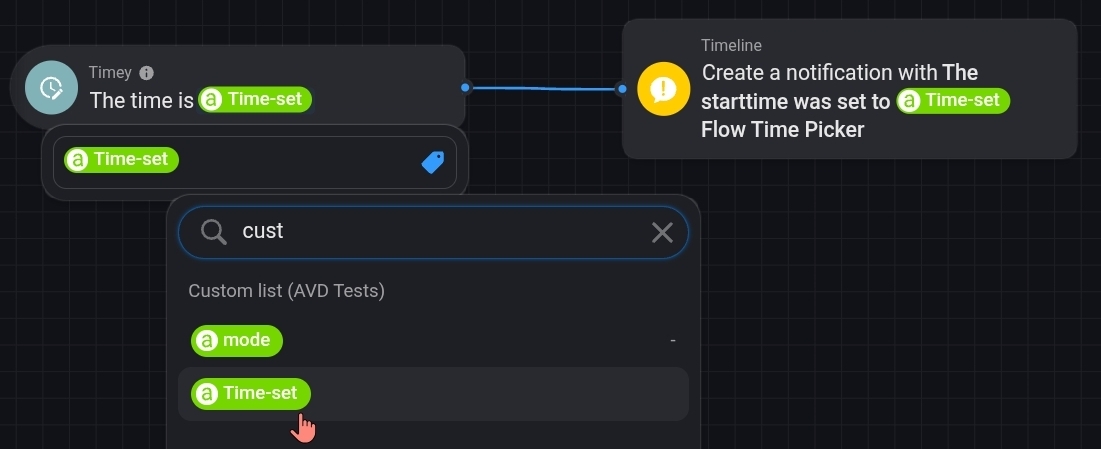
Community screenshot: the resulting text tag is selected as Timey's trigger time.
The same text can be selected as the tile's status indicator:

Community screenshot: the same reflected text is visible on the AVD tile.
Ensure minute picker values have two digits, including 00 through 09.
Joining 7 and 5 would produce 7:5, not the required 7:05. See
Timey for accepted time formats.
These are additional examples based on the reflection inputs supported by Device Capabilities, rather than quotations from a forum post:
| Reflection setup | Bare BLL expression | Purpose |
|---|---|---|
| Reflect a numeric device capability | math.round($value, 1) |
Keep a numeric result rounded to one decimal. |
| Reflect a numeric capability into a text field | number($value, 1, "en-US") |
Display localized text with one decimal. |
| Reflect a BLL variable into a text field | date("HH:mm", $variable.lastChanged) |
Show its last-set time, using the configured time zone. |
| Calculate from multiple numeric device properties | math.mean($values) |
Calculate an average. |
$value is the reflected value; $values contains selected device values
for a multi-source calculation. BLL variable reflection also supplies
$variable, while Chronograph reflection supplies $chronograph.
These names are provided by Device Capabilities: they are not automatically
available in an ordinary BLL expression card. Match the result to the target
field's type; number(...) and date(...) return text.
See the BLL supported-app list, Device Capabilities topic and AVD guide.