Repository navigation
Maps Examples
Home / Flows / Flow examples
Start with Google Maps setup. These examples use public locations and manual starts in Advanced Flow. Add a Maps device for the first and third examples. The fresh-estimate condition does not need one. Save each Flow before testing it. Avoid putting private routes or full error logs in public screenshots.
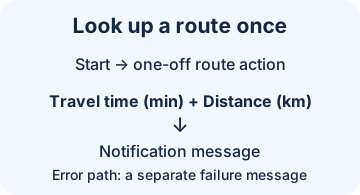
Illustration: both numbers in the message come from the action in this run.
- Add a Maps device if you don't already have one. Connect Start to its Calculate a one-off Google Maps route action. It ignores the saved trip.
- Set From to
52.3780, 4.9008and To to52.3600, 4.8852(public coordinates in Amsterdam). Choose the typed entry for each. Set Mode to Foot. - Connect the action's success path to a Homey notification action. In its message, insert Travel time (min) followed by
min,and Distance (km) followed bykm. Optionally add Open in Google Maps if you want to open directions. - Connect the action's error path to a separate notification, such as
Maps estimate failed; check the key and route.Save and run.
Expect a time and distance, not fixed numbers. If you get the error, try a public route with known access and check Maps troubleshooting. This action does not change devices or request an image.
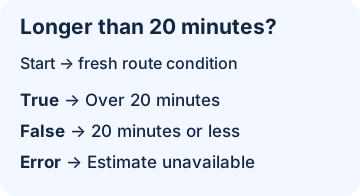
Illustration: “not longer” and “could not calculate” are different outcomes.
- Add Google Services → A new route estimate takes longer than a limit (the app condition). Use the same coordinates and Foot mode as above. Set Minutes to
20. Connect a manual Start to the condition. - Connect the true path to a notification with
The walk is estimated to take more than 20 minutes.Connect the false path toThe walk is estimated to take 20 minutes or less. - Use the error path for
Could not estimate the walk.Save and run. Expect one message for the path taken.
The condition compares the unrounded estimate and does not output the calculated minutes. Don't add this condition after the one-off action just to compare its result: that would request a second estimate. If you already have the action's Travel time (min) output, compare that token using a Homey Logic number condition instead.
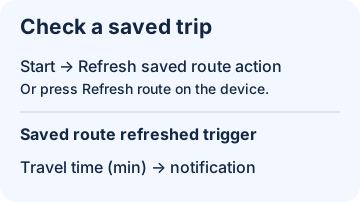
Illustration: the refresh action has no output tokens. The device trigger supplies the minutes.
- Add a Maps device. For a practice route, use the public coordinates above with Walking and leave Show route image off.
- In an Advanced Flow, connect a manual Start to the device's Refresh saved Google Maps route. For error handling, connect the action's error exit to a notification such as
Saved trip refresh failed. Check the Maps device. - In the same Advanced Flow, add the separate Saved route refreshed trigger on that device. Connect it to a notification action. In the message put
Saved trip:, the trigger's Travel time (min) token andmin. Save. Press the manual start or the device's Refresh route. - Expect a new Last refreshed reading and a message with the current minutes, even on the first successful refresh. The trigger paths are independent: don't connect either trigger back to a refresh on the same device.
To notify only over a threshold, insert the device condition Travel time exceeds a limit between the refreshed trigger and the notification, set it to 20 and connect the true path. If testing outside the refreshed path, check Saved route results are available first and remember that a stored reading can be old.
To report changes rather than every result, use Travel time changed and put Previous travel time (min), Travel time (min) and Travel time change (min) into the message. It needs two different readings. To report errors from device-button refreshes too, use Saved route refresh failed → Error in a private notification instead of the action-only error message.
Once the manual test works, you can replace Start with one daily time trigger. Each scheduled refresh can count towards usage and billing; avoid frequent schedules or automatic retry loops.