Home
Original AltDrag Documentation: https://stefansundin.github.io/altdrag/doc/
Download latest build here: https://github.com/RamonUnch/AltDrag/releases
Use chocolatey package: https://chocolatey.org/packages/altdrag
After installing chocolatey use the command prompt as follow:
choco install altdarg
choco upgrade altdrag
choco uninstall altdrag
If you want to install/upgrade or uninstall altdrag.
Note that those tricks are mostly the same than for the Original AltDrag
- AltDrag will not bring windows to front by default. Press Ctrl to bring the window to front, or configure AltDrag to do that automatically.
- AltDrag will mimic Aero Snap by default, so try dragging windows to the edges of your monitor. Corners work too!
- If you use multiple monitors, you can hold Ctrl or Shift while dragging to trap the window within the current monitor. This is particularly useful if you want to Aero Snap at edges between monitors.
- While dragging, windows borders will snap to each-other. This behavior can be changed in the config. If you disable it you can still press Shift while dragging to force windows borders to snap to each other.
- If you have automatic snapping enabled, you can temporarily disable it by pressing the space bar while dragging.
- If you are moving a window you can press the right mouse button to toggle the maximized state.
- If you use the scroll wheel to change the volume, you can hold shift to increase the rate the volume is changed. If you use the scroll wheel to change the transparency, you can hold shift to decrease the rate the transparency is changed.
- If you have Scroll inactive windows enabled, you can hold the Shift key to scroll horizontally. Note that this requires that the program has support for normal horizontal mouse wheel scrolling, which not all programs have.
- If you can't move a particular window, try elevating AltDrag. Normal programs can't interact with programs that are started with administrator privileges.
- If you need to Alt+Click on a program and do not want to blacklist the program, you can use the Winkey instead of Alt. If this is not enough or if you do not want to use the Winkey, you can hit Ctrl and release it while keeping Alt pressed and then click.
- A key combo can be used in order to activate AltDrag, this allows using Alt+Winkey to drag windows and leaves alone the Win+Click and the Alt+Click that some programs may require.
- Try to add the Shift modifier key for any action, usually it has an effect.
By default when lunching AltDrag, an icon will be displayed in the tray.
- Icon can be left-clicked to enable/disable AltDrag.
- Icon can be right-clicked to display a menu
- Icon can be middle-clicked to open the AltDrag.ini file (Advanced users only).
- In the tray menu, the topmost option is to Enable/Disable AltDrag.
- You can also hide the tray. If you want the tray back, lunch AltDrag again.
- You can also Elevate AltDrag to administrator privilege until next restart.
- You can select the Configure or About option and a dialog box with several tabs will open. See next section for more details.
- Finally you can Exit AltDrag.
- The first thing you may want to modify in this section is the Language. If you think that a translation needs improvement or if you want to make a new translation have a look at Issue #32.
- If you want windows to be automatically focused when you drag them (like when you drag them via the title bar), then you probably want to check the first option Focus Windows when dragging, this way you will not need to press Ctrl.
- If you do not want windows to automatically snap to fill a fraction of the monitor when you drag it towards the edges, then disable the Mimic Aero Snap option. The threshold from the monitor edge at which snapping occurs can be changed in the Advanced tab
- For Windows 8 and below only you can check the Scroll inactive windows option. It is useless on Windows 10 because it is built in by default in the OS.
- You can enable/disabl the support of Multiple Document Interfaces (MDI) using the MDI support option see Issue #47 for more details.
- If you do not use desktop composition under Windows Vista/7 or below, then for improved performances you can uncheck the Drag full windows option. In this case only a hollow square will be displayed when moving a window.
- By default AltDrag does resize all the windows. If you want AltDrag to resize only windows that are designed to, you can uncheck this option.
- the Snap windows edges drop-list option serves to select how windows borders will snap to screen borders and possibly outside of windows or finally even inside windows. The option can be disabled and all edge-to-edge snapping can be enabled by holding Shift for the movement. The threshold in pixels for which snapping should occur can be set in the Advanced tab.
- By default when you resize a window from the central region, the windows resizes in all directions. This can be changed to the bottom-right mode or into a Move window.

- You can finally ask AltDrag to automatically start at logon. Checking the option will add AltDrag to
HKCU\SOFTWARE\Microsoft\Windows\CurrentVersion\Run, If you want you can check Hide tray and.or Elevate to administrator privilege. In this case you will be prompted by the User Account Control (UAC) if you have not disable it. See Setup autostart section fore more options.
As seen below you can select the action for each mouse button in a drop list. Only 5 buttons are supported because of a limitation of the Window API. For each button an action can be chosen among the following list:
- Move Window: default for the left click. If you double-click it will Maximize/restore the pointed window, If you add shift while double-clicking, it will roll/unroll the window, and if you add Ctrl, it will minimize the window.
- Resize Window: default for the right click. If you double-click it will Aero-Snap the windows on the current monitor depending on where you double-clicked on the window. If you add Shift for the double-click it will extend the double-clikced side/border to the nearest monitor side. If you double-click in the center fraction with Ctrl modifier it will maximize/restore the window.
- Close Window: behaves like clicking on the close button of the window, if you add
- Kill Program: directly kills the program, use with caution!!!
- Minimize window: behaves like clicking on the minimize button in the window.
- Maximize window: Maximize/restore the pointed window; if you press Shift it will minimize the window instead (default for middle click).
- Lower window: pushes the window to the back; if you press shift it will minimize the window instead.
- Roll/Unroll window: Roll/unroll the windows in its title bar.
- Toggle always on top: Forces a window to be always on top of others, click again to disable.
- Toggle borderless: Remove the windows borders and title bar. Use Shift if you want to only remove title bar and not the resizing borders.
- Center window on screen: Center the clicked window on the monitor in which the cursor is.
- Action menu: If you want to have all the above options available use this one: It will popup a menu with all previously listed options.
- Nothing

For the scroll wheel, an action can be selected too but the options are not all the same:
- Alt+Tab: will let you use the scroll wheel to switch focus between windows. It is similar to the Alt+Tab shortcut with the difference that it supports MDI windows and also ignores all the minimized windows.
- Volume: changes the global volume for windows Vista and later and only changes the waveOut volume for windows XP and below. Use Shift if you want to increase the rate at which the volume is changed.
- Transparency: Adjust the transparency of the pointed window with the wheel. Use shift to decrease the rate at which transparency changes. This action requires Windows 2000 or later and can be more finely configured by editing the ini file.
- Lower window: Lower the window on scroll down, pushes the window to the front with wheel Up, use shift to minimize/maximize.
- Roll/Unroll window: roll the window in its title bar with wheel up and unroll on wheel down.
- Maximize window: Wheel up will maximize the window, wheel down will restore a maximized window and minimize a normal window.
- Nothing
You then got a couple more options. You can check the
- Lower windows by middle clicking on titlebars, again use Shift modifier to minimize.
- Roll/Unroll windows with Alt+Scroll on title bars. behaves like the corresponding scroll action, scroll up will roll and scroll down will unroll.
This version of AltDrag allows to be activated with a mouse button. You can check the buttons you want to use, however be careful as the button will be reserved by AltDrag if it is checked. This is why I recommend using only extended buttons. Another notable feature is that if the button is also setup for an action, the action will then automatically performed upon its press. so if you set for example Mouse Button 4 to Move window and as an activator (Hotclikc) then you simply will need to press the Mouse button 4 in order to move a window.
is one of the most important part of the configuration and especially the Hotkeys bottom section lets you chose with which keys AltDrag will be activated. Default is left and right Alt, you can select the left and/or right WinKey or Ctrl. Ctrl is not recommended though because Ctrl+click is a very common shortcut in windows.
By default AltDrag will activate if you press any of the selected Hotkeys, however you can Use a two keys combo to activate and in this case you will need to have two of the keys to be pressed at the same time for AltDrag to activate. in this section you can also chose a key that when pressed will Invert move and resize actions. this can be used if you want to use a the same mouse button to move and resize a window by using a different key combo more details in the the I got only one buttonsection.

In the top Keyboard section you can select an Action without click: from the same list as the actions available for mouse buttons. this is useful especially for a touch-pad configuration, where you do not want to press a key and click at the same time. Of course it is more intrusive and not recommended for typical keyboard+Mouse config and also the key combo option is also recommended in this case.
Finally you have two special options that enable keyboard only shortcuts.
- Pause process on Alt+Shift+Pause (Alt+Pause to resume), that can come handy for some special cases but relies on undocumented API available only in Windows XP and later. Use with caution.
- Kill Process on Ctrl+Alt+F4, that insta-kill the pointed program. be careful again with this option and only use on programs that can not be closed and that windows takes forever to terminate. Again use with caution
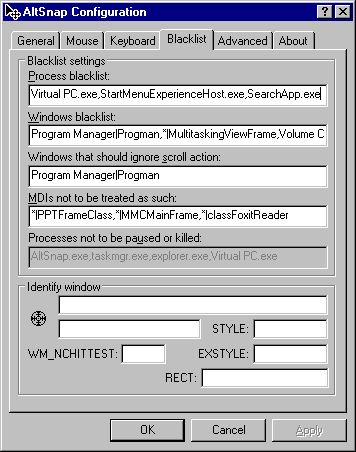
Sometime an AltDrag action interacts with a window you do not want. For example if you use Alt+Click on a specific window and you do not want AltDrag to move the window you can add the window name to the windows blacklist. more details below: All the list are coma separated and take no spaces before the coma. A space can be present in the item itself or before the item.
-
Process blacklist: List of programs names for which move/resize from
AltDrag as well as the scroll actions are disabled. Example:
Notepad.exe -
Windows blacklist: List of windows with the title|class format for which
move/resize actions from AltDrag will be disabled
Example:
Program Manager|Progman,|Shell_TrayWnd,*|Notepad -
Windows that should ignore the scroll action: List of windows with the
title|class format that for which the scroll action of AltDrag will not
apply. Example:
*|Photoshop -
MDIs not to be treated as such: List of windows for which AltDrag will not
try to find MDI subwindow. This only applies if the Support MDI is enabled
and by default contains
*|PPTFrameClass,*|MMCMainFramewhich correspond to the PowerPoint window and all the Microsoft Management application such as the services.msc windows or the device drivers window. - Process not to be paused or killed: Only applies for the Pause and kill action when enabled on Alt+Shift+Pause of Ctrl+Alt+F4, this are program names.
Program names are pretty straightforward to find. However a finer control can
be done using the window's title|class information; they can be found for a
specific window using the small target in the identify window section of the
Blacklist tab. You can include all the possible names by using the *|class
format. This is useful for most programs that have a non-constant title, for
example notepads title is actually the name of the file you are currently
editing.
The other way around can be used and you can specify title|* which means that
all the windows that have this title regardless of their class name will be
blacklisted. This is a much less common usage.
The title can also be empty for example: |Shell_TrayWnd corresponds to the
Windows task bar and has an empty title.
Finally more blacklists can be found in the AltDrag.ini file:
-
Snaplist: List of windows with the
name|classformat to which other windows should snap. By default windows that have no borders cannot be snapped to. -
MMBLower: List of windows that should not be lowered with mouse middle
click on the title bar. Default:
*|CASCADIA_HOSTING_WINDOW_CLASSthat corresponds to the Windows Terminal window. -
SSizeMove: List of windows to which the WM_ENTERSIZEMOVE / WM_EXITSIZEMOVE messages will not be sent. This is useful for some buggy applications such as iTunes. Keep the default value (
*|iTunes), unless you know what you are doing.
List of issues in which blacklist was a solution:
- Question about scroll action: https://github.com/RamonUnch/AltDrag/issues/25
- Full screen application problems: https://github.com/RamonUnch/AltDrag/issues/32
- Problem with Foxit PDF reader (fake MDI): https://github.com/RamonUnch/AltDrag/issues/47
- More scroll problems: https://github.com/RamonUnch/AltDrag/issues/48
- Problems with Microsoft Windows Terminal: https://github.com/RamonUnch/AltDrag/issues/11
The advanced tab is mostly reserved to very special settings but many of you will want to have a look in order to get the bet out of AltDrag. You have a Metric section at the top and a Behavior section at the bottom.
To test toses metrics option, I advise to click on the Test Window button. it will display a window with the 9 resizing regions drawn.
- Center fraction (%): fraction of the Central region. default is 24%, in very old AltDrag versions it was 33%, You can set any value from 0 to 100. If you set 0, then there will be no central region and just 4 "corner" quadrants. If you set 100 you will have only the a central region. This can be combined with the Bottom-right center resize mode in order to resize in Bottom-right mode on all the window.
- Areo offset (%) Horizontal: and Vertical: Both goes from 0-100% and adjust the position in fraction of the monitor at which the Aero-snapped windows will meet both horizontally and vertically (default is 50:50). For example if you set 66% for the horizontal offset then a window snapped to the left will occupy 66% of the monitor width and the 34% will be use for windows snapped to the right. same for top and bottom fraction using the Vertical option.
- Snap Threshold (pixels): lets you adjust the distance in pixels between the edges of two windows at which the moved windows will be snapped to the borders of the other or of the monitor. default value is 20 pixels.
- Aero Threshold (pixels): lets you adjust the distance in pixels between the cursor and the side of the monitor below which the window will be Aero-snapped to fill a fraction of the monitor. Default is 5 pixels. You may want to increase this value if you use multiple monitors and want to snap windows between the two monitors without pressing Ctrl or Shift.
- Max snapping speed (pixels): let you adjust the speed (in pixels moved every 32ms) beyond which a AltDrag will no longer try to perform any snapping. This is useful in a multiple monitor setup if you do not like to see windows sanp/unsnap on their way when moved between monitors. The default value is 65535 which disables the speed calculation alltogether. good values are in the 10-100 pixels/32ms range. Try with 64 then adjust by testing.
- Opacity when moving: If you set this value between 1 and 254, the transparency of the window will be changed when you move or resize it. 255

There are some known bugs that cannot be fixed by modifying AltDrag, as well as some bugs that I still have no no clues on how to fix. Here is a list of the most common problems encountered by my users and how to fix them.
If you are using complex shortcuts implying Alt+clicks or Alt+scroll wheel in a program you probably want to blacklist it so that AltDrag does not interact with it. See the above Blacklists section for more details. Also keep in mind that you can disable temporary AltDrag if you are playing a game, and you can use the Win Key as a hotkey or even a two key combo to minimize interactions with other programs shortcut.
This is a common issue and the reason is that with Windows Vista and later you can have a window in your current user desktop that is elevated to administrator privilege. Those windows will capture the input without AltDrag being informed. This is a very good idea because it means that all normal programs will be unable to check the passwords you type in your admin programs.
If you want to be able to move the elevated windows with AltDrag you need to run it elevated. You can do this temporarily by using the "Elevate" option in the tray menu (the UAC will prompt you). You can also do it automatically when AltDrag starts in the General tab.
This is probably for the same reason as above. By default AltDrag will install in your %AppData% directory, but many of you will prefer to install it in the Program Files (x86) directory. In this later case you need AltDrag to be run Elevated if you want to edit the config, because it is for now saved as AltDrag.ini in the AltDrag directory.
This may occur like with the original AltDrag, only with Windows 8 and below when you enabled the Scroll inactive windows option. I do not know a good way to fix the problem. however the beep sound can be removed using the following reg teak:
; Disables the system beep sound
; Copy paste this text in notepad,
; then save the file with the .reg extension and double-click it.
REGEDIT4

[HKEY_CURRENT_USER\Control Panel\Sound]
"Beep"="No"
You can also use this command in the command prompt (not admin):
REG add "HKCU\Control Panel\Sound" /v Beep /t REG_SZ /d No /f
By default since Windows XP Microsoft decided to hide the accelerators keys in all the menu and dialog boxes unless you press the Alt key. This is very annoying for all the options you did not learn by heart using older windows and this is also a problem for newer programs. If you want to be able to see the accelerator keys underlined in the action menu, the only way id to enable the global setting to see all accelerators underlined. You can use this reg:
; Enables the underline display of accelerators/shortcut keys.
; Copy paste this text in notepad,
; then save the file with the .reg extension and double-click it.
Windows Registry Editor Version 5.00

[HKEY_CURRENT_USER\Control Panel\Accessibility\Keyboard Preference]
"On"="1"
Or the following in the command prompt
REG add "HKCU\Control Panel\Accessibility\Keyboard Preference" /v On /t REG_SZ /d 1 /f
You will then see the shortcut keys with an underline:
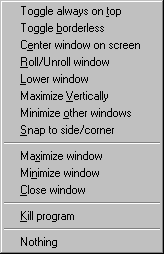
You then just have to hit the corresponding key to activate the option, ie: the 'T key' to toggle the Always on top state.
This can happen if the the restore/minimize animation is enabled. If you want to fix the problem you need to disable this animation. In general it should not be enabled by default under latest windows, but it may occur on older versions. To disable use this reg:
; Disables the minimize/restore animation.
; Copy paste this text in notepad,
; then save the file with the .reg extension and double-click it.
REGEDIT4

[HKEY_CURRENT_USER\Control Panel\Desktop\WindowMetrics]
"MinAnimate"="0"
If you want a single click configuration there are two options:
- Set the Center resize mode to Move in the General config tab and set the action of your click to Resize. In this case the window will move when you Alt+click on its central fraction and will be resized on the sides/corners. You also probably want to increase the Center Fraction value in the Advanced tab.
- The other way is to use the Invert move and resize action with: option in the Keyboard tab. You can then for example use Alt and Win keys as hotkeys and set the invert key to Win key. In this case using Win+Click will resize and Alt+Click will move. This is just an example!
As seen previously you can set up AltDrag to start automatically, however with the default settings the User Account Control (UAC) will prompt you to authorize AltDrag to run elevated. You can disable UAC if you really hate to be prompted but it is not necessary as you can solve the problem without disabling UAC by setting up a schedule task. As described in Issue #52.
SOLUTION 1: Use my config
- Download this AltDrag-task.zip file.
- Extract its content: AltDrag.xml (also included in AltDrag's directory since 1.43)
- In the Task Scheduler, select Action->Import Task... and select the AltDrag.xml file
- Go into the Actions tab, double click on the path to AltDrag.exe and Update it.
SOLUTION 2: Manual config Parameters for the task:
- Run as Users and highest privilege

- Enable AltDrag autostart even when disconnected from AC Poser:

- Do not kill AltDrag After 3 days!

- Add a 10s delay to startup to avoid AltDrag being lunched before the session fully initialized.
