Repository navigation
Advanced Contraption Controller
The Advanced Contraption Controller is a programmable node graph editor allowing for complex logic and control using a blueprint style interface.

- Getting Started
- Nodes
- Port Types
- Wiring
- Best Practices
- Inputs and Outputs
- Named Events
- Functions
- Function Plotter
- Graph sharing
- FAQ
Place down an Advanced Contraption Controller and use Sneak + Use to open the Node Graph GUI.
You can select one of the Templates or a Blank graph to get started.
Assuming you selected Blank the general layout of the GUI is:
- Left hand sidebar: Node browser.
- Center Graph: Graph workspace.
- Right hand sidebar: Node configuration, variable selection, and block target selection.
Holding Shift while hovering over a node in the Node Browser sidebar will show a summary explanation of what that node does.
Event Nodes
| Node | Inputs | Outputs | Description |
|---|---|---|---|
| On Update | - | Execution | Pulses once every game tick. |
| Periodic Pulse | Interval | Execution | Pulses at a configurable interval. |
| On Value Changed | Value | Execution, Value | Pulses when the supplied value changes. |
| Delta Time | - | Value | Returns delta time. |
| On Channel Change | Key | Execution, Value | Pulses when the channel changes. |
| On Graph Ready | - | Execution | Pulses when the node graph has finished loading and is ready to run. |
| On Graph Event | - | Execution | Pulses when its configured graph event is triggered. |
| On Named Controller Event | Event | Execution, Data | Pulses when a Send Named Controller Event node with the same event name is pulsed. |
| Send Named Controller Event | Execution, Data, Distance | Execution | Pulses On Named Controller Event nodes with the same Event name and transmits data. |
| On Physical Interaction | - | Execution, (Event Data) | Pulses when a player interacts with the controller. |
| On Redstone Change | - | - | NYI. |
| On Variable Change | - | Execution, Value | Pulses when the supplied variable changes. |
Sensor and I/O Nodes
| Node | Inputs | Outputs | Description |
|---|---|---|---|
| Configured Key Input | Key | Execution, Active, Value | Pulses when the configured Key is pressed. |
| Configured Key Output | Execution, Value | Execution | Sends a value to the configured controller output. |
| Direct Target Output | Execution, Target, Value | Execution | Sends a quantized redstone signal strength to the target block. |
| Discovered Target Input | Target | Execution, Active, Value | Pulses when receiving a redstone signal from the target. |
| Gamepad Input | Key | Execution, Active, Value | Pulses and returns an analogue value from a gamepad event. |
| Goggles Tracker | - | Multiple | Returns information about the wearer and location of the paired Smart Glasses. |
| Linker Face Input | Target, Face | Execution, Active, Value | Pulses when receiving a redstone signal from the target face. |
| Linker Face Output | Execution, Target, Face, Value | Execution | Outputs a redstone signal strength to the target face. |
| Local Redstone Input | - | Execution, Active, Value | Reads a local controller redstone signal. |
| Local Redstone Output | Execution, Value, Face | Execution | Outputs a redstone signal on the selected controller face. |
| Mouse Input | MouseInput, Reset Axis, Timeout | Execution, Active, Value | Allows mouse control to be used with the Advanced Contraption Controller. |
| Play Sound | Execution, Stop, Loop, Pitch, Sound, Volume, World, XYZ | Execution | Plays or stops a sound. |
| Redstone Link Input | Frequency | Execution, Active, Value | Pulses when receiving a redstone signal strength on the set frequency. |
| Redstone Link Output | Execution, Frequency, Value | Execution | Outputs a redstone signal strength on the set frequency. |
| Controller Tracker | - | Multiple | Returns the controller holder, position, and identity. |
| Reset Outputs | Execution | Execution | Clears the controller's active outputs. |
Flow and Logic Nodes
| Node | Inputs | Outputs | Description |
|---|---|---|---|
| And | A, B | Boolean | Outputs TRUE if both inputs are TRUE. |
| Branch | Execution, Boolean | Execution (TRUE), Execution (FALSE) | Logical IF statement, pulses TRUE or FALSE when pulsed based on Boolean. |
| Compare | A, B, Operator | Boolean | Compares both inputs using an operator and outputs TRUE or FALSE. |
| Edge Detector | Boolean | Falling (Boolean), Rising (Boolean) | NYI. |
| Flip-Flop | Execution | Boolean | Alternates between TRUE and FALSE when pulsed. |
| Gate | Execution | Execution, Open (Boolean) | Allows Execution to flow through only when Open is TRUE. |
| Latch | - | - | NYI. |
| Not | Boolean | Boolean | Inverts a Boolean. |
| Or | A, B | Boolean | Outputs TRUE when either input is TRUE. |
| Pulse On Change | Value | Execution | Pulses when Value changes. |
| Select Data | Condition (Boolean), True (datatype any), False (datatype any) | Value | Outputs either True or False input value depending on the Boolean condition. |
| Switch | Type, Selector | Execution or Data | Selects the zero-based execution output in Execution mode, or returns the selected Data case in Data mode; falls back to Default. |
Math Nodes
| Node | Inputs | Outputs | Description |
|---|---|---|---|
| -x | Value | Value | Inverts a number between positive and negative. |
| Acos | Number | Value | Outputs the arccosine of a number in radians. |
| ASin | Number | Value | Outputs the arcsine of a number in radians. |
| Absolute | Number | Value | Returns the number without a negative sign. |
| Add | A, B | Value | Adds both numbers together. |
| Atan | Number | Value | Outputs the arctangent of a number in radians. |
| Atan2 | X, Y | Value | Outputs the arctangent of Y divided by X in radians, using the correct quadrant. |
| Average | A, B | Value | Outputs the average of both numbers. |
| Ceil | Number | Value | Rounds a number up to the nearest whole number. |
| Clamp | Min, Max, Value | Value | Keeps a number between the chosen minimum and maximum. |
| Cos | Value | Value | Returns the cosine of a number. |
| Curve | Value, Min, Max, Speed | Value | Maps a clamped value through a drawn curve. |
| Divide | A, B | Value | Divides A by B. |
| Euler to Quaternion | Euler (map) | Quaternion (map) | Converts ZXZ Euler angles in radians to Quaternion. |
| Euler to Tait Bryan | Euler (map) | Tait-Bryan (map) | Converts ZXZ Euler angles to XYZ Tait Bryan angles, using radians. |
| Exp | Number | Value | Outputs e raised to the power of a number. |
| Floor | Value | Value | Rounds a number down to the nearest whole number. |
| LN | Number | Value | Returns the natural logarithm of a number. |
| Log | Base, In | Value | Returns the logarithm of a number using the selected base. |
| Lerp | Execution, A, B, Amount | Execution, Value | Blends between 2 numbers by the chosen amount. |
| Map Range | In Min, In Max, Out Min, Out Max, Value | Value | Converts a number from one range to another. |
| Max | A, B | Value | Outputs the larger of both numbers. |
| Min | A, B | Value | Outputs the smaller of both numbers. |
| Modulo | A, B | Value | Outputs the remainder after dividing A by B. |
| Moving Average | In, Samples | Average | Averages the most recent values to smooth a noisy number. |
| Multiply | A, B | Value | Multiplies both numbers together. |
| Peak | In | Max, Min | NYI. |
| Power | Base, Exp | Result | Raises the base number to an exponent. |
| Quaternion to Euler | Quaternion (map) | Euler (map) | Converts Quaternion into ZXZ Euler angles, using radians. |
| Quaternion to Tait Bryan | Quaternion (map) | Tait Bryan (Map) | Converts Quaternion into XYZ Tait Bryan angles, using radians. |
| Random Float | - | Value | Returns a random float value between 0.0 and 1.0. |
| Random Float In Range | Min, Max | Value | Returns a random float value within the min/max range. |
| Random Int | Max | Value | Returns a random whole number. |
| Random Int In Range | Min, Max | Value | Returns a random whole number within the min/max range. |
| Round | Value | Value | Rounds a number to the nearest whole number. |
| SQRT | In | Out | Returns the square root of a number. |
| Sin | Value | Value | Returns the Sine of a number. |
| Subtract | A, B | Value | Subtract B from A. |
| Tait Bryan to Euler | Tait Bryan (map) | Euler (map) | Converts XYZ Tait angles to ZXZ Euler angles using radians. |
| Tait Bryan to Quaternion | Tait Bryan (map) | Quaternion (map) | Converts XYZ Tait angles in radians to Quaternion. |
| Tan | In | Out | Outputs the tangent of an angle in radians. |
| Value Delta | In | Delta | Outputs the change in value since the previous graph tick. |
| Vector Add | A (map), B (map) | Value (map) | Adds both vectors together. |
| Vector Difference | A (map), B (map) | Value (map) | Returns the absolute difference between both vectors on every axis. |
| Vector Distance | A (map), B (map) | Value (number) | Returns the distance between both vectors. |
| Vector Magnitude | A (map) | Value (number) | Returns the length of the vector. |
| Vector Invert | A (map) | Value (map) | Negates every value in the vector. |
| Vector Multiply | A (map), B (map) | Value (map) | Multiplies the X,Y,Z values of both vectors together. |
| Vector Subtract | A (map), B (map) | Value (map) | Subtracts Vector B from Vector A. |
Core and Variable Nodes
| Node | Inputs | Outputs | Description |
|---|---|---|---|
| Number | - | Value | Outputs a configured number. |
| Boolean | - | Value | Outputs a configured TRUE or FALSE value. |
| Text | - | Value | Outputs configured text. |
| Reroute | Value | Value | Passes a value through to keep long or crossing wires readable. |
| Sticky Note | - | - | Adds a note to the graph. It has no runtime behaviour. |
| Image | - | - | Adds an image reference to the graph. It has no runtime behaviour. |
| Get Variable | - | Value | Returns the current value of the selected graph variable. |
| Set Variable | Execution, Type, Default, Value | Execution, Value | Writes a graph variable and returns the value that was written. |
Game Profiler Nodes
| Node | Inputs | Outputs | Description |
|---|---|---|---|
| FPS | - | Value | Returns the current frames per second. |
| MSPT | - | Value | Returns the current milliseconds per tick. |
| TPS | - | Value | Returns the current ticks per second. |
| Frametime | - | Value | Returns the current frame time. |
Execution Nodes
| Node | Inputs | Outputs | Description |
|---|---|---|---|
| Do Once | Execution, Reset | Execution | Lets the first pulse through, then waits for Reset. |
| Do N | Execution, Count, Reset | Execution, Index | Lets a configured number of pulses through and returns the zero-based pulse index. |
| Bounded Loop | Execution, Iterations | Body, Complete, Index | Pulses Body once for each bounded iteration, then pulses Complete. |
| Delay | Execution, Ticks | Execution | Delays a pulse by the selected number of game ticks. |
| Debounce | Execution, Ticks | Execution | Ignores further pulses until the selected number of game ticks has passed. |
| Timer | Start, Stop, Duration | Complete, Elapsed | Starts or stops a timer and pulses Complete when it reaches Duration. |
| Parallel Execution | Execution | Multiple Execution | Sends one pulse to every added execution output. |
| Sequenced Execution | Execution | Multiple Execution | Sends a pulse through its added execution outputs in order. |
| Exec Combine | Multiple Execution | Execution | Combines added execution inputs into one execution output. |
Curves and Response Nodes
| Node | Inputs | Outputs | Description |
|---|---|---|---|
| Ramp | Execution, Value, Rise, Fall, Reset Delay | Execution, Value | Moves the output toward Value using separate rise and fall rates. |
| Step Response | Value, Step | Value | Changes the output in fixed steps toward Value. |
| Deadzone | Value, Start, Resist | Value | Removes small input movement around the chosen start point. |
| Smoothing | Execution, Value, Amount | Execution, Value | Smooths a changing value by the configured amount. |
| PID | Target, Actual, P, I, D, Reset | Value | Produces a proportional, integral, and derivative controller output. |
| LQR Controller | Target, Actual, Gain, Feed Forward, Min, Max | Value | Produces a bounded linear-quadratic control output. |
| ADRC | Target, Actual, Reset, Delta Time, Controller Bandwidth, Observer Bandwidth, Plant Gain, Output Limit | Value, Disturbance | Produces an active disturbance rejection control output and reports its estimated disturbance. |
| ADRC Nth Order | Target, Actual, Reset, Order, Delta Time, Controller Bandwidth, Observer Bandwidth, Plant Gain, Output Limit | Value, Disturbance | Produces an Nth-order active disturbance rejection control output. |
Data Nodes
| Node | Inputs | Outputs | Description |
|---|---|---|---|
| Join Text | A, B | Value | Joins two text values together. |
| Split String | String, Delimiter | List | Splits text at every delimiter. |
| Substring | String, Start Index, End Index | Value | Returns the selected range of text. |
| Find in String | String, Search | Index | Returns the position of text inside another text value. |
| Convert Type | Value | Value | Converts a value to text. |
| Make List | Value | List | Creates a list from its configured and connected values. |
| Get List Value | List, Index | Value | Returns the value at a zero-based list index. |
| Create Structure | Key, Value | Map | Creates a map entry from a key and value. |
| Get Structure Value | Map, Key | Value | Returns the value stored at a map key. |
| Split List | Value | Multiple Values | Breaks a list into dynamic output ports. |
| Break Out | Value | Multiple Values | Breaks a map or structured value into dynamic output ports. |
| Get Data | Target | Data | Reads the selected target block's exposed data. The node adds matching dynamic data ports for the target. |
| Set Data | Execution, Target, Dynamic Data | Execution, Success | Writes the selected target block's exposed data. The node adds matching dynamic input ports for the target. |
| Validate Number | Value | Value, Valid | Passes finite numbers through and reports whether the value is valid. |
String Nodes
| Node | Inputs | Outputs | Description |
|---|---|---|---|
| Split | In, Split On | Out | Splits text into a list. |
| Reverse | In | Out | Reverses text. |
| Append | Source, Text, Separator | Result | Adds text after the source text. |
| Prepend | Source, Text, Separator | Result | Adds text before the source text. |
| Trim | In | Out | Removes leading and trailing whitespace. |
| Replace | In, Find, Replace | Out | Replaces matching text. |
| Length | In | Length | Returns the number of characters in text. |
| Contains | In, Search | Result | Returns TRUE when text contains the search text. |
| Starts With | In, Prefix | Result | Returns TRUE when text starts with the prefix. |
| Ends With | In, Suffix | Result | Returns TRUE when text ends with the suffix. |
| To Upper | In | Out | Converts text to uppercase. |
| To Lower | In | Out | Converts text to lowercase. |
| Parse Into List | In, Delimiter | Array | Splits text into a list using the delimiter. |
| Join From List | Array, Separator | String | Joins list entries into text. |
| Regex | In, Pattern | Matches, Found | Finds text matching the configured regular expression. |
List and Map Nodes
| Node | Inputs | Outputs | Description |
|---|---|---|---|
| Get Index | Array, Index | Item | Returns the item at a zero-based index. |
| Shuffle | Execution, Array | Execution, Out Array | Shuffles a list. |
| Sort | Execution, Array | Execution, Out Array | Sorts a list. |
| Slice | Array, Start, End | Out Array | Returns part of a list. |
| Append | Execution, Source, Append | Execution, Out Array | Appends one list to another. |
| Merge | A, B | Result | Merges two collections. |
| Add | Execution, Array, Item | Execution, Out Array | Adds an item to a list. |
| Add Unique | Execution, Array, Item | Execution, Out Array | Adds an item only when it is not already in the list. |
| Insert | Execution, Array, Item, Index | Execution, Out Array | Inserts an item at a zero-based index. |
| Remove Index | Execution, Array, Index | Execution, Out Array | Removes the item at a zero-based index. |
| Clear | Execution, Array | Execution, Out Array | Clears a list. |
| Find | Array, Item | Index | Returns the zero-based index of an item. |
| Contains | Array, Item | Result | Returns TRUE when a list contains an item. |
| Length | Array | Length | Returns the number of items in a list. |
| Last Index | Array | Index | Returns the last valid zero-based index in a list. |
| Sort Descending | Execution, Array | Execution, Out Array | Sorts a list in descending order. |
| Filter | Array, Key, Value, Operation | Result | Returns list entries that match the configured filter. |
HUD and Display Nodes
| Node | Inputs | Outputs | Description |
|---|---|---|---|
| HUD Element | Label, Visible | - | Creates a basic HUD element for the paired goggles display. |
| Advanced HUD Element | Label, Visible | - | Creates a configurable advanced HUD element. |
| ACC Display Widget | Label, Value, Visible, Layout and Style | - | Draws an interactive widget on an ACC Display. |
| ACC Hologram Widget | Label, Value, Visible, Layout and Style | - | Draws a widget beyond the ACC Display surface. |
| ACC Display Node Graph | Visible, Layout | - | Displays the live ACC graph and its normal interaction on an ACC Display. |
| ACC Display Function Plotter | Value, Visible, Layout | - | Plots a live number on an ACC Display. |
| ACC Display External Source | Visible, Layout | - | Adds a linked computer, monitor, or Display Link as an ACC Display source. |
| ACC Display Ship Information | Visible, Text, Layout | - | Displays ship and navigation information using the configured Ship Information display layout. |
Function Nodes
| Node | Inputs | Outputs | Description |
|---|---|---|---|
| Function | Dynamic Execution and Data | Dynamic Execution and Data | Calls a graph function. Its ports match the selected function's inputs and outputs. |
| Function Inputs | Dynamic Data | Dynamic Data | Defines the data and execution inputs available inside a graph function. |
| Function Outputs | Dynamic Data | Dynamic Data | Defines the data and execution outputs returned by a graph function. |
Ship Control Nodes
| Node | Inputs | Outputs | Description |
|---|---|---|---|
| Initialize Control Module | Execution, Ship Name, Control Mode, Scan Options | Execution, Success, Complete, Progress | Initializes the mounted Ship Control Module's ship and creates its control map. |
| Stop Initialization | Execution | Execution, Success | Stops an active Ship Control Module initialization. |
| Control Module Status | - | Status and Ship Data | Reports attachment, initialization, mapped unit and bearing counts, inertia, map ID, and status. |
| Ship Coupler Status | - | Coupler Data | Reports mapped Ship Couplers and their carriage state. |
| Set Flight Behavior | Execution, Behavior | Execution, Success | Selects how the Ship Control Module turns and moves during scheduled flight. |
| Yaw | Execution, Amount | Execution, Success, Complete | Turns the ship around its yaw axis. |
| Pitch | Execution, Amount | Execution, Success, Complete | Turns the ship around its pitch axis. |
| Pan, Tilt | Execution, Amount | Execution, Success, Complete | Applies the matching bearing movement. |
| Roll | Execution, Amount | Execution, Success, Complete | Turns the ship around its roll axis. |
| Accelerate, Forward, Reverse | Execution, Amount | Execution, Success | Moves the ship along its forward axis. |
| Strafe | Execution, Amount | Execution, Success, Complete | Moves the ship sideways. |
| Ascend, Descend | Execution, Amount | Execution, Success | Moves the ship vertically. |
| Stabilize, Decelerate, Hover | Execution, Strength | Execution, Success | Applies the selected stabilization or stopping behaviour. |
| Climb to Y Level | Execution, Y, Speed | Execution, Success, Complete | Moves the ship to a world Y level. |
| Face Coordinates | Execution, X, Y, Z, Speed | Execution, Success, Complete | Turns the ship to face world coordinates. |
| Dock at Coordinates | Execution, Target, Speed, Tolerance, Rotation Options | Execution, Success, Complete | Navigates the ship to a docking position and orientation. |
| Navigate | Execution, X, Y, Z, Speed, Tolerance | Execution, Success, Complete | Navigates the ship to world coordinates. |
| Follow | Execution, Target, Speed, Distance | Execution, Success, Complete | Follows the selected target. |
| Stop Ship Control | Execution | Execution, Success | Stops active Ship Control Module movement. |
| Couple Carriage | Execution, Endpoint | Execution, Success, Complete | Tells one Ship Coupler, or all couplers, to attach a carriage. |
| Decouple Carriage | Execution, Endpoint | Execution, Success, Complete | Tells one Ship Coupler, or all couplers, to release a carriage. |
| Ship Telemetry | - | Motion, Orientation, Navigation and Collision Data | Reports the mapped ship's live telemetry. |
| Shipping Travel Metrics | - | Route, Fuel and Travel Data | Reports the active Shipping Schedule's travel metrics. |
| Shipping Manifest | - | Route and Stop Data | Reports the active Shipping Schedule's current and upcoming Ship Dock stops. |
Shipping Schedule Nodes
| Node | Inputs | Outputs | Description |
|---|---|---|---|
| Pause | Execution | Execution, Success | Pauses the active Shipping Schedule. |
| Resume | Execution | Execution, Success | Resumes the paused Shipping Schedule. |
| Restart | Execution | Execution, Success | Restarts the assigned Shipping Schedule from its first entry. |
| Skip | Execution | Execution, Success | Skips the current Shipping Schedule entry. |
Port types refer to the ports Data Type and are:
- String: A string.
- Number: A number, can be a float, double, or integer value.
- Map: A collection of named key,value pairs, parsed as a JSON object.
- List: A collection of values, parsed as a table or array.
- Boolean: A Boolean value.
- Target: Always unwired, used in some nodes to specify a target block to read from or write to, like the
Get DataandSet Datanodes. - Any: Type agnostic, accepts any data type.
Ports are color coded and type checked, non-matching types are rejected making it impossible to accidentally incorrectly wire them up.
If you need to convert a string to a number or any other type conversion use the Convert Type node and specify the output data type.
Wiring up nodes is simple, drag a wire from one of the ports and release it on top of the port you want to wire it into, you can release it into empty space on the node graph to open the wiring node browser context menu.
Wires are type checked and color coded, so only matching ports can be wired together.
Some nodes have a White Diamond in their title bar, this is the Execution Port, those ports need to be Pulsed in order for that node to work, nodes without the Execution port are called Passive nodes and function on their own.
Examples of Execution nodes are:
- Set Variable: When pulsed updates the variable with the new value.
- Set Data: When pulsed updates the target block with the new properties.

The On Update node should be used sparingly, ideally not at all, instead if possible opt for using one of the other pulsing nodes like:
- Periodic Pulse
- On Value Changed
- Input Nodes
- Event Nodes
On Update runs every tick which can be very expensive on large Node Graphs.
When using inputs, you primarily want to use the Configured [type] Input nodes or Linker Face Input. The Advanced Contraption Controller is also able to read and send redstone signal from its sides.
For the best control experience use the Contraption Network Linker to wirelessly bind blocks and block faces to the Advanced Contraption Controller eliminating the need for Redstone Links.
Direct Target Output, and Linker Face Output are functionally similar nodes, where Linker Face Output outputs a redstone signal strength (0-15), and Direct Target Output outputs a quantized redstone signal strength (0.0 - 1.0). For complete control of the target block use the Set Data node to directly set values and properties of the block.
Get Data and Set Data are powerful nodes and can be used in any graph instead of any other block input/output nodes.

Double clicking on a wire will add in a Re-Route node for better wire aesthetics.
The Named Event nodes can be used in the same graph to transmit execution pulses and data cleanly across large graphs without long messy wires.
Sticky notes should be used to annotate what node clusters do and comment groups should be used for visual clarity and readability of the graph.


Input nodes bring a player action, controller value, redstone signal, wireless signal, or tracked data into the graph. Output nodes send a value or action back out. A node does not automatically know which block it should use: select the node, then set its target, face, key, or frequency in the right-hand Bindings & Targets panel.
For direct wired targets, hold a Contraption Network Linker and use it on a block to add it as an Input or Output. Select the matching Linker Face Input or Linker Face Output node in the editor, then choose that binding and the face it should read or power.
Input Nodes
| Node | What it reads | How to use it |
|---|---|---|
| Configured Key Input | A key configured on the ACC. | Configure a controller input and select it on the node. It pulses when that input changes. |
| Gamepad Input | A configured gamepad or controller input. | Configure the input on the ACC, then select it on the node. |
| Mouse Input | Mouse movement or buttons from a paired control source. | Select the mouse input and use Reset Axis or Timeout when the control needs to return to centre. |
| Redstone Link Input | A Redstone Link frequency. | Set the frequency pair on the node. It returns Value and Active when the wireless signal changes. |
| Discovered Target Input | A discovered target block. | Select a target from the node's bindings. It returns that target's signal. |
| Linker Face Input | A face on a Contraption Network Linker input target. | Bind the block with a linker, then select the target and face on the node. |
| Local Redstone Input | A local controller redstone signal. | Select the face to read in the node configuration. |
| Controller Tracker | The controller's holder, position, and identity. | Use its outputs directly where player or controller data is needed. |
| Goggles Tracker | The paired Smart Glasses wearer, position, facing, and look target. | Pair Smart Glasses, then use its outputs directly. |
| Get Data | Dynamic data exposed by a selected target block. | Select the target. The node adds ports for the target's available data. |
Output Nodes
| Node | What it controls | How to use it |
|---|---|---|
| Configured Key Output | An ACC controller output channel. | Select the configured output and pulse the node with the value to send. |
| Redstone Link Output | A Redstone Link frequency. | Set the frequency pair and wire a value from 0 to 15. |
| Direct Target Output | A discovered output target. | Select a target binding and wire a quantized value from 0.0 to 1.0. |
| Linker Face Output | A face on a Contraption Network Linker output target. | Bind the block as an output with a linker, then select the target and face. |
| Local Redstone Output | A local ACC face. | Select the face and wire a value from 0 to 15. |
| Set Data | Dynamic data exposed by a selected target block. | Select the target, wire the data ports to change, and pulse Execution. |
| Play Sound | A sound at the controller or a world position. | Set the sound and optional world position, then pulse Execution. |
| Reset Outputs | Every active controller output. | Pulse it to clear the ACC's configured outputs. |
A direct target is selected from the controller's discovered bindings. A linker face target is selected from bindings created by the Contraption Network Linker. Use a Redstone Link node when a normal Create frequency is the better fit, and use local redstone nodes when the signal belongs on the controller itself.
Named events are a pair of nodes that allow wireless communication across Advanced Contraption Controllers and CC:Tweaked.
To use them simply set up a Send Named Event node with a name and the data, then in any other Advanced Contraption Controller set up the On Named Event node with the same name, it will pulse its Execution wire when it receives an event.
Named events can also be used with the CC:Tweaked Bridge over Rednet using Wireless Modems by setting the Named Event Name as the Rednet Channel to send and receive between the Advanced Contraption Controller and the CC:Tweaked Computer.
 (named-events)
Functions are a term used for node groups, to create a function, select multiple nodes on a graph and right click on one then select Convert to function. This will move those nodes into a Sub-Graph.
You can also do this by right clicking on a Comment Group and selecting Convert to function.
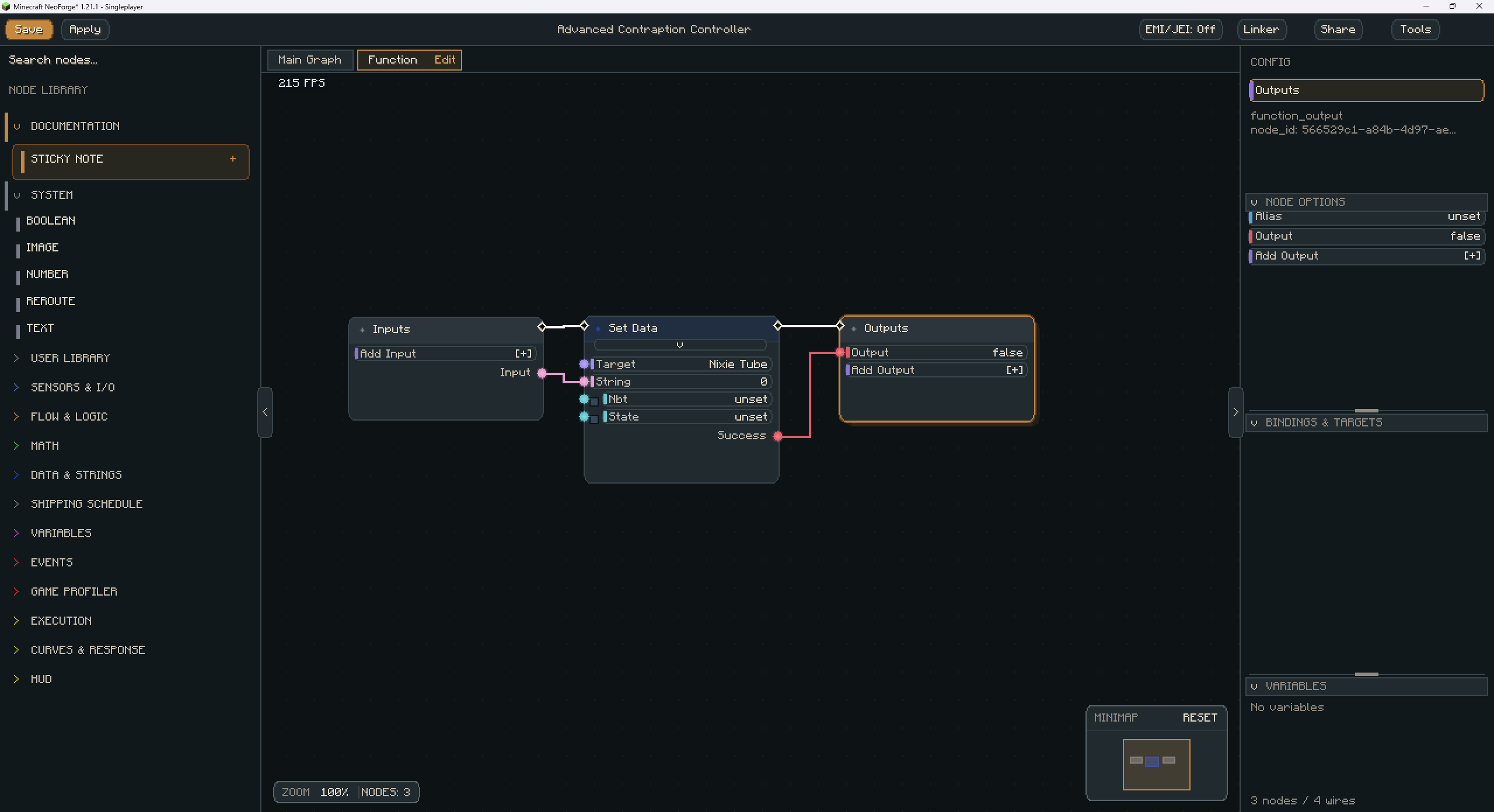

The Function plotter is a 2D Math notation function plotter, allowing you to plan out complex math formulas and convert them into Graph Functions to be used inside the node graph.

To share a graph, click on the Share button in the tool bar and give it a name. You have 2 options for sharing.
- Local: saves the graph locally to the /shared_graphs directory as a JSON file to be sent to friends.
- Share Link: Saves the graph on the https://gg-mc.com server to be shared over the internet via share link.

Where are shared graphs saved?
- In the minecraft /shared_graphs directory on the server or client, you can choose when saving a graph
When I create a share link what happens?
- When you create a share link, your current saved graph is parsed into a JSON format, serialized and sanitized then uploaded to https://gg-mc.com with a UUID for it, you can then copy and paste that link to send it to a friend. Opening the link will load a web based node graph that doesn't function but will show the layout and wiring of the saved graph and allow downloading the graph or installing it directly into the Minecraft instance
How do I use the HUD nodes?
- First open the
LinkerGUI and place aSmart Glassesitem in theGogglesslot, it will bind them to thatAdvanced Contraption Controller, from there you just need to wear them to get access to theGoggles TrackerandHUDnodes.