Repository navigation
User Manual
Snapshot of
docs/user/manual.mdat commit707b4a0, preserved before the docs were compacted. History only: the current specs are in the repository.
For coaches, athletes and anyone who wants to train with ReactPods. No technical knowledge needed. A German short guide with pictures is in anleitung.pdf; the technical details of each game are in game-modes.md. Planning sessions: coach guide.
Safety: never leave ReactPods charging unattended. They get warm while charging.
ReactPods are round training lights that you press. Each pod has a ring of lights and one big button under its top. You place several pods around you (on the floor, a wall, a table, a cone), start a game, and press the pods as fast as you can when they light up. The pods measure how fast you react.
Typical uses: reaction and footwork training, agility drills, warm-ups, team games, rehab and fun at children's training.
A few pods that play together are called a set. One pod of the set leads the game; we call it the central. All other pods are targets (in the technical documents: peripherals). Any pod can be the central: it only depends on how you switch it on.
The pods talk to each other by radio. You need no phone, no WiFi and no cables to play the shipped games. The ReactPod app is optional: with it you can change games, build your own, try them on screen and keep results.
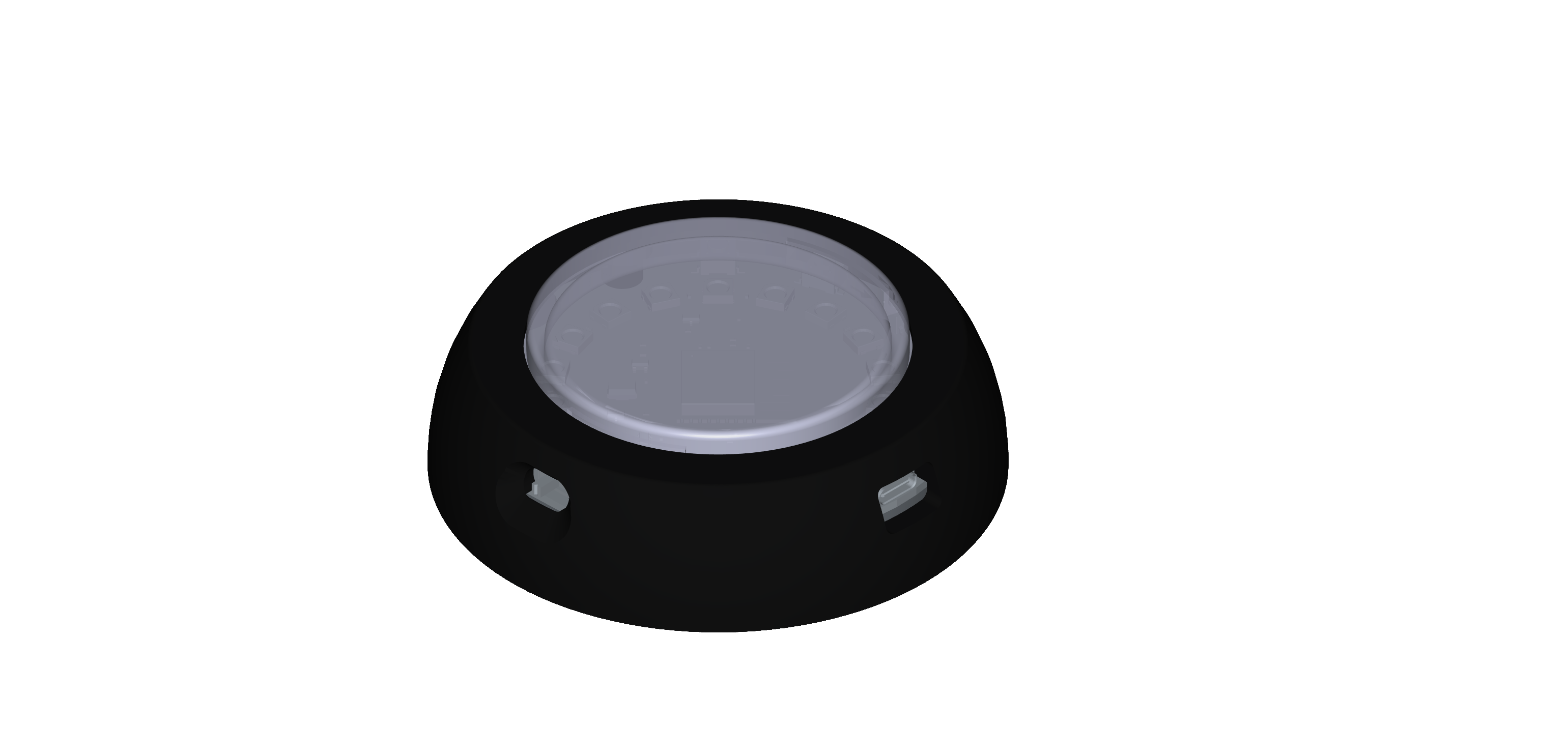
| Part | What it does |
|---|---|
| Top (button surface) | Press it. The whole top is the button. |
| Light ring | 18 lights under the top. They tell you what to do and what the pod is doing. |
| On/off switch | Off when the switch points away from the USB port. |
| USB-C port | Charging (and, for experts, updates and the USB connection to a computer). |
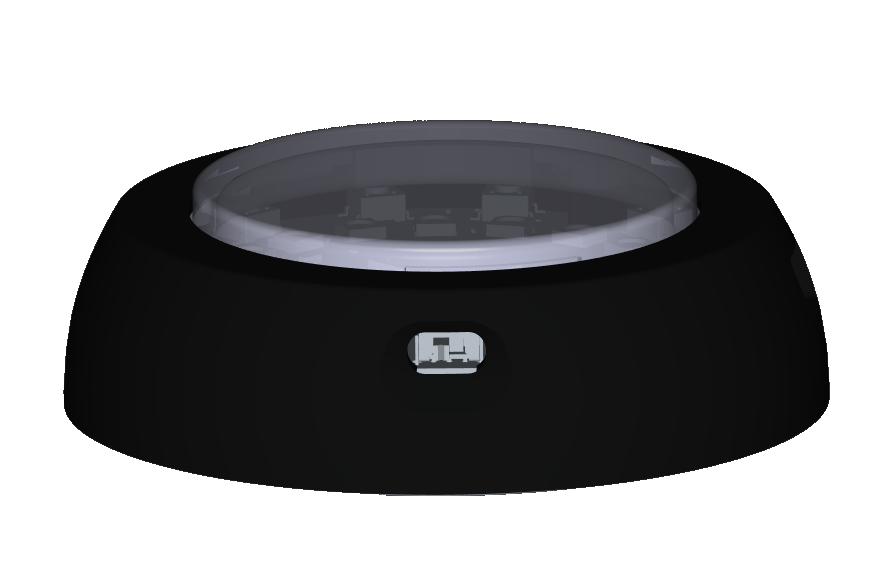
- Use any common USB-C cable and charger.
- The pod must be switched on to charge.
- It gets warm and lights up while charging. You can keep using it.
- Never charge unattended.
A charge lasts about an hour of play. The level is shown in the app (pod page, from firmware 2.13) and by the boot gauge below. On USB the pod measures the charger's voltage, so it shows nearly full while it charges.
- Switch on: for 2 seconds the light ring fills up like a gauge: up to the charge of the battery, in green above 50 %, amber from 20 to 50 %, red below 20 %. The level is measured before the lights come on. Hold the top during these 2 seconds to make the pod the central, as before.
- Below 15 %: a pod waiting in its set (not in a game) blinks amber once a second. Charge it soon.
- Below 5 %: the game does not start. When you confirm on the central, its ring flashes red for a second. Charge the pod (or the central) first.
- A pod that is not in a set (waiting, no central) or a central in the program menu with no app connected goes to sleep after 10 minutes without a press.
- Before it sleeps, the ring empties in white for about a second.
- Wake it: press the top. The pod starts as usual (battery gauge first, then its role). Hold the top during the gauge to make it the central.
- A pod in a set, every central during a set-up or a game, and a pod connected to a computer by USB never go to sleep (on a plain USB charger it can).
- The sleeping pod still draws a little current from its battery, and the lights draw a little more. Switch it off with the switch for storage or for a long break.
You need: the pods the game asks for (see §6), switched off.
- Switch on the target pods. For about 2 seconds the ring fills up and shows the battery (green, amber or red), then it turns yellow: it is waiting for a central. The yellow ring has one short coloured mark, different on every target, so you can tell them apart.
- Switch on the central: switch on one more pod and press and hold its top while the battery ring is shown. Let go when the light goes out. A small pattern of lights now shows the first game of the program menu.
- Choose a game: a short press shows the next game. Each game has its own light pattern (see §6).
- Select it: press and hold. A white light gets brighter; when it goes out (after about 2 seconds), let go.
- Wait for the targets: the central shows blue lights in pairs, one pair per target it still needs. The yellow targets go dark one after the other as they join. When all have joined, the central turns green. While it waits, every target that has joined shows its number: as many lights as its number, in its own colour (pod 1 one light, pod 2 two lights, and so on). The colours are the same as in the app.
- Start: press the central once. Play!
To play another game: switch the central off and on again (holding the top during the battery ring, as in step 2). The targets can stay on; they wait in yellow and join again.
The games tell you everything through light. The most common signals:
| You see | It means |
|---|---|
| Green pod | Press it, as fast as you can. |
| Red pod | Do not press it. |
| Dark target | Ready, waiting for its turn. |
| Cyan central after a press | Hit, well done. |
| Red central | False start (you pressed too early) or a miss. |
| All blue for a few seconds | One round series (a cycle) is over; the next one starts by itself. |
| All yellow on the central | A target was lost (switched off, out of range, flat battery). The game waits and goes on by itself when it is back. |
How many rounds a cycle has depends on the game (often 12). After each cycle the central calculates your best, average and worst reaction time. The ring shows the average as a bar for 3 seconds (firmware 2.13 or newer), before it turns blue again and waits for the next start:
- The longer the bar, the faster the average.
- Green: faster than the target time. Yellow: up to 1.5 times the target. Red: slower.
- The target time is set by the game (the shipped games use 450 ms).
The best and worst times are only in the app (see §8.6).
- A target remembers the central it played with first and from then on only joins its own set. That way two groups can train in the same hall without stealing each other's pods.
- Any pod of the set can be the central next time.
- Moving a pod to another set: switch it on as a target. While it is yellow, press and hold its top for 3 seconds until it flashes white. It has forgotten its set and joins the next central it meets.
- With the app you can give a set a name (for example "Hall A"). The name is what you see when you connect by Bluetooth.
- Finding a pod: in the app, Pod tab, Pods of this set, press Blink next to it: the pod flashes for two seconds. This works before the game starts.
If a target stays yellow and never joins, it most likely belongs to another set. Clear it as described above.
The pattern is what the central shows in the program menu (light number 0 is at the top, then clockwise; the exact look is easiest to see in the app's Menu page).
| Game | Pods | Pattern | How it plays |
|---|---|---|---|
| Solo | central only | one blue light | Blue = get ready. After a random wait it turns green: press. Pressing too early = red (false start). |
| Weiche (switch) | central + 2 | blue, yellow, blue | Press the central, then one of the two targets lights up at random, then the central again. |
| Dreieck (triangle) | central + 2 | three blue | One of the three pods lights at random; the next one lights as soon as you press. Never the same pod twice in a row. 12 rounds. |
| Quadrat (square) | central + 3 | four blue | Like Dreieck with four pods. |
| Stern (star) | central + 4 | blue, blue, yellow, blue, blue | Like Weiche with four targets. |
| Dreizack (trident) | central + 3 | yellow, three blue | Like Weiche with three targets. |
| Run | central + 2 | three cyan | All pods light up at the same moment. Press them all; then a short break and the next round. |
| Run5 | central + 4 | cyan, red, cyan, red, cyan | All five light at once, two of them red. Press only the green ones; pressing a red one ends the round. |
| Duo | central + 1 | two blue | Central and target take turns after a random short wait. Not pressed within 5 s = a miss. 10 rounds. |
| Effects | central + 1 | magenta + yellow | A show of the light effects: traffic light countdown, then press the target and the central in time. |
| Charge | central + 1 | three cyan | Hold the button to "charge" the ring and let go at the right moment. |
| Release | central + 1 | two green | Hold the pod, and let go as soon as it turns green (start reaction, like a sprint start). |
| Domination | central + 2 | red and blue | Team game: two teams run around and press pods; each press flips a pod between red and blue. After 20 s the team with more pods wins. |
The menu on your pods may differ: with the app you can add, remove and reorder games.
The ReactPod app runs in the web browser, on phones and computers:
https://runningjoke.github.io/reactionButton/
- Best in Chrome or Edge (Android, Windows, Mac, Linux). Bluetooth in the browser does not work on iPhone yet.
- Install it from the browser menu ("Install app" / "Add to home screen"). It then opens like a normal app and also works without internet.
- Languages: English and German (Settings → Language).
- Demo pod: you can try everything without pods. Choose Demo pod when you connect.
Tap the connection chip at the top, then choose:
| Choice | When |
|---|---|
| Bluetooth | Phone or computer. The central must be in the program menu (§3, step 2). Pick "ReactPod …" in the list. |
| USB cable | Computer with Chrome or Edge, any pod. |
| Demo pod | No pods at hand: a pod simulated in the app. |
Only the central in the program menu can be changed. Up to firmware 2.11, Bluetooth switches off as soon as a game is selected, so connect before you select a game. Firmware 2.12 and newer keep the connection during the game (see §8.6).
If the pod is protected with a PIN, the app asks for it before you change anything.
| Page | What you do there |
|---|---|
| Pod | See the connected set: name, firmware, which games are on it, and whether they match the app. Push your changes to the pod, or restore the original games. Rename the set. |
| Training view (from the Pod page) | The connected set on one card: who trains, the last report and, while a game waits, Continue / Repeat / Stop and the values for the next round. Pause and resume a game (firmware 2.12). See §8.6. |
| Programs | All games: the ones on your pod, the shipped ones and your own. Open one to see how it works, copy it, import or export it. |
| Editor | Change a game or build a new one, step by step (§8.3). |
| Simulate | Play a game on screen: tap the virtual pods instead of the real ones. Good for checking your own games. |
| Menu | Choose which games are in the pod's menu, in what order, and the light pattern of each. Opened from the Pod page. |
| Results | Athletes, training sessions and their reaction times; statistics and CSV export. |
| Settings (gear icon) | Language, expert mode, platform sign-in (preview, development paused), advanced tools. |
Open the game in Programs, tap Adjust (or open it in the Editor) and change the number of rounds. Saving makes your own copy on the phone; push it to the pod (§8.4).
Pod → Menu: move games up or down, remove games you never play, pick a light pattern. Then push it to the pod (§8.4).
The Editor builds a game from steps, like a recipe: "light pod 2 green", "wait for a press", "wait 1 second", "repeat 12 times", "report to the app" and so on.
- Programs → New program, or copy a shipped game that is close to what you want.
- The game wizard asks a few questions (how many pods, what should happen) and builds a first version (Build my game).
- Add a step: tap + and say what it should do (light up, wait, choose a pod at random, count, …). Every step has a sheet with its settings.
- Try it in Simulate.
- Put it into the menu (§8.2) and send it to the pod (§8.4).
Everything works without drag and drop. Experts can switch on Settings → Expert mode to see every technical detail of a step.
Connect to the central (§7.1) and open Pod. The app shows which games differ between the app and the pod. Tap Push to pod. The targets get the new games automatically: start any game once with all pods of the set switched on.
Restore defaults puts the original shipped games back.
Give every set its own name (Pod → Rename set) and keep the sets apart (§5). One phone can look after one set at a time; following several sets at once is planned.
In Results you create athletes (with consent; for children, the parents' consent) and see their training sessions, best and average times and every single value. A session can be exported as a spreadsheet (CSV).
Live results need firmware 2.12 or newer on the central:
- it keeps Bluetooth on during the game, and
- the shipped games send a report after each cycle.
With them, the Pod page gets a Training section during a game: who trains now, the last report, and the buttons Continue, Repeat (do the cycle again, the result is not counted) and Stop. Until then the app tells you that the pod sends no results yet.
Training view (on the Pod page, below the menu link) shows the connected set on one card. The app follows one set at a time; connecting another set ends the first connection. The card shows the set's state (menu, discovery, running, paused, waiting for you), who trains, the last report and the controls of that set. While a game waits, the card offers Continue, Repeat and Stop and a number field per value you may change for the next round. Pause and Resume need firmware 2.12.
Keep the app open during training. The screen stays on while the view is open, but when the phone sleeps or the app goes to the background, Bluetooth drops. The app then connects again by itself while it is open. Reports that came in meanwhile are fetched and stored, so they are not lost.
Uploading results to an online athlete profile (club platform) is a preview feature (development paused) under Settings.
Deleting an athlete removes the athlete and all their training sessions and results on this phone. A linked profile is deleted on the club platform too, with all its results and invitations, as soon as the phone is online and signed in, even if automatic upload is off. Reports that are still on a pod for this athlete are discarded when the pod sends them, so they never reach the platform. If you delete your own profile on the platform, your results there are deleted too, and you can no longer see them.
| Problem | Try this |
|---|---|
| A pod shows nothing when switched on | Charge it (switched on). Check the switch position. |
| The central shows a game pattern but no target joins | Targets must be on and yellow. A target of another set stays yellow: clear it (hold 3 s while yellow, white flash). |
| The central stays on blue pairs | Not enough targets for this game: switch on more pods, or choose a game for fewer pods. |
| All yellow on the central during a game | A target is lost (battery, out of range, switched off). Bring it back; the game continues by itself. |
| The central flashes red when you confirm | A battery is below 5 %. Charge the pods (and the central) and start again. |
| The central blinks red | It has no games or a game is broken. Connect with the app and use Restore defaults. |
| The app can't find the pod over Bluetooth | The central must be in the program menu (switch on while holding the top). Use Chrome or Edge. On a computer, switching Bluetooth off and on often helps. |
| "The pod is busy" in the app | A game is running. Switch the central off and on into the menu. |
| The app asks for a PIN | The owner protected the set. Ask them, or clear the PIN over USB. |
| Which pod is which? | In the app (Pod tab, Pods of this set) press Blink next to a pod: it flashes for two seconds. |
| I want to play a different game | Switch the central off and on (holding the top during the battery ring) and choose again. |
| Pod | Light | Meaning |
|---|---|---|
| any | ring fills up for 2 s: green, amber or red | battery level (switch on). Hold the top to make it the central |
| target | yellow with one short coloured mark | waiting for the central of its set. The mark is different on every target |
| target | as many lights as its number, in its colour, turning slowly | joined: its number (while the central waits for the targets) |
| target | flashing for 2 s | found with Blink in the app |
| target | slow amber blink, once a second | battery below 15 %, waiting in the set (not during a game) |
| target | white flash | set forgotten (held 3 s while yellow) |
| any | ring empties in white for about 1 s, then dark | going to sleep after 10 minutes without a press (press the top to wake) |
| central | flashing white for 2 s | the central itself, found with Blink in the app |
| target | dark | ready |
| target | green / red | press / don't press |
| central | small pattern | program menu: short press = next game, hold = select |
| central | white light getting brighter | selecting (keep holding) |
| central | blue pairs | waiting for targets to join |
| central | all green | ready: press to start |
| central | all yellow | paused, a target is missing |
| central | bar on the ring for 3 s after a cycle, green / yellow / red | average reaction time: longer bar = faster. Green: better than the target, yellow: up to 1.5 times the target, red: slower |
| central | red, blinking slowly | error: no games or a broken game |
| central | red flash for 1 s when you confirm | the game does not start: a battery is below 5 % |
| Word | Meaning |
|---|---|
| Pod | One ReactPod. |
| Set | The pods that play together. |
| Central | The pod that leads the game (switched on with the top held). |
| Target / peripheral | Every other pod of the set. |
| Game / program | What the pods do. Stored on the central. |
| Program menu | The list of games on the central, shown as light patterns. |
| Round | One task, e.g. "press the green pod". |
| Cycle | A series of rounds (e.g. 12), followed by the summary. |
| Report | The results of one cycle, sent to the app. |
| Demo pod | A pod simulated inside the app. |