Ex.No:6 Build a program to create a first display screen of any search engine using Auto Complete Text View.
To develop a program to create a first display screen of any search engine using AutoComplete TextView in Android Studio.
Android Studio(Min.required Artic Fox)
Step 1: Open Android Studio and then click on File -> New -> New project.
Step 2: Then type the Application name as searchengine and click Next.
Step 3: Then select the Minimum SDK as shown below and click Next.
Step 4: Then select the Empty Activity and click Next. Finally click Finish.
Step 5: Design layout using AutoComplete TextView in activity_main.xml.
Step 6: Display screen of search engine in MainActivity file.
Step 7: Save and run the application.
/*
Program to create a display screen of any search engine.
Developed by: SAFA
Registeration Number : 212220230040
*/
package com.example.exp_06autocomplete;

        import android.graphics.Color;
        import androidx.appcompat.app.AppCompatActivity;
        import android.os.Bundle;
        import android.widget.ArrayAdapter;
        import android.widget.AutoCompleteTextView;

public class MainActivity extends AppCompatActivity {
    String[] fruit ={"Asparagus","Brocoli","Brinjal","Cabbage","Cauli flower","Coriander","Curry leaves","Carrot","Cucumber","Drum stick","Ginger","Garlic","Lady Finger","Mushroom","Potato","Raddish","Spinach","Onion","Tomato","Zucchini"};
    @Override
    protected void onCreate(Bundle savedInstanceState) {
        super.onCreate(savedInstanceState);
        setContentView(R.layout.activity_main);
        //Creating the instance of ArrayAdapter containing list of language names
        ArrayAdapter<String> adapter = new ArrayAdapter<String>
                (this,android.R.layout.select_dialog_item,fruit);
        //Getting the instance of AutoCompleteTextView
        AutoCompleteTextView actv =  (AutoCompleteTextView)findViewById(R.id.autoCompleteTextView);
        actv.setThreshold(1);//will start working from first character
        actv.setAdapter(adapter);//setting the adapter data into the AutoCompleteTextView
        actv.setTextColor(Color.RED);
    }
}
<?xml version="1.0" encoding="utf-8"?>
<androidx.constraintlayout.widget.ConstraintLayout
    xmlns:android="http://schemas.android.com/apk/res/android"
    xmlns:app="http://schemas.android.com/apk/res-auto"
    xmlns:tools="http://schemas.android.com/tools"
    android:layout_width="match_parent"
    android:layout_height="match_parent"
    tools:context=".MainActivity">

    <TextView
        android:id="@+id/textView"
        android:layout_width="331dp"
        android:layout_height="62dp"
        android:text="What is your favourite Vegetable?"
        android:textColor="#C5082D"
        android:textSize="25sp"
        android:textStyle="bold"
        app:layout_constraintBottom_toBottomOf="parent"
        app:layout_constraintHorizontal_bias="0.662"
        app:layout_constraintLeft_toLeftOf="parent"
        app:layout_constraintRight_toRightOf="parent"
        app:layout_constraintTop_toTopOf="parent"
        app:layout_constraintVertical_bias="0.14" />

    <AutoCompleteTextView
        android:id="@+id/autoCompleteTextView"
        android:layout_width="358dp"
        android:layout_height="55dp"
        android:background="#F3AFB9"
        android:text=""
        android:textColor="@color/black"
        app:layout_constraintBottom_toBottomOf="parent"
        app:layout_constraintEnd_toEndOf="parent"
        app:layout_constraintHorizontal_bias="0.49"
        app:layout_constraintStart_toStartOf="parent"
        app:layout_constraintTop_toTopOf="parent"
        app:layout_constraintVertical_bias="0.667" />

    <ImageView
        android:id="@+id/imageView"
        android:layout_width="286dp"
        android:layout_height="200dp"
        app:layout_constraintBottom_toBottomOf="parent"
        app:layout_constraintEnd_toEndOf="parent"
        app:layout_constraintHorizontal_bias="0.496"
        app:layout_constraintStart_toStartOf="parent"
        app:layout_constraintTop_toTopOf="parent"
        app:layout_constraintVertical_bias="0.378"
        app:srcCompat="@drawable/veg" />
</androidx.constraintlayout.widget.ConstraintLayout>


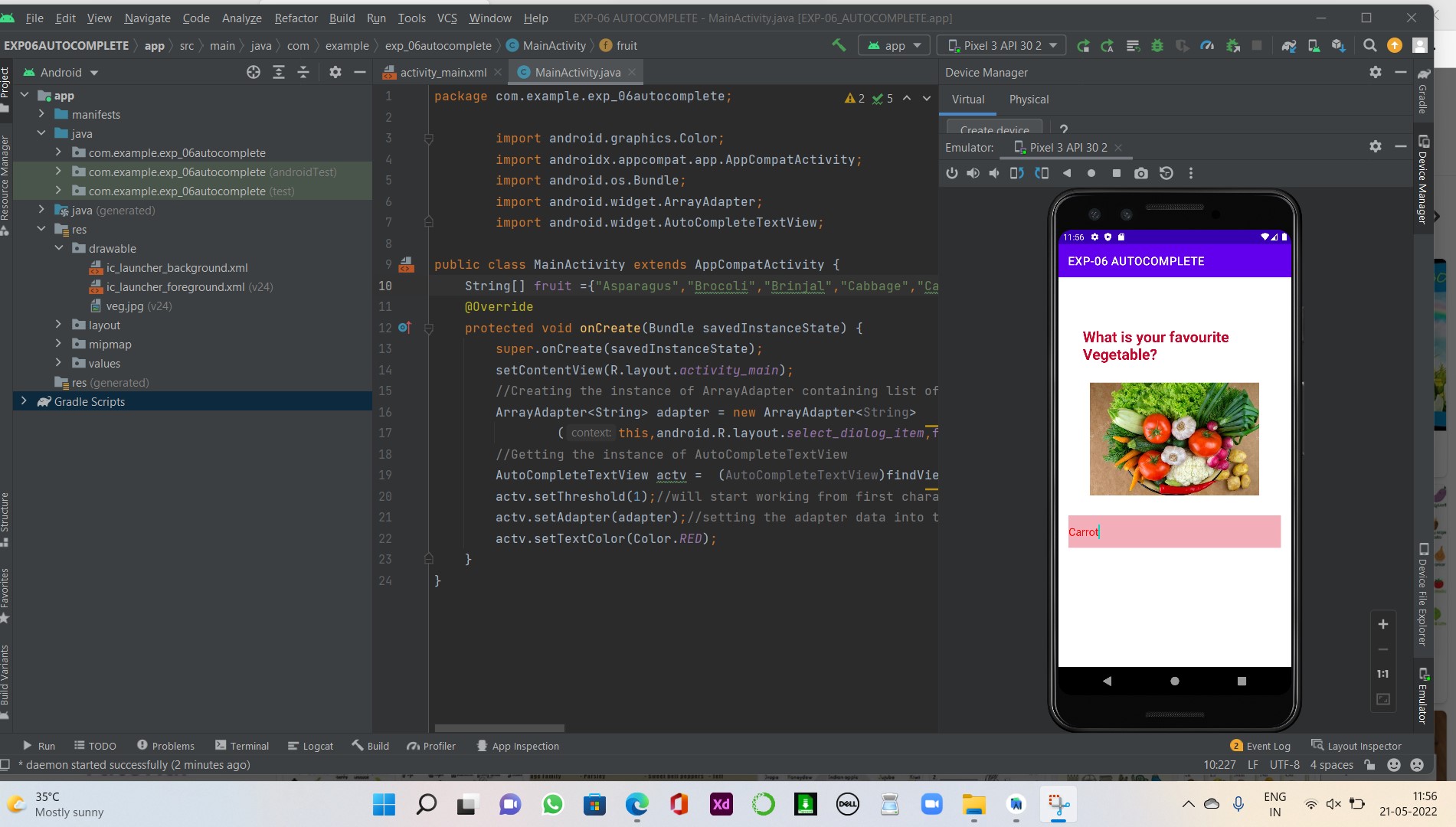
Thus a Simple Android Application develop a program to create a first display screen of any search engine using AutoComplete TextView in Android Studio is developed and executed successfully.